---
title: Completing a Sample Minor Ailment Assessment
description: Learn how to complete a sample Minor Ailment assessment in MedEssist so your team can familiarize themselves with the workflow before assessing patients.
---
[Skip to content](https://help.medessist.com/completing-a-sample-minor-ailment-assessment#main-content)
[](https://help.medessist.com?hsLang=en)
Open main navigation
Close main navigation
- [Launch MedEssist](https://app.medessist.com/)
[Launch MedEssist](https://app.medessist.com/)
How can we help you?
- There are no suggestions because the search field is empty.
1. [MedEssist Help](https://help.medessist.com/?hsLang=en)
2. [Clinical Tools](https://help.medessist.com/clinical-tools?hsLang=en)
3. [Minor Ailments and Prescribing](https://help.medessist.com/clinical-tools?hsLang=en#minor-ailments-and-prescribing)
# Completing a Sample Minor Ailment Assessment
## Learn how to complete a sample Minor Ailment assessment in MedEssist so your team can familiarize themselves with the workflow before assessing patients.
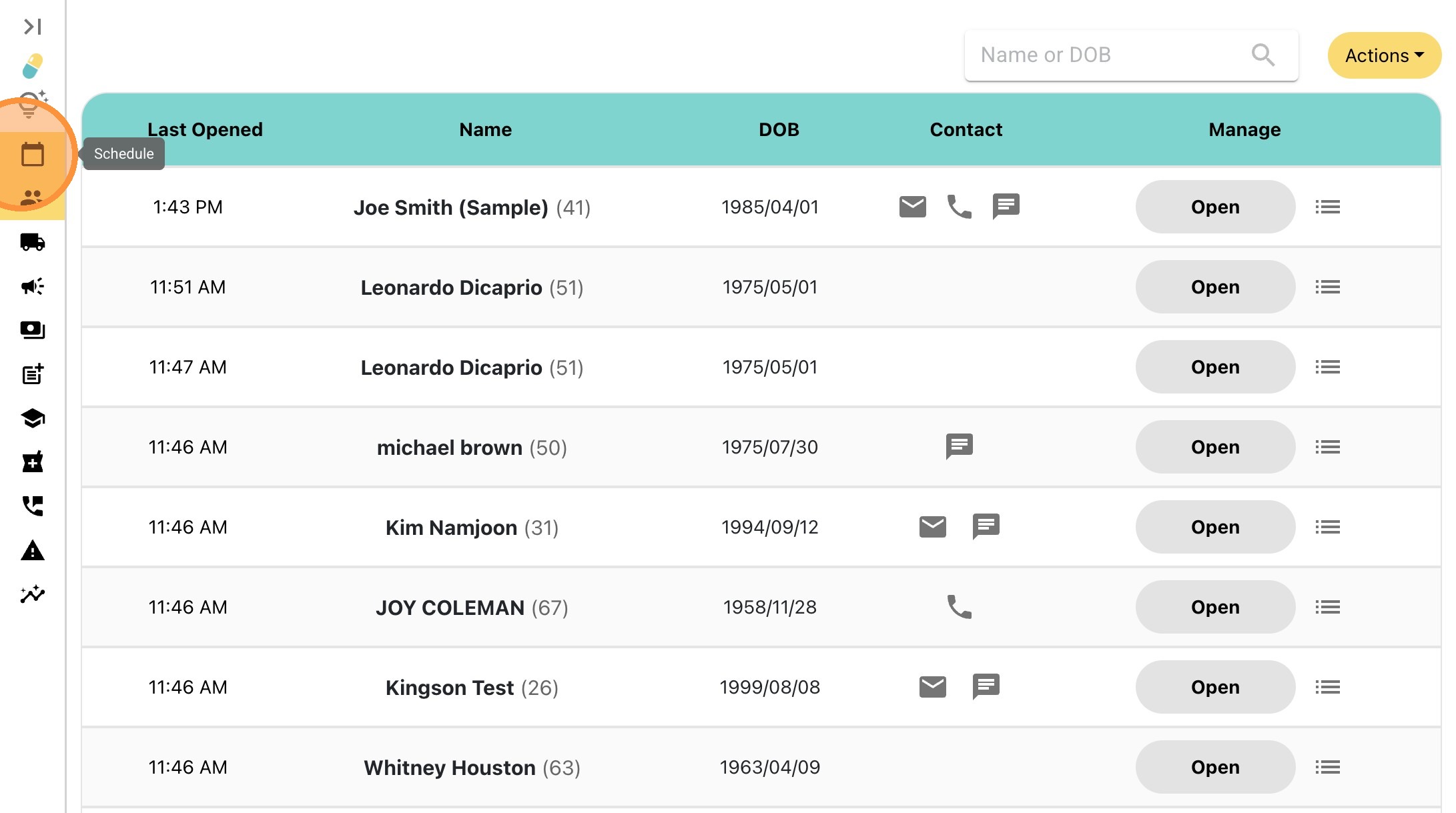
1\. On your MedEssist dashboard, click **"Schedule"** on the left hand side.
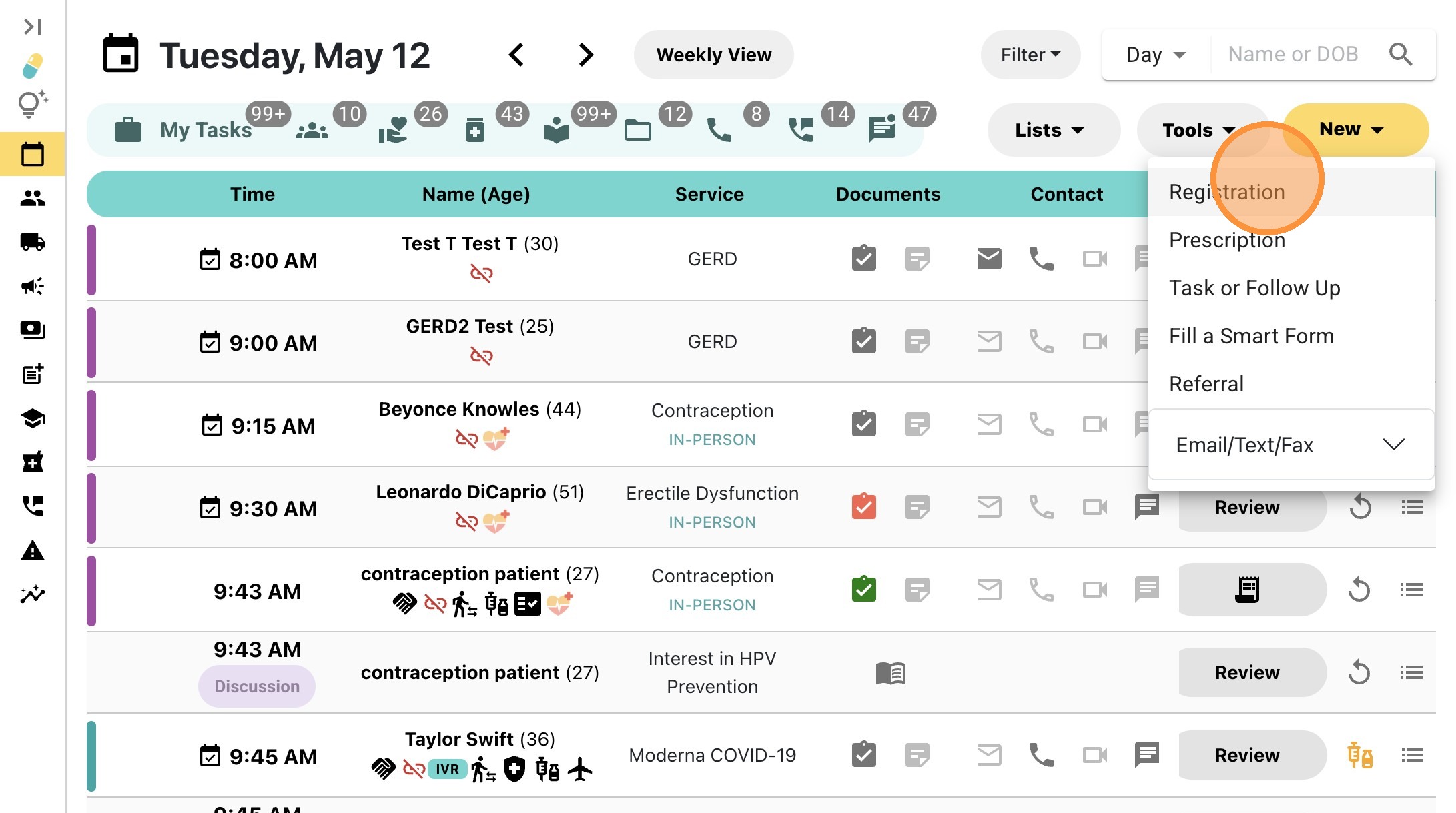
2\. Click **"New"** in the top-right corner and select **"Registration"** from the drop-down.

3\. Select **"Minor Ailments & Conditions"** and choose a condition from the dropdown menu, then click **"Assess Now".** A new popup window will appear.
### Clinical Assessment
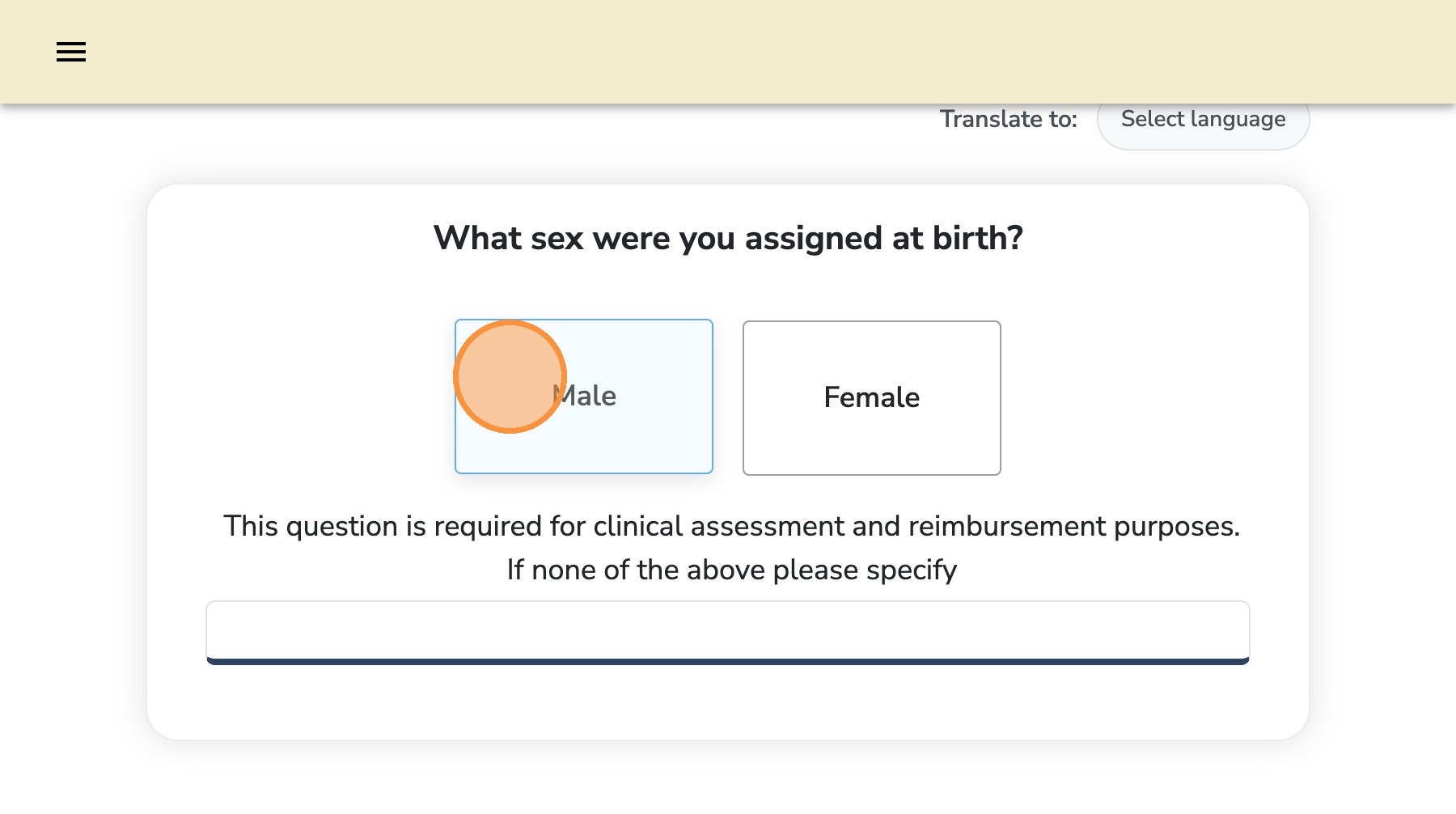
4\. Complete the patient questionnaire using sample patient information.
**Tip:** Intentionally select some responses that may trigger a red or yellow flag to see how they appear on an assessment.
### Patient Information

5\. Enter test patient information
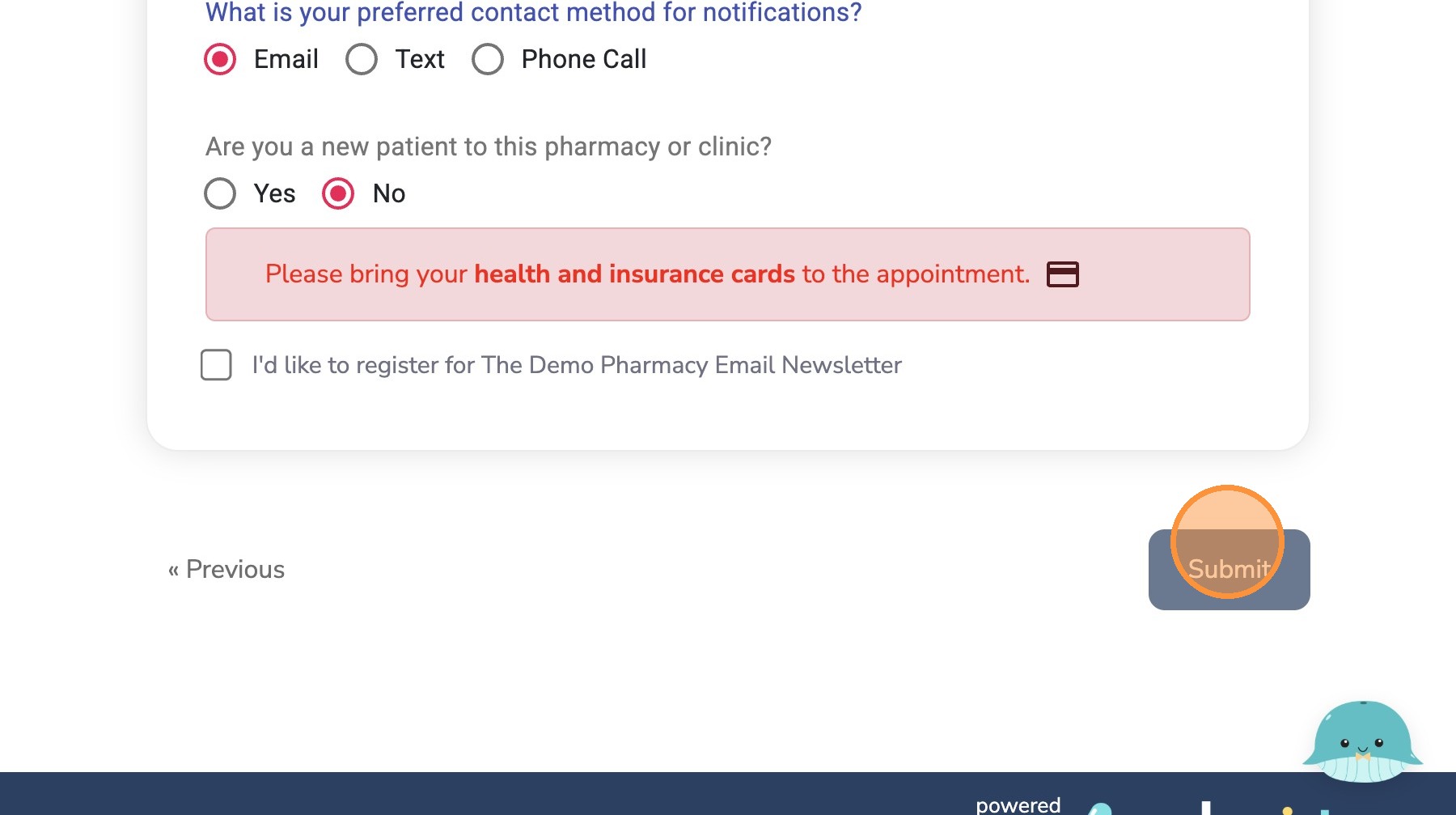
6\. Click **"Submit"**
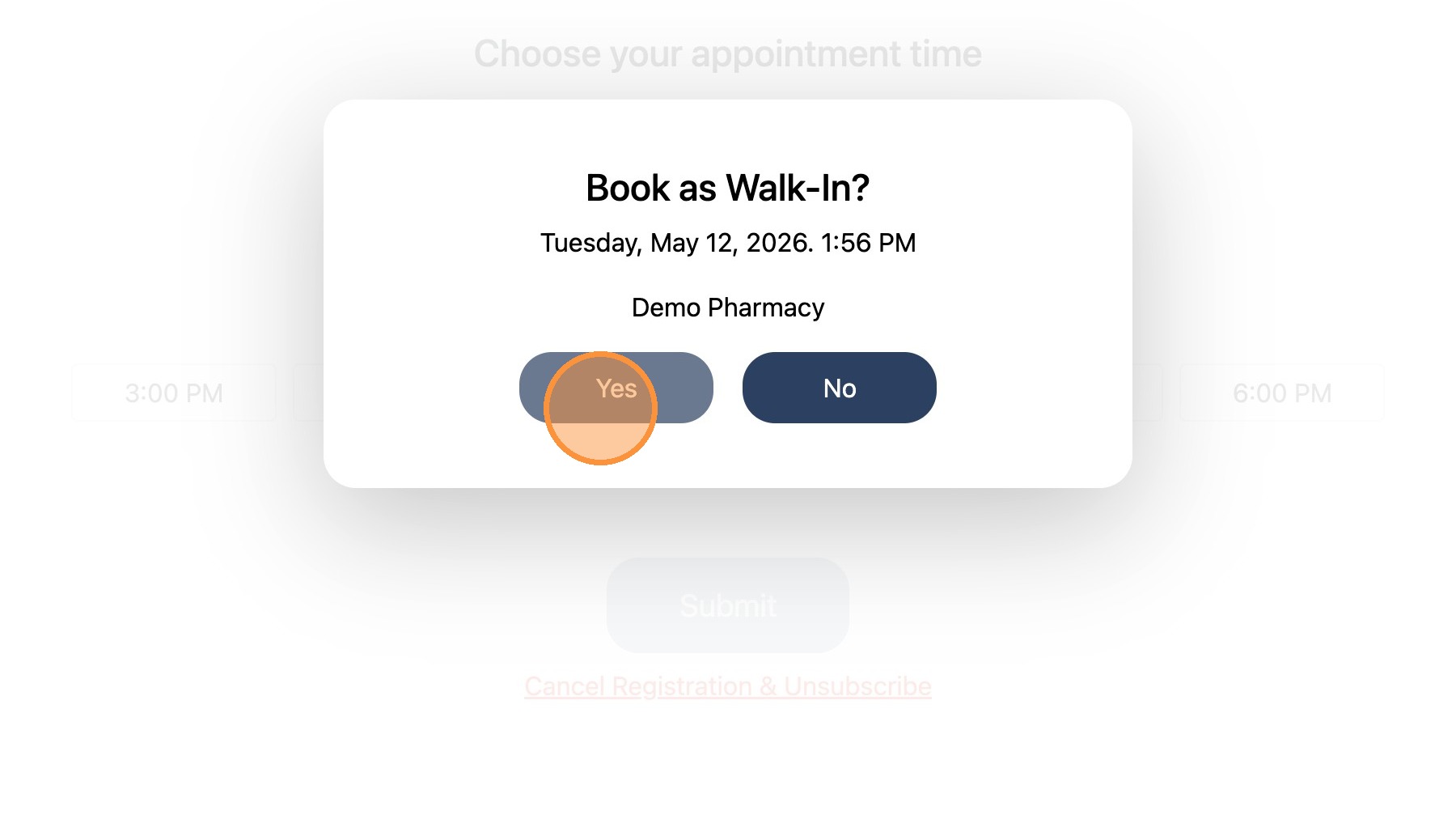
7\. Click **"Yes"** to continue the test assessment as a walk-in
### Documentation Finalization
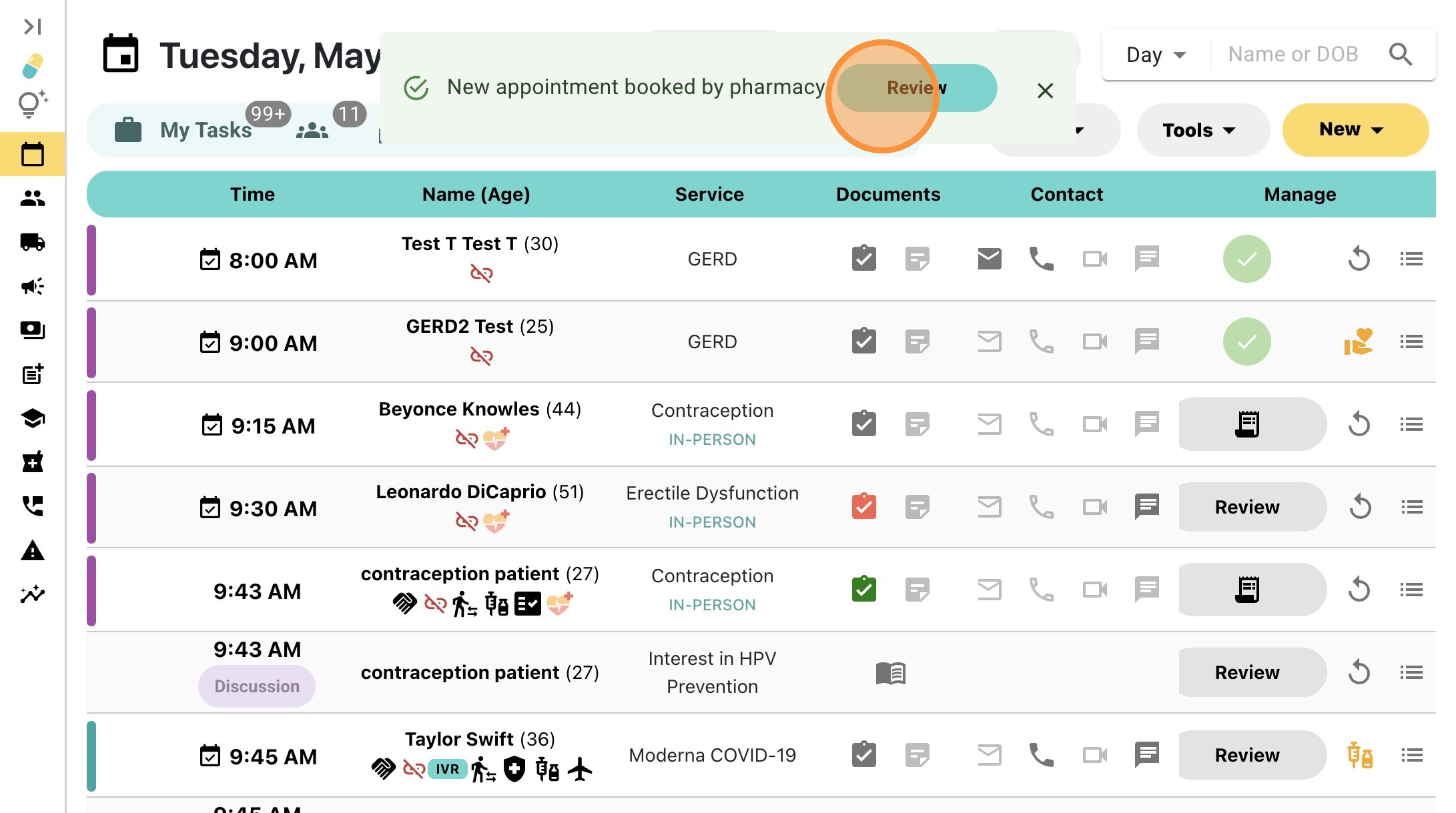
8\. Return to your MedEssist dashboard. Click **"Review"** to access the completed patient questionnaire and assessment documentation
9\. Practice completing the assessment: view responses, red/yellow flags, clinical pearls, treatment options, and more.
### Appointment Management

10\. If you would like to remove the test appointment from your schedule, exit the assessment without saving and click the menu icon
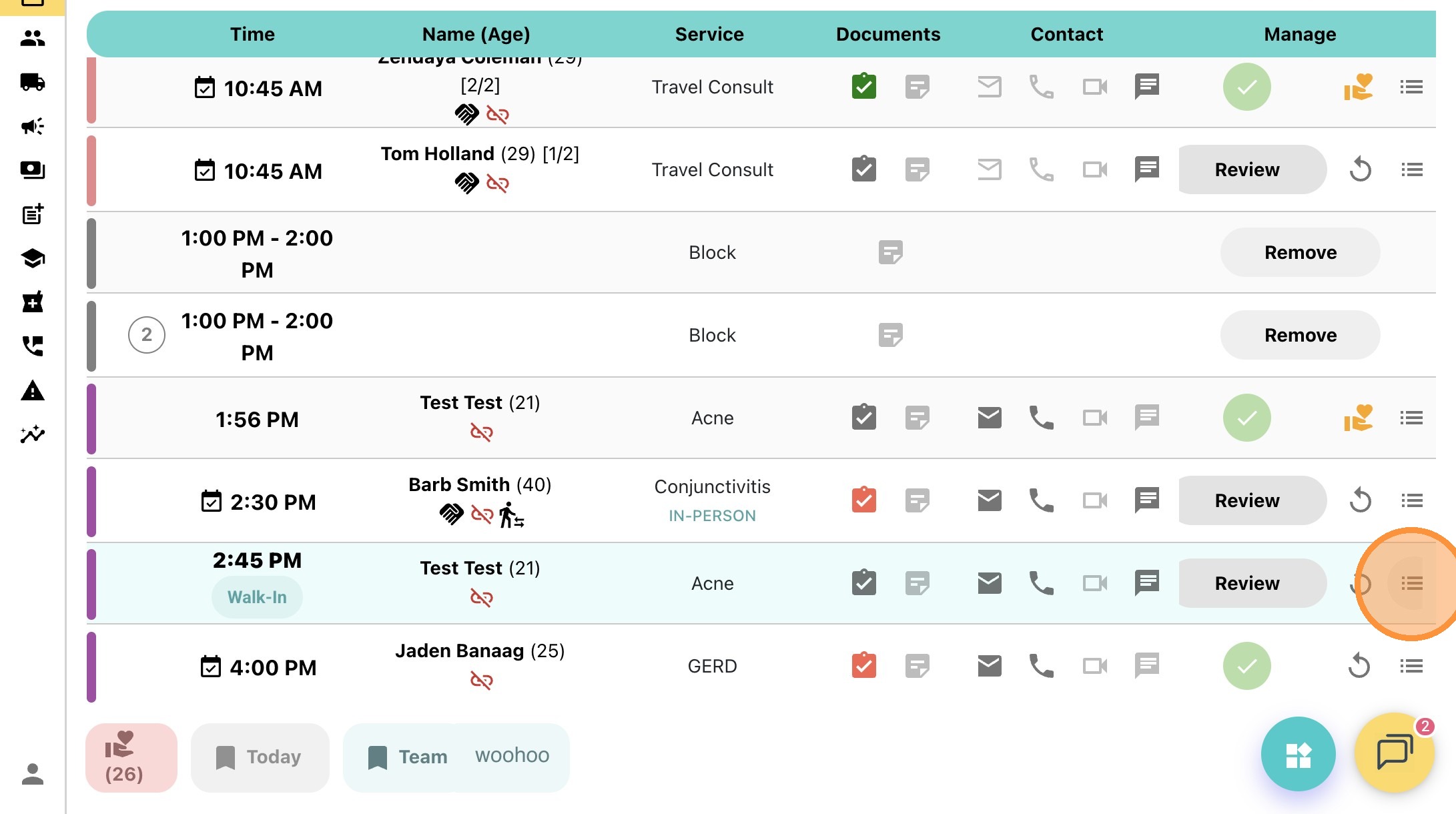
11\. Click **"Rebook/Cancel"**
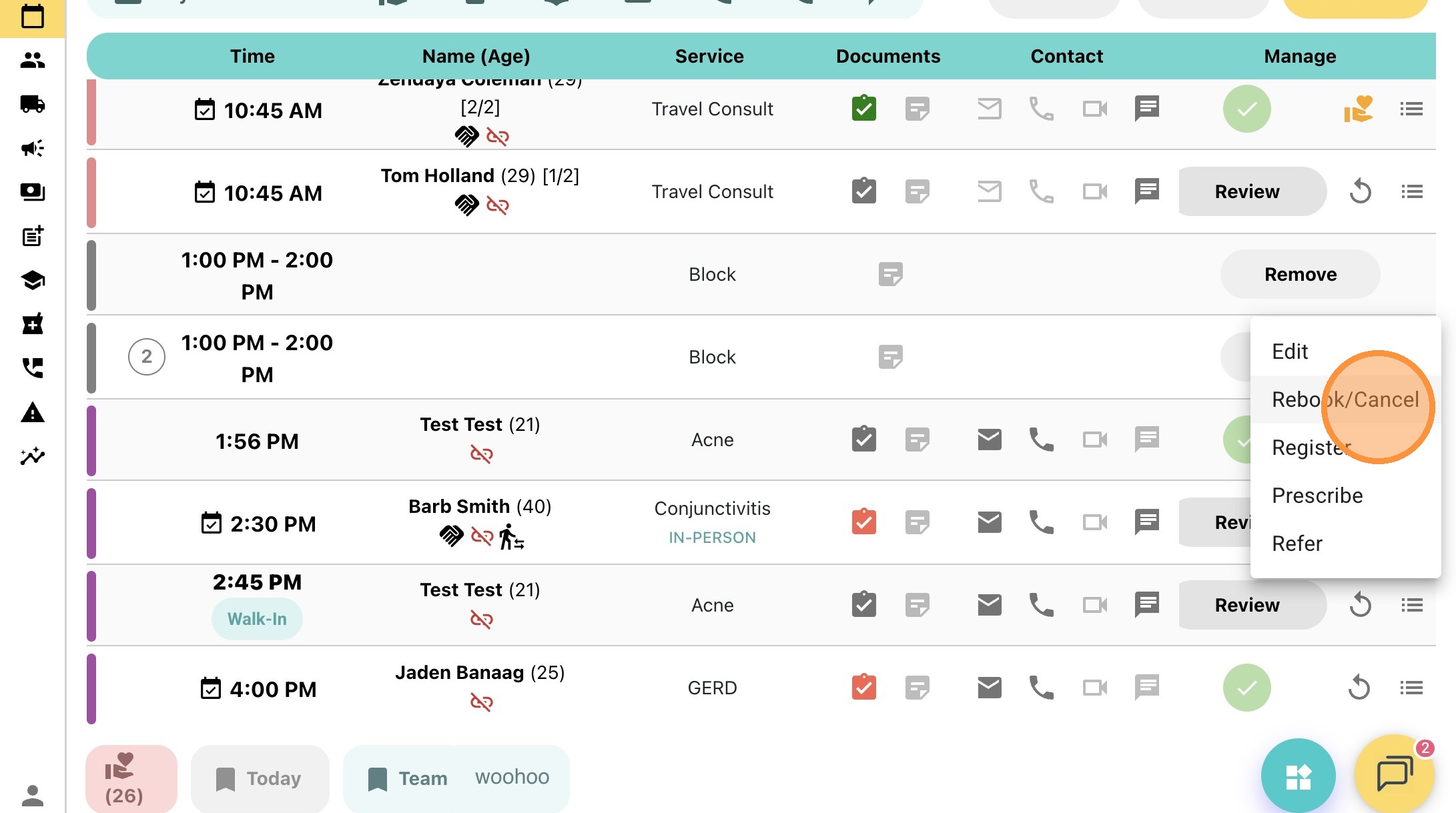
12\. Click **"Add to Recycle Bin"**
- [Pharmacy Set-Up Guide](https://help.medessist.com/pharmacy-set-up-guide?hsLang=en)
- [Clinical Tools](https://help.medessist.com/clinical-tools?hsLang=en#main-content)
- [Minor Ailments and Prescribing](https://help.medessist.com/clinical-tools?hsLang=en#minor-ailments-and-prescribing)
- [Vaccines](https://help.medessist.com/clinical-tools?hsLang=en#vaccines)
- [Smart Forms](https://help.medessist.com/clinical-tools?hsLang=en#smart-forms)
- [Consultations and Assessments](https://help.medessist.com/clinical-tools?hsLang=en#consultations-and-assessments)
- [MedEssist Deliveries](https://help.medessist.com/medessist-deliveries?hsLang=en)
- [Incident Reporting](https://help.medessist.com/incident-reporting?hsLang=en#main-content)
- [Getting Started](https://help.medessist.com/incident-reporting?hsLang=en#getting-started)
- [FAQs](https://help.medessist.com/incident-reporting?hsLang=en#faqs)
- [Digital Storefront](https://help.medessist.com/digital-storefront?hsLang=en#main-content)
- [Branding](https://help.medessist.com/digital-storefront?hsLang=en#branding)
- [Adding and Editing Content](https://help.medessist.com/digital-storefront?hsLang=en#adding-and-editing-content)
- [Schedule & Appointments](https://help.medessist.com/schedule-appointments?hsLang=en#main-content)
- [Custom Services](https://help.medessist.com/schedule-appointments?hsLang=en#custom-services)
- [Communication Tools](https://help.medessist.com/communication-tools?hsLang=en)
- [Pharmacy and Account Settings](https://help.medessist.com/pharmacy-and-account-settings?hsLang=en)
- [Access to Care](https://help.medessist.com/access-to-care?hsLang=en#main-content)
- [FAQs](https://help.medessist.com/access-to-care?hsLang=en#faqs)
- [Marketing Tools](https://help.medessist.com/marketing-tools?hsLang=en)
- [Integrations](https://help.medessist.com/integrations?hsLang=en)
- [Lumi AI](https://help.medessist.com/lumi-ai?hsLang=en)
[](http://www.medessist.com)
[mailto:support@medessist.com](mailto:support@medessist.com)
Copyright © 2025, MedEssist