1. The 'hand holding' icon indicates that the patient is new to the pharmacy.

2. This icon identifies patients who booked through IVR.

3. The 'walking' icon indicates that the patient is interested in transferring their prescriptions to your pharmacy.

4. The 'shield' icon indicates that a patient is immunocompromised.

5. The 'syringe & vial' icon indicates that a patient is interested in talking about other vaccines. See the next section on how to view your full vaccine interest list after.

6. The 'plane' icon indicates that the patient is interested in discussing travel health during the consultation.
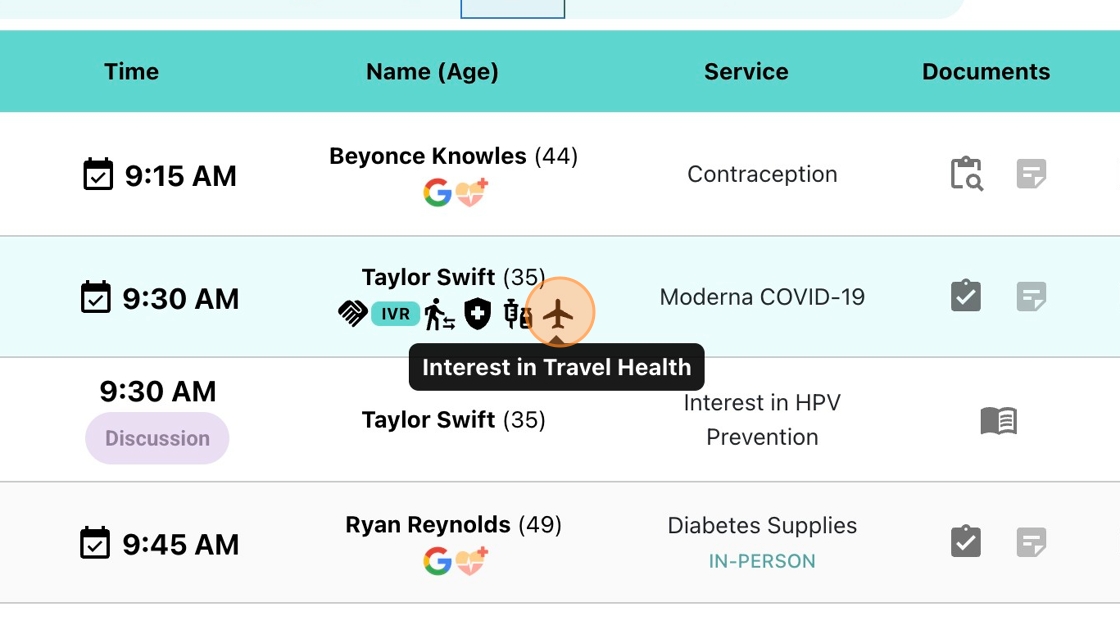
7. The 'heart' icon indicates that the patient has booked in for an Access to Care service.

8. The 'G' icon indicates that the patient booked this service directly from the "Book Online" button on Google.

How to Check 'Other Vaccine' Interest
9. Click on the "Consults & Other Services" tab


10. Click "Triaged Vaccines"

Tip: This is a list of patients who have indicated interest in learning about other vaccines, such as HPV, Pneumococcal, and Shingles.
11. To send patients a link to book a vaccine consultation, use the checkbox next to their name, then select “Actions,” then "Send Email." You can also send text messages or phone directly.


12. For emails, you can enter a custom message in this field and click "Send."

13. Or select a pre-made message by clicking “Templates” and picking the one you want to send.
14. You can create a custom template by clicking “Booking Template,” then selecting “Create a Custom Email Template.”
15. Enter your message and give the template a name, then click “Save Template.”