Google Chrome
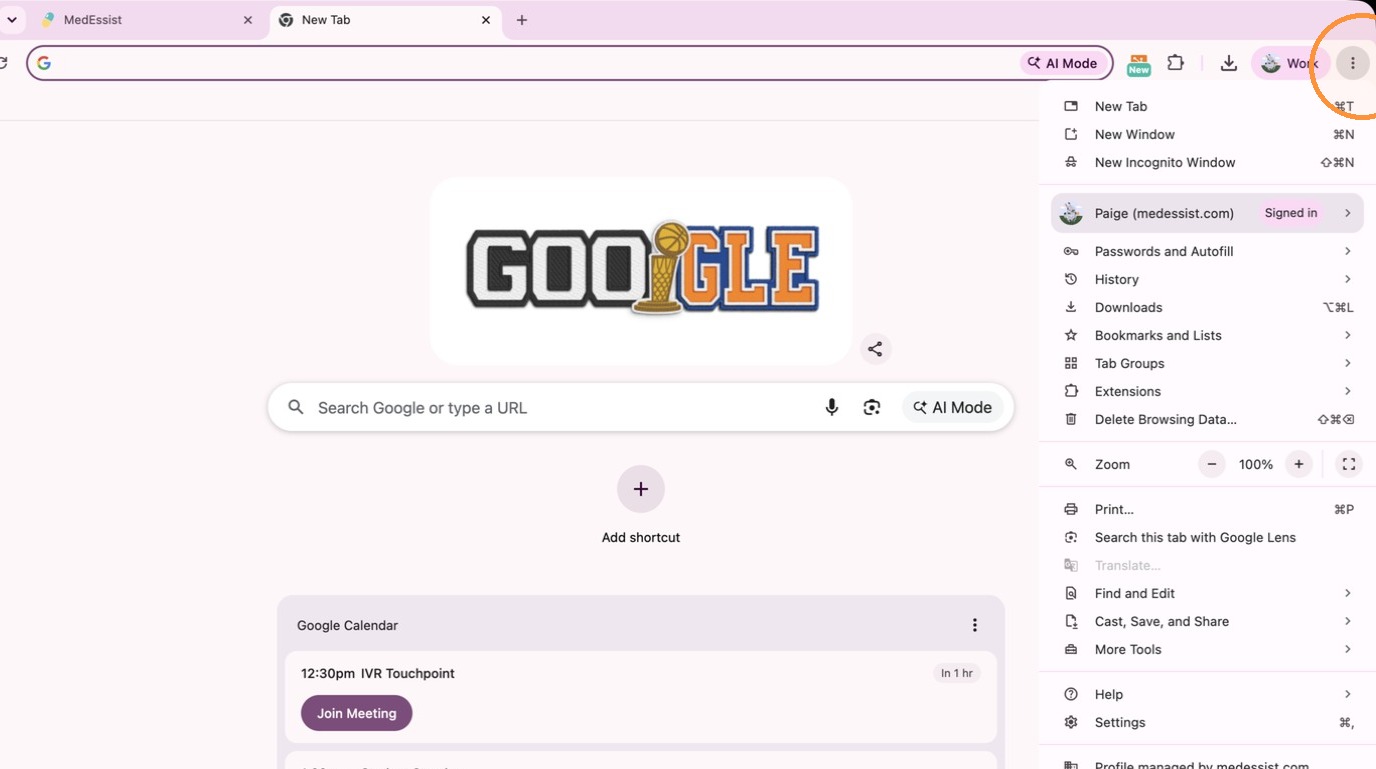
1. Open Google Chrome and click the three-dot menu in the top right corner.
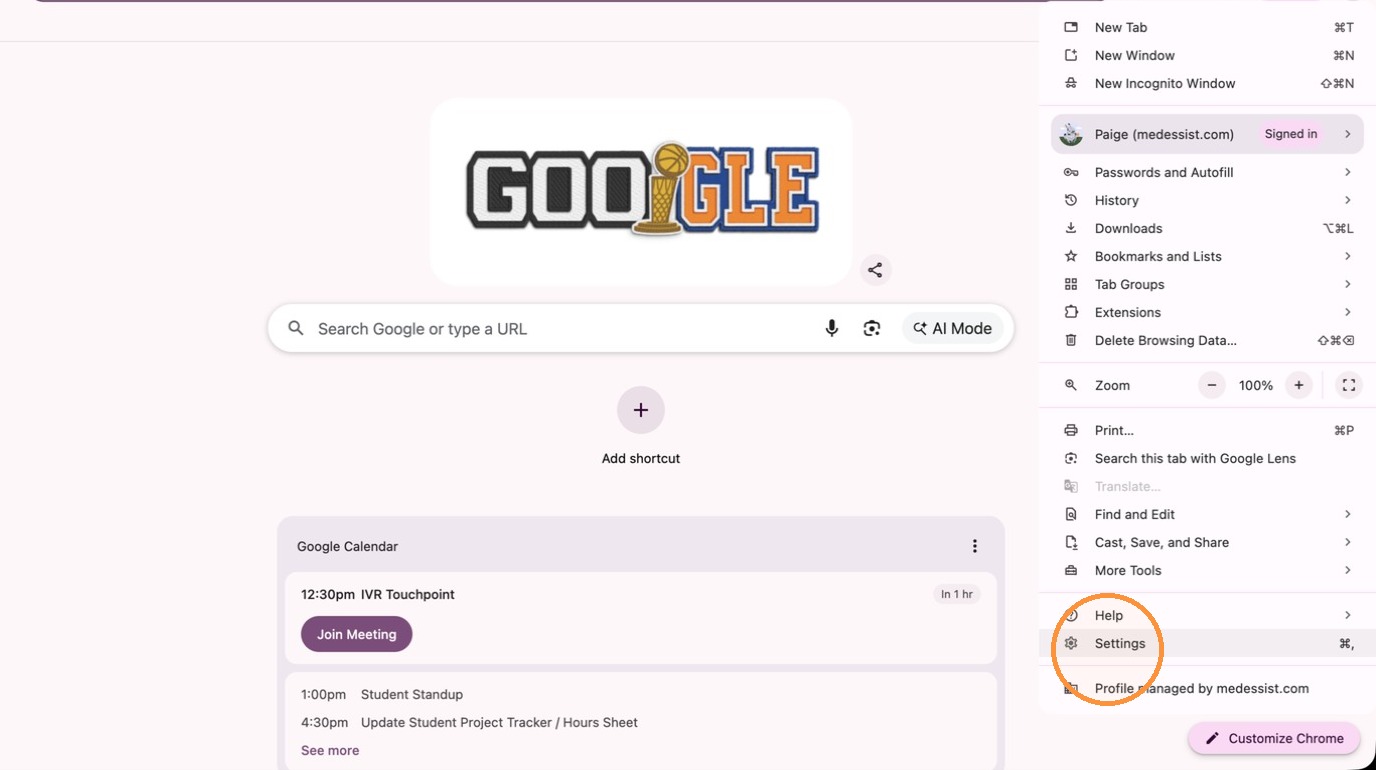
2. Select "Settings".
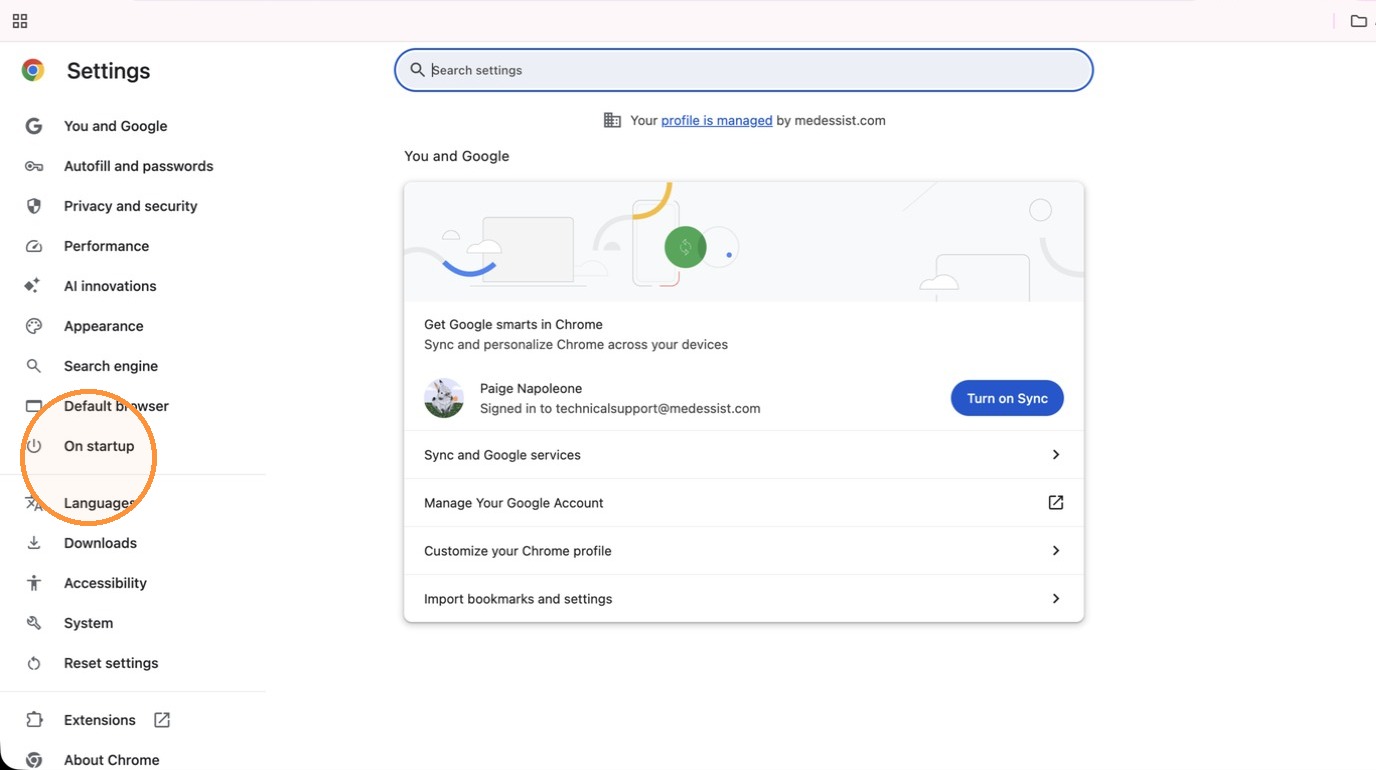
3. Click "On startup" in the sidebar.
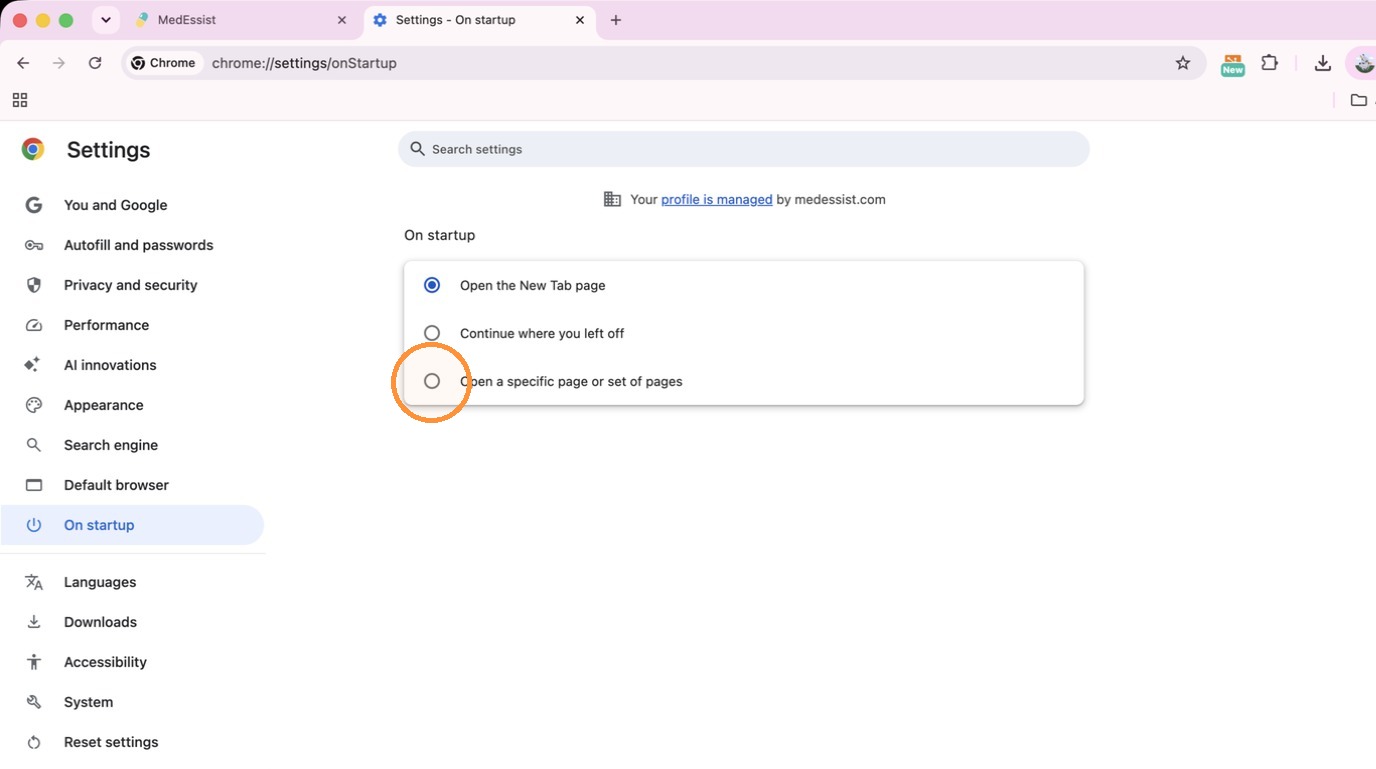
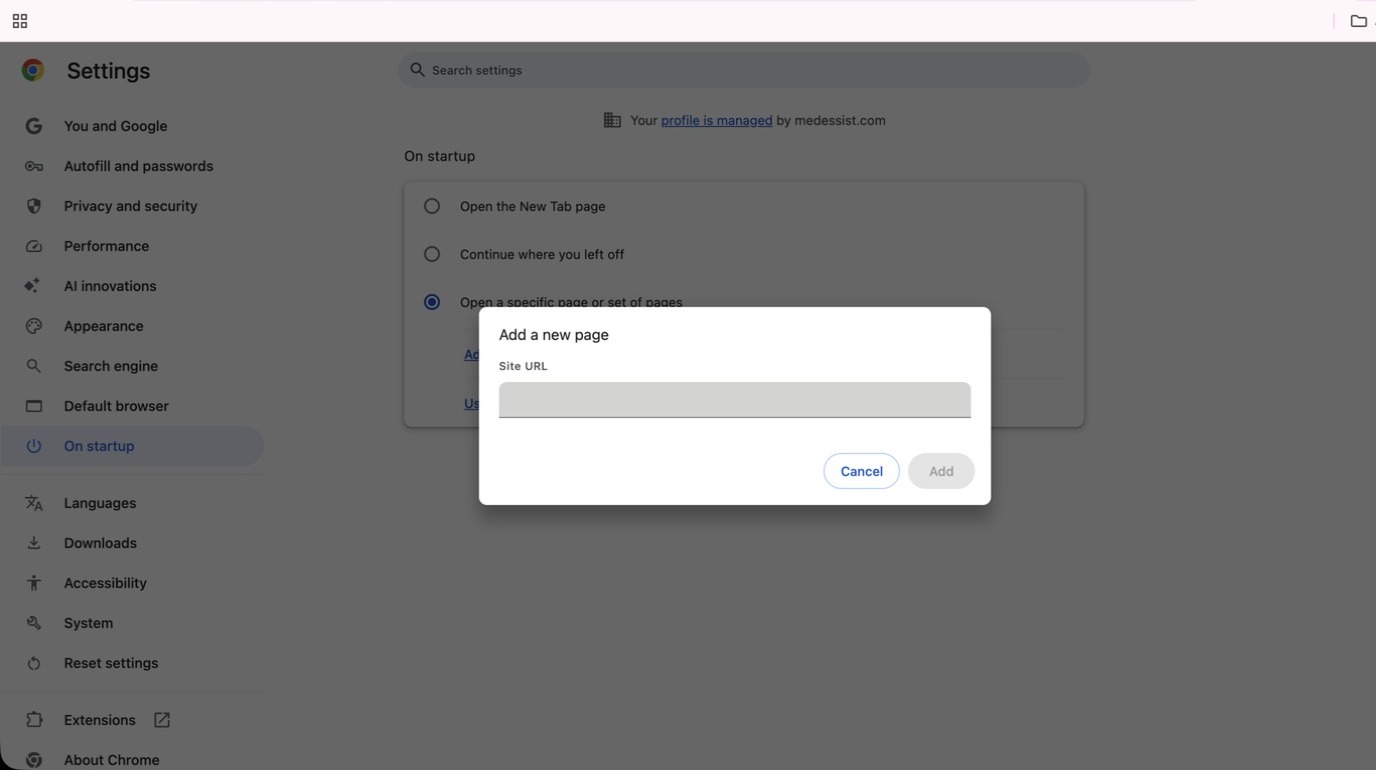
4. Select "Open a specific page or set of pages".
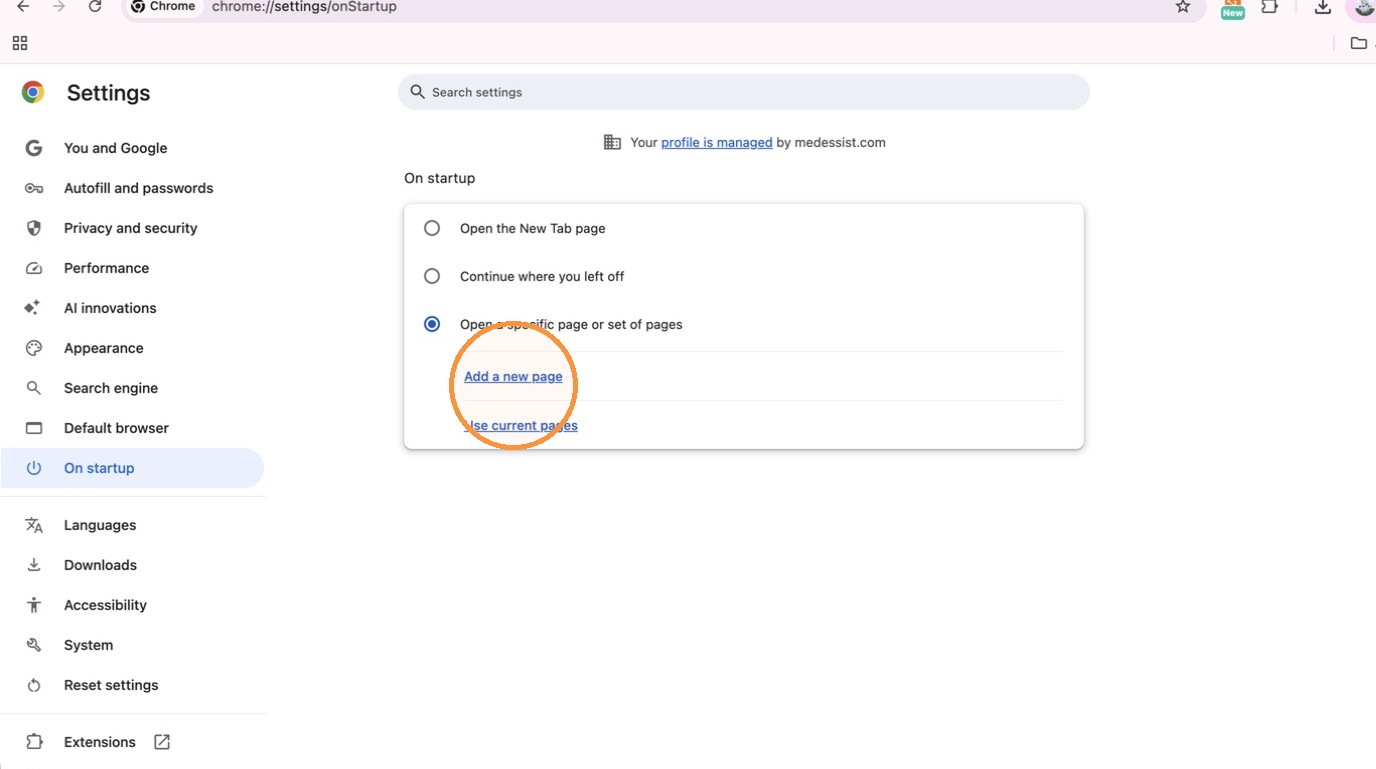
5. Click "Add a new page".
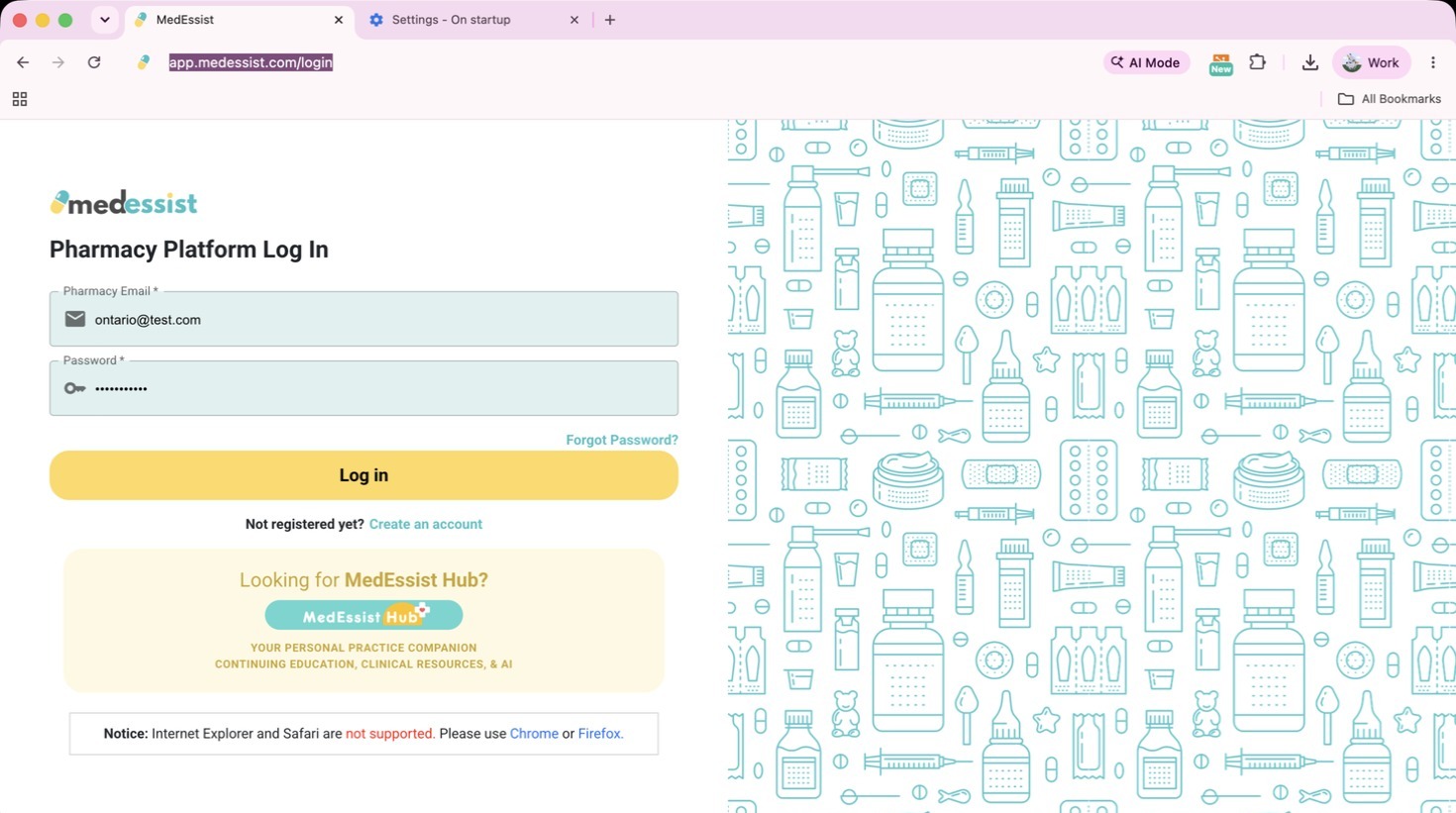
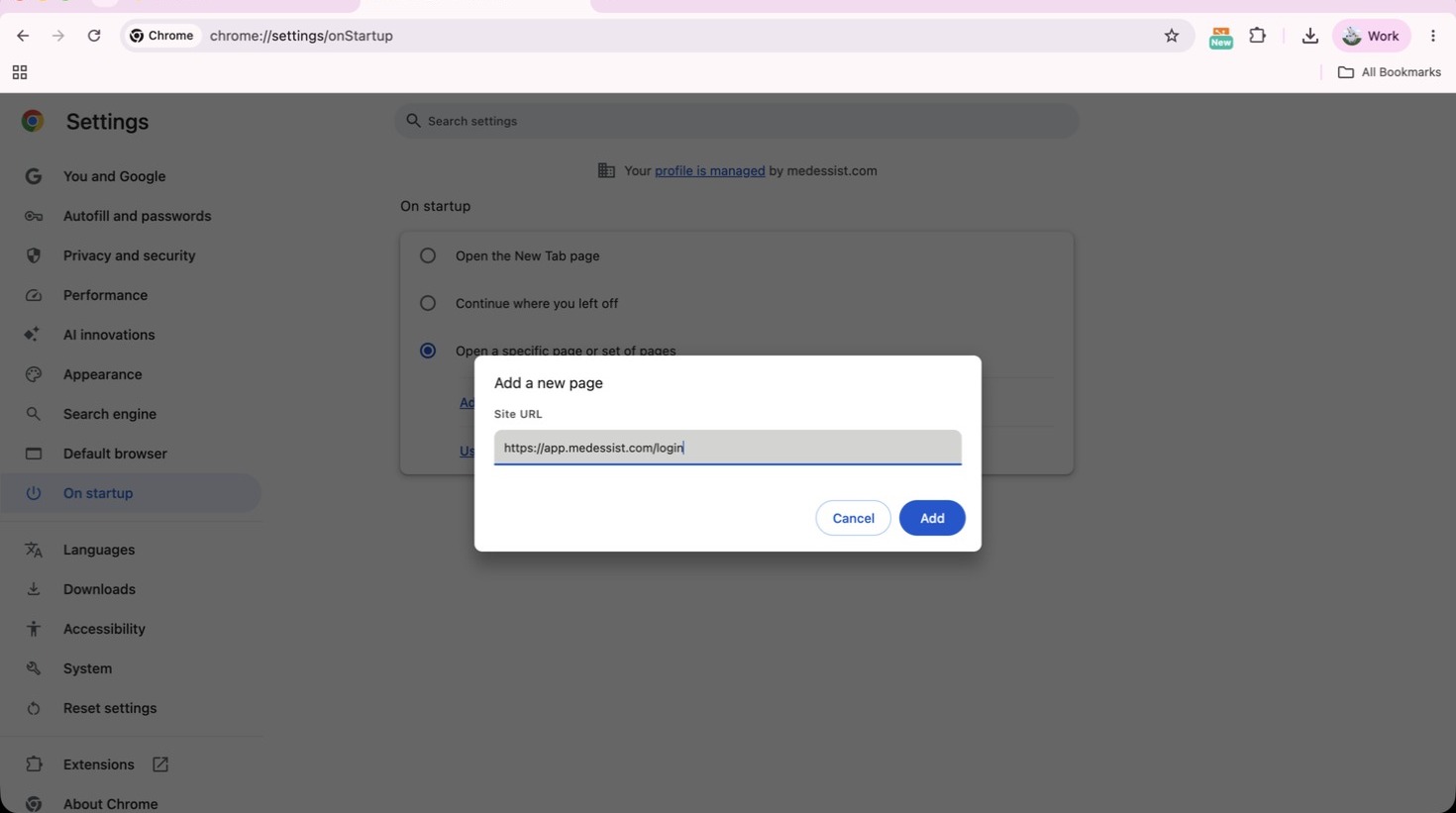
6. Copy this link: app.medessist.com/login
7. Paste the link into the Site URL field and click "Add" to save MedEssist as a startup page.
Firefox
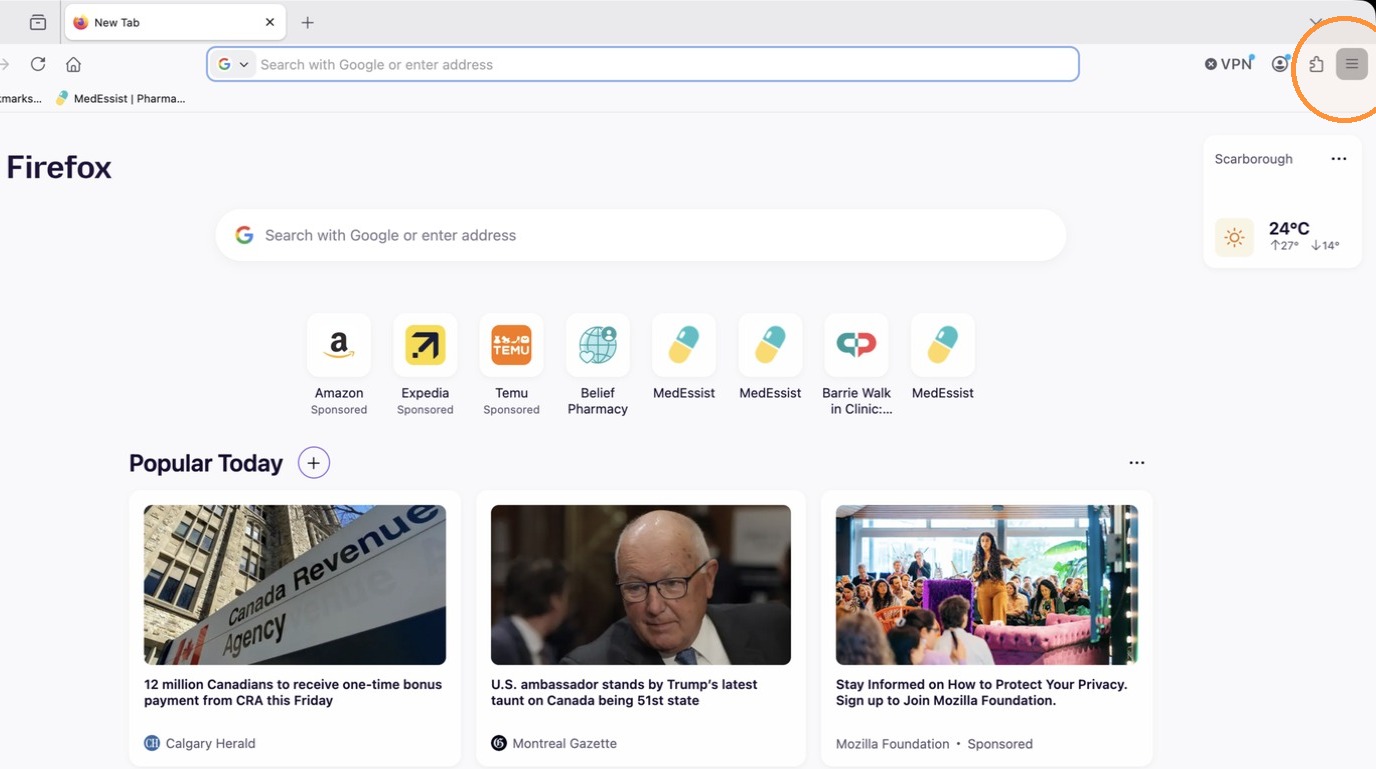
8. Open Firefox and click the three-line menu in the top right corner.
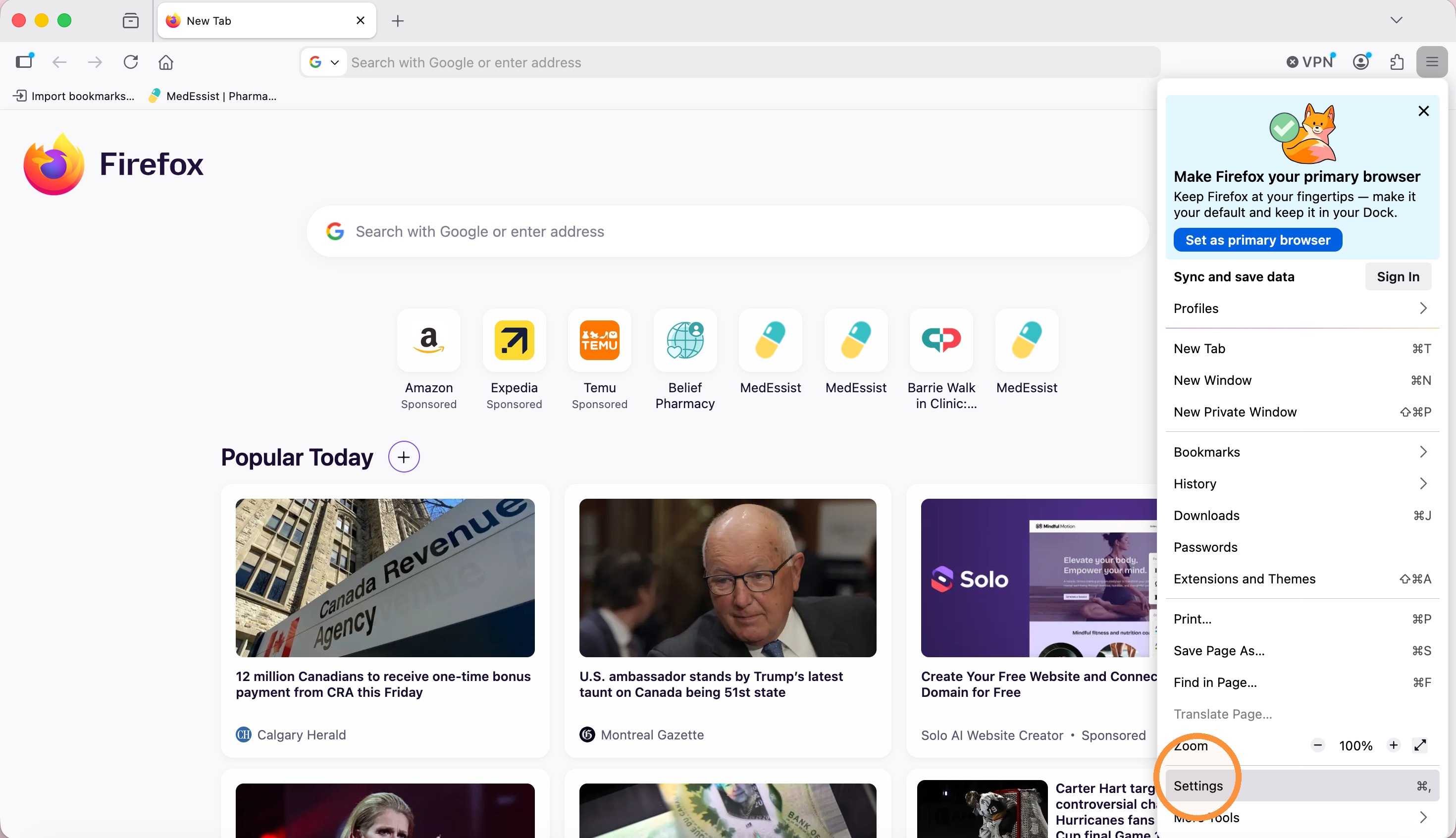
9. Select "Settings"
10. Click "Home" in the sidebar.
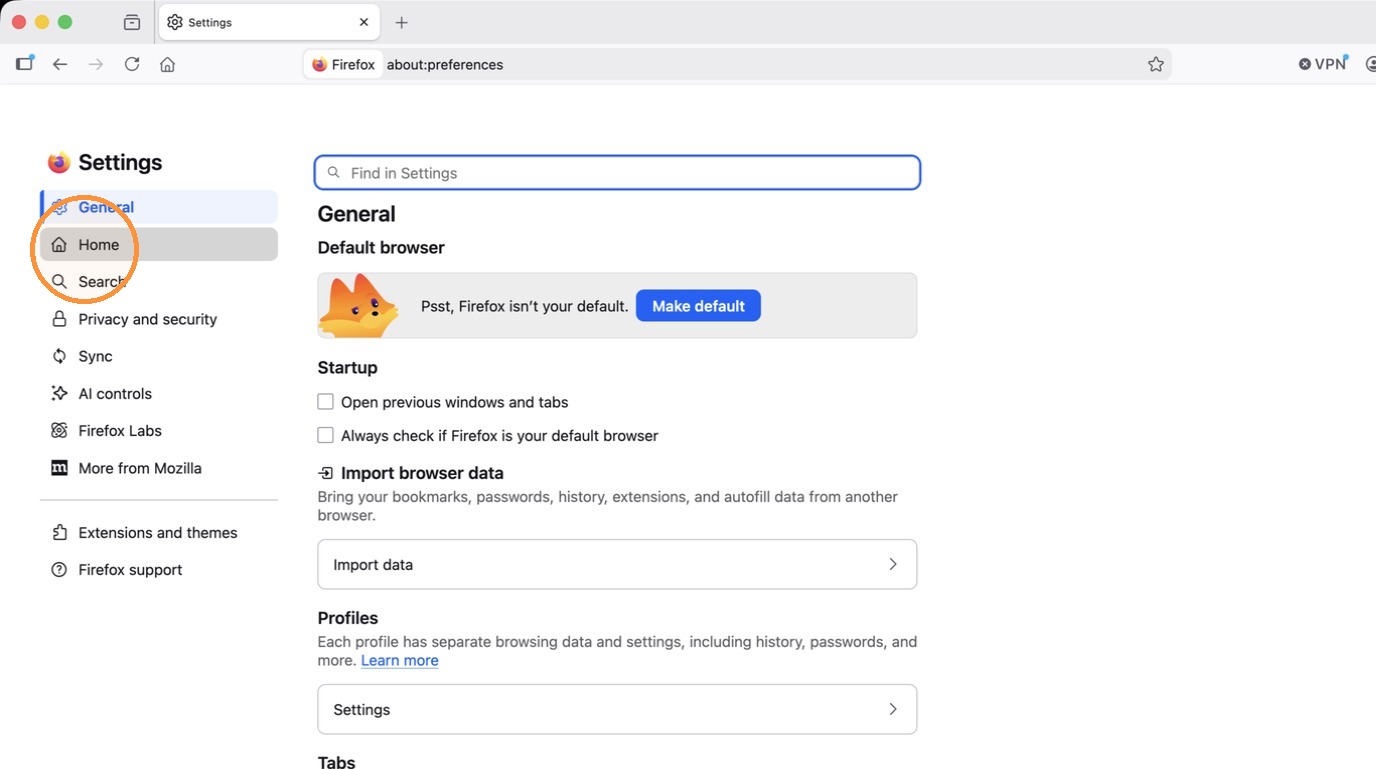
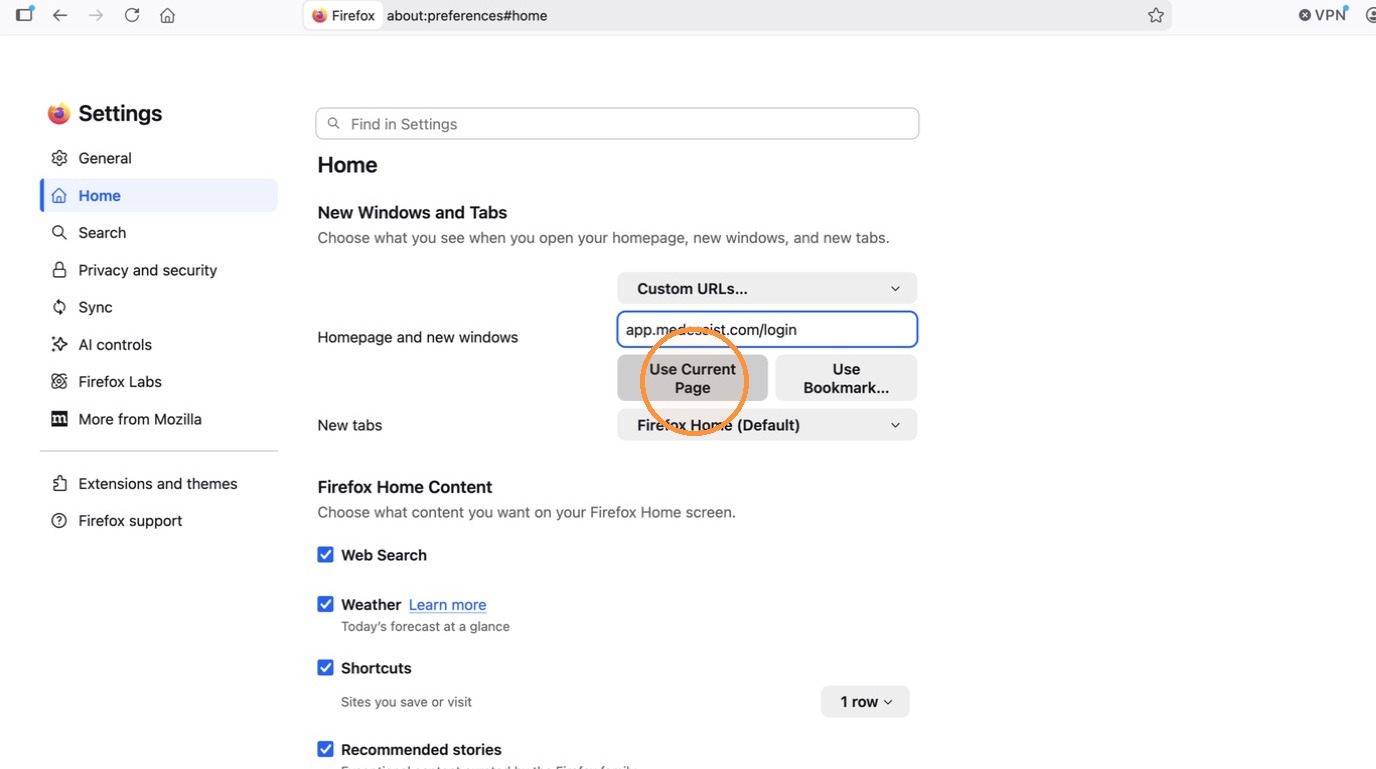
11. Click "Custom URLs…" from the "Homepage and new windows" dropdown.
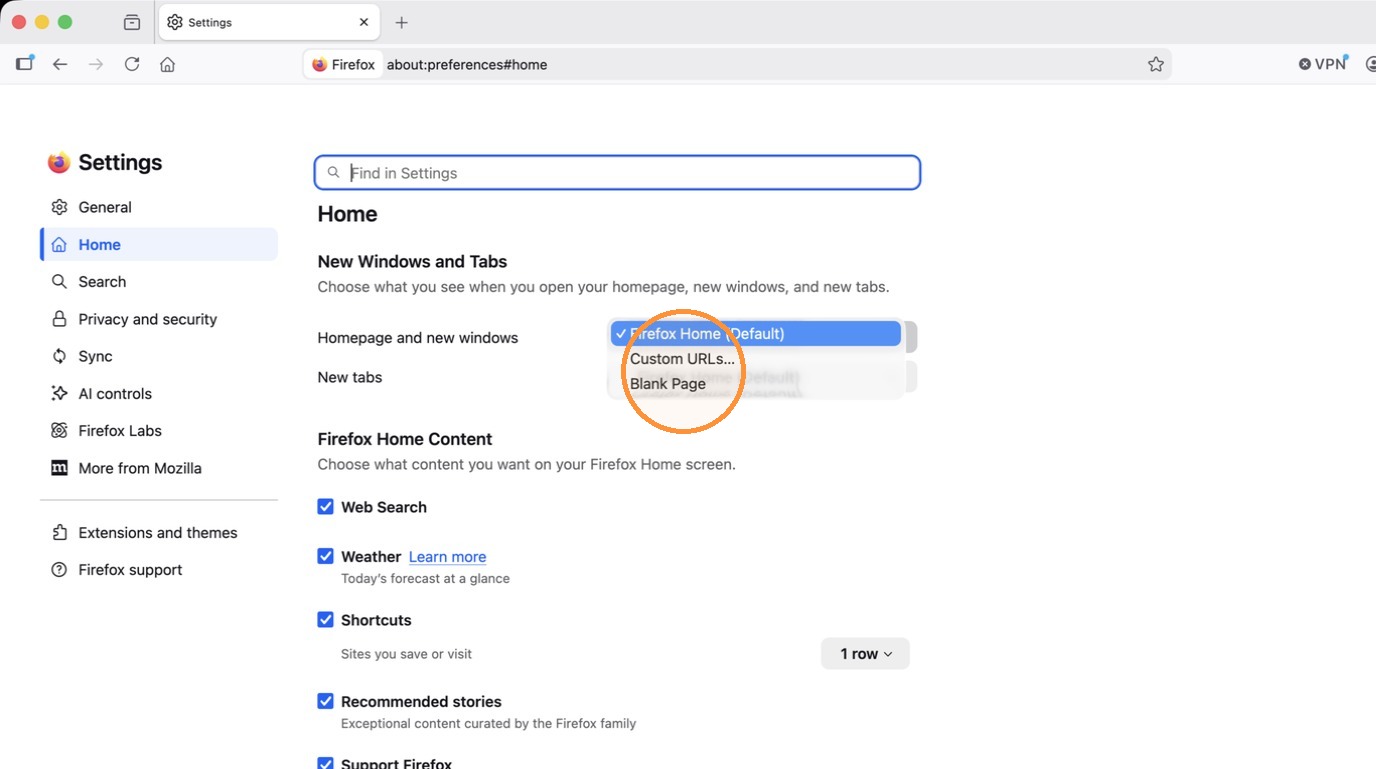
12. Copy this link: app.medessist.com/login
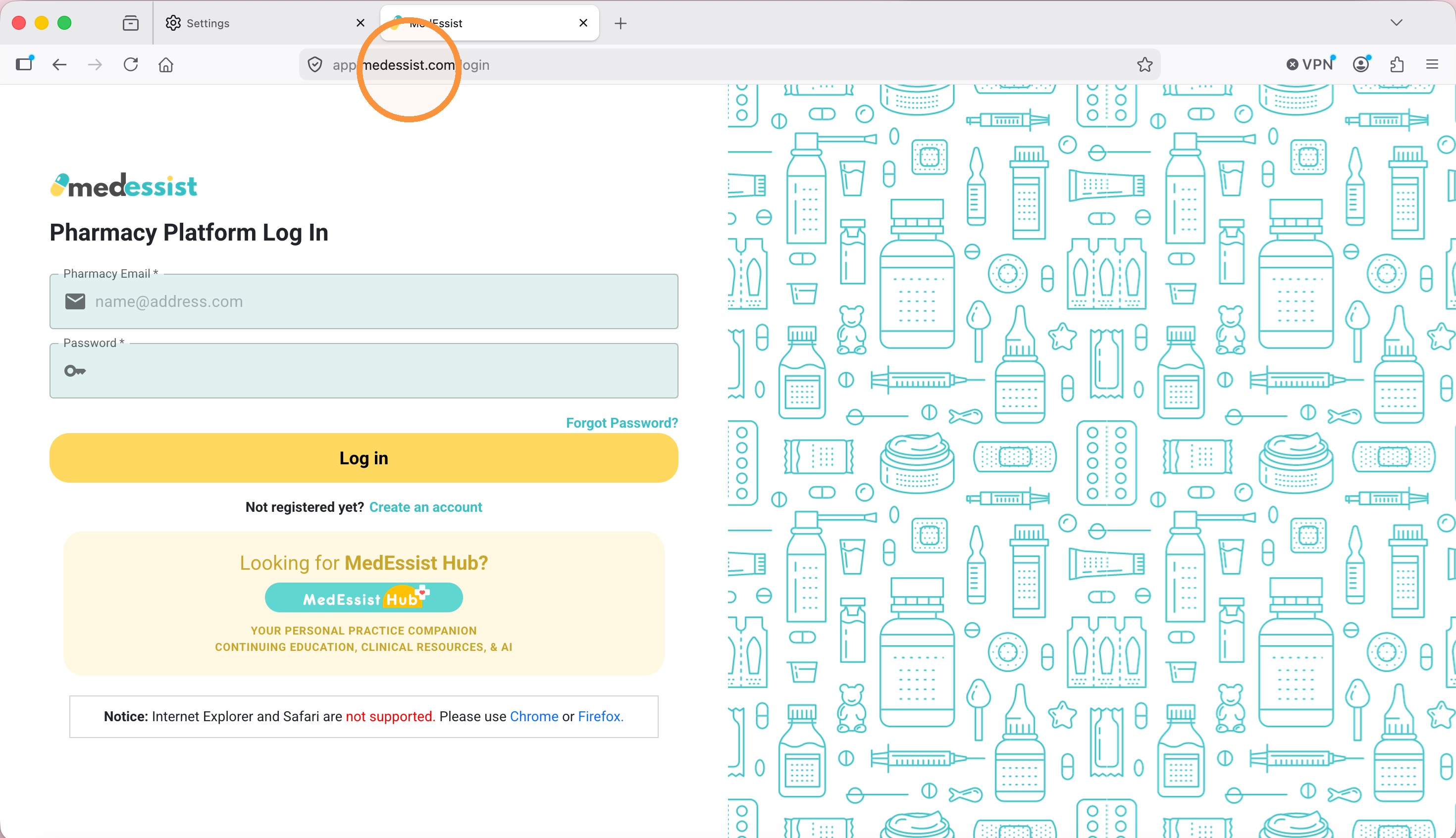
13. Paste the link into the "Paste a URL..." input field.
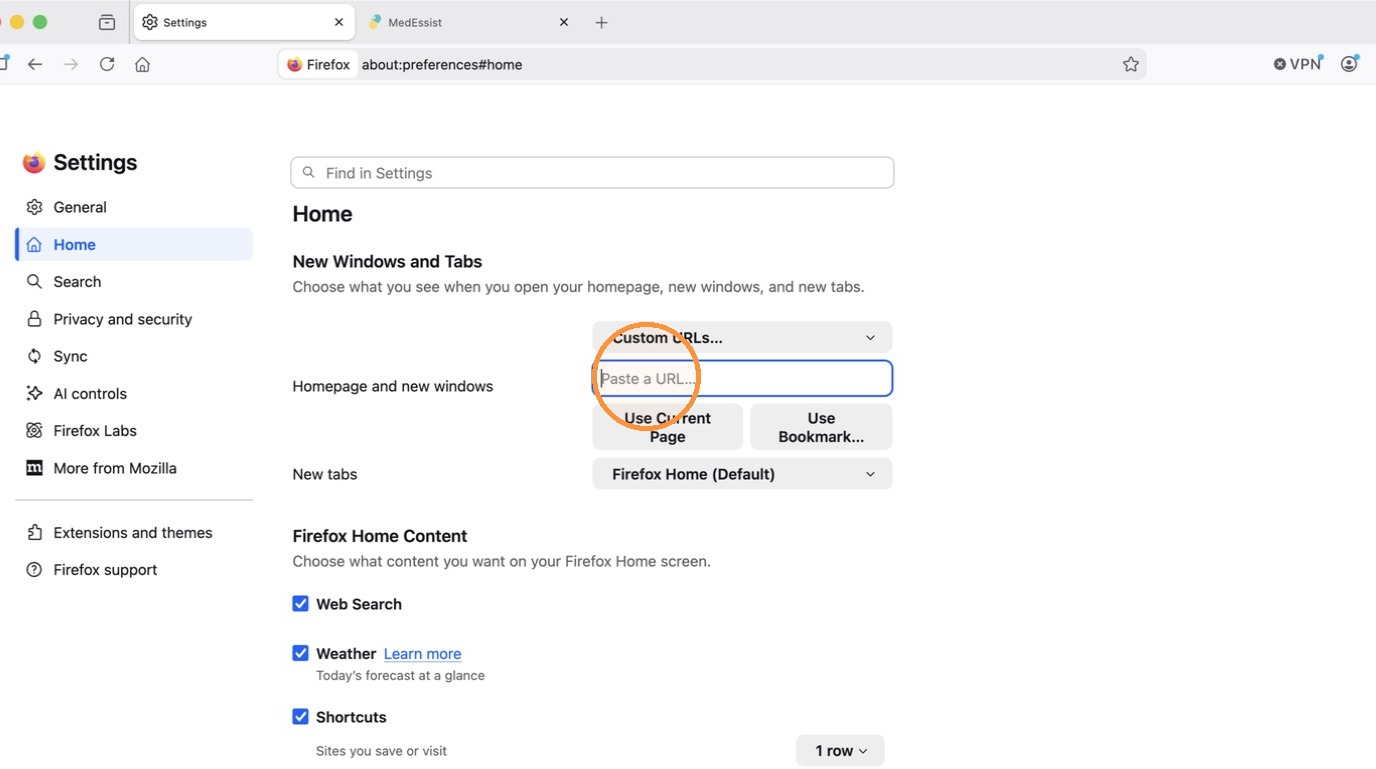
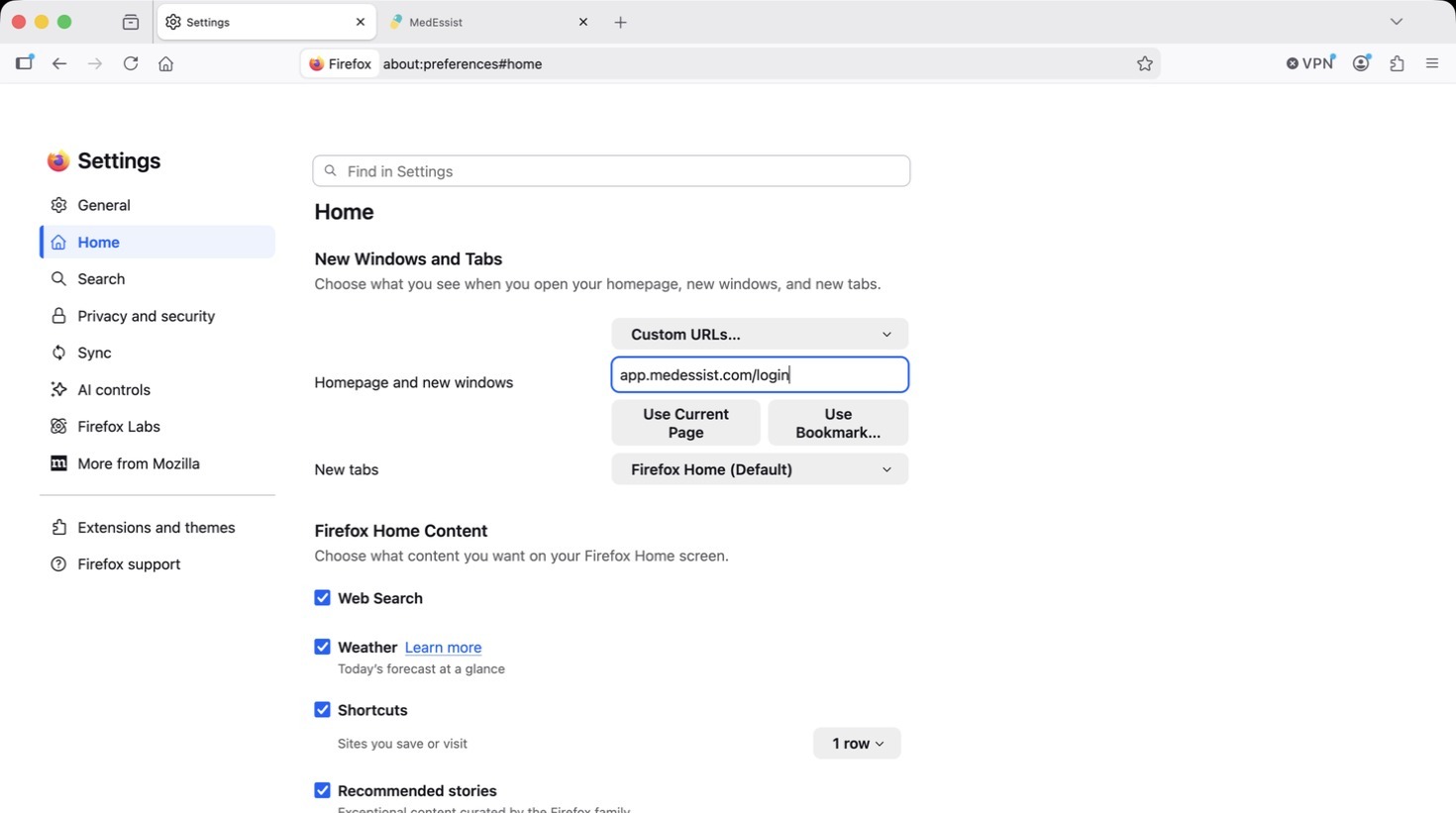
14. Click "Use Current Page" to save MedEssist as a startup page.
Microsoft Edge
15. Open Microsoft Edge and click the three-dot menu in the top right corner.
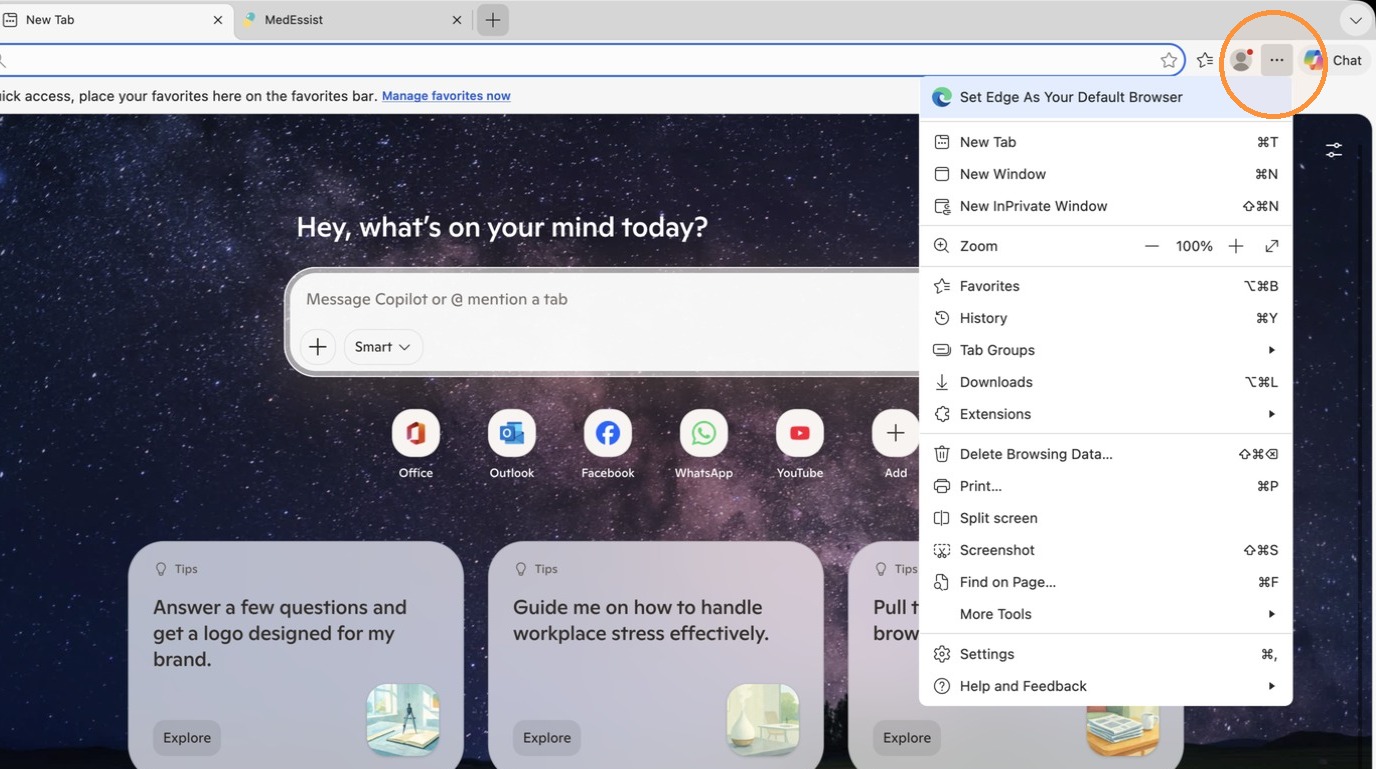
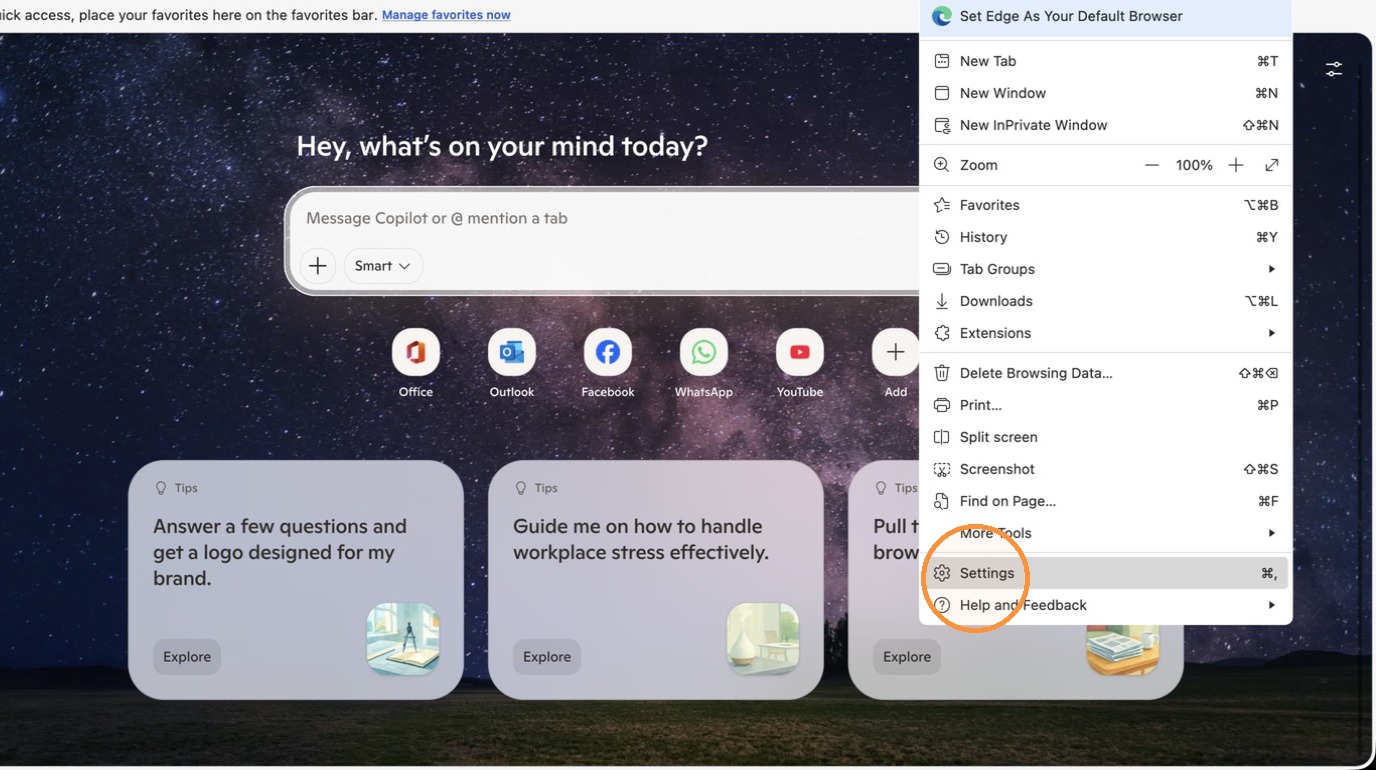
16. Select "Settings".
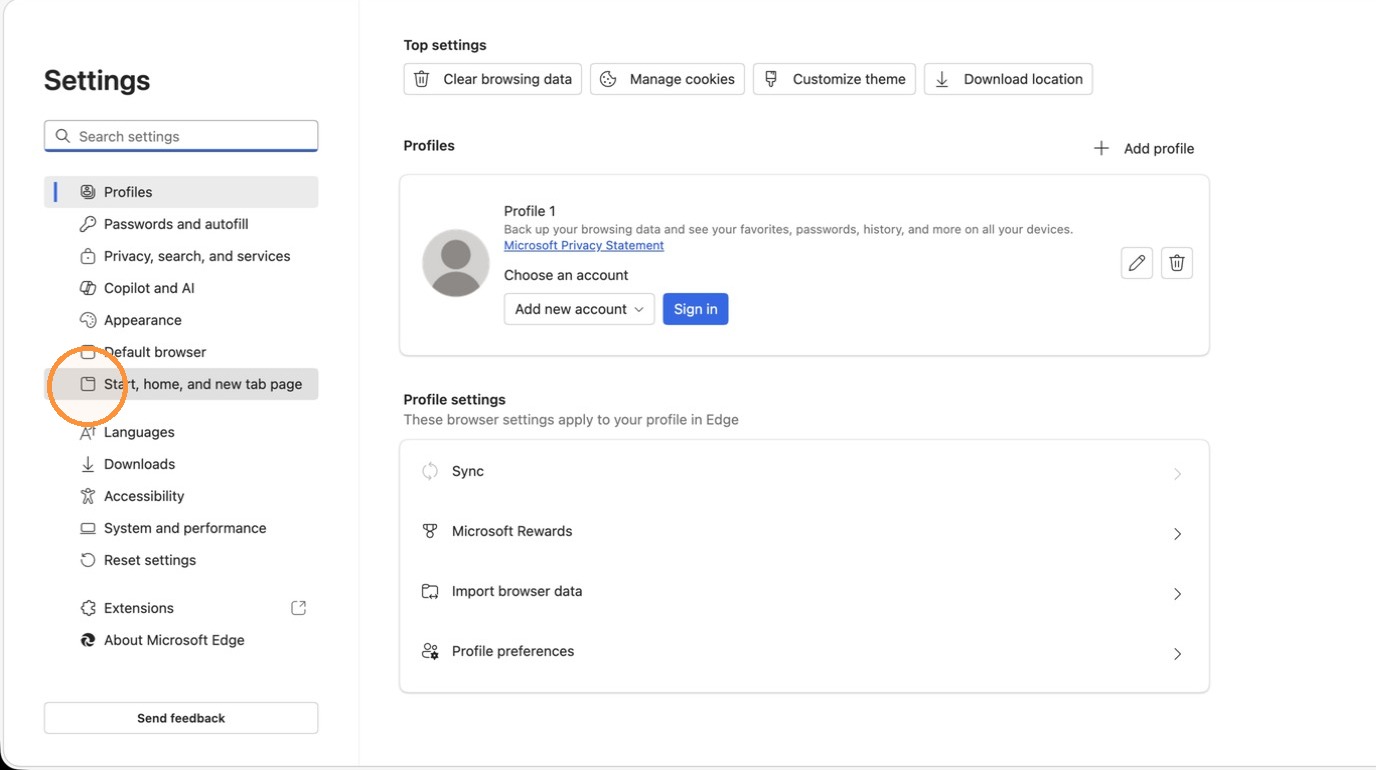
17. Click "Start, home, and new tab page" in the sidebar.
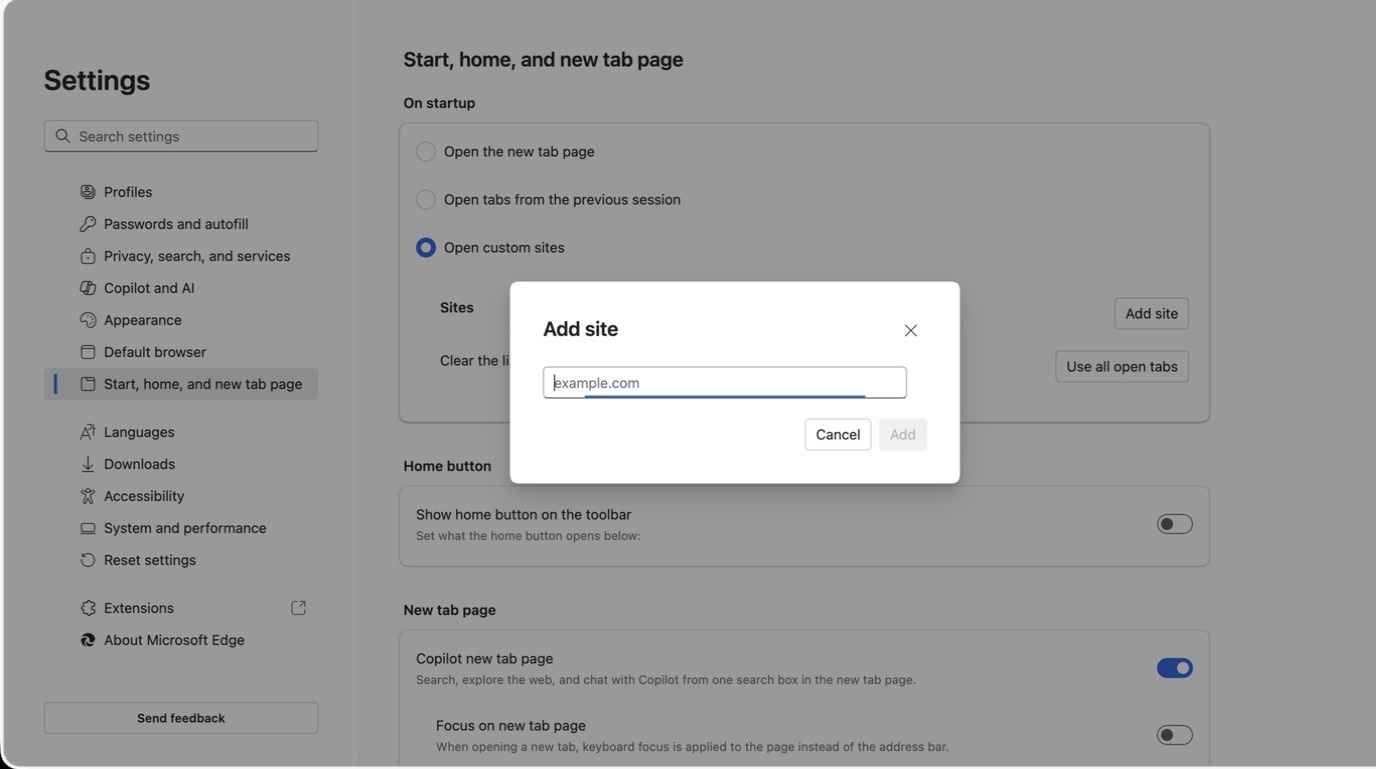
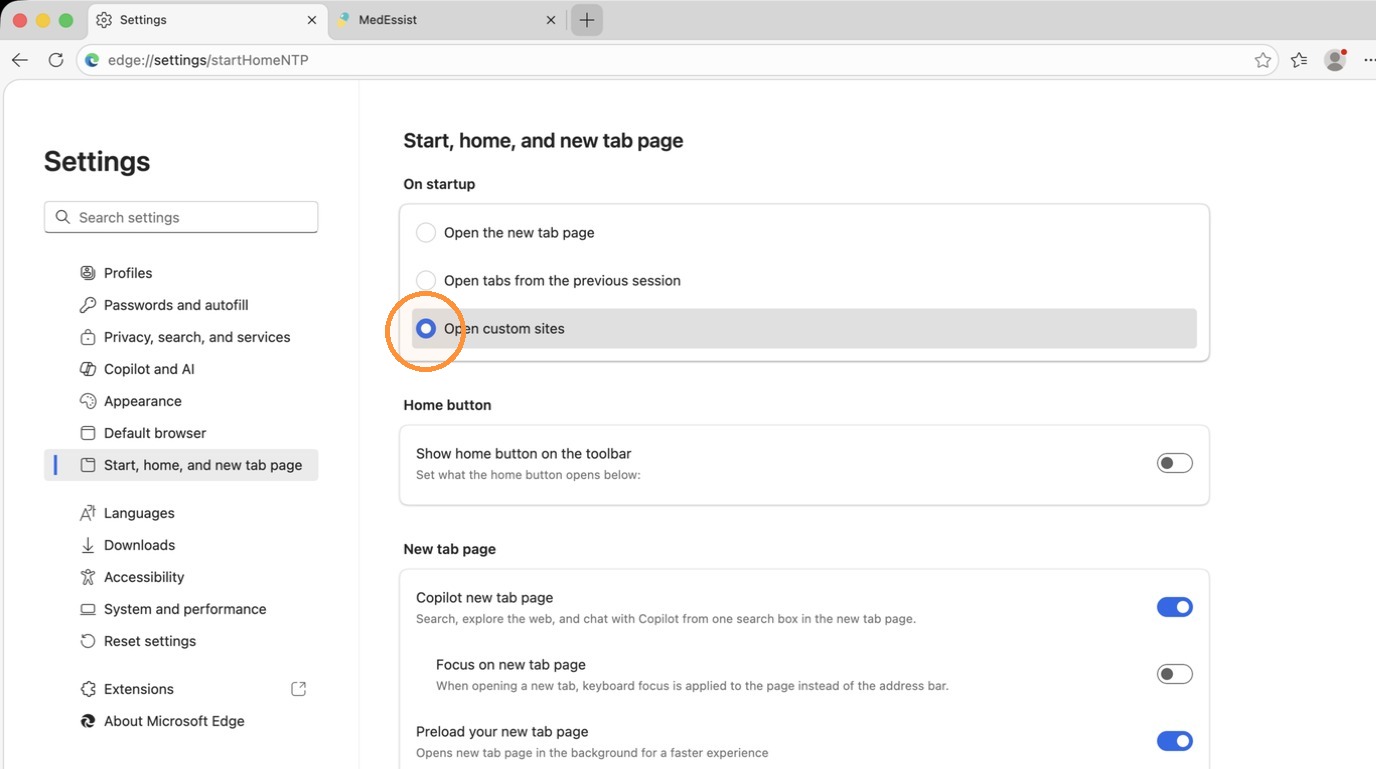
18. Select "Open custom sites" under "On startup".
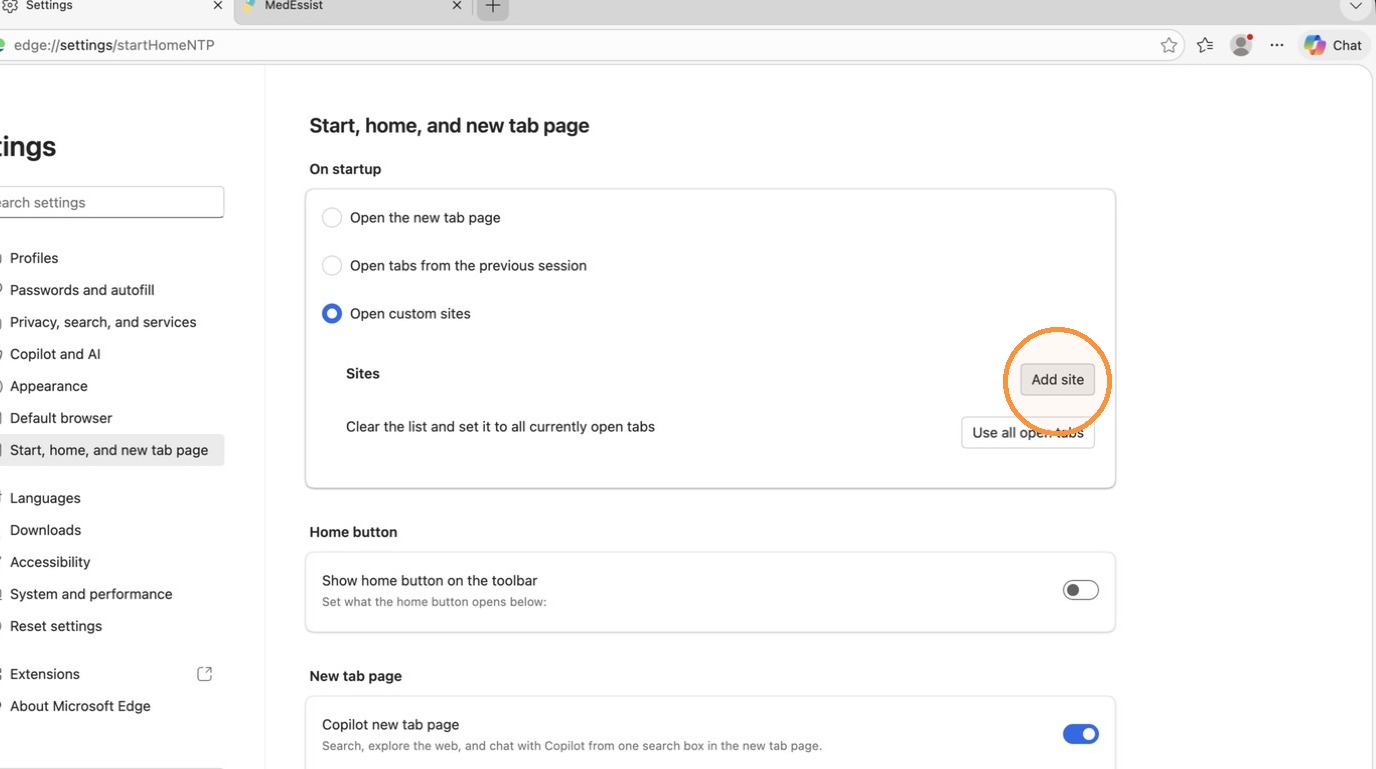
19. Click "Add site"
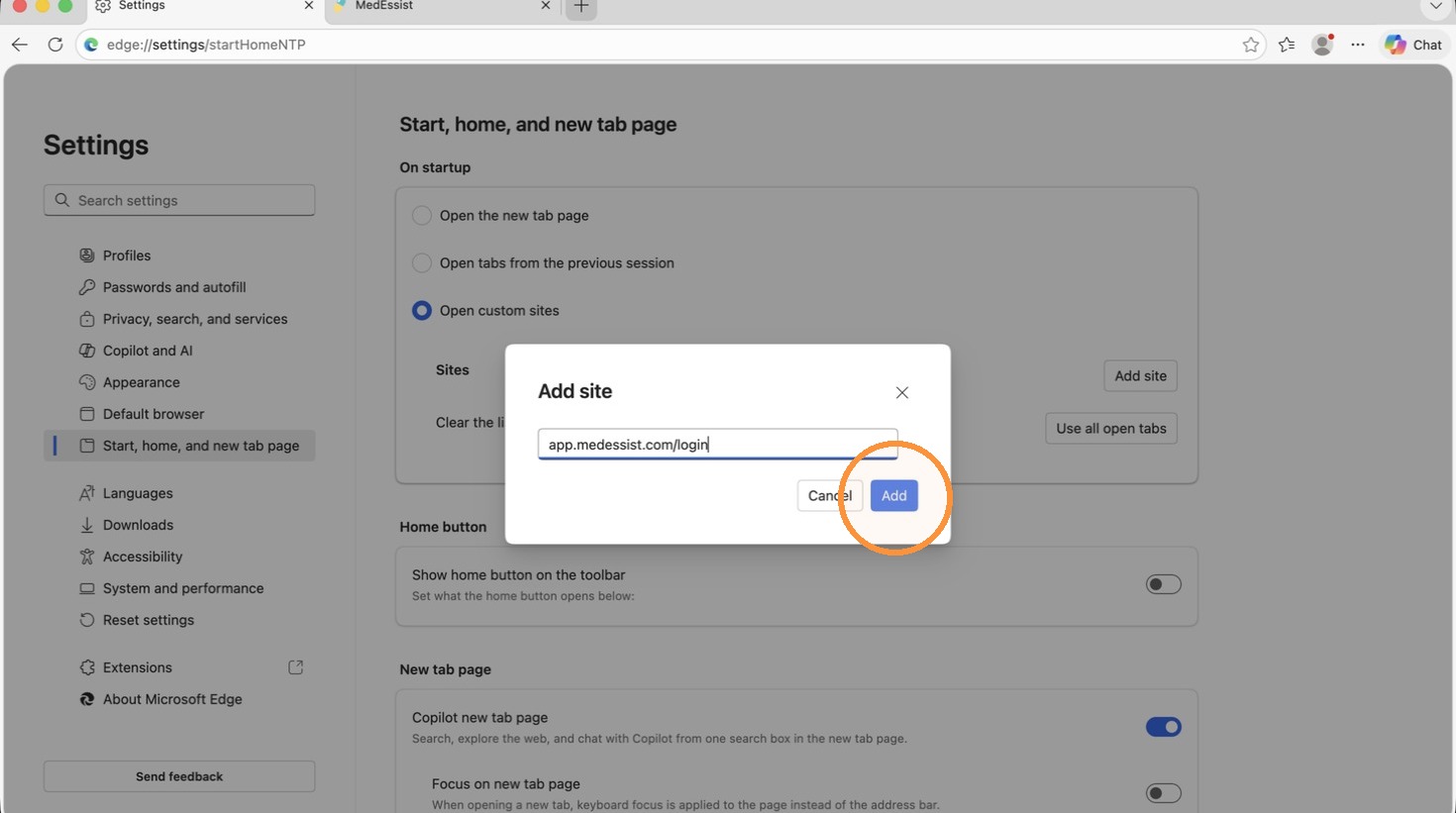
20. Copy this link: app.medessist.com/login
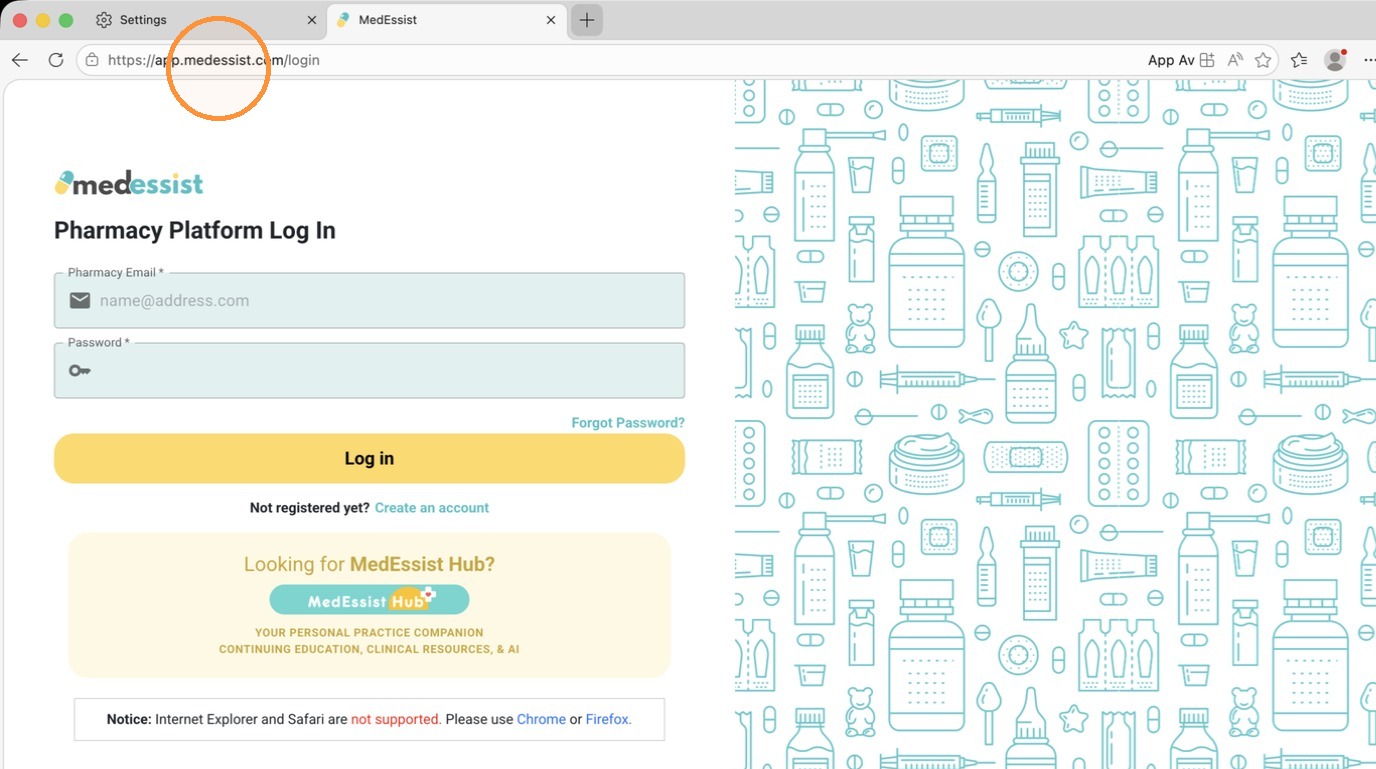
21. Paste the link into the site URL field and click "Add" to save MedEssist as a startup page.