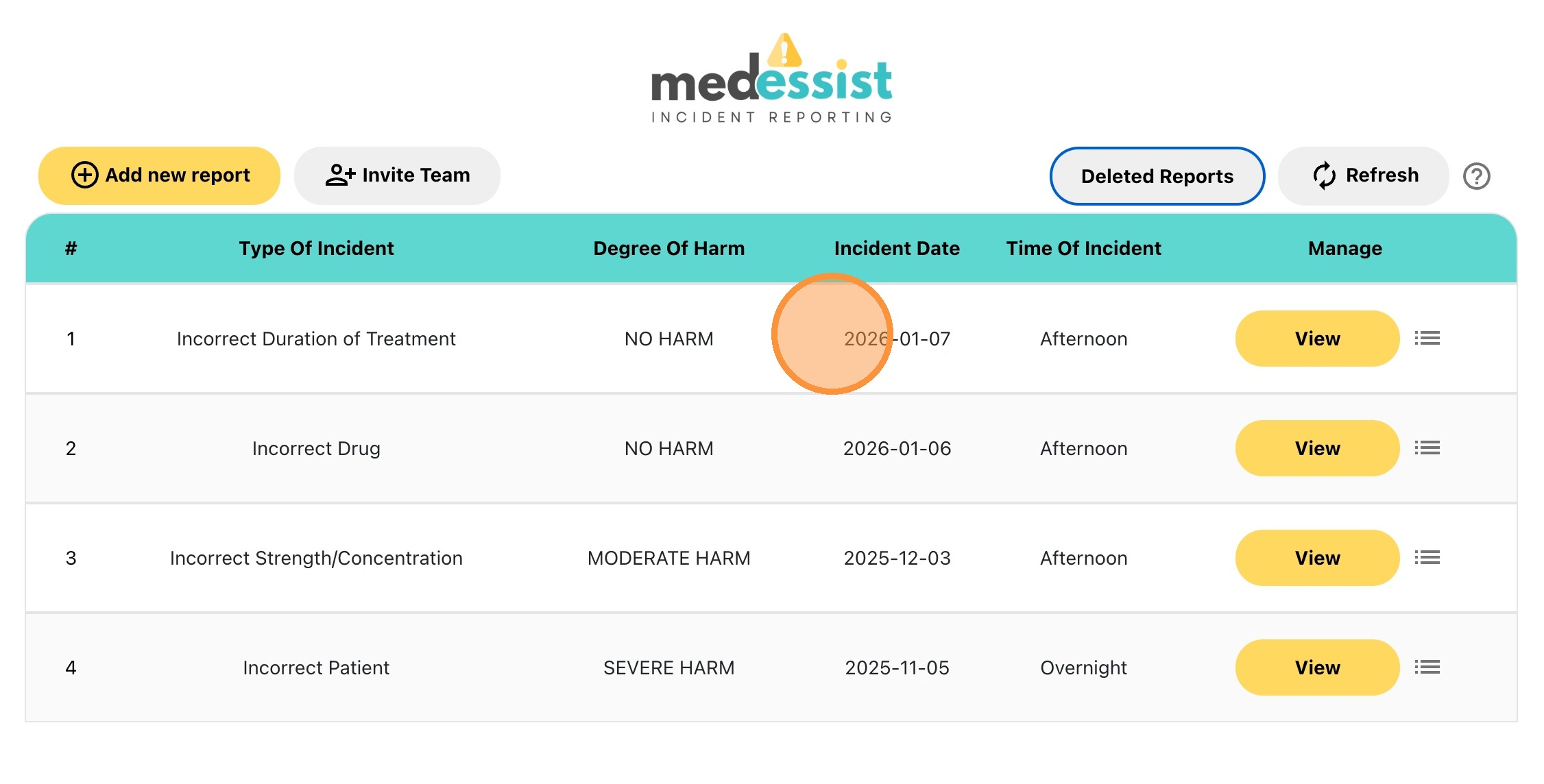
How to View Submitted Reports
1. Visit: https://app.medessist.com/login
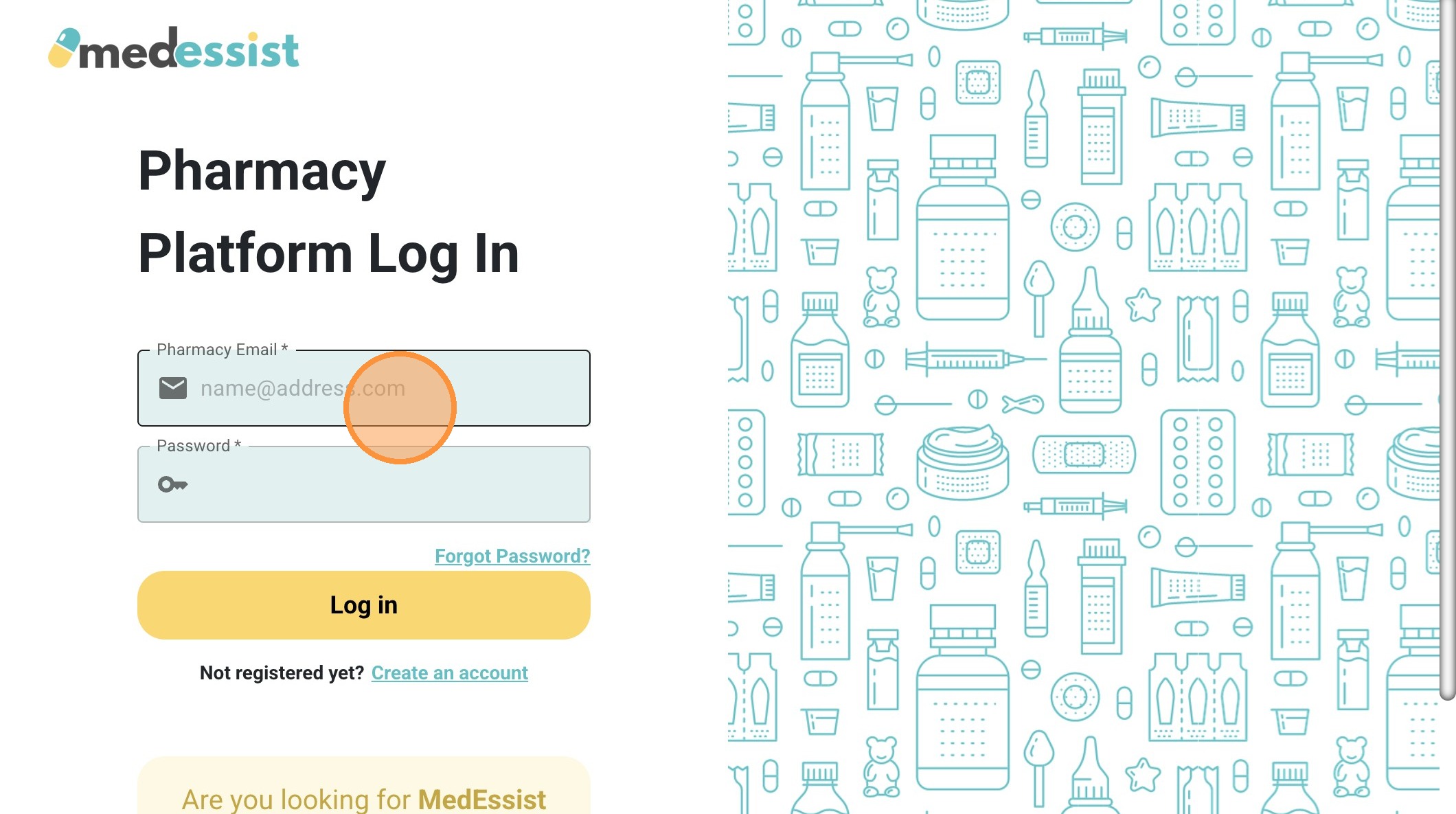
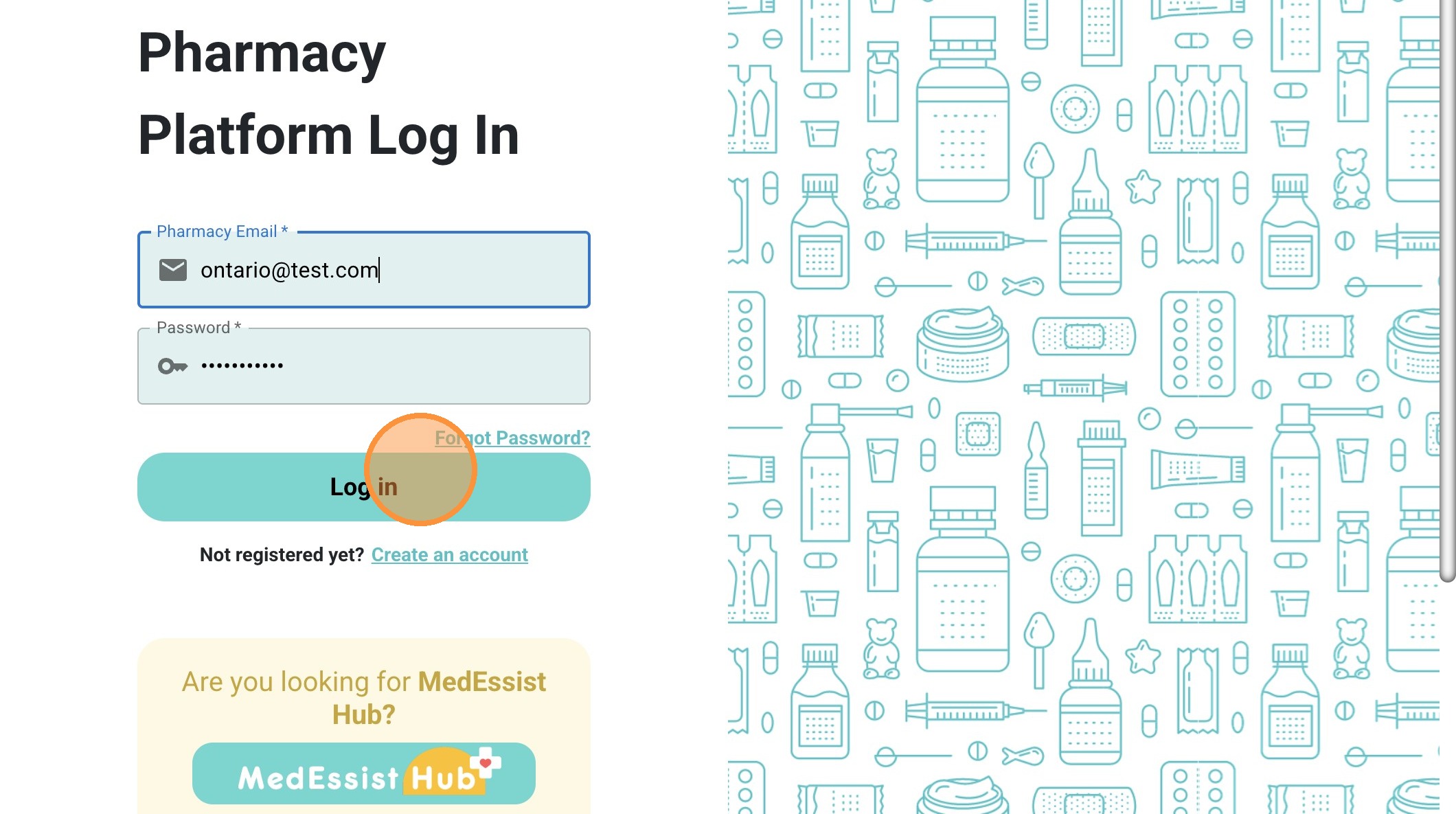
2. Enter your pharmacy login information and click "Log in"
3. Click the "Please Select a HCP" and login using your PIN
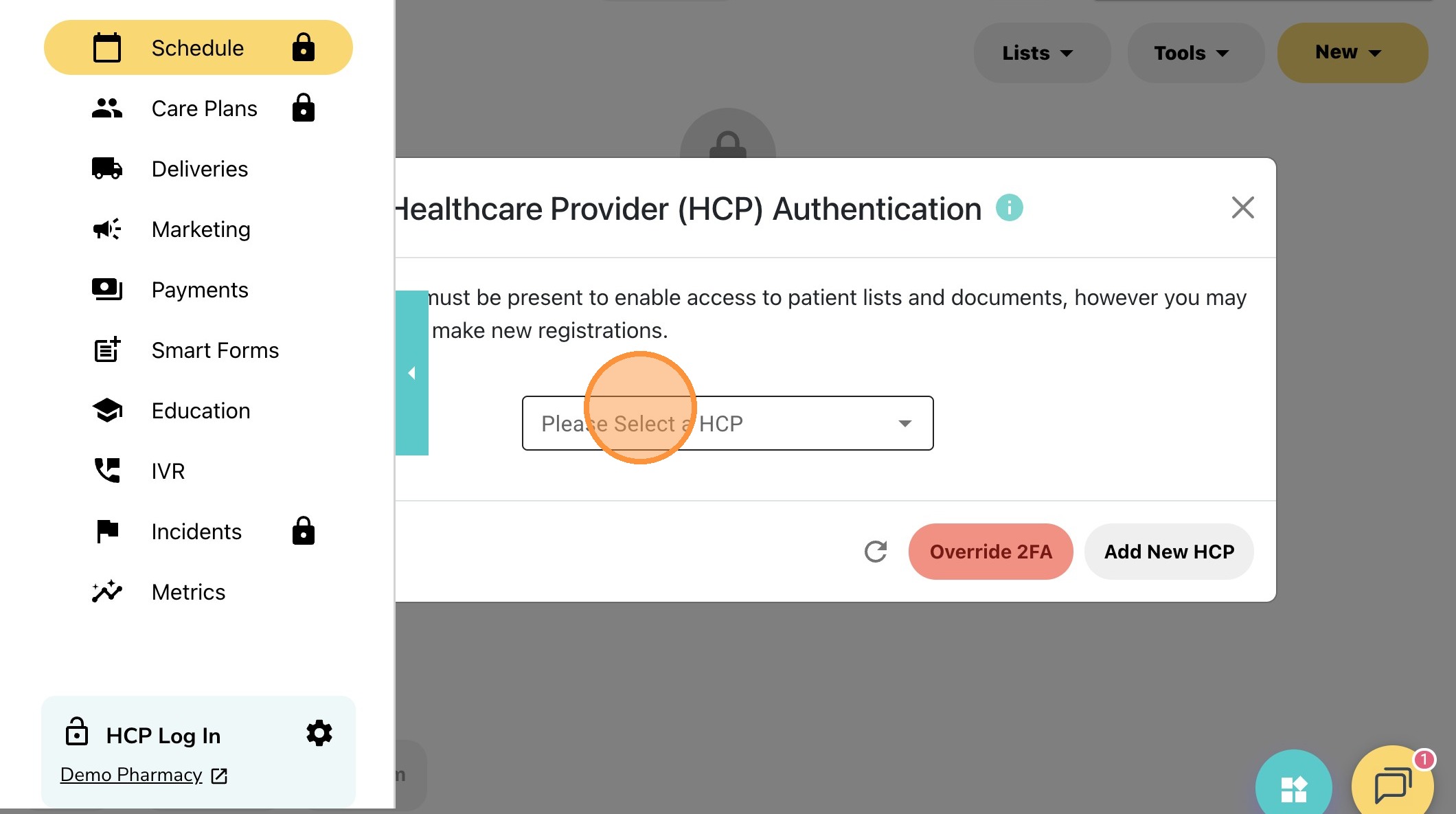
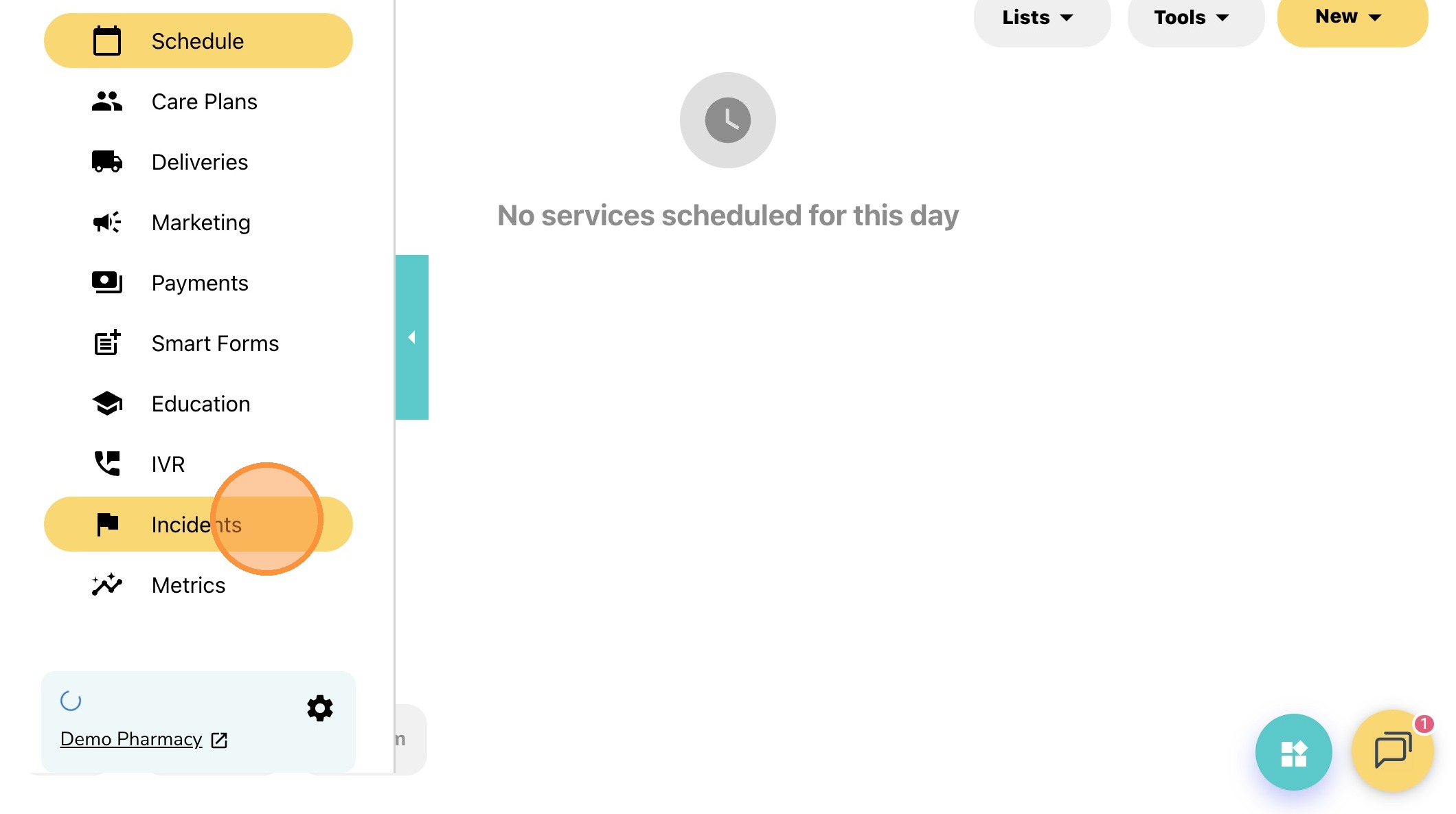
4. After logging in, head to the navigation bar on the left and click on "Incidents". Your submitted report will appear in the list.
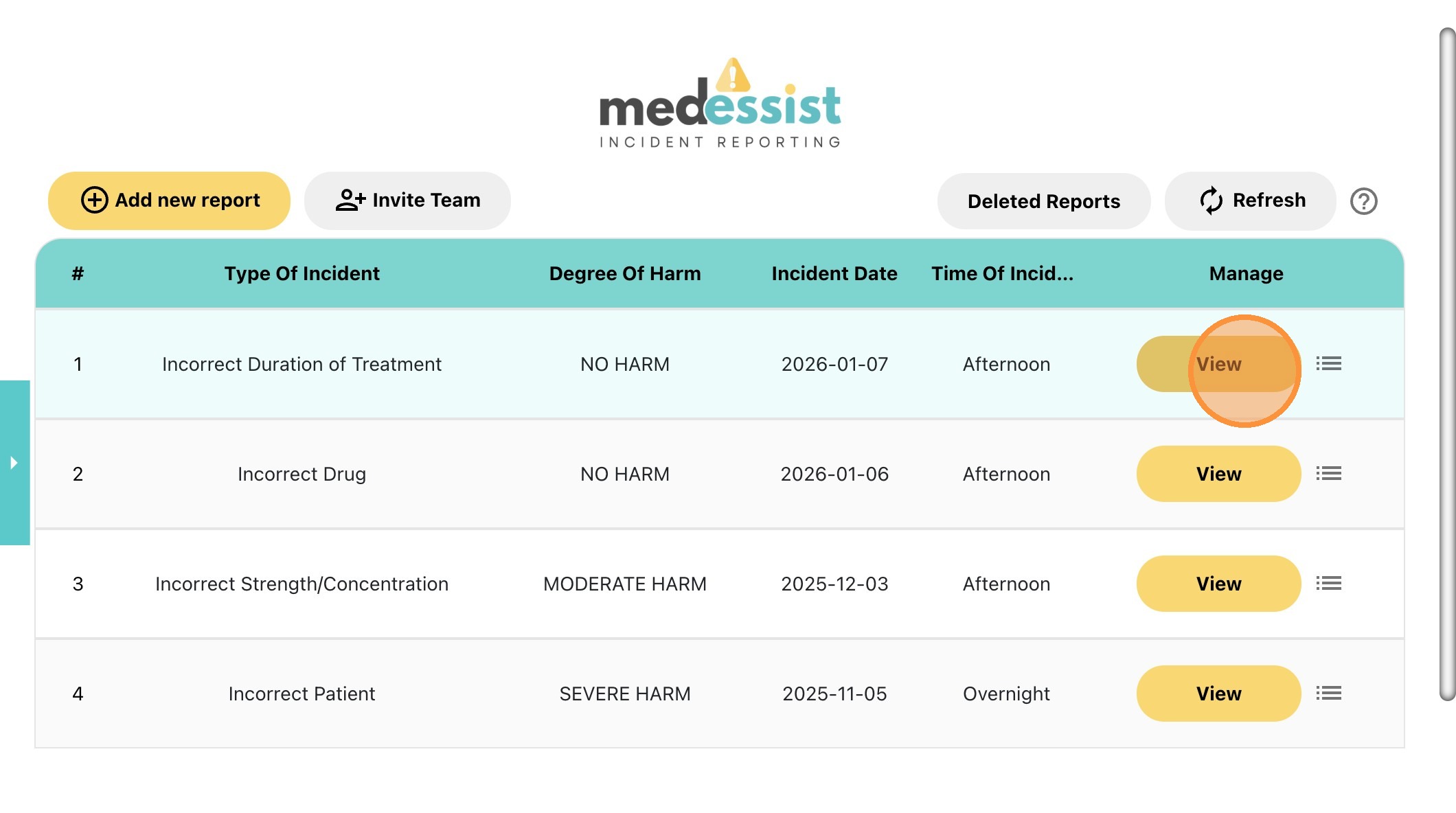
5. Locate the incident report that you would like to open, and click "View"
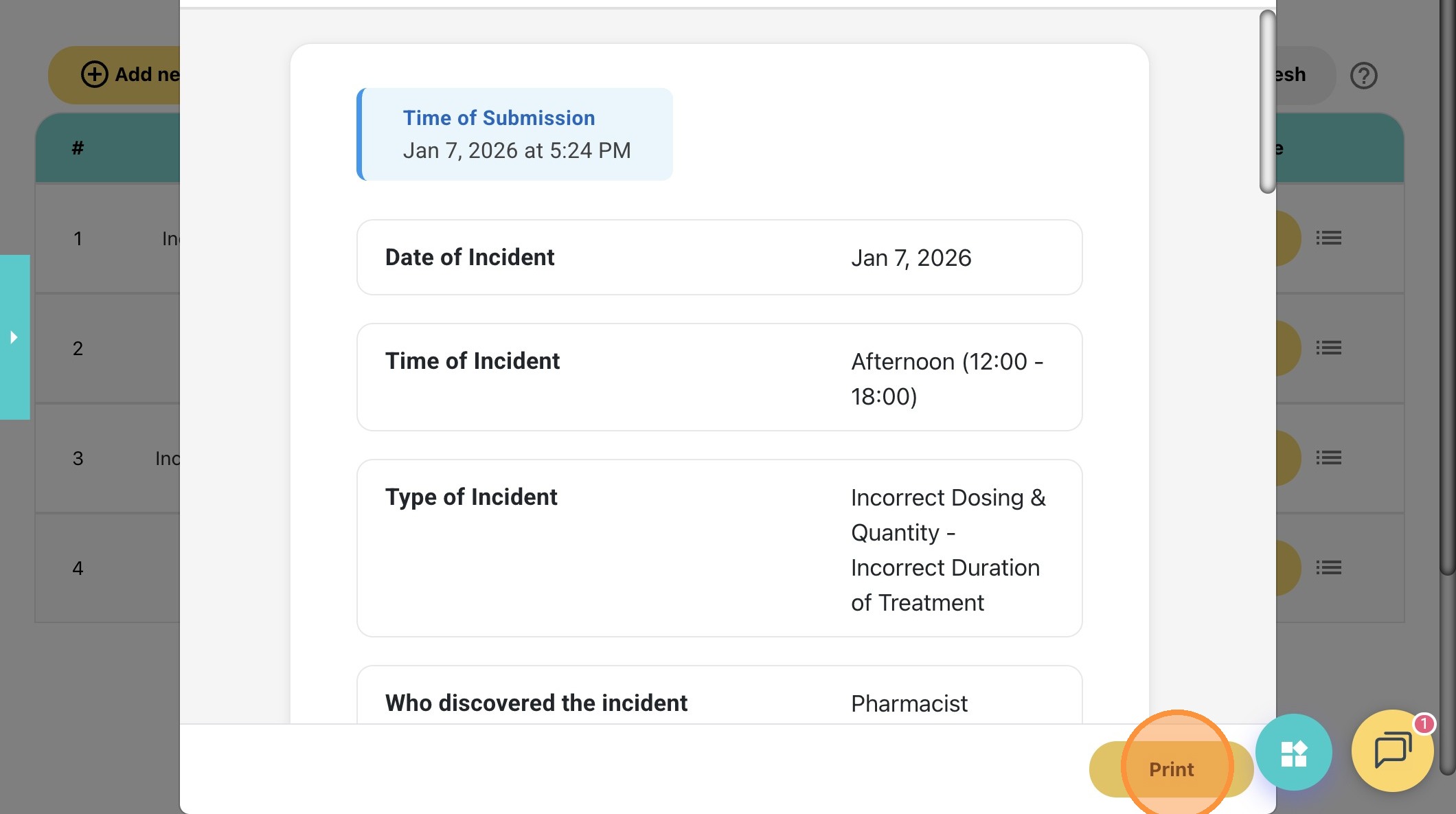
6. After you click "View", the report will open. You can also choose to print the report.
How to Edit Submitted Reports
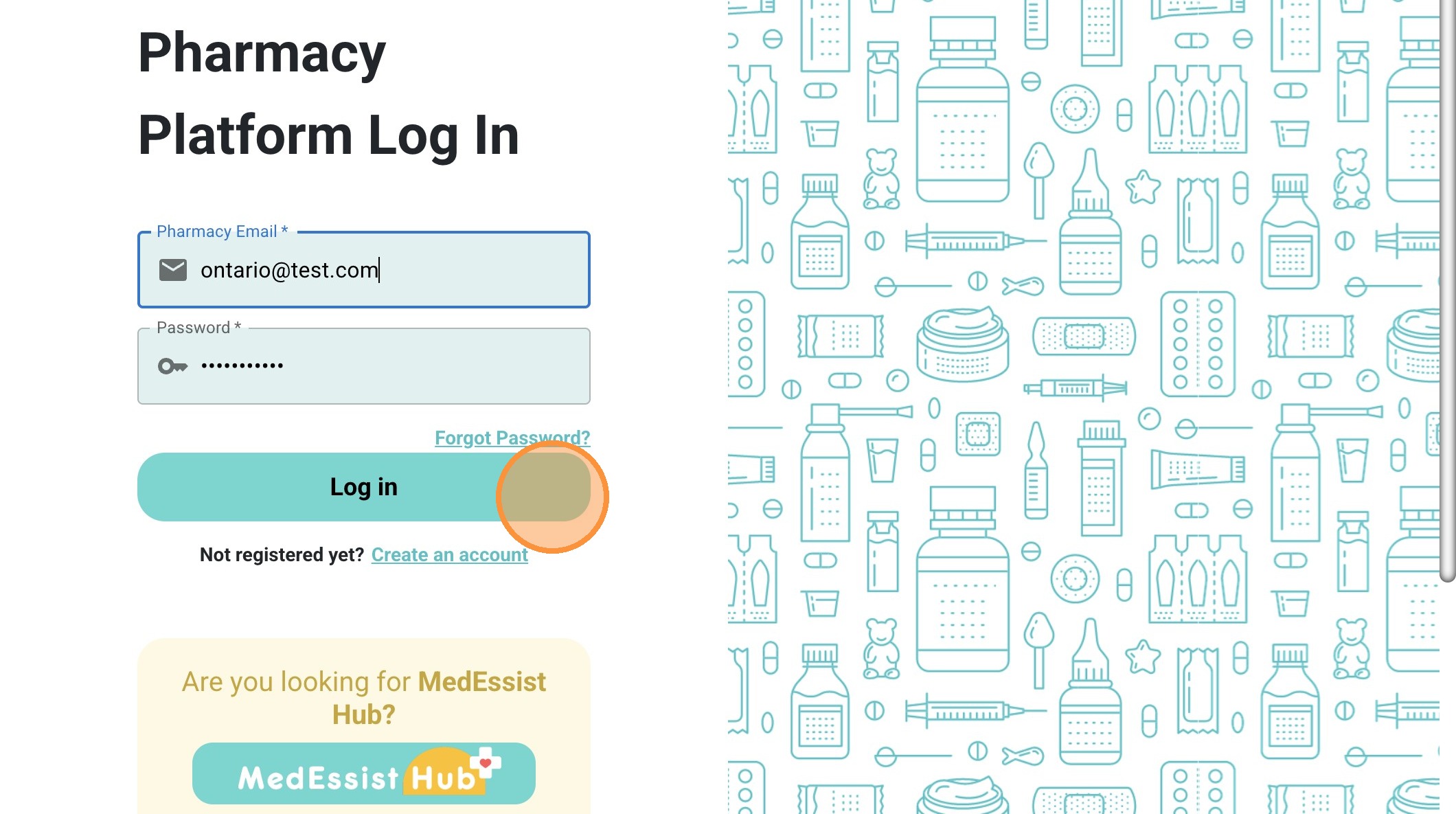
7. Visit: https://app.medessist.com/login
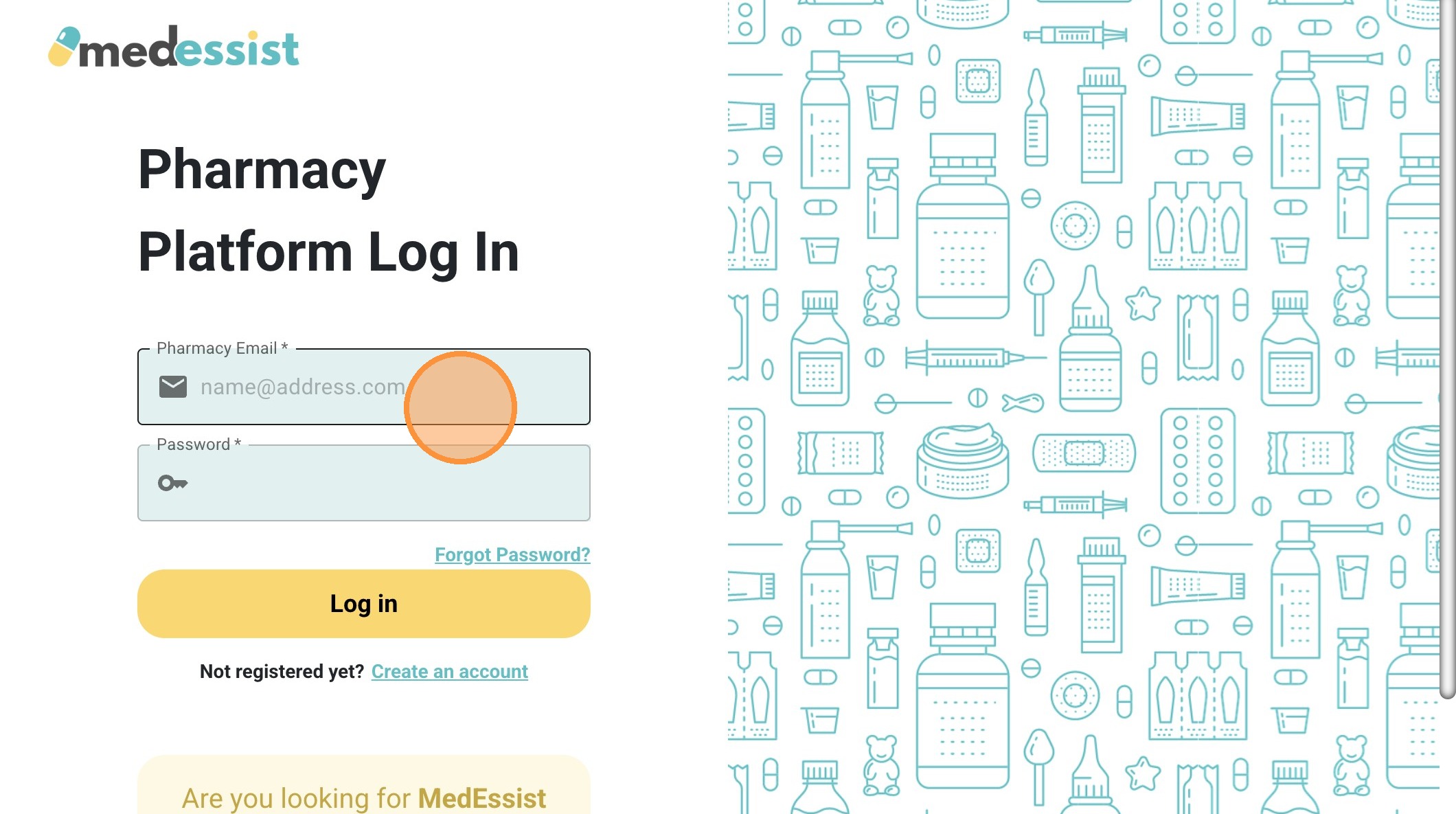
8. Enter your pharmacy login information and click "Log in"
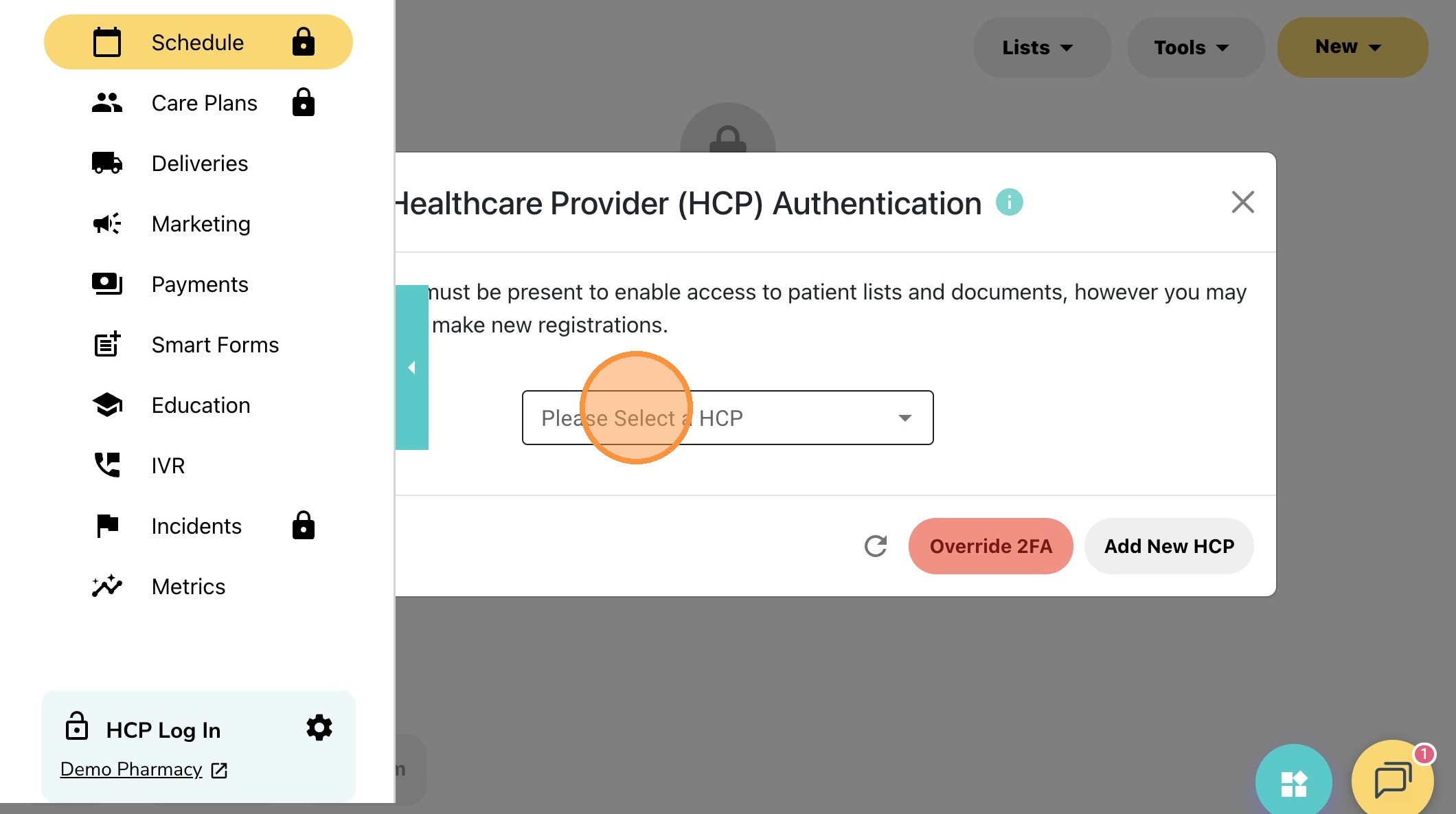
9. Click "Please Select a HCP" and login using your PIN
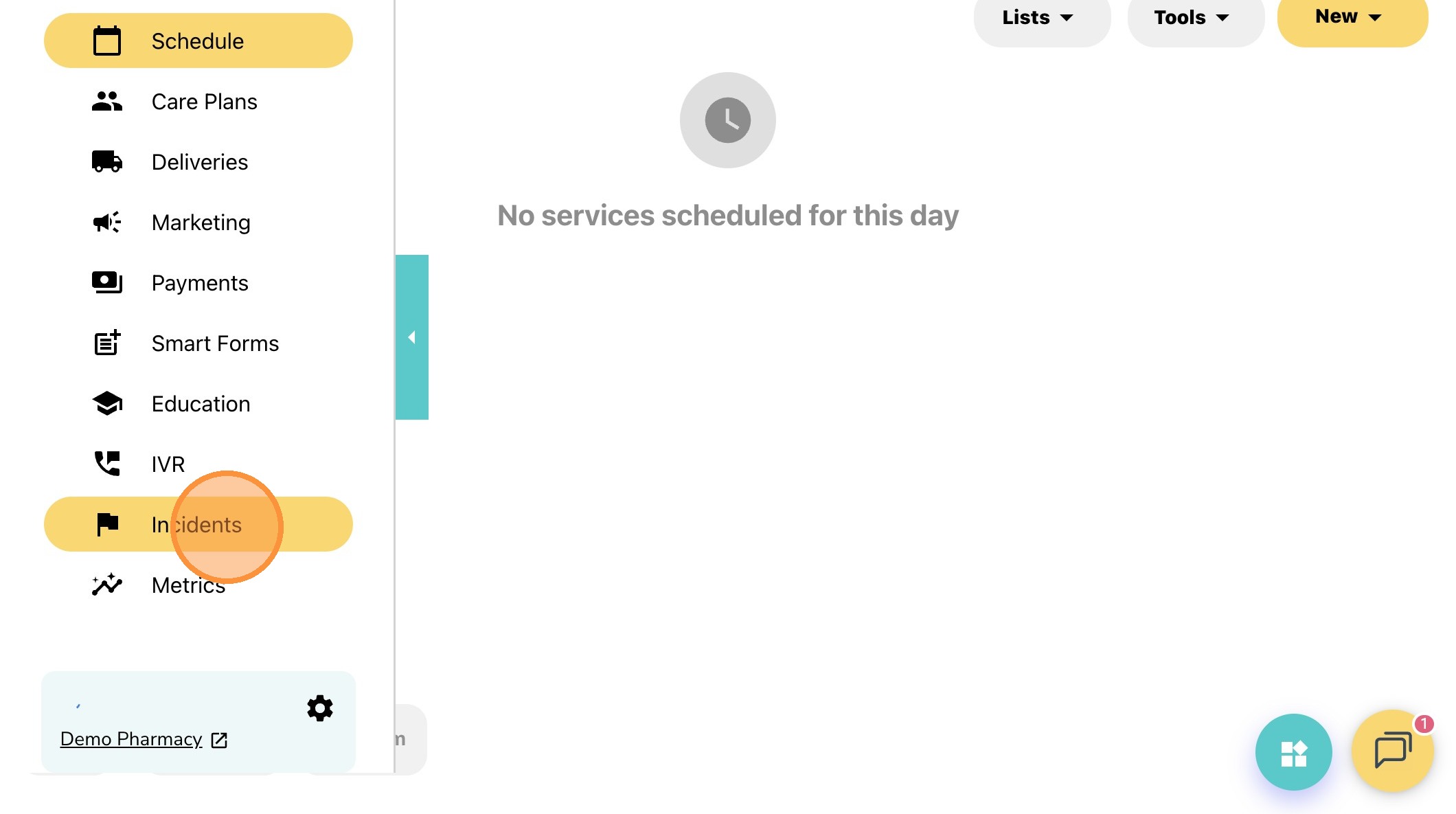
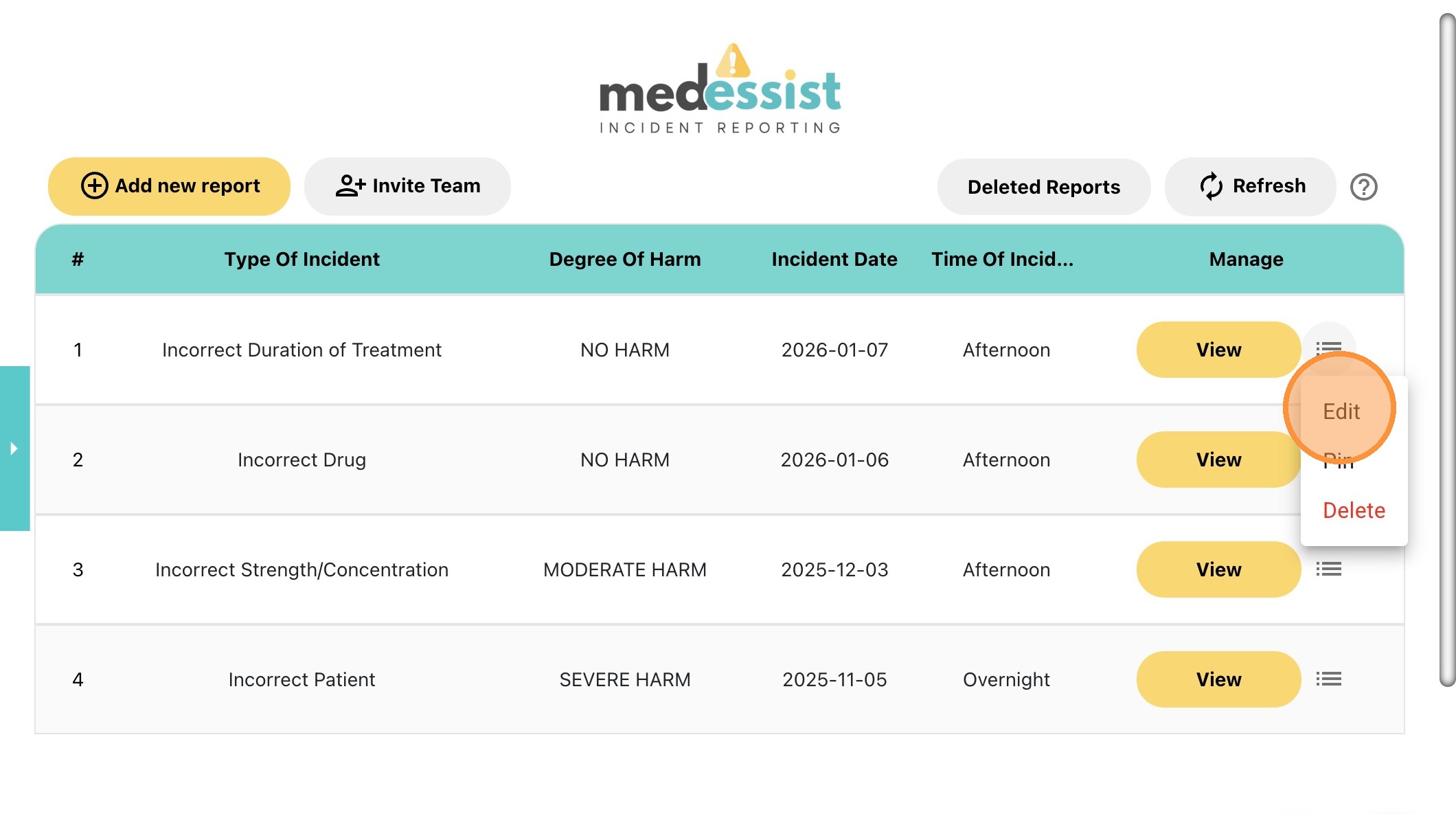
10. Select "Incidents"
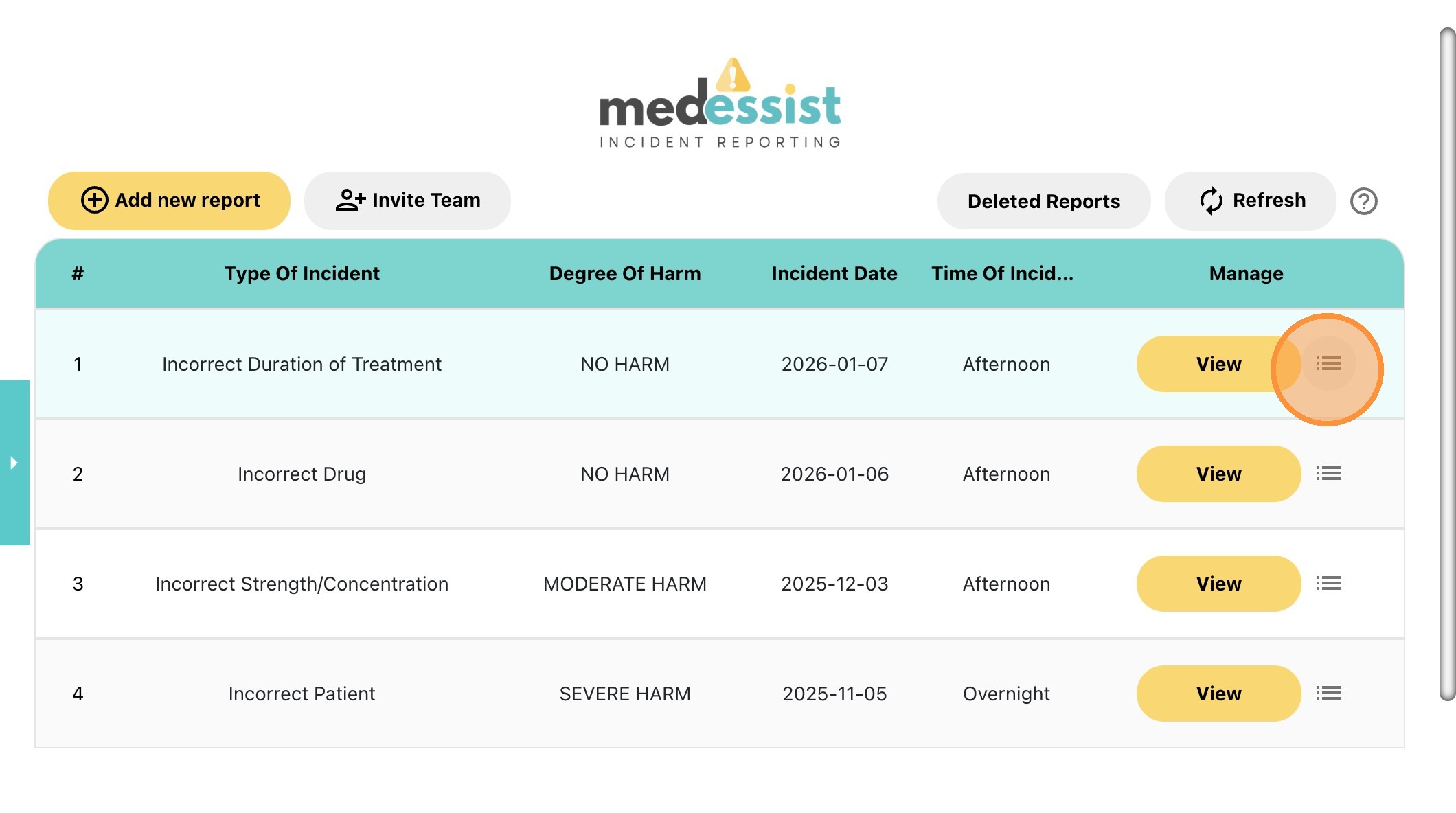
11. Click the icon with three lines on the right side of the reports list.
12. Click "Edit" to update the report.
13. After updating the report, click Save to keep your changes.
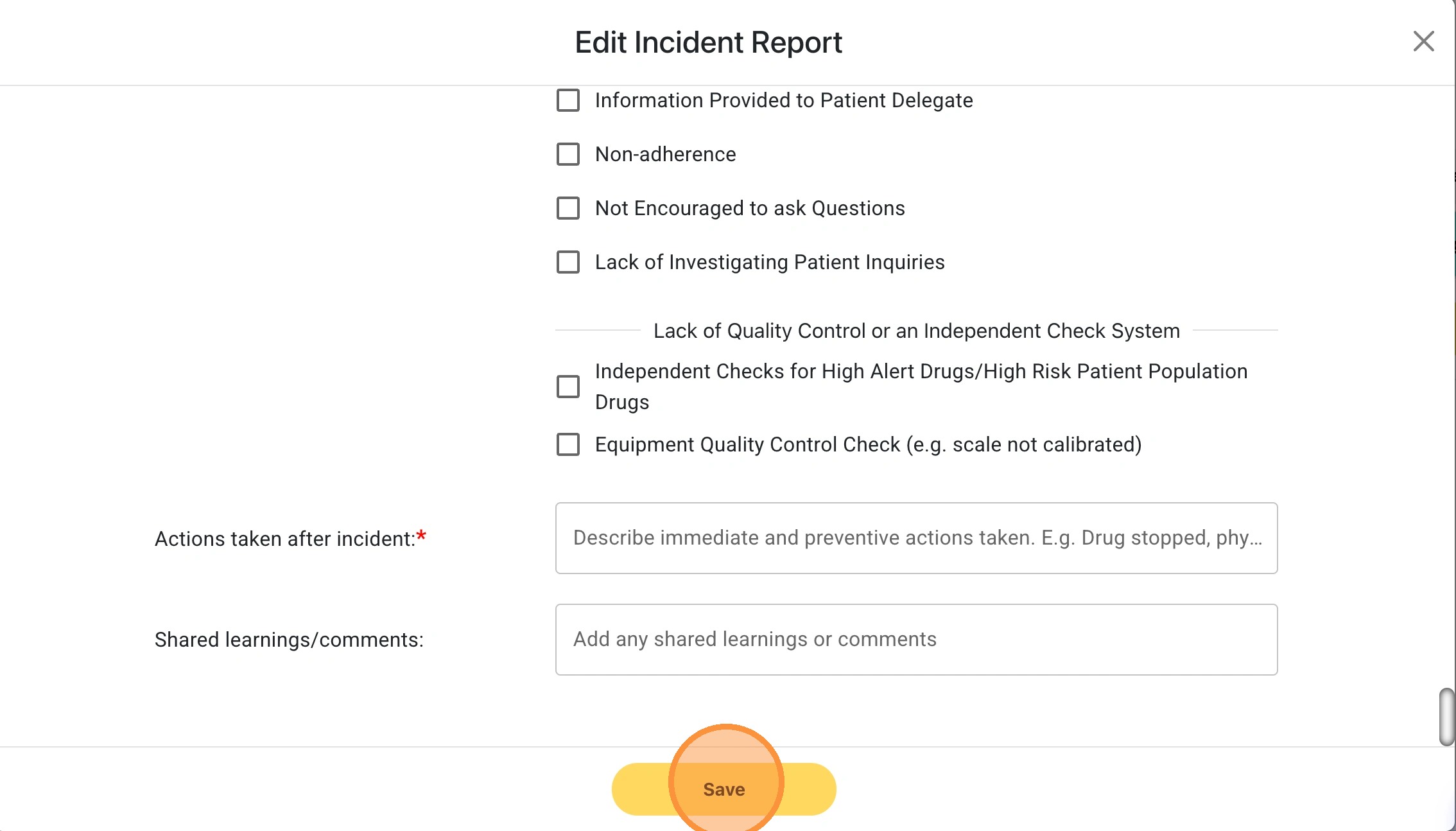
Alert! Please ensure no identifiable information is included in the form
Tip! The required fields are marked with a red *.
How to Pin Submitted Reports
14. Visit: https://app.medessist.com/login
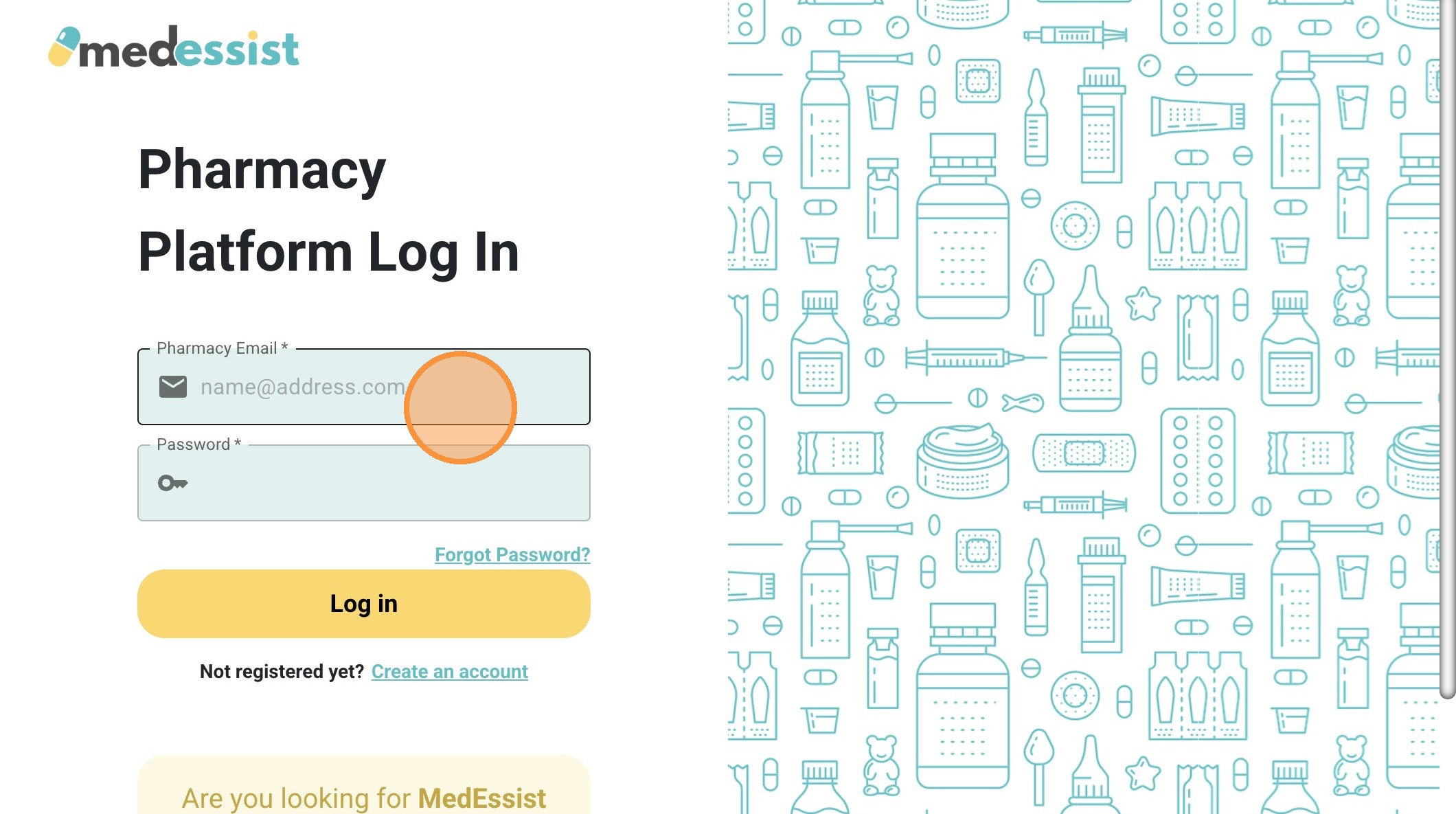
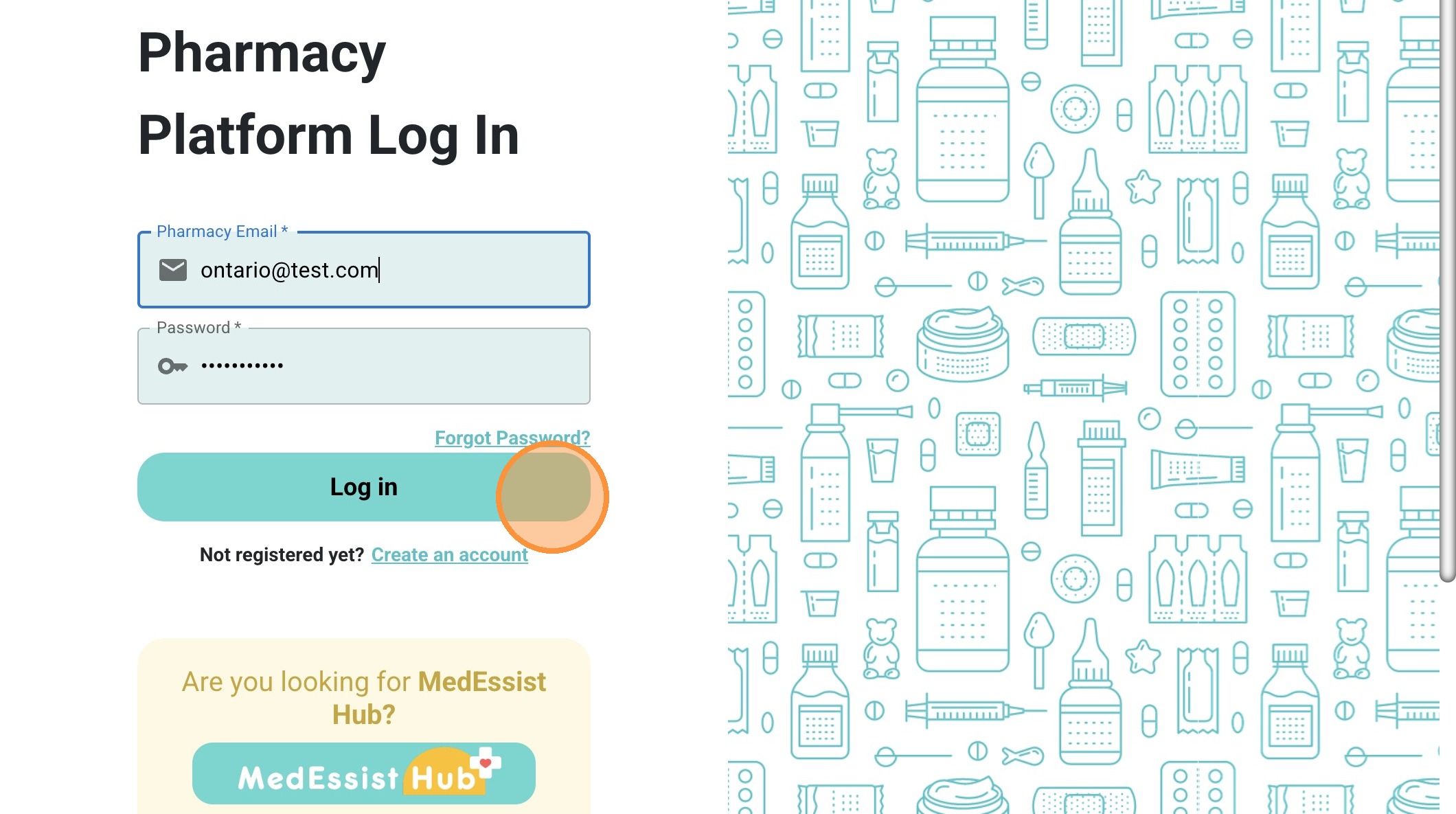
15. Enter your pharmacy login information and click "Log in"
16. Click "Please Select a HCP" and login using your PIN
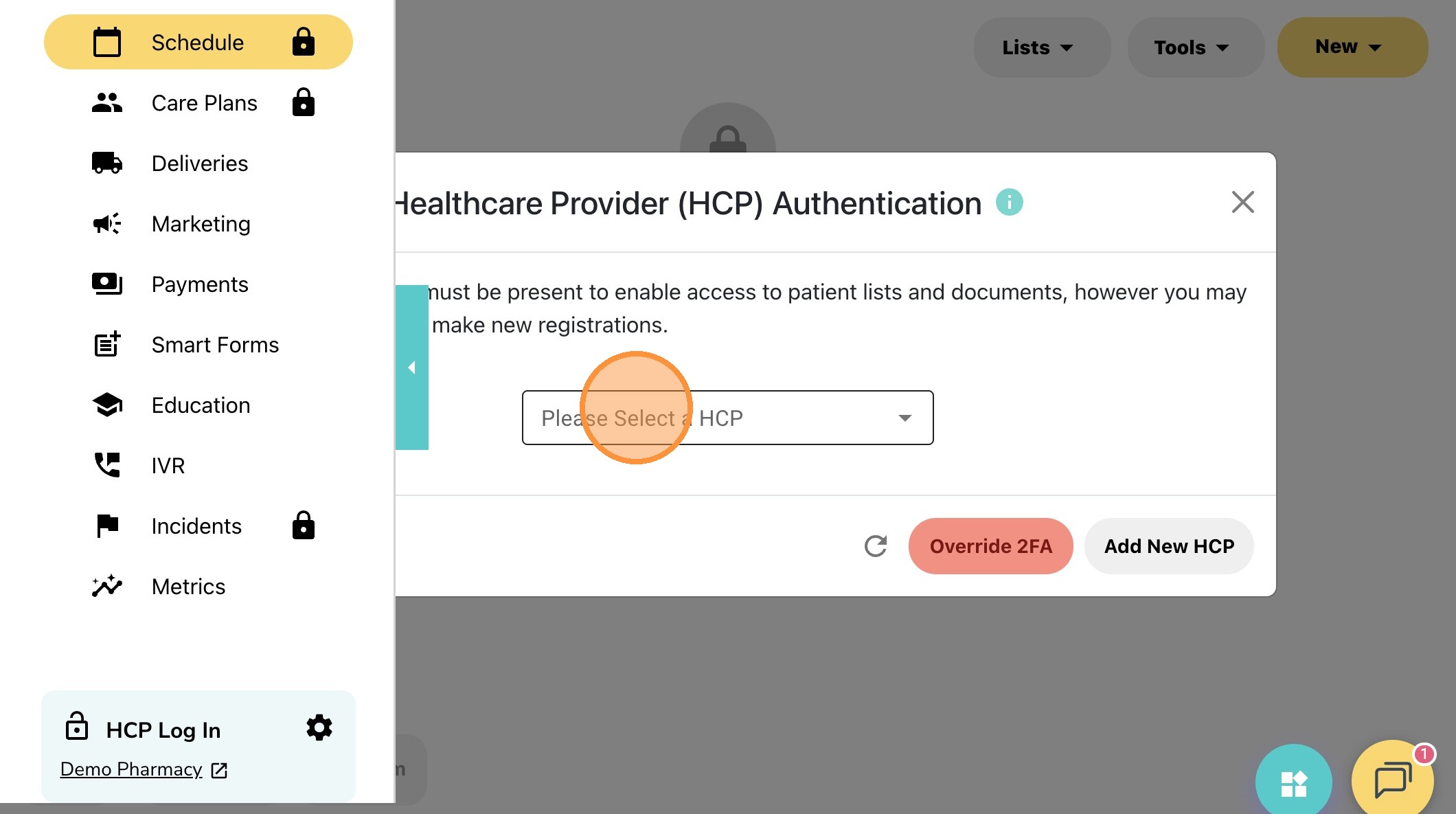
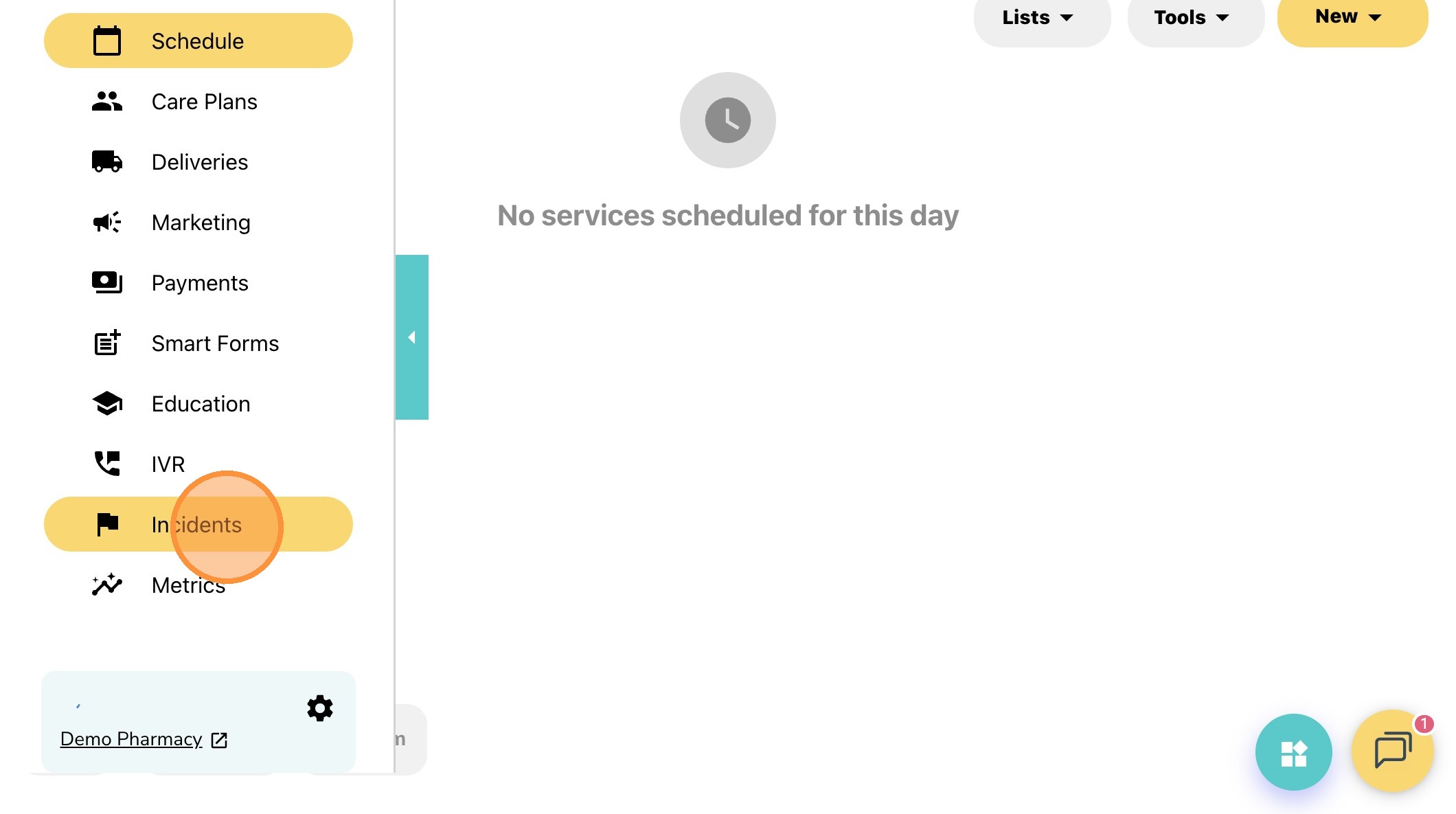
17. Select "Incidents"
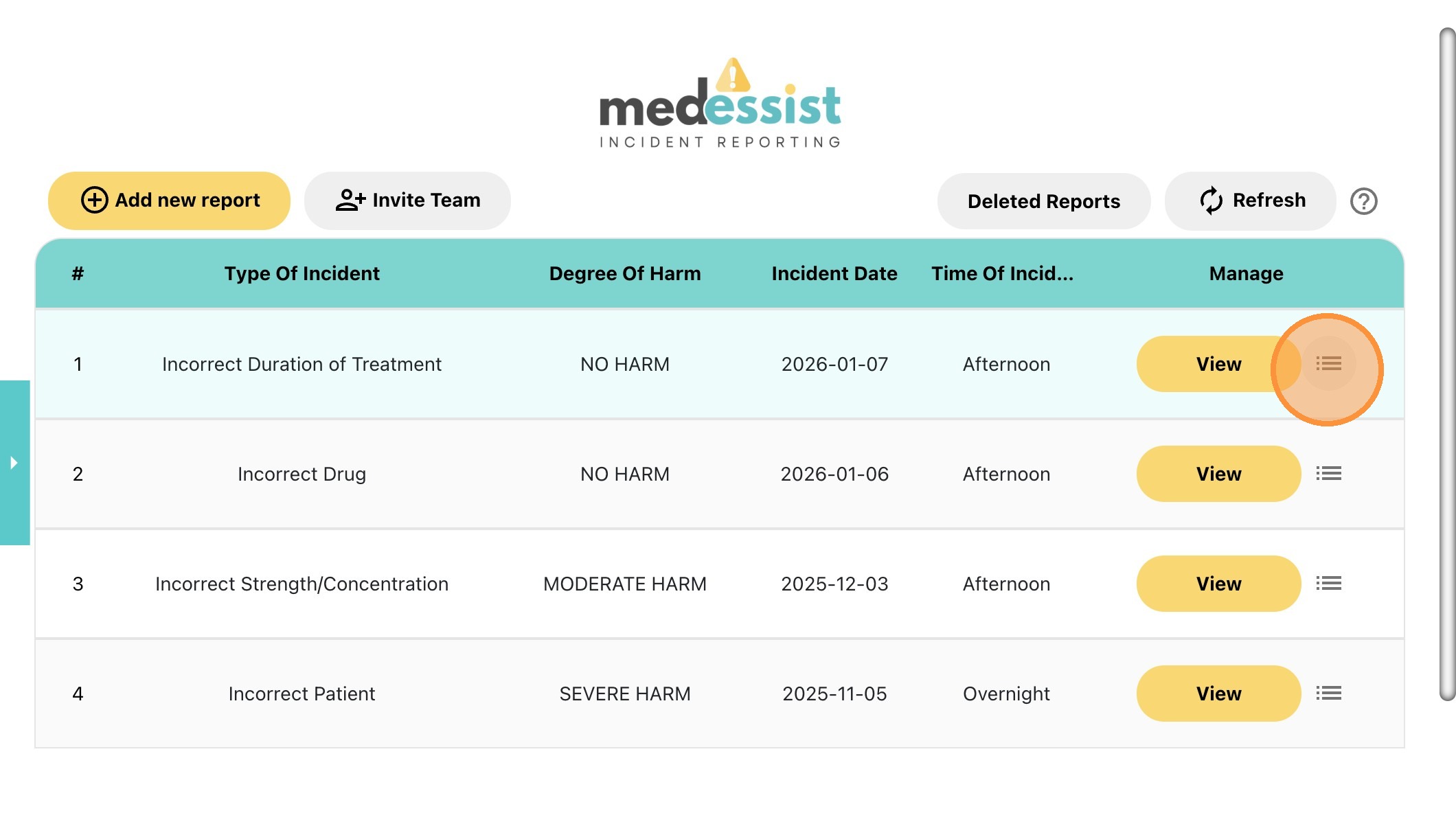
18. Click the icon with three lines on the right side of the report.
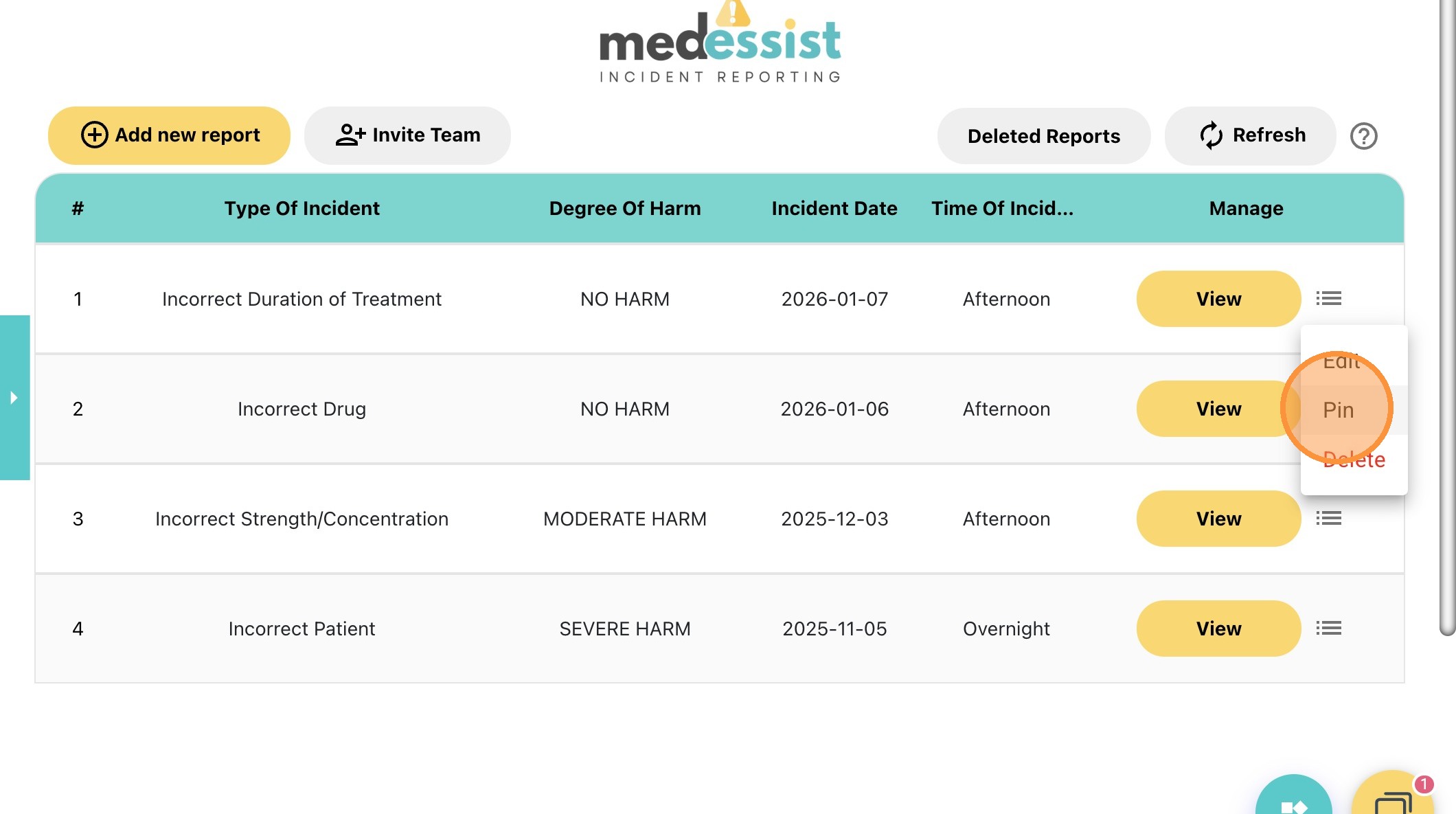
19. Click "Pin" to move the report to the top of the page.
20. You can pin as many reports as you'd like!
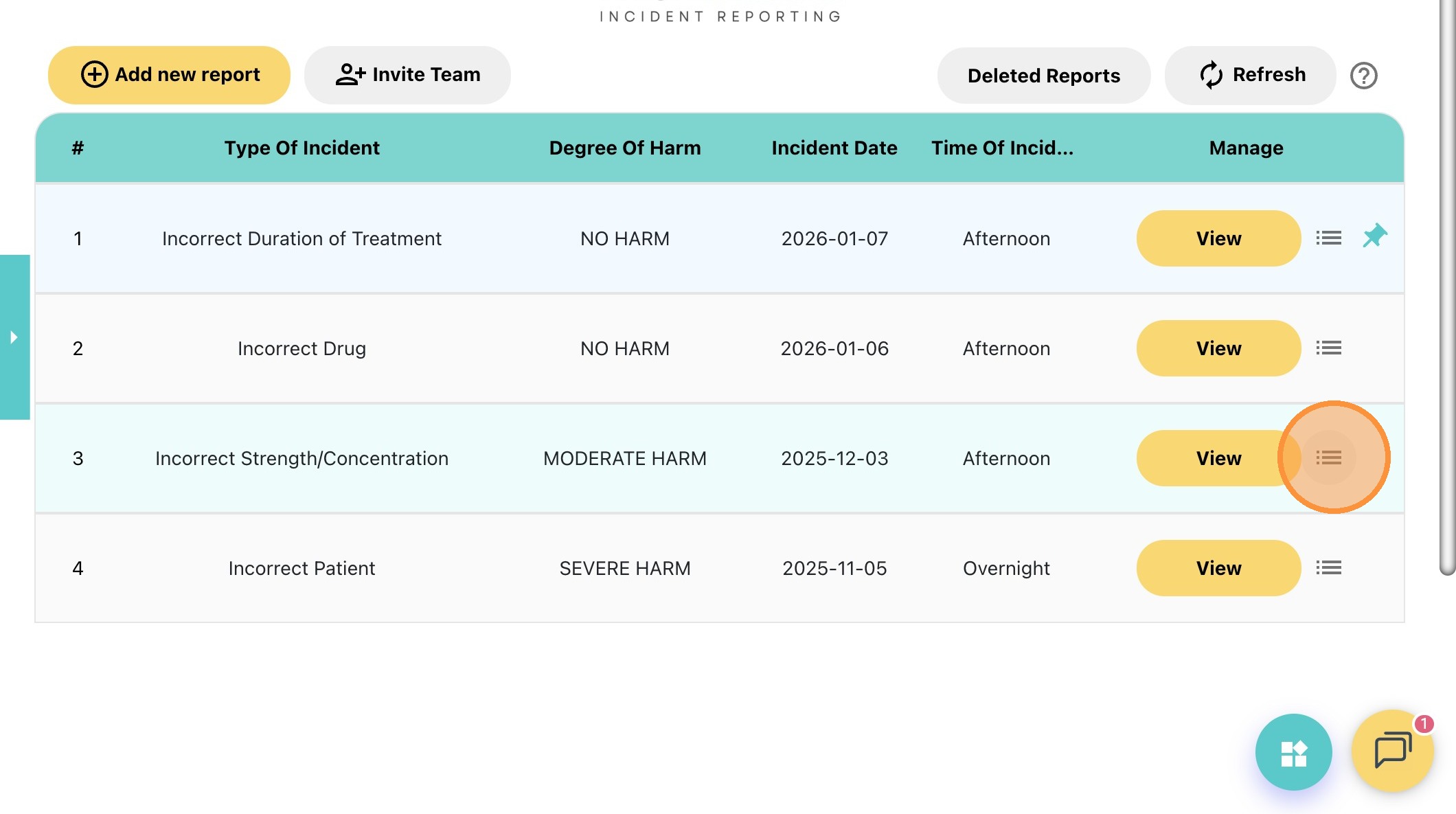
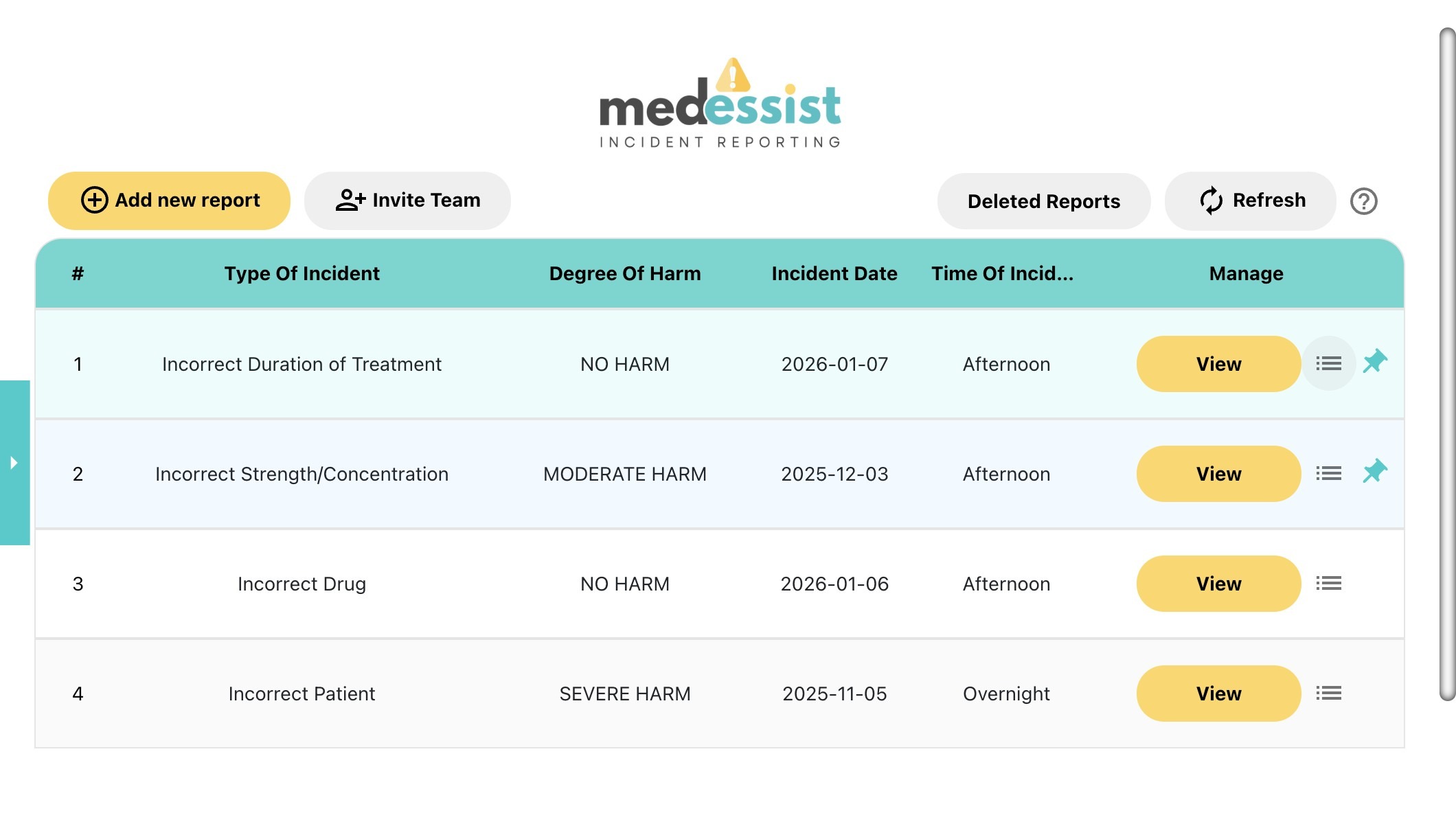
21. Now you can easily access and locate the pinned reports.
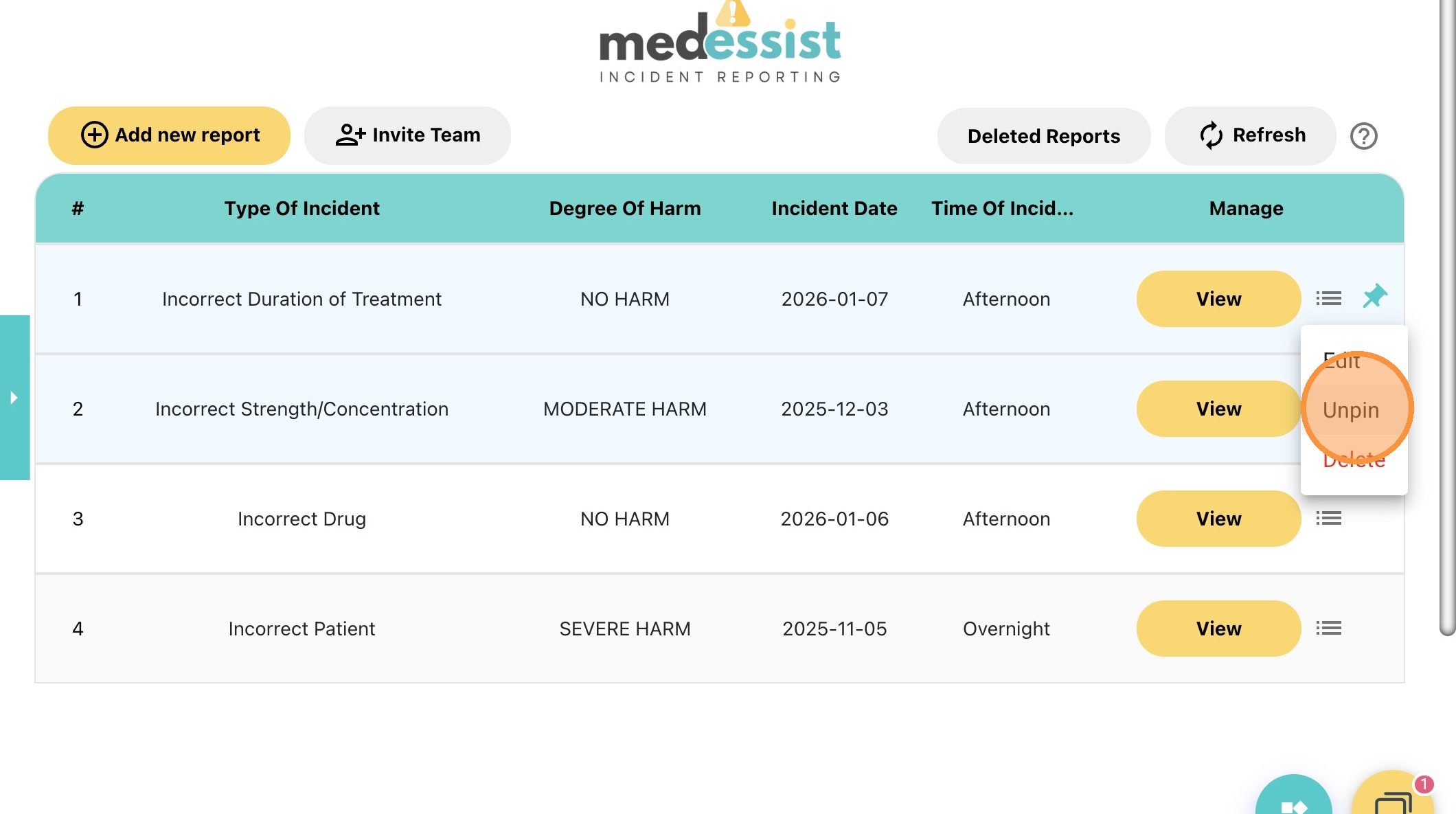
22. To remove a pinned report from the top, click the icon with three lines and choose "Unpin".
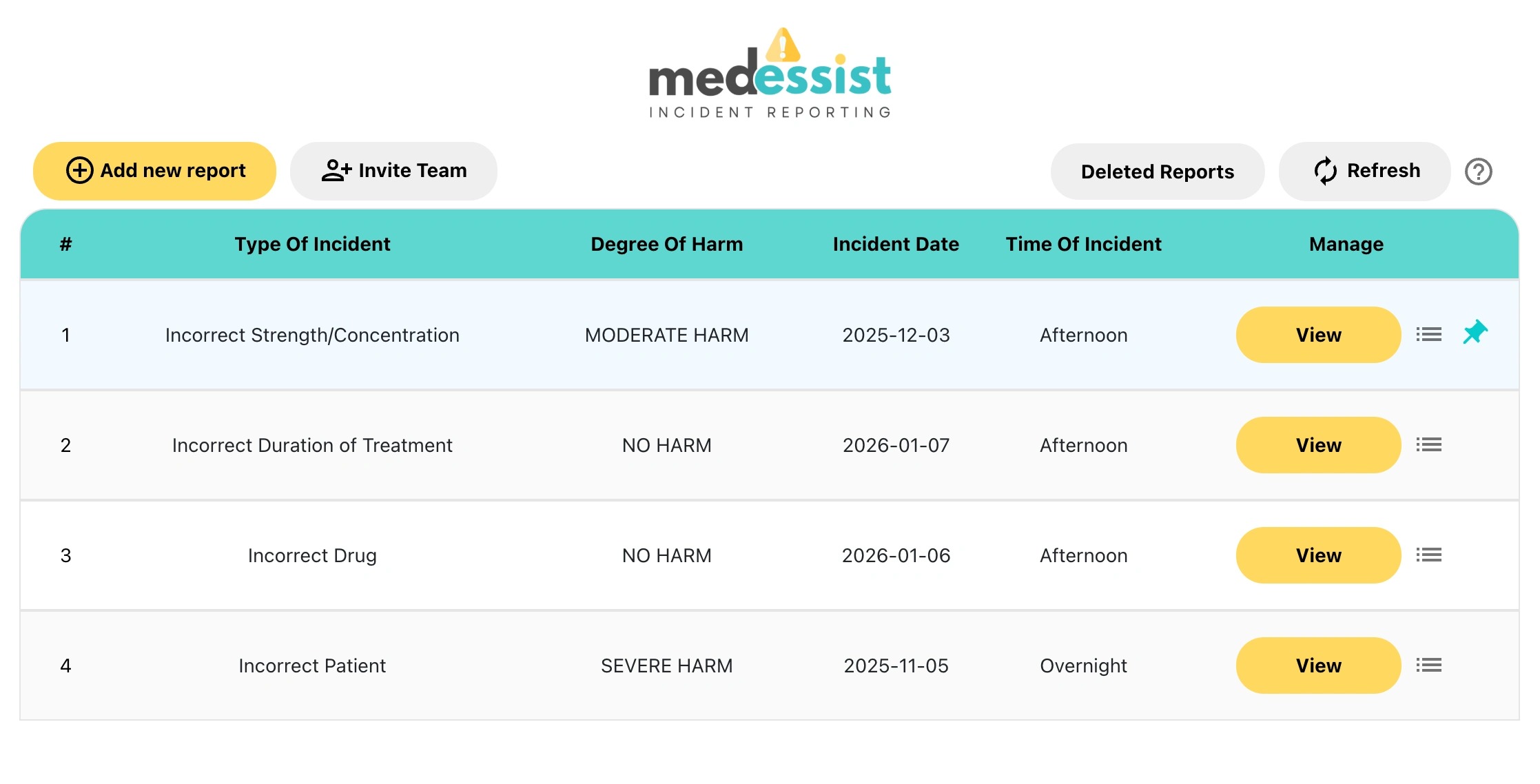
23. Unpinned incident reports will return to their original position.
How to Delete Submitted Reports
24. Visit: https://app.medessist.com/login
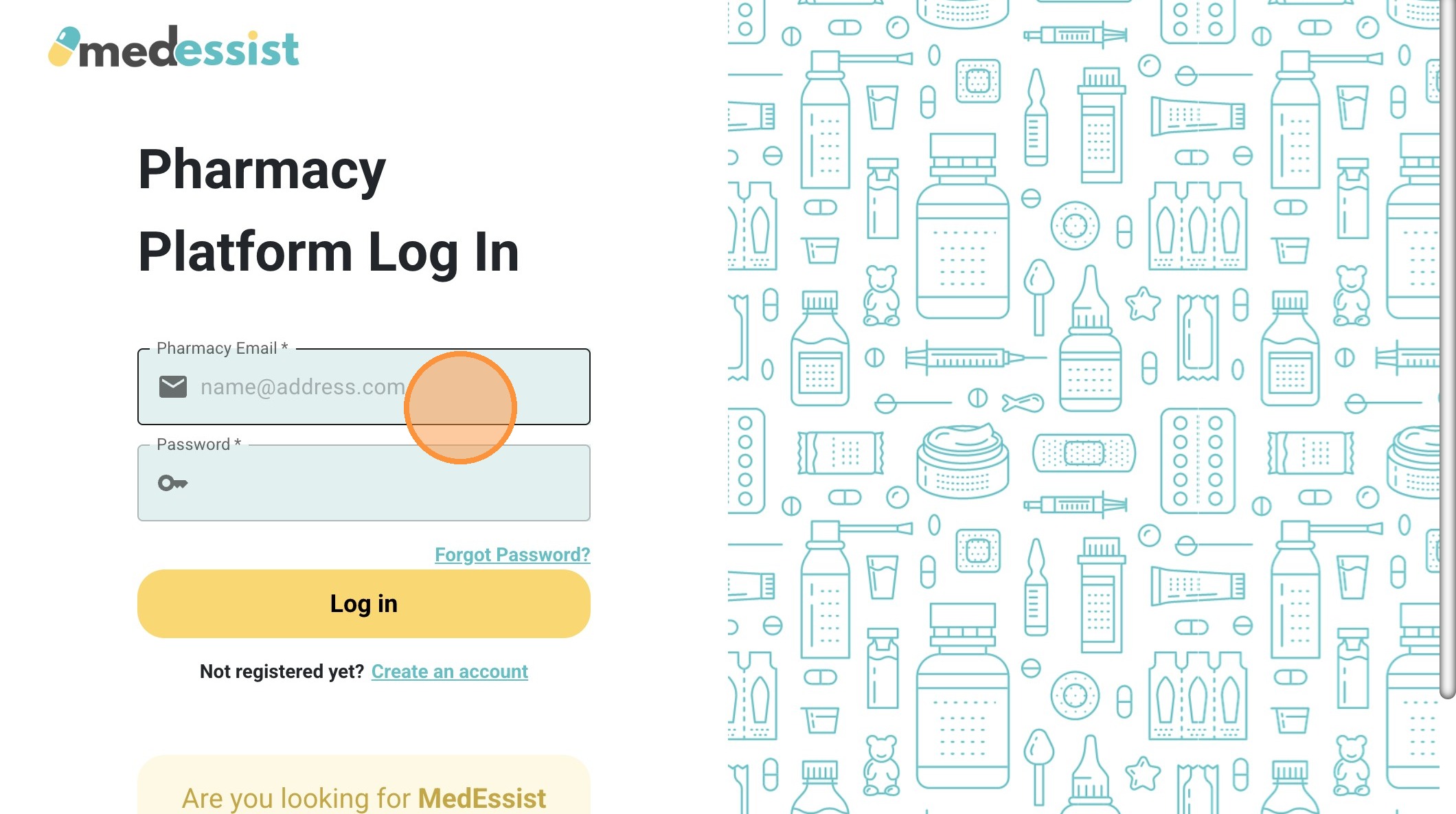
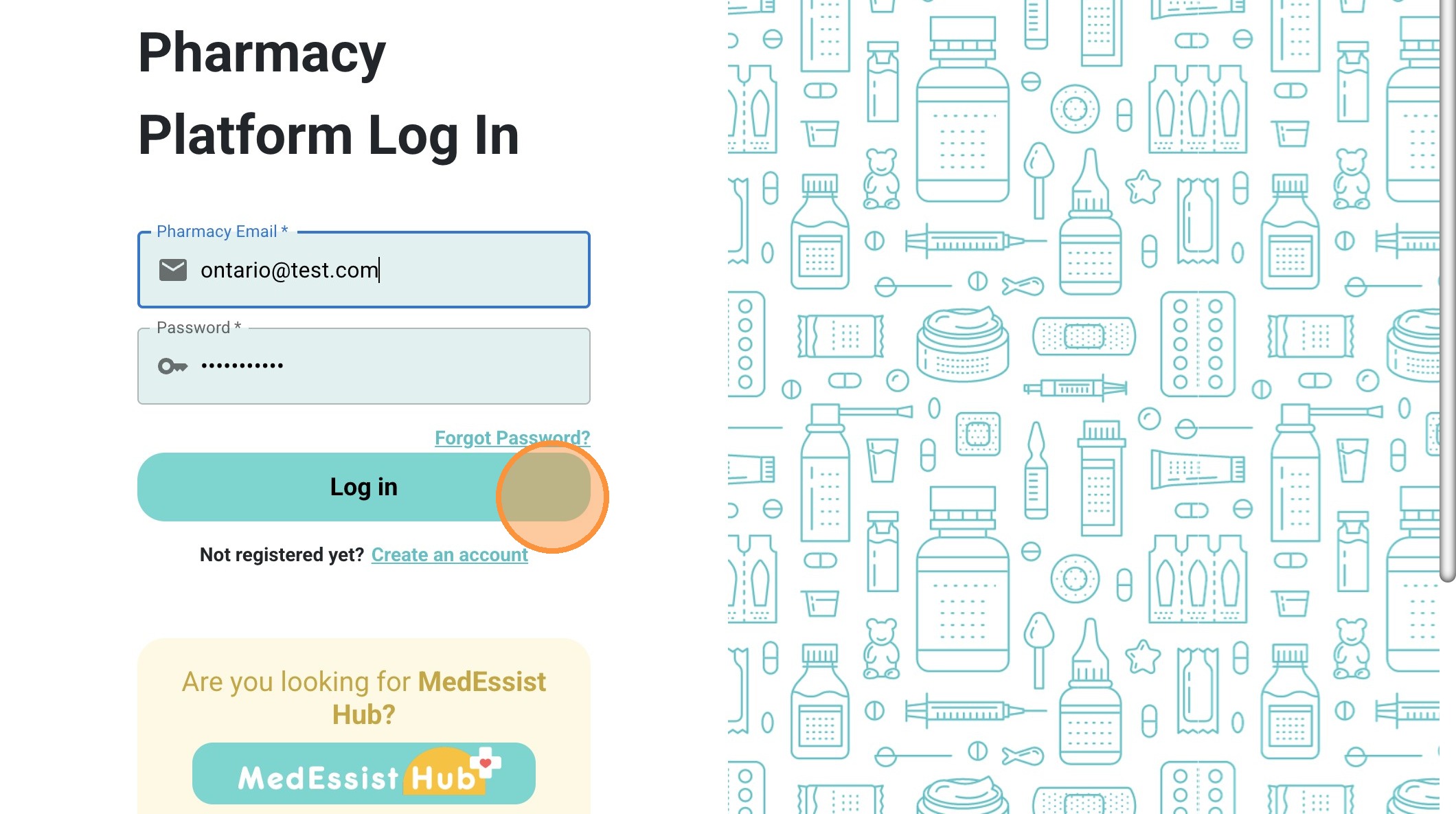
25. Enter your pharmacy login information and click "Log in"
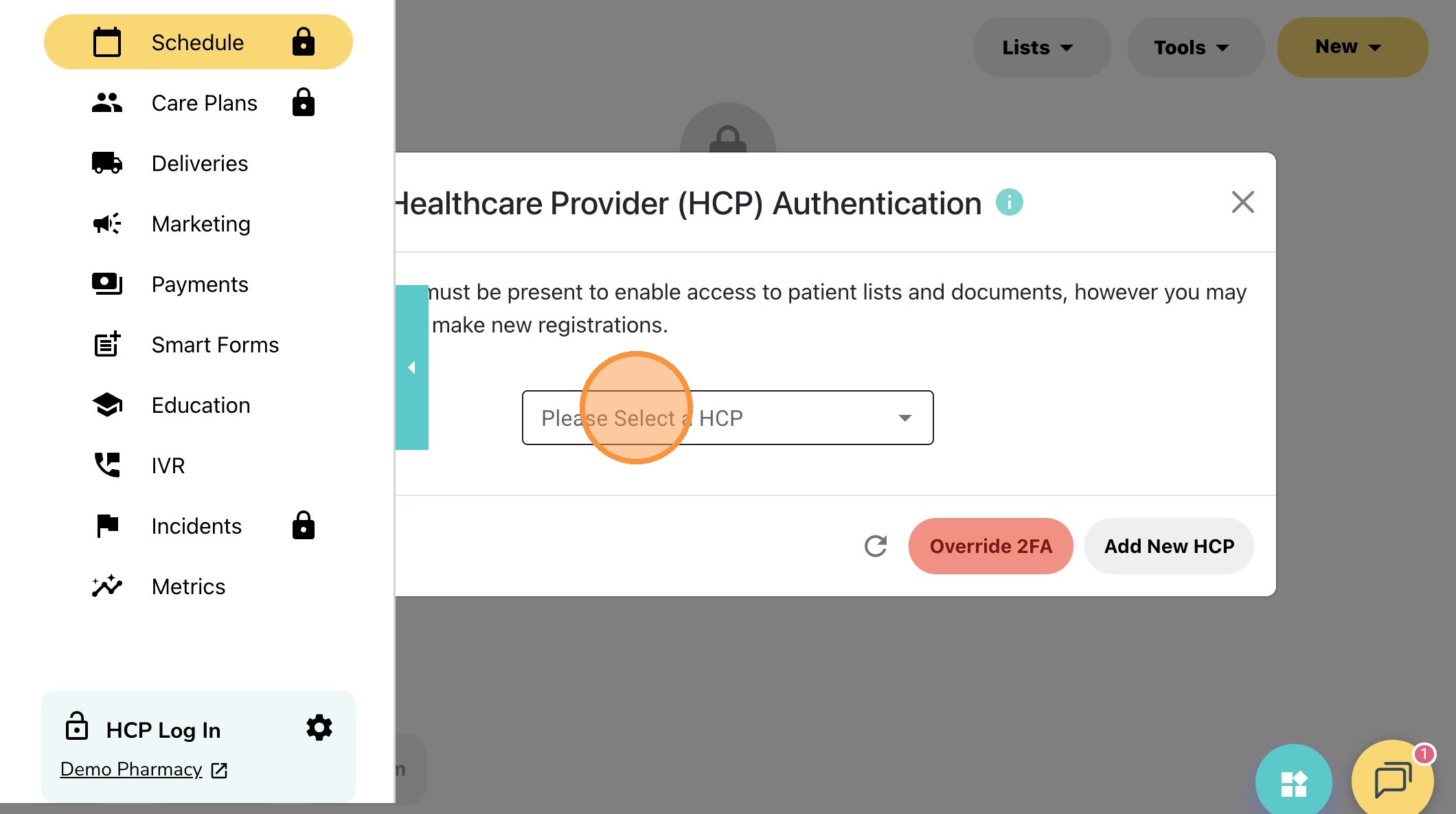
26. Click "Please Select a HCP" and login using your PIN
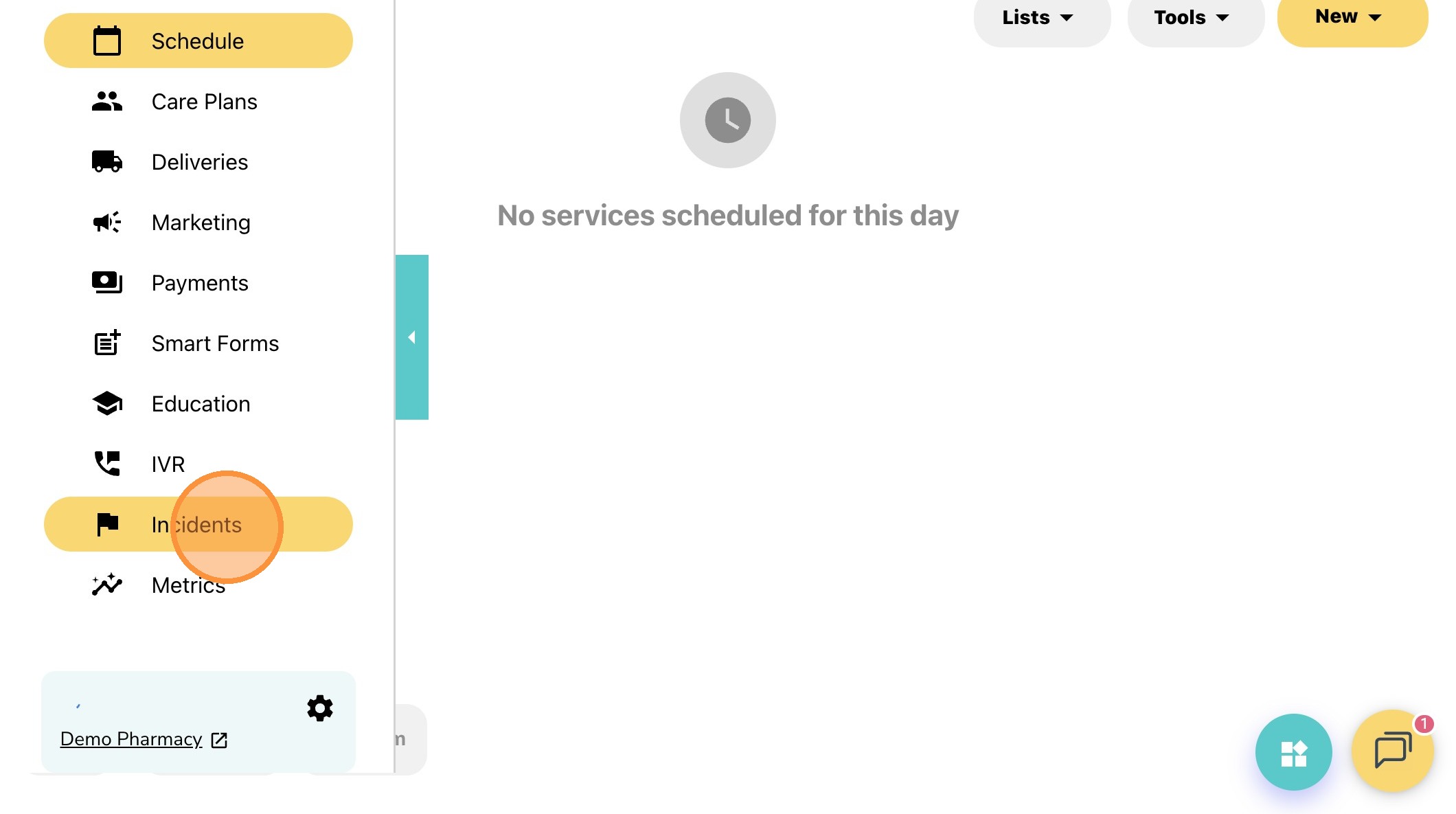
27. Click "Incidents"
28. Click the icons with three lines on the right side of the report.
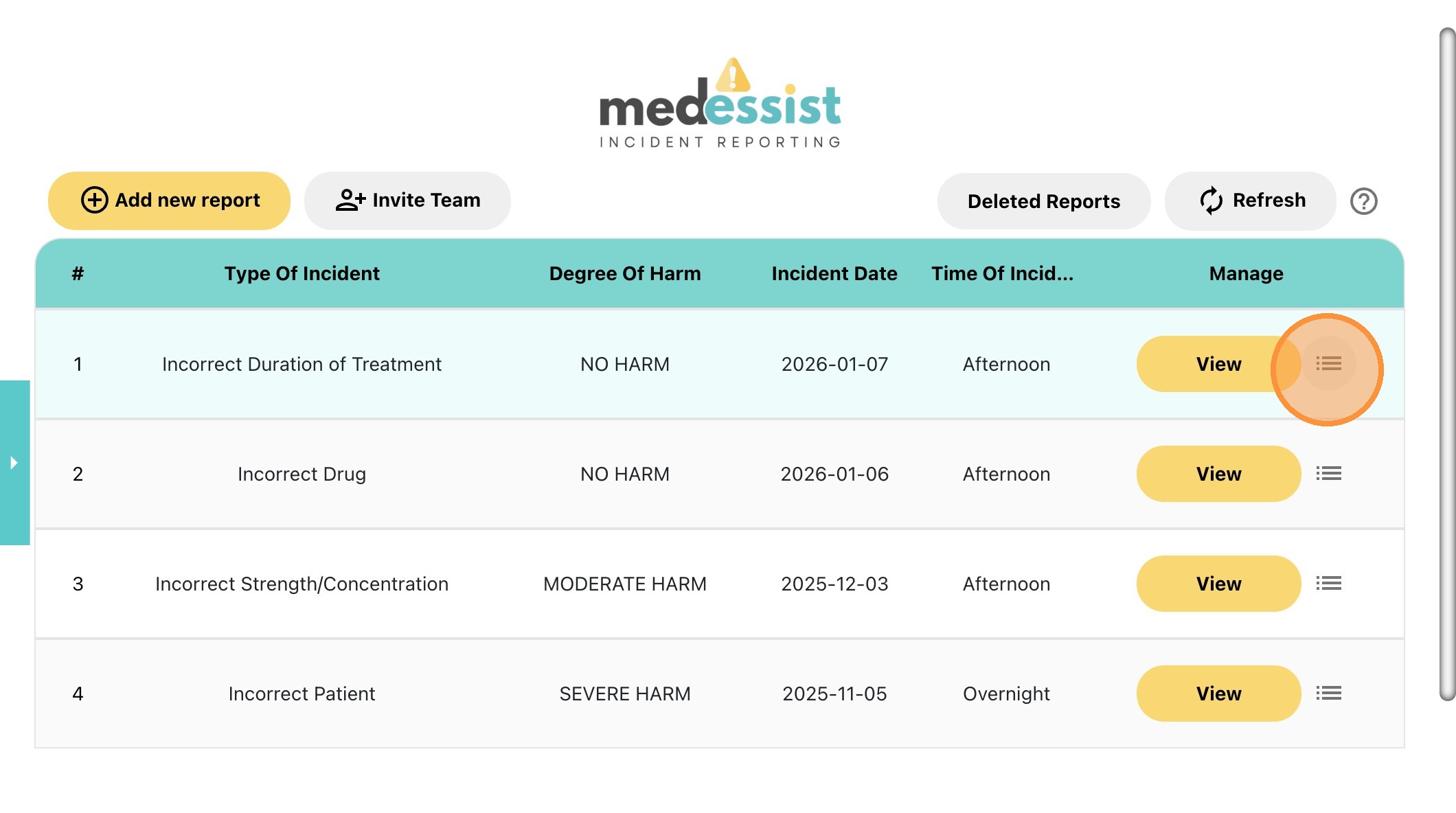
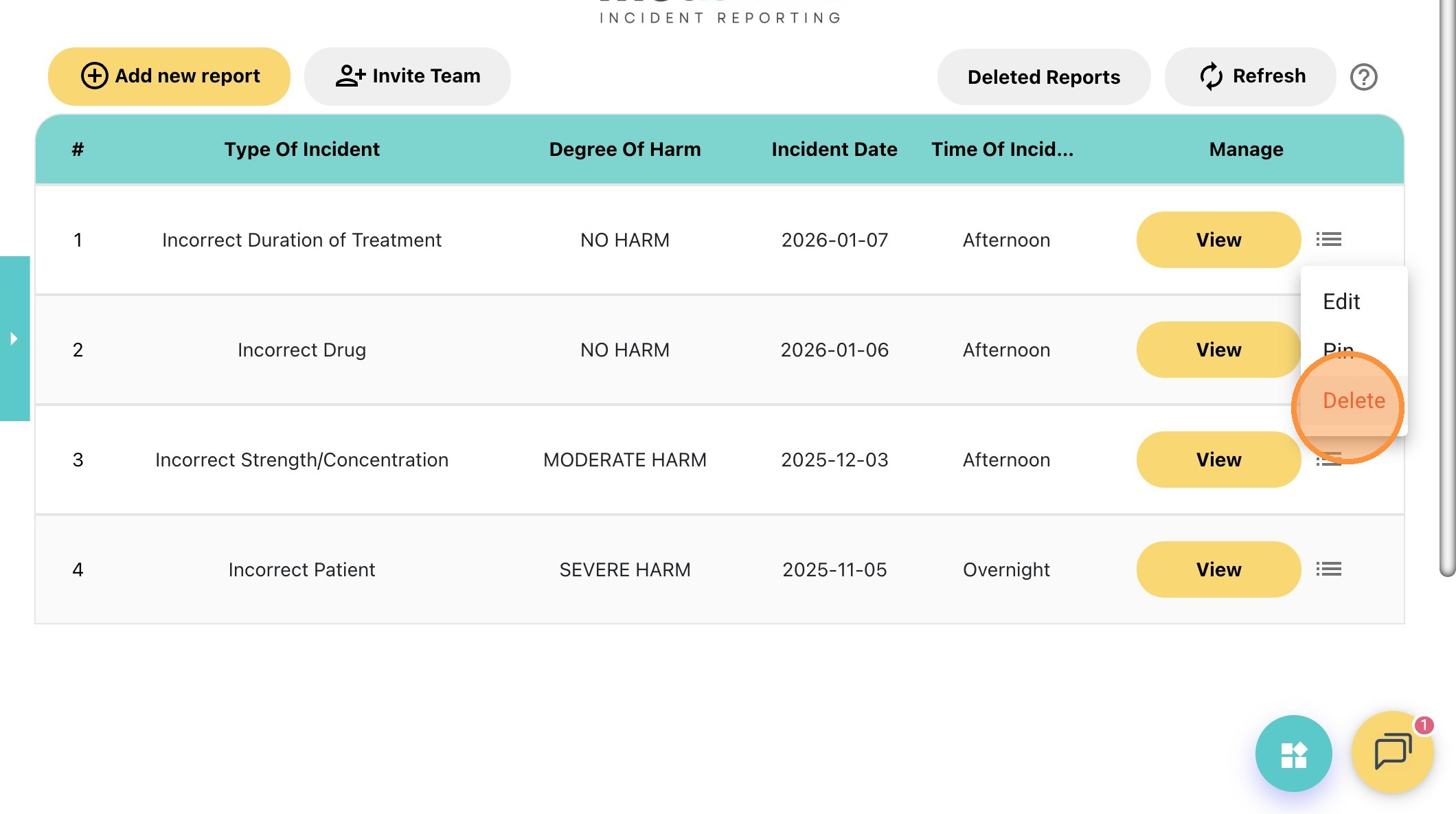
29. Click "Delete" to remove the incident report.
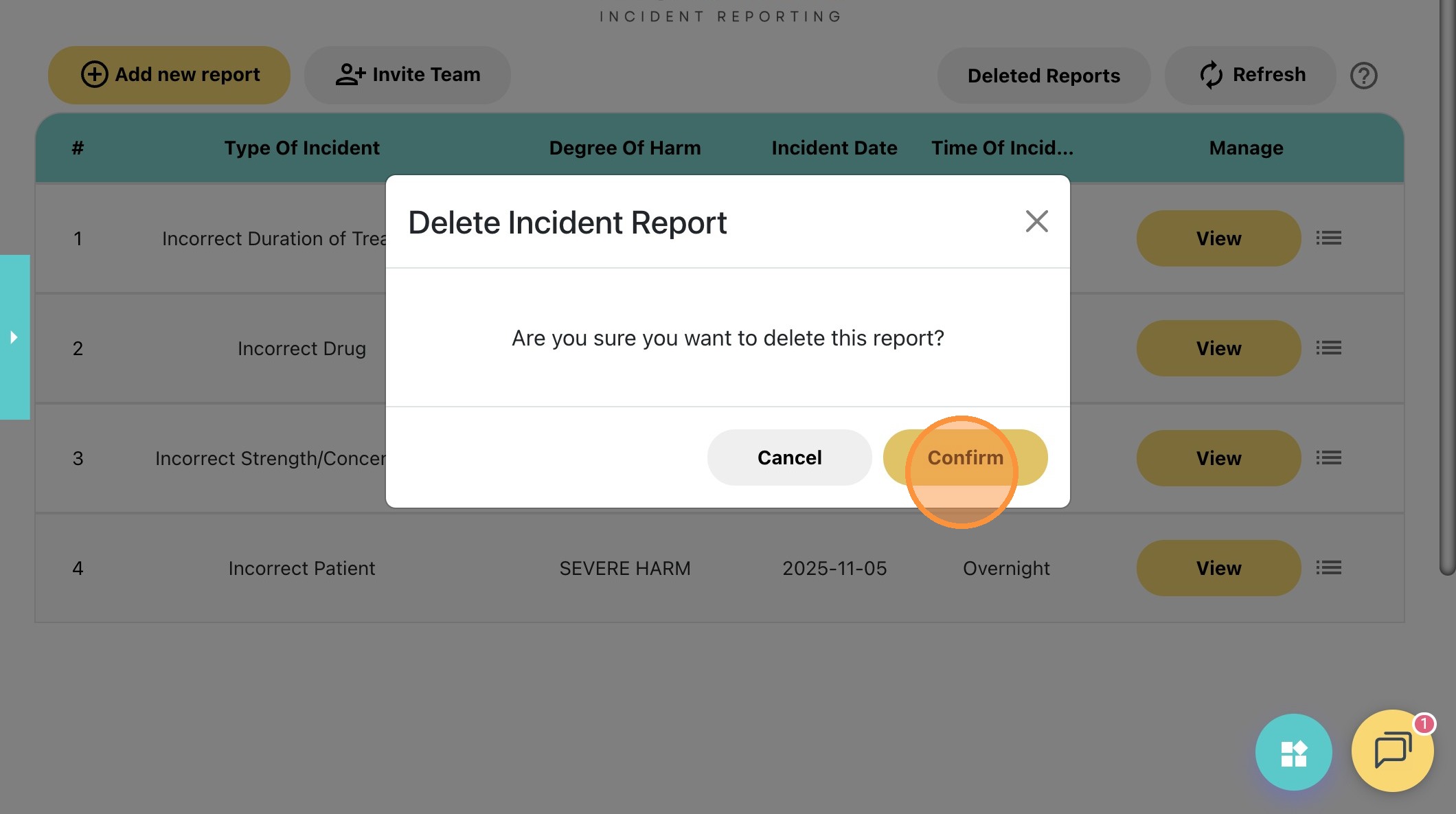
30. Click "Confirm" to delete the report.
Tip! If you deleted a report by mistake, there is a way to restore it!
How to Restore Deleted Reports
31. Visit: https://app.medessist.com/login
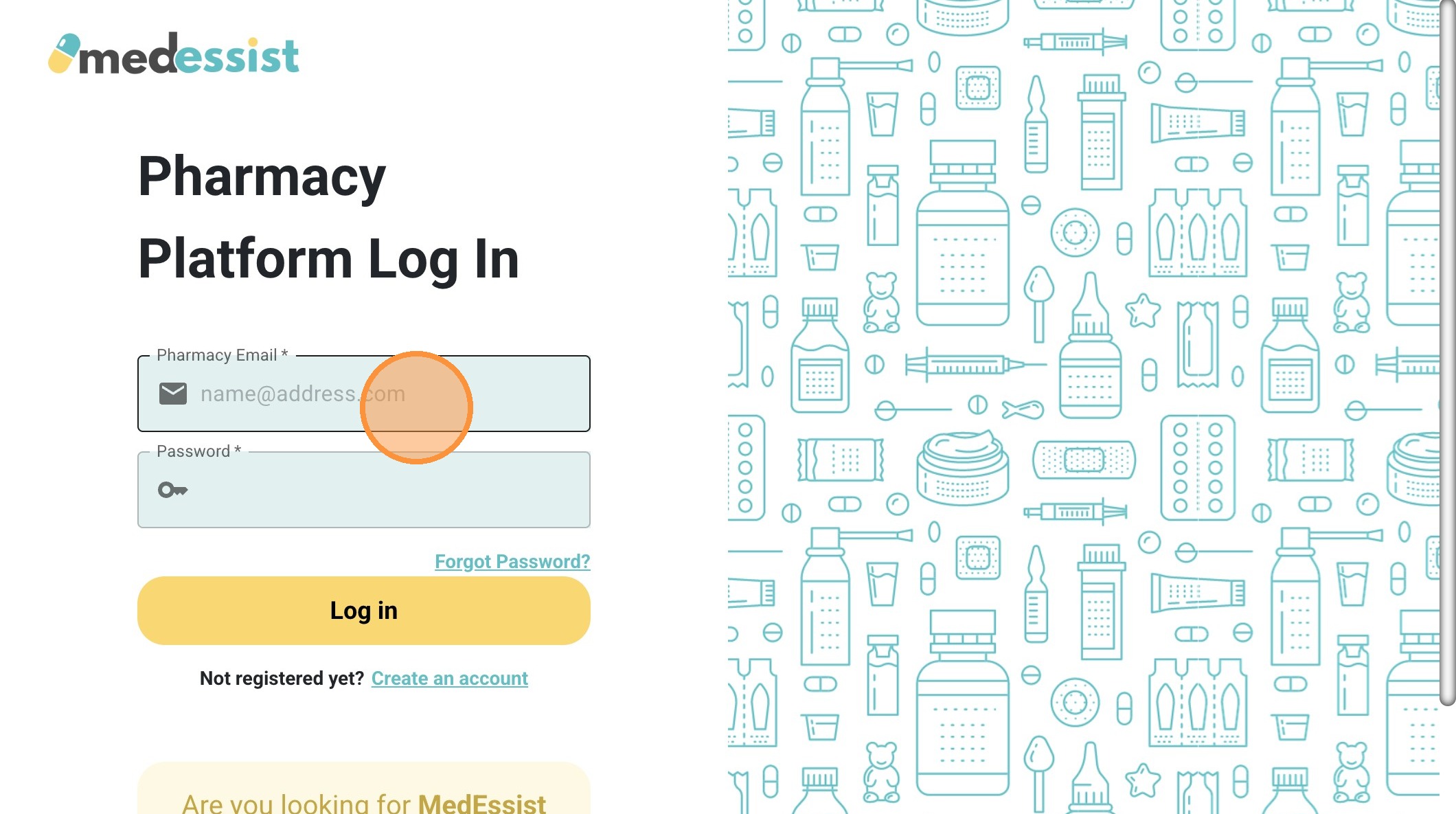
32. Enter your pharmacy login information and click "Log in"
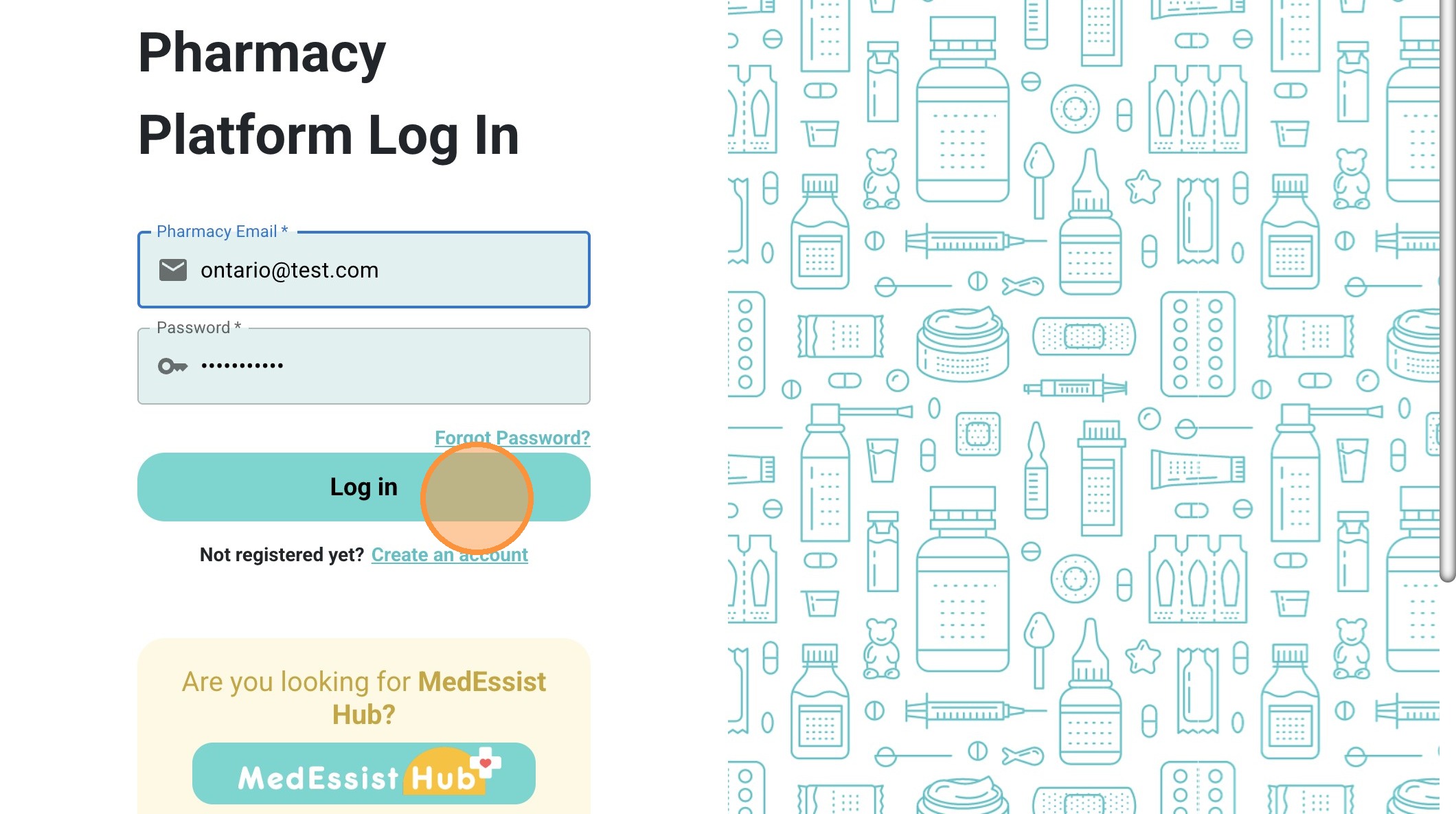
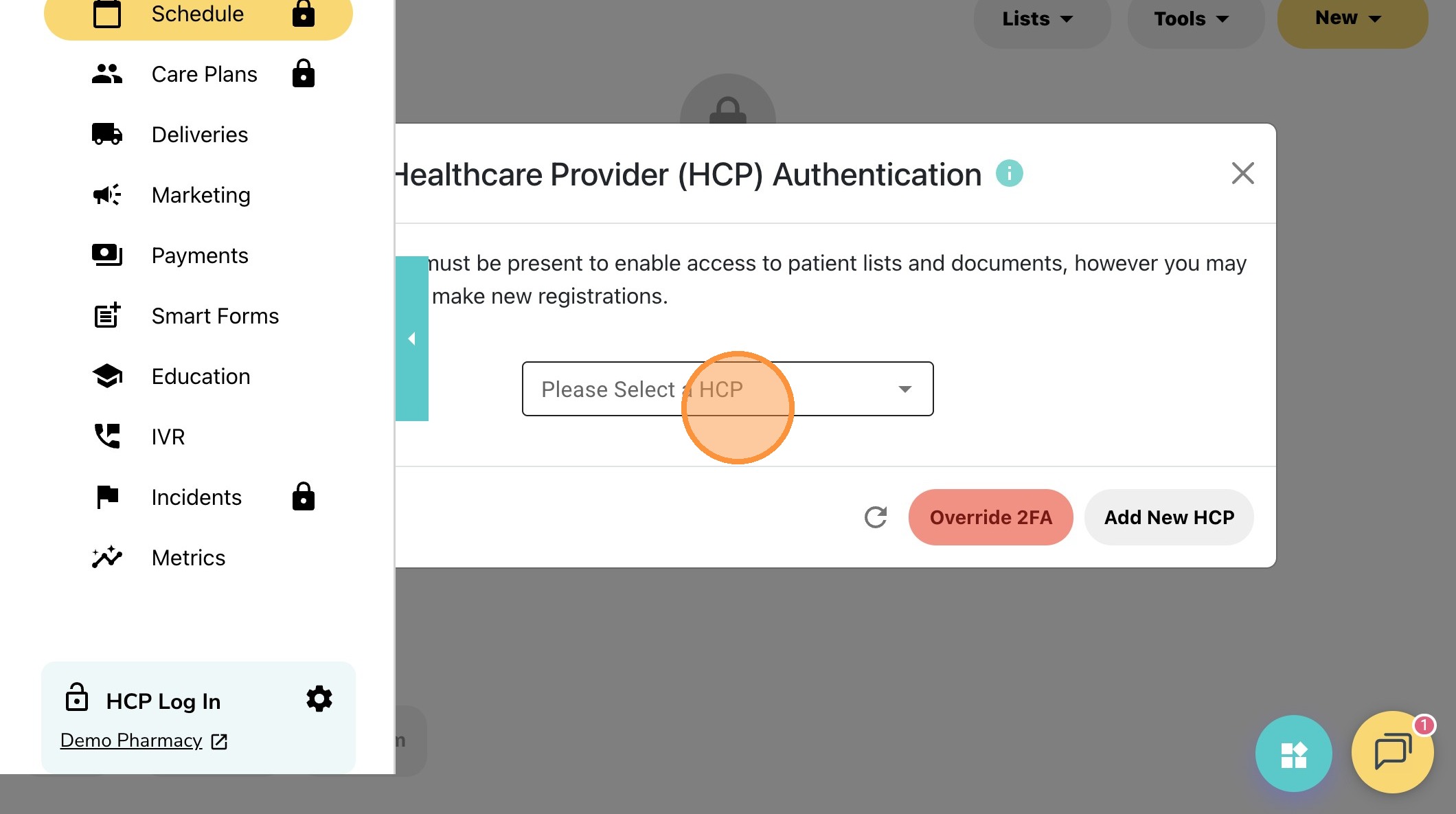
33. Click "Please Select a HCP" and login using your PIN
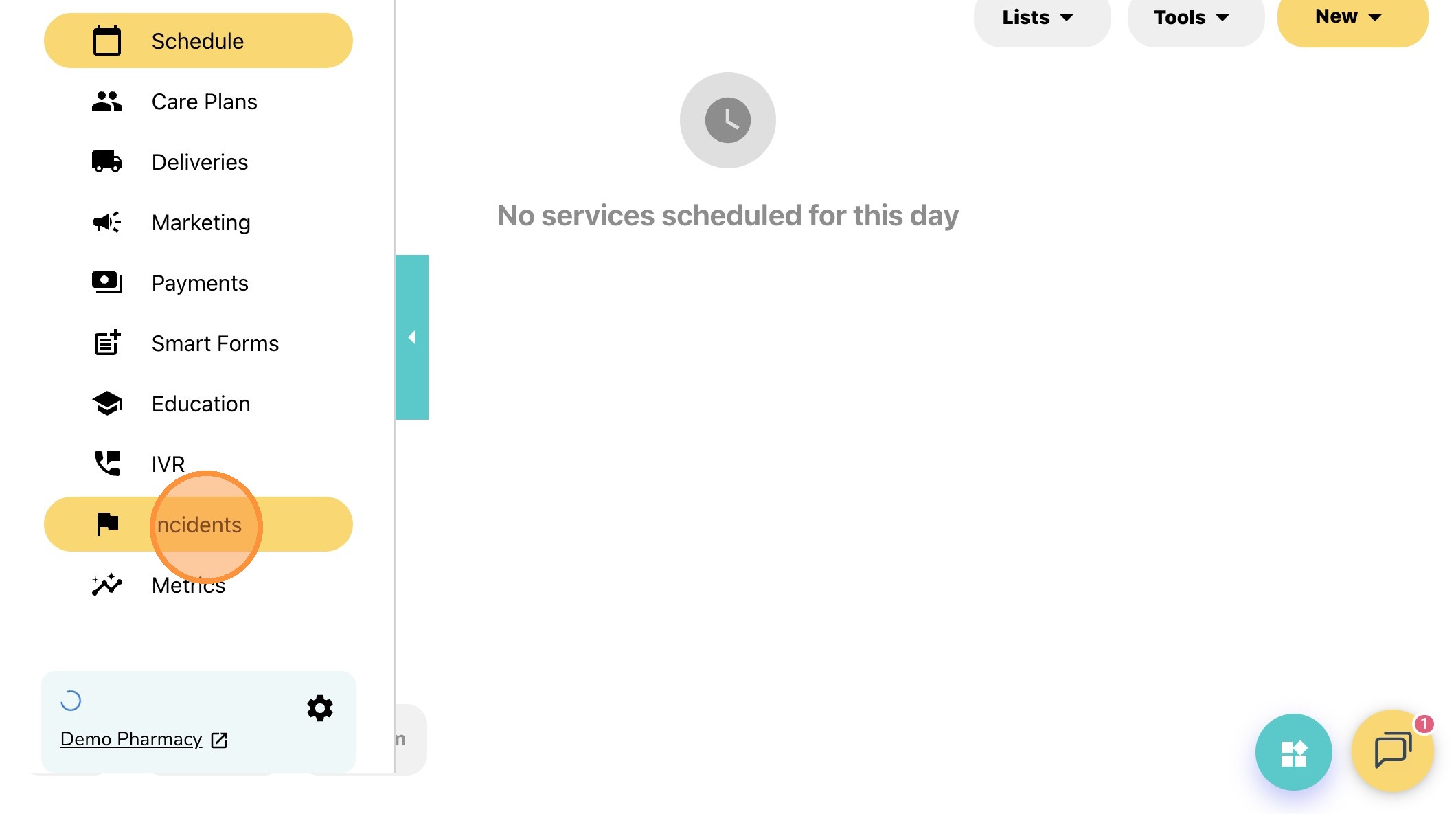
34. Click "Incidents"
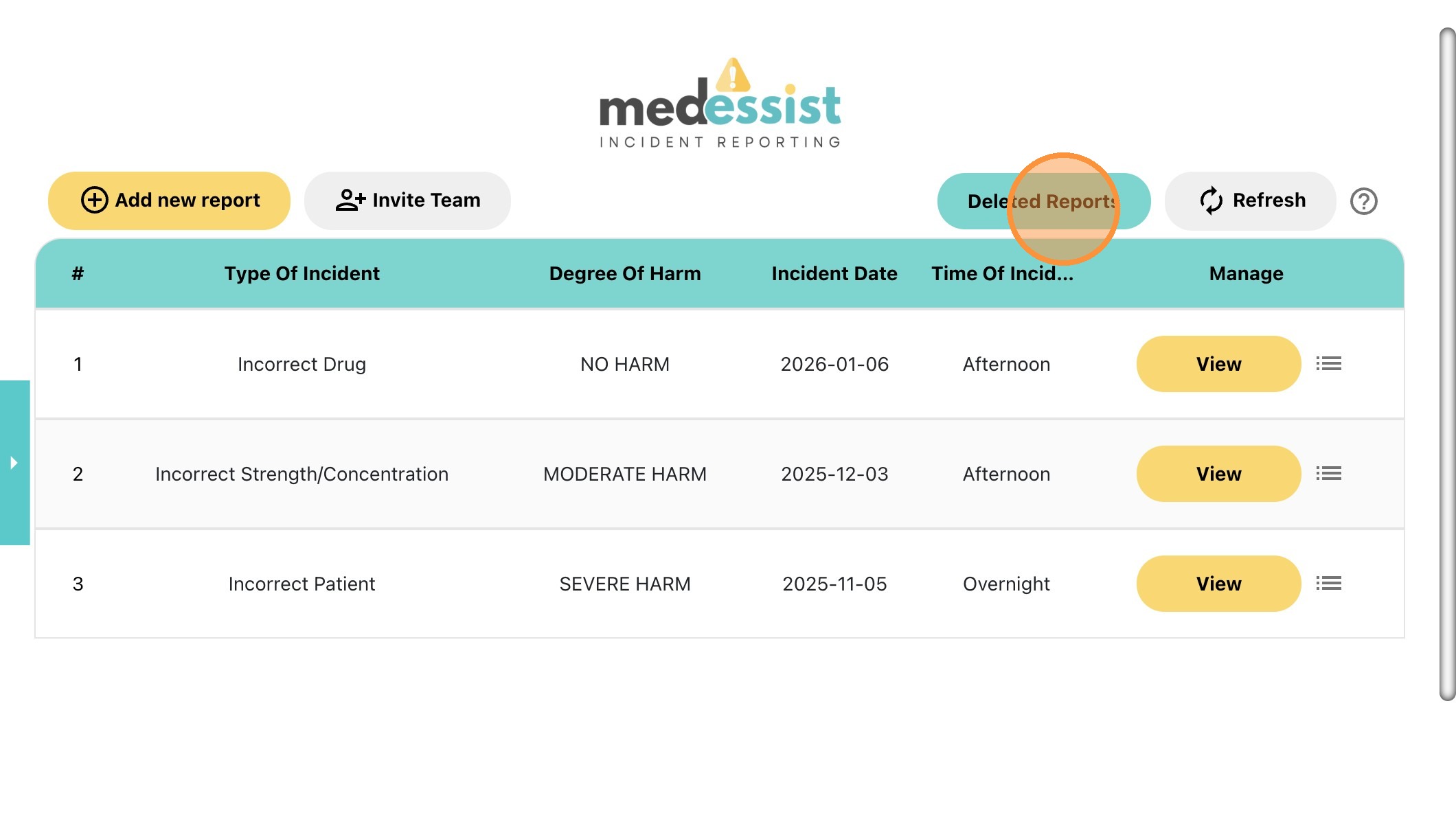
35. On the Incidents tab, click "Deleted Reports" to view reports that have been removed.
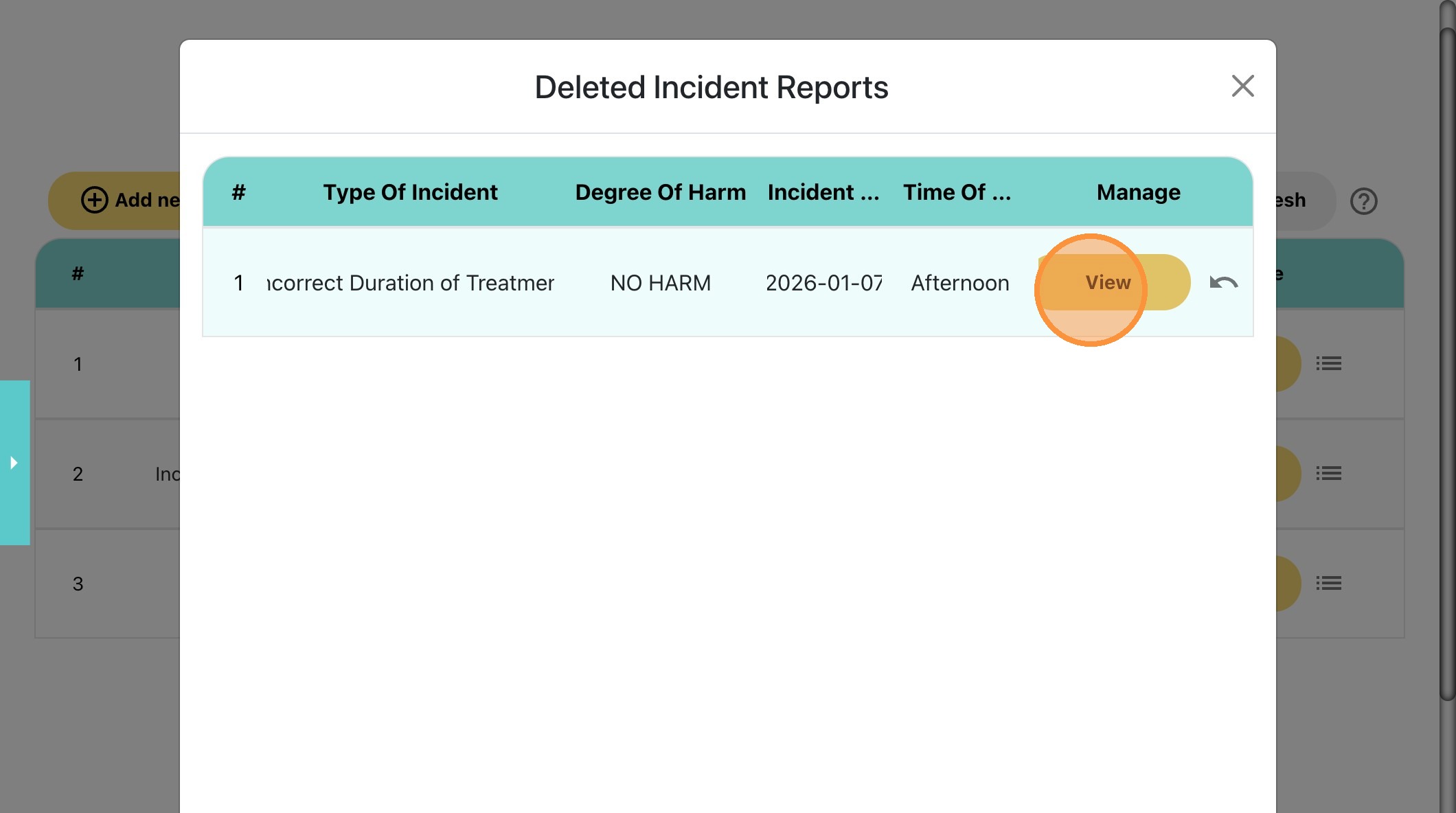
36. Click "View" to open the report again.
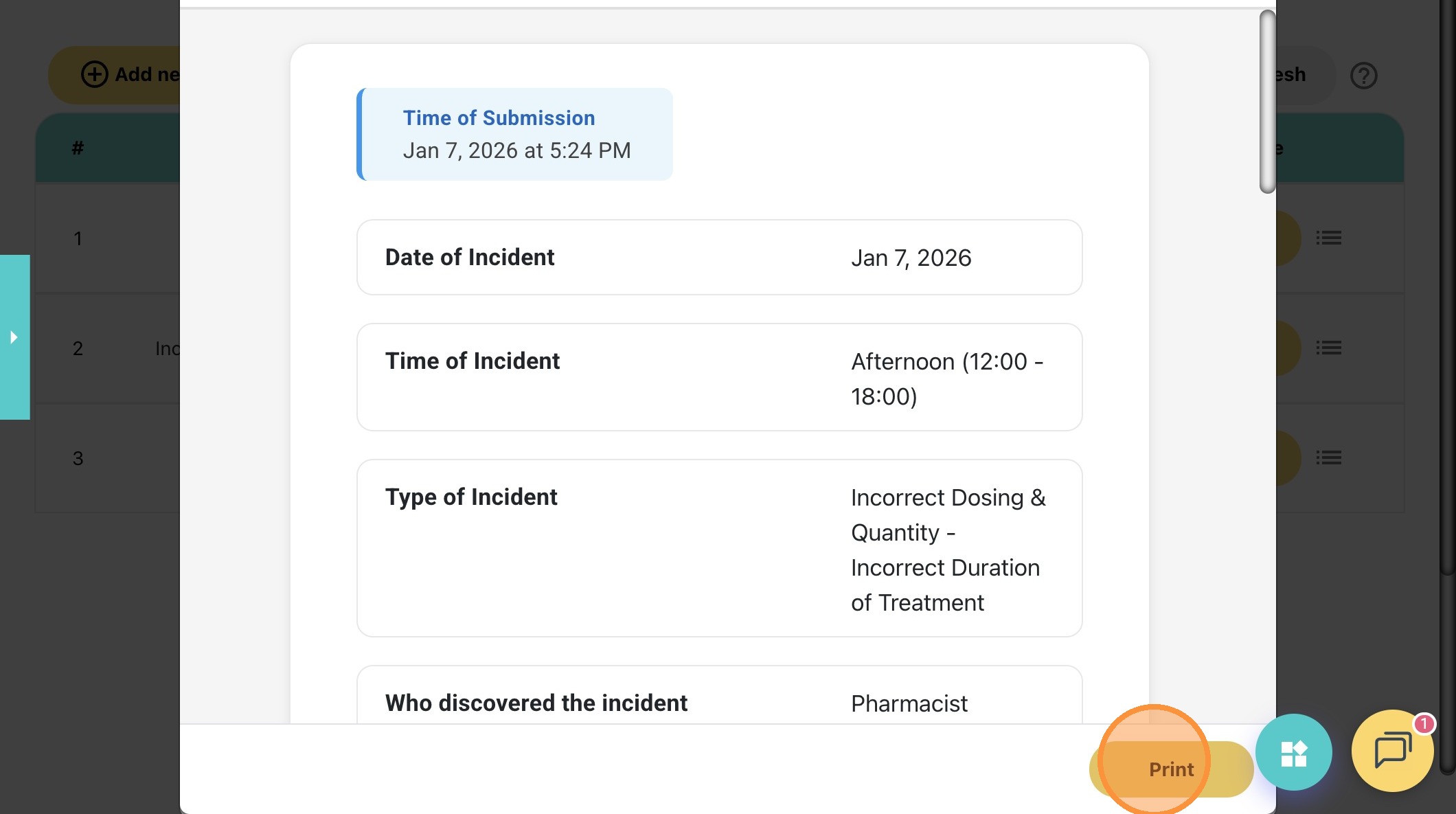
37. Click "Print" if you want to print the deleted report.
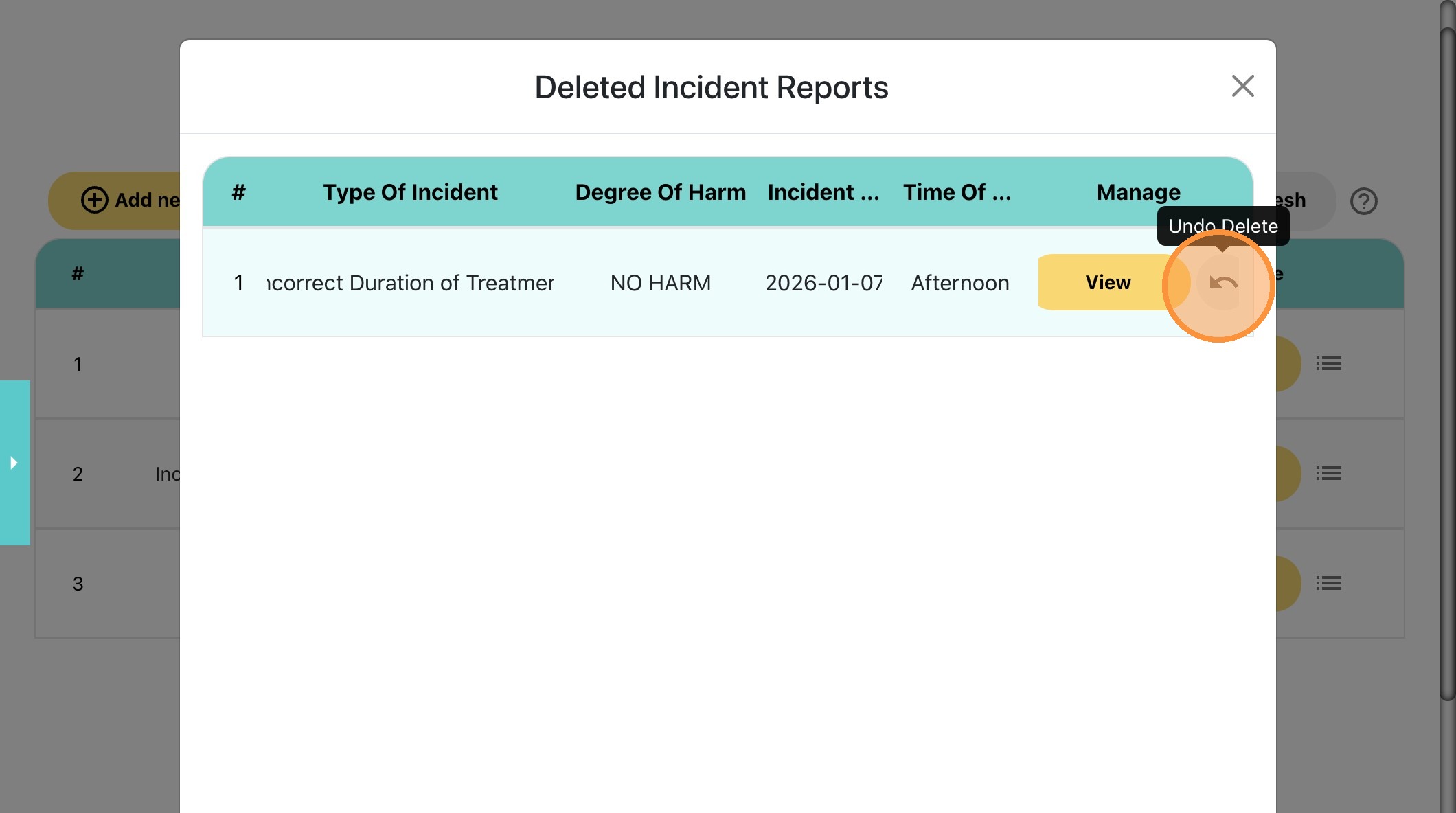
38. You can "Undo Delete" to restore the report.
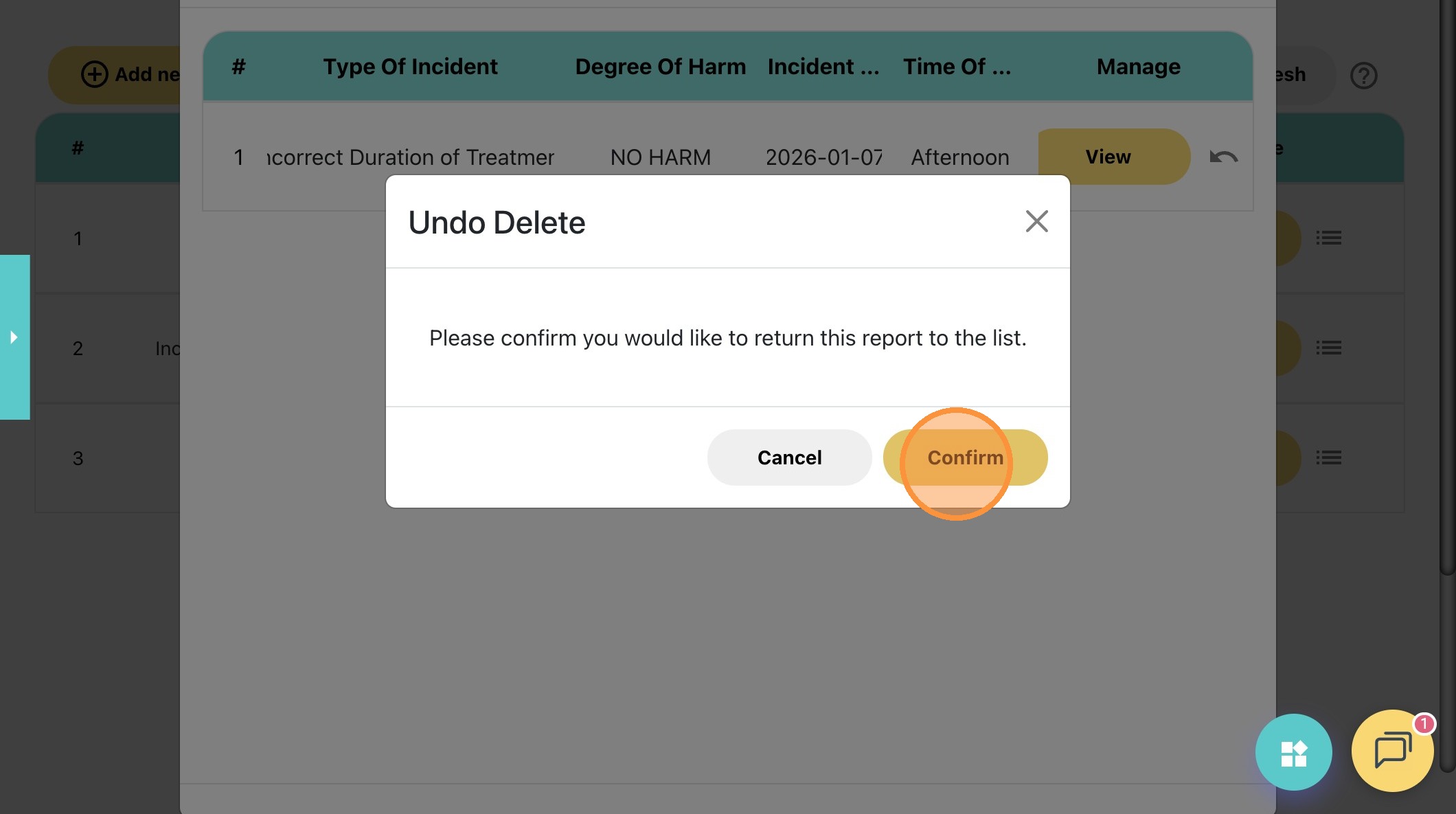
39. Click "Confirm" to restore the report.
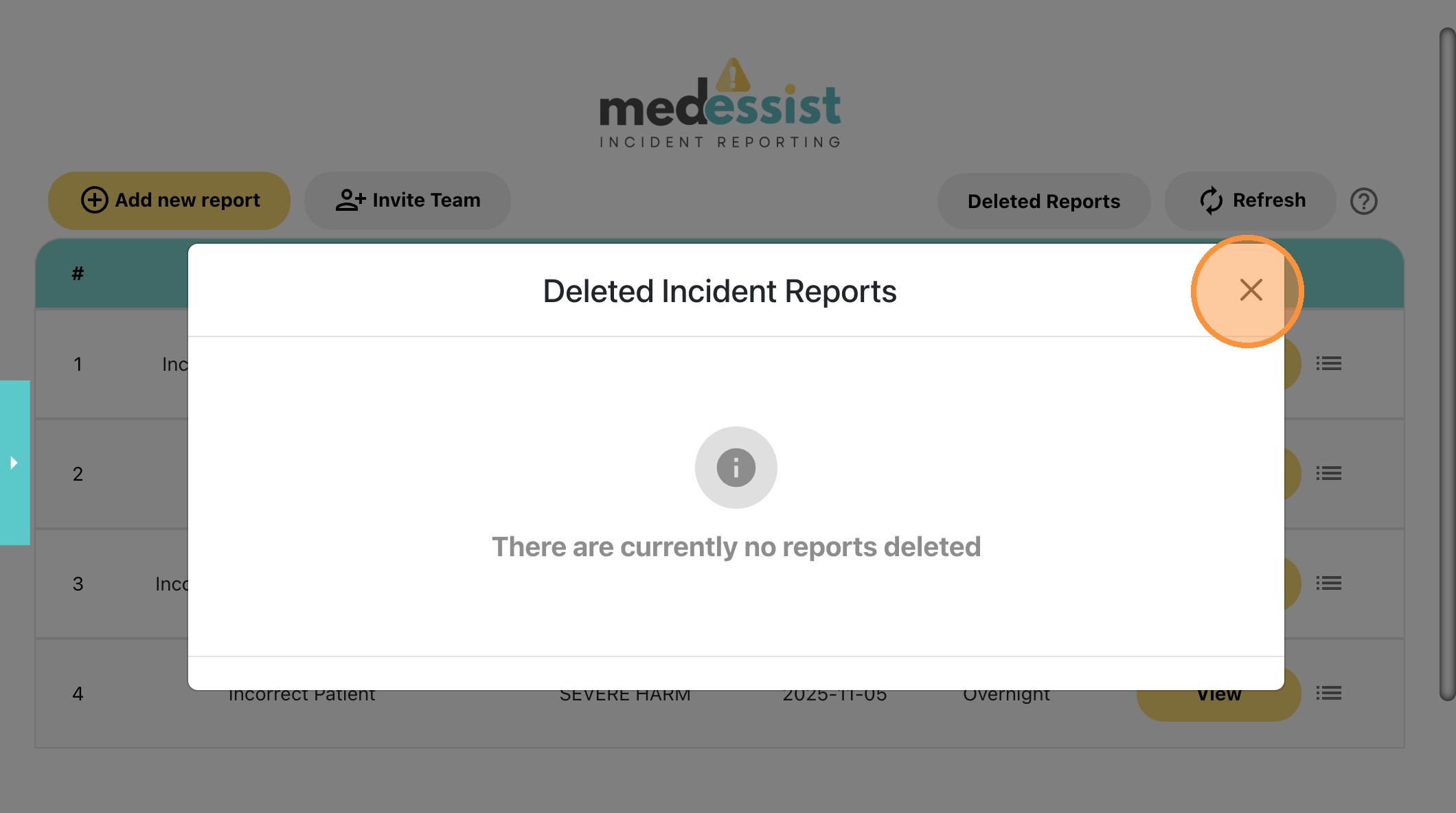
40. Close this pop-up window.
41. The report can be found on the Incidents tab again!