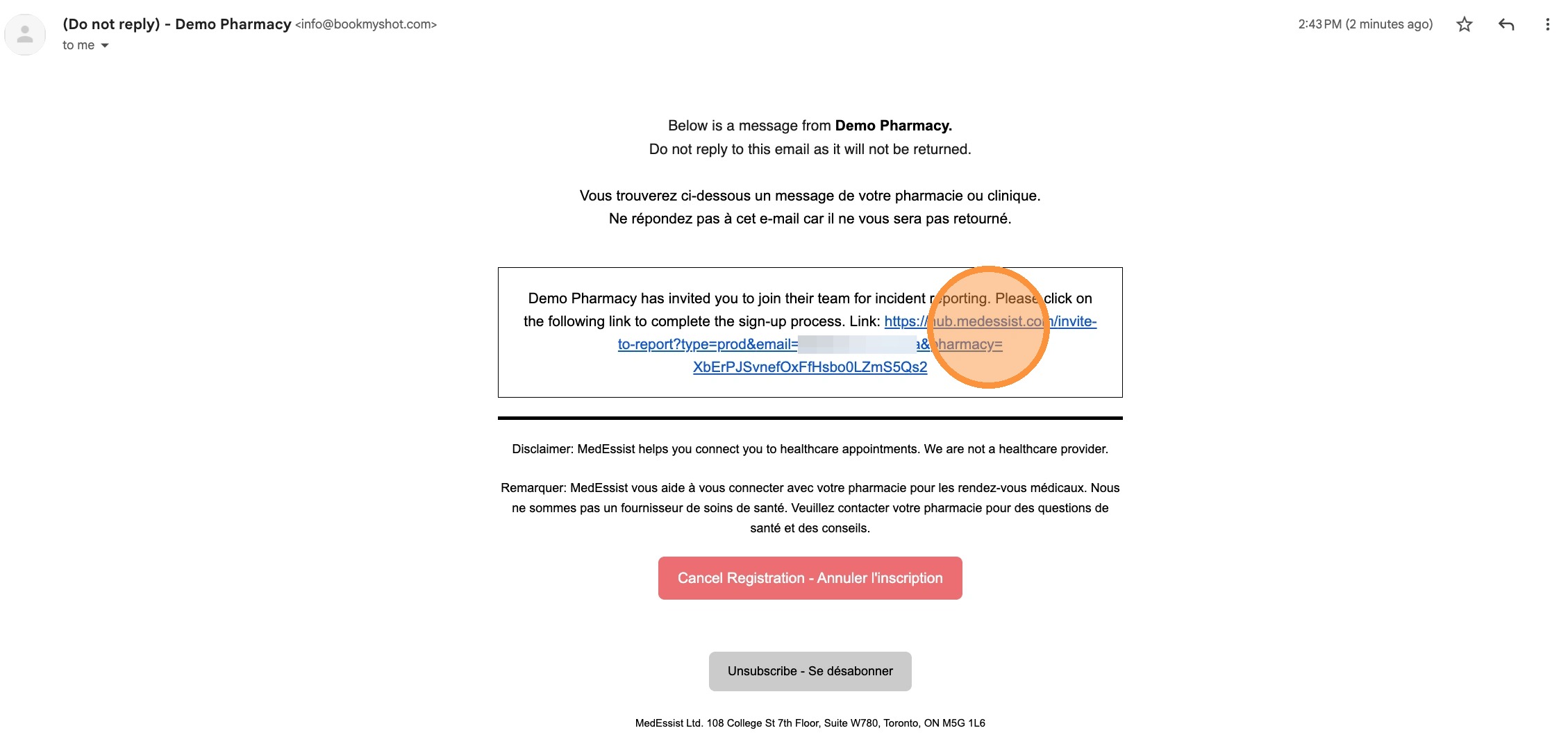
Tip! The onboarding process for healthcare professionals (HCPs) and non-healthcare professionals (non-HCPs) are different!
Onboarding Process for Licensed HCPs
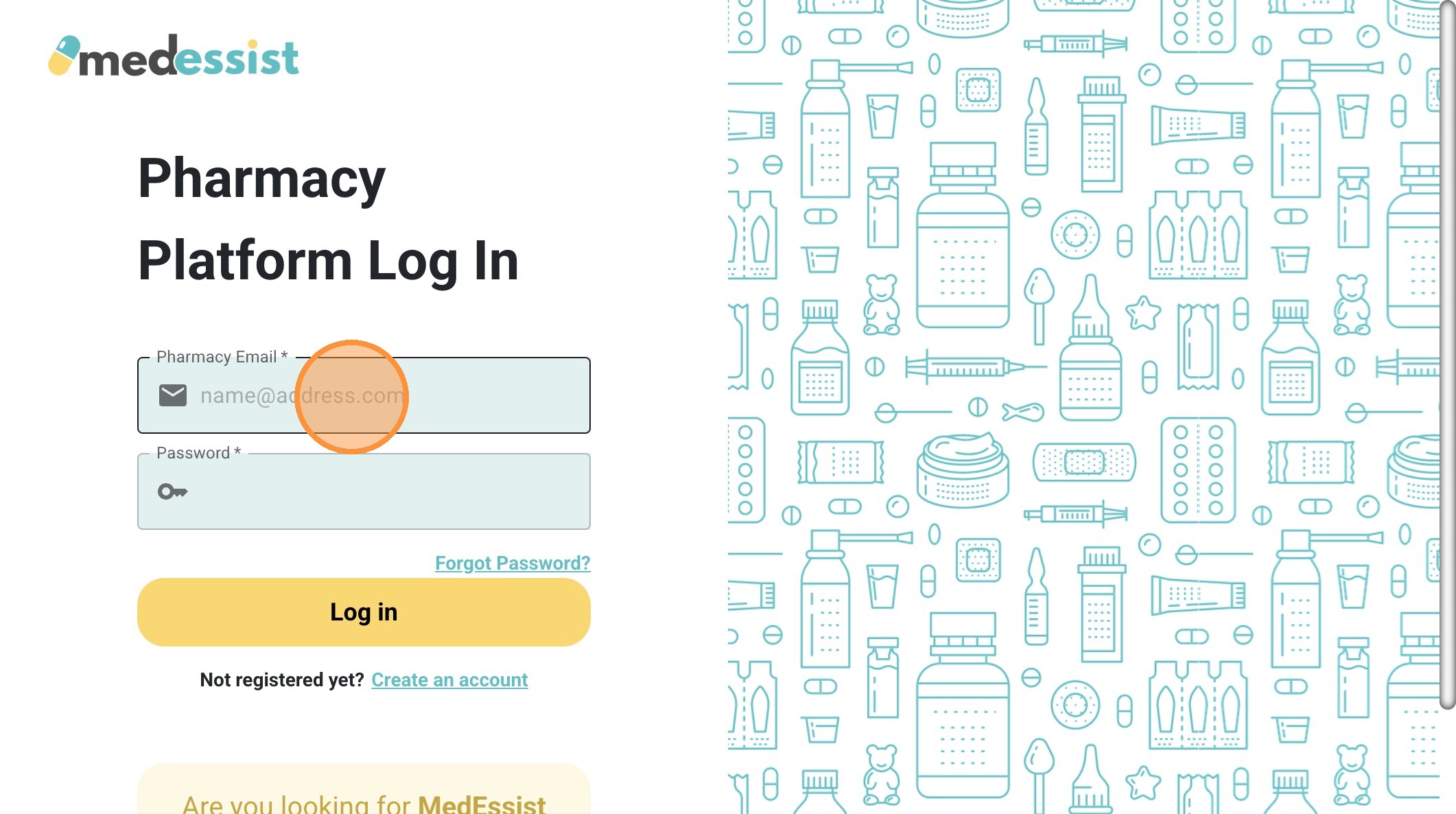
1. Navigate to https://app.medessist.com/login and log in using your pharmacy credential to access the MedEssist Dashboard.
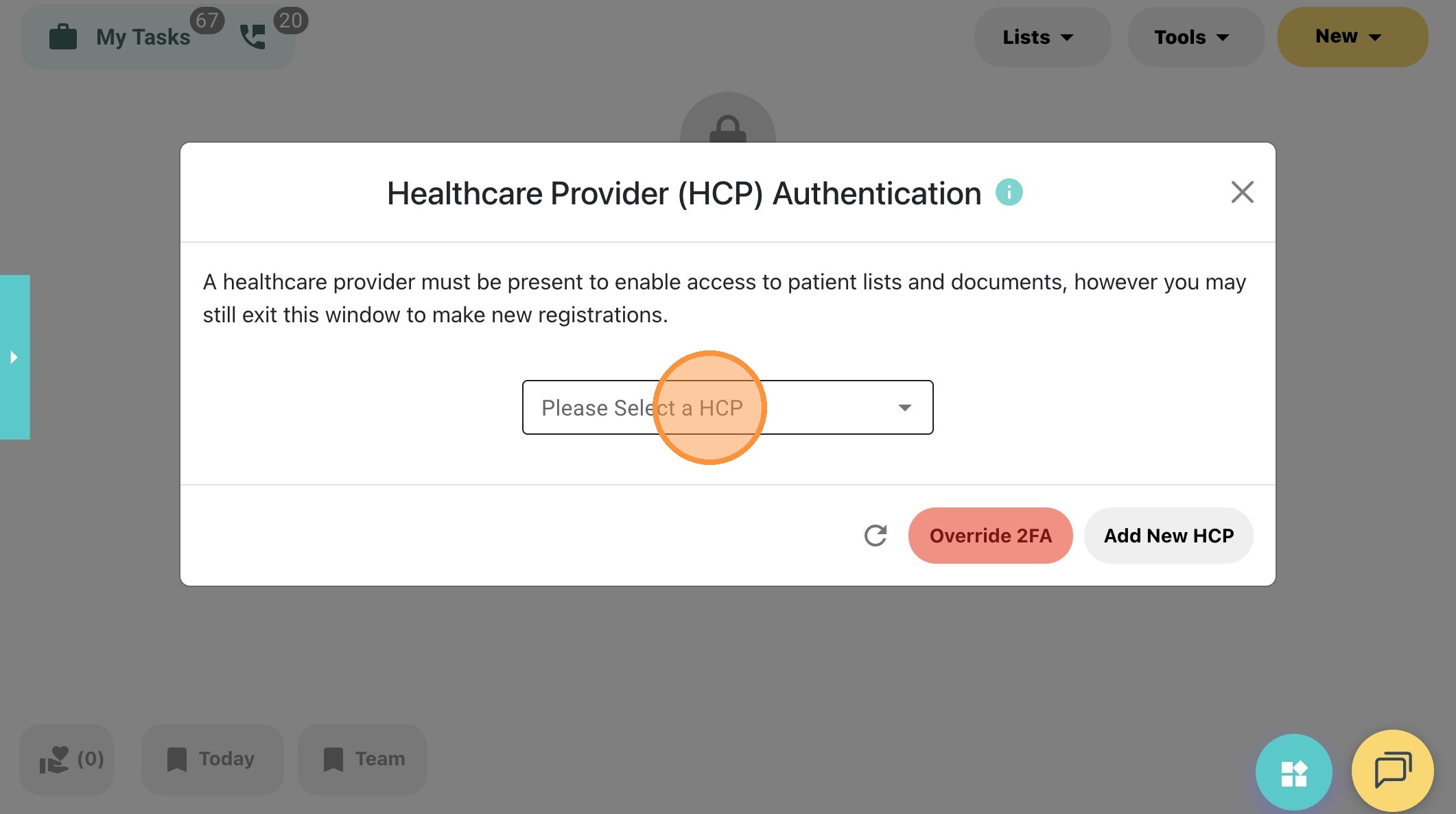
2. Click the Please Select a HCP field if already registered.
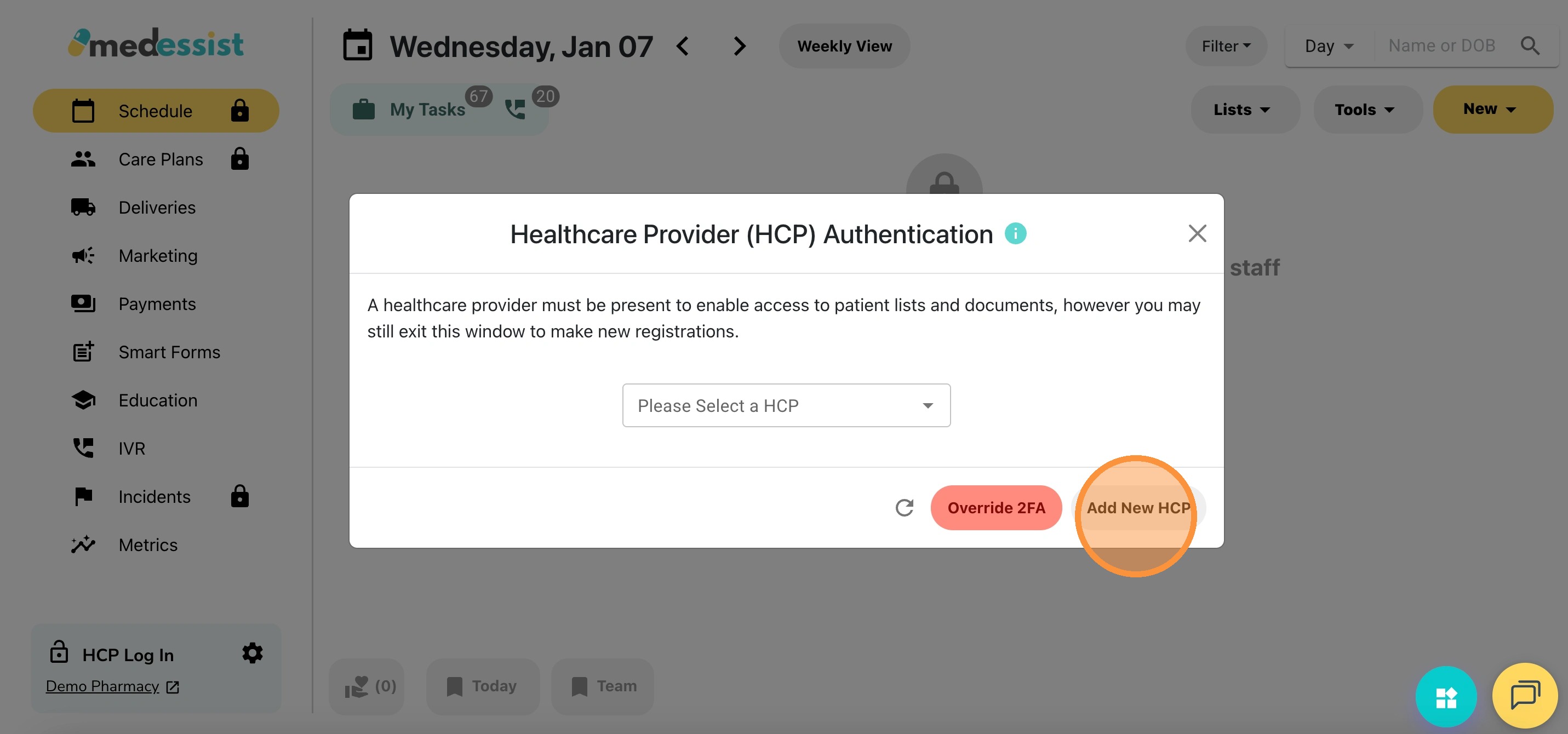
3. For new HCPs, click Add New HCP
4. From here, you can link your MedEssist Hub account, create a new MedEssist Hub account if you haven't, or change myPIN.
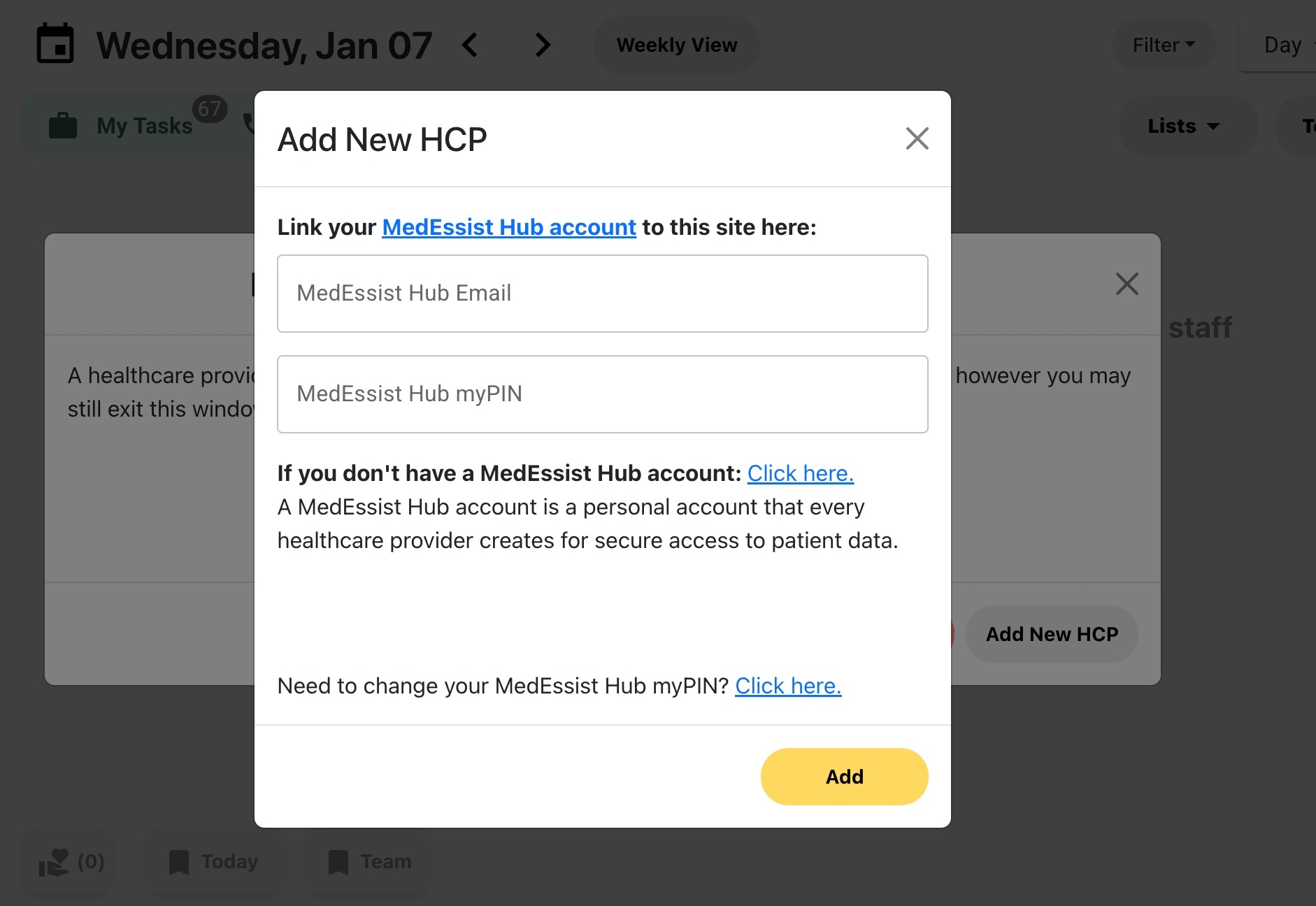
5. After your account is added, your name will appear in the list.
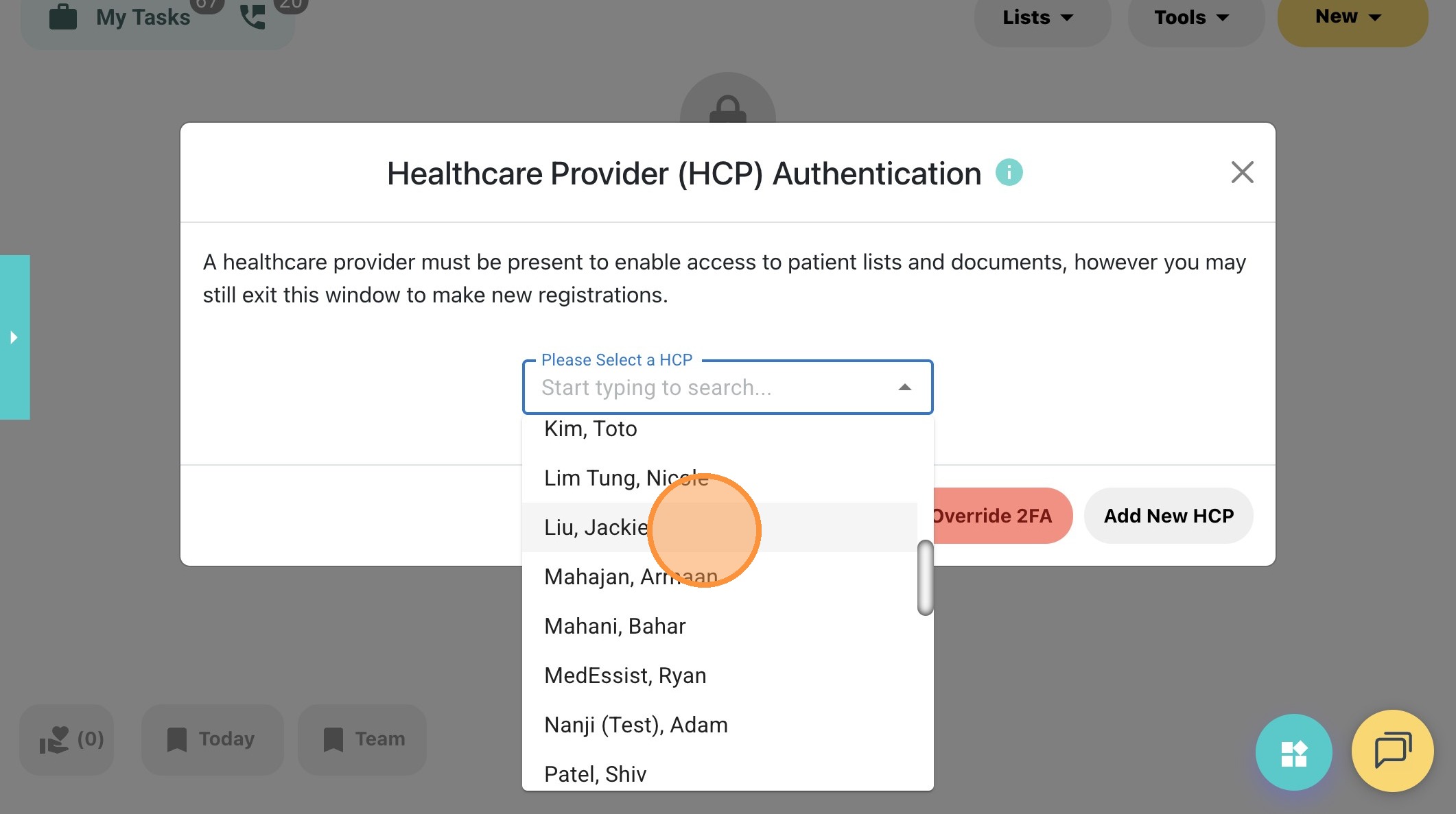
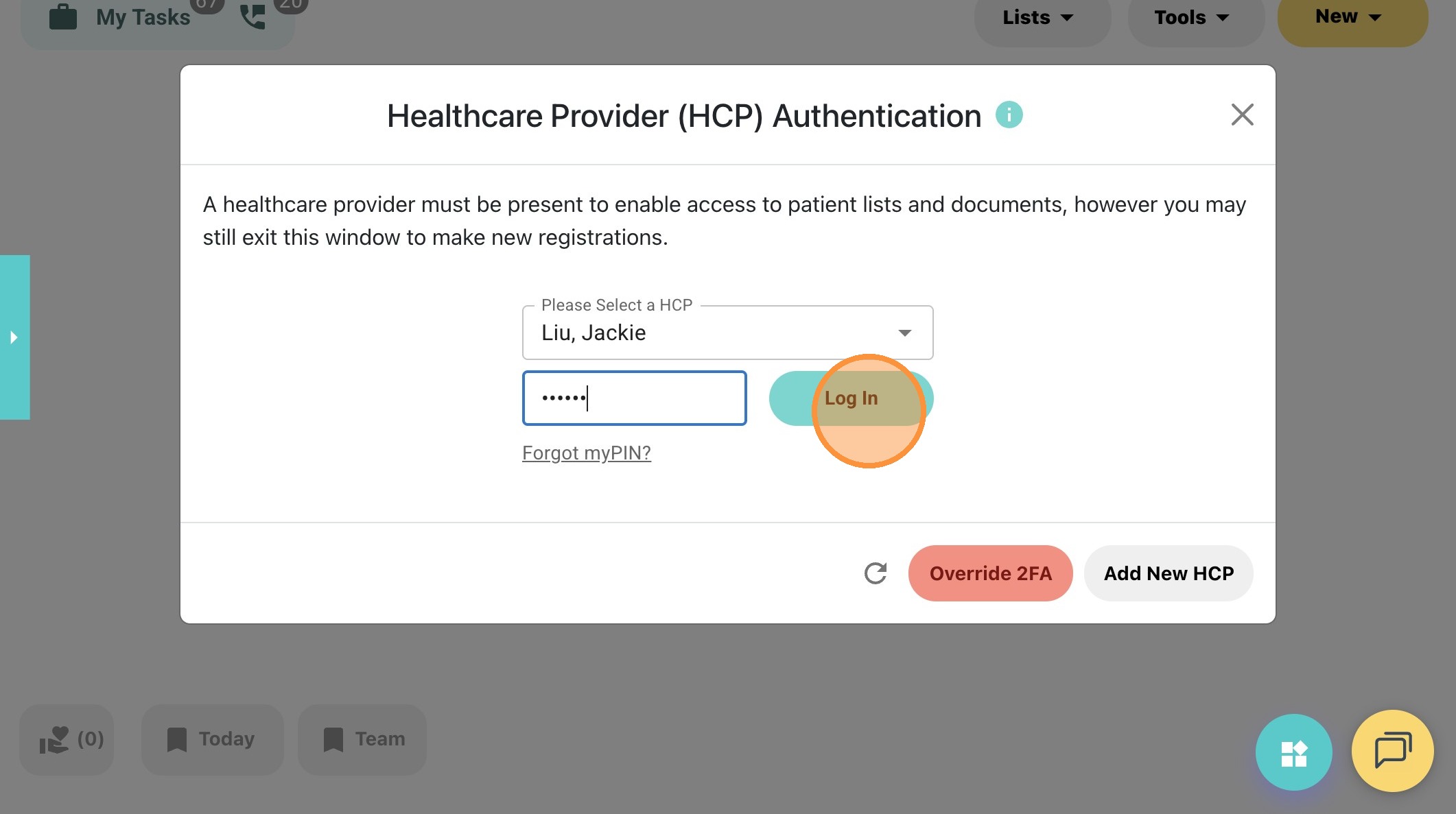
6. Type in your myPIN, then click Log In to continue.
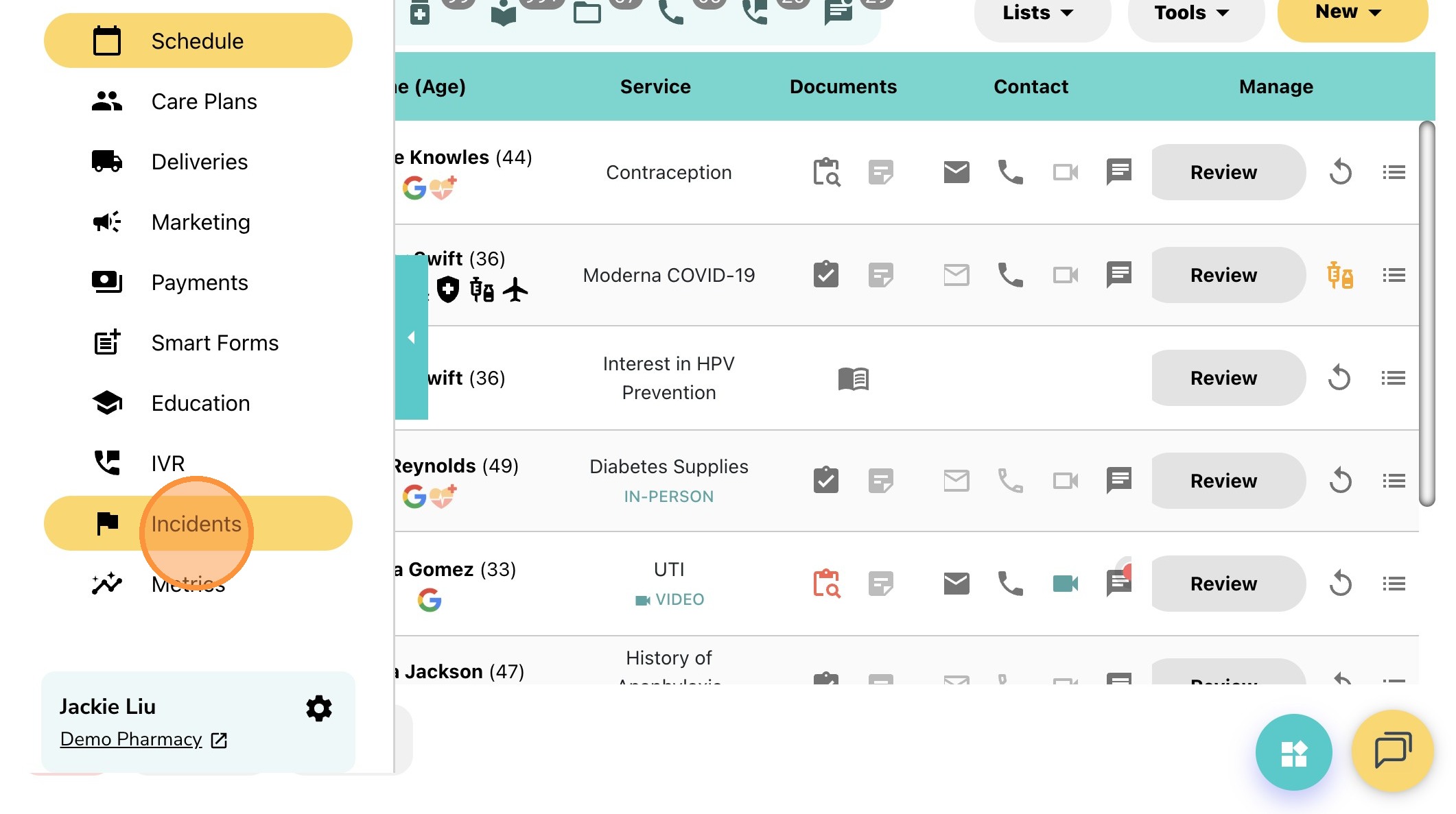
7. You now have access to the Incident Reporting page.
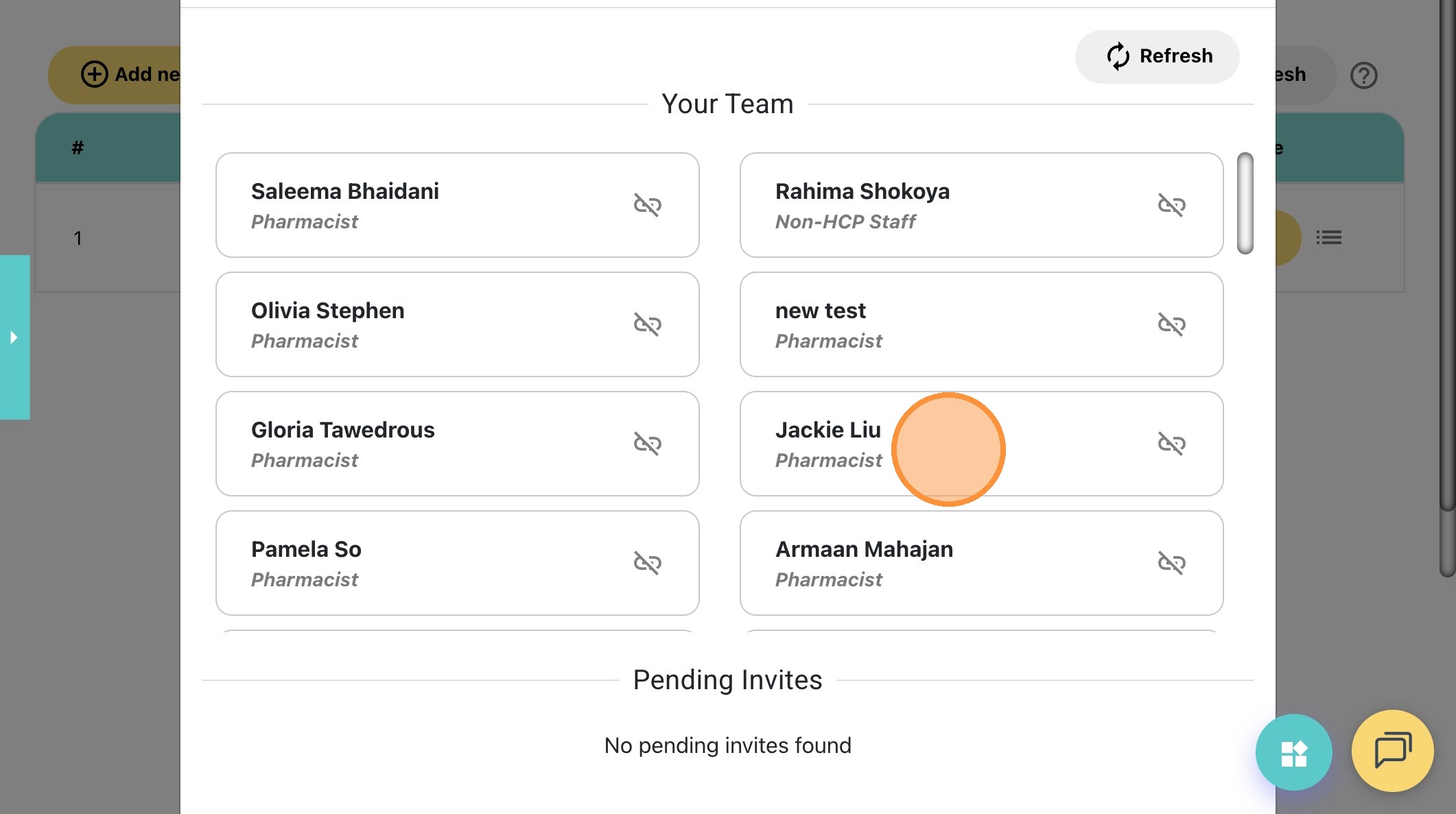
8. To double-check if your account is linked, click Invite Team
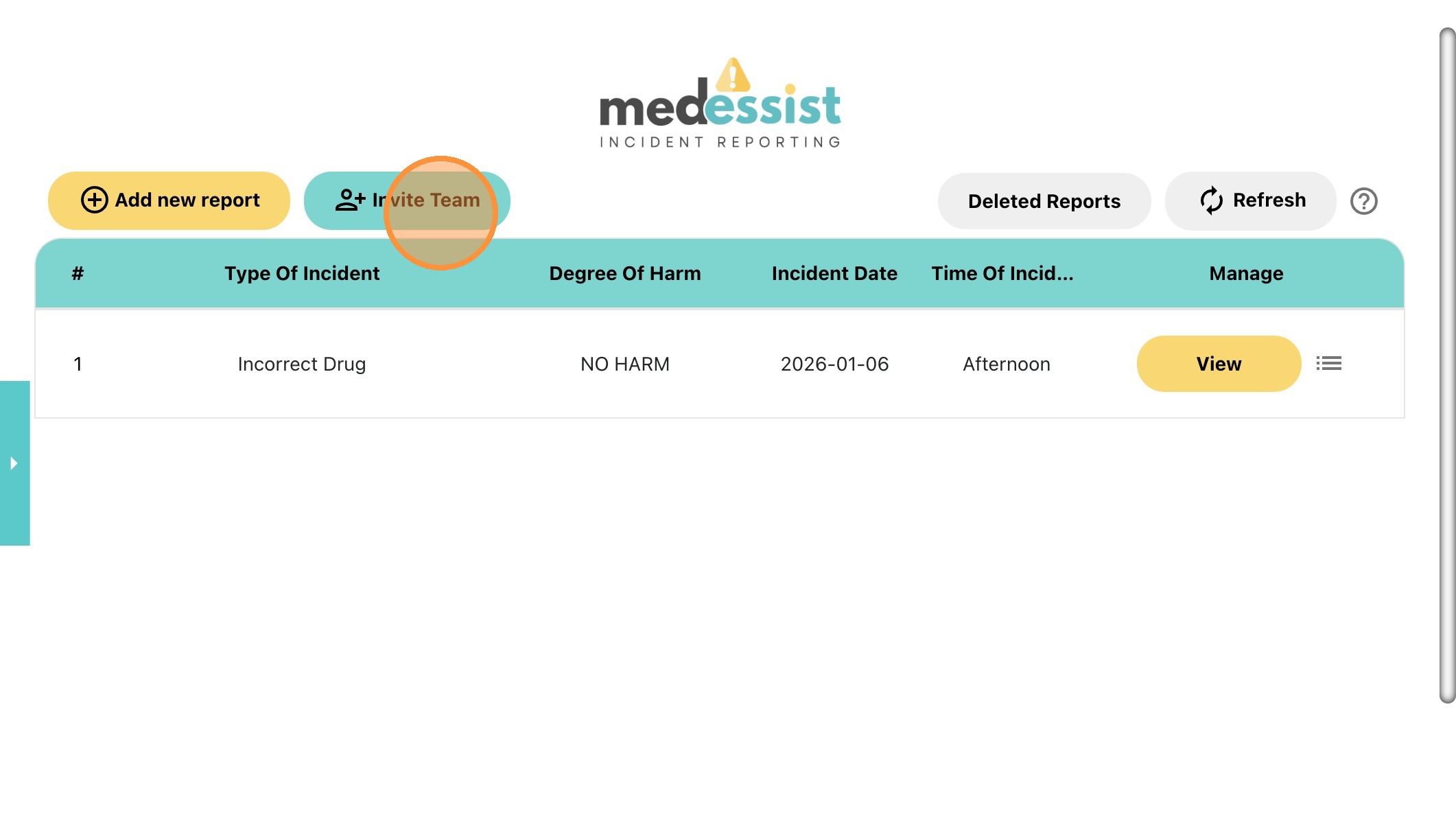
9. Scroll down to Your Team until you find yourself!
Onboarding Process for Non-HCPs
10. Log in using your pharmacy credentials to access the MedEssist Dashboard.
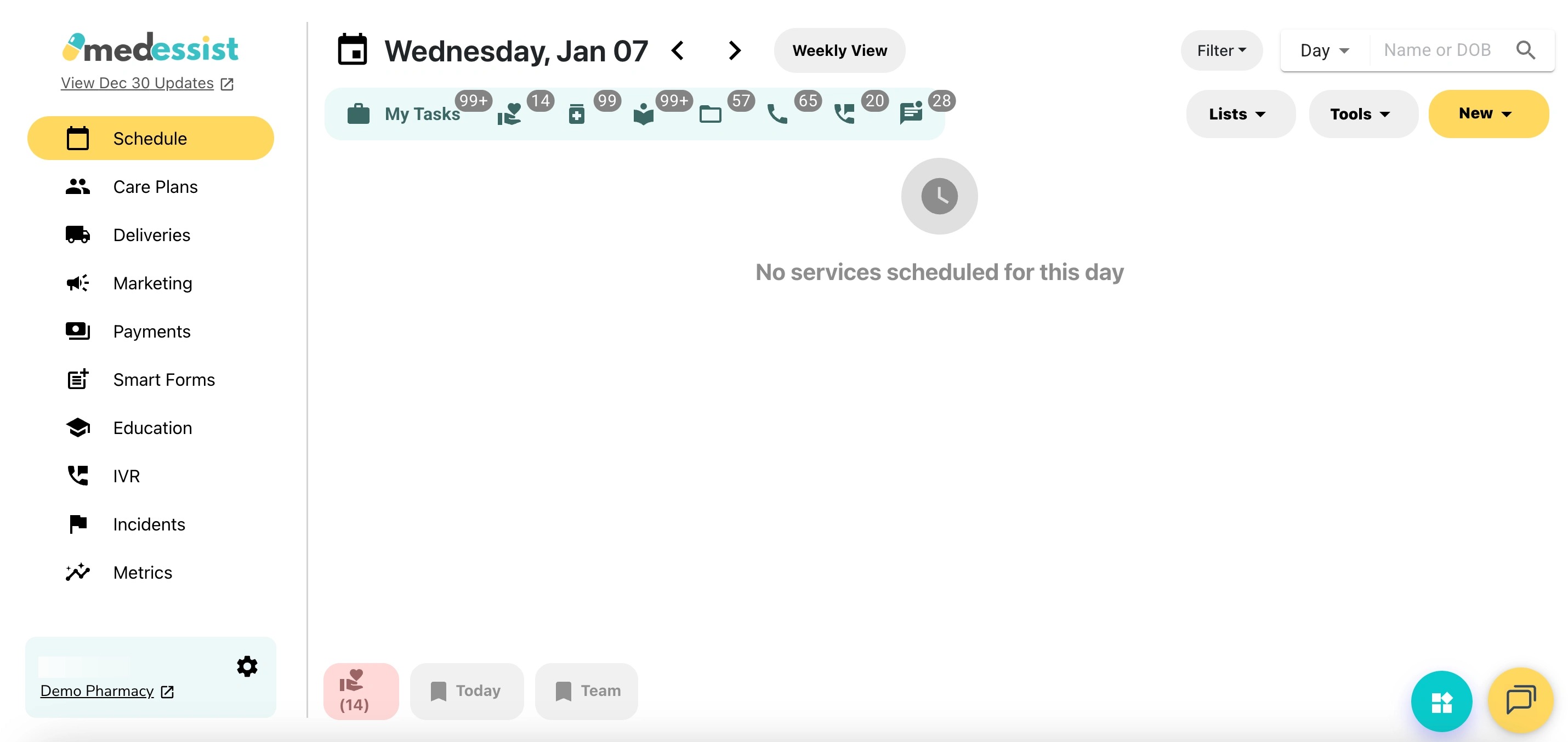
11. Click Incidents to access to the incident reports.
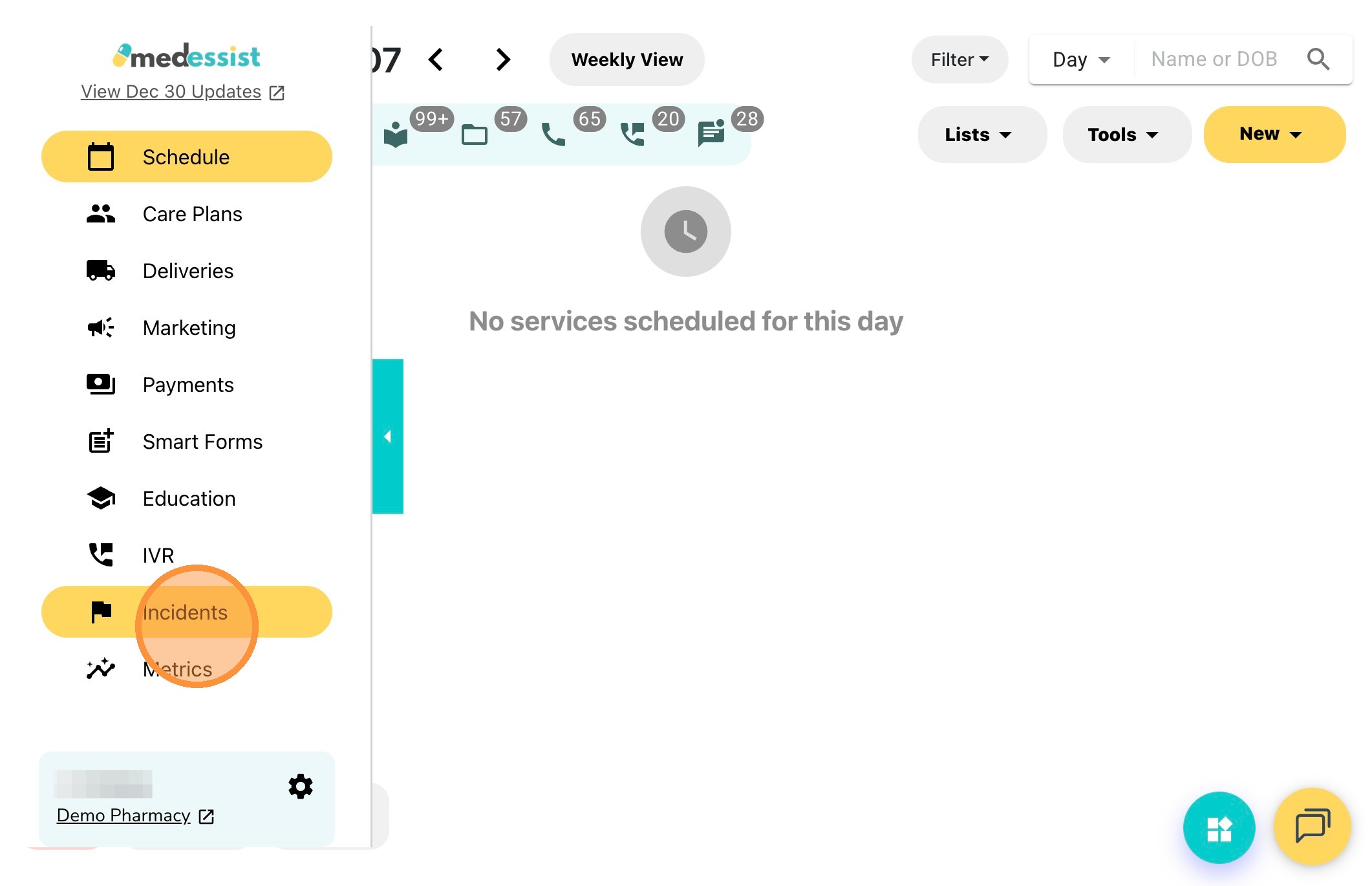
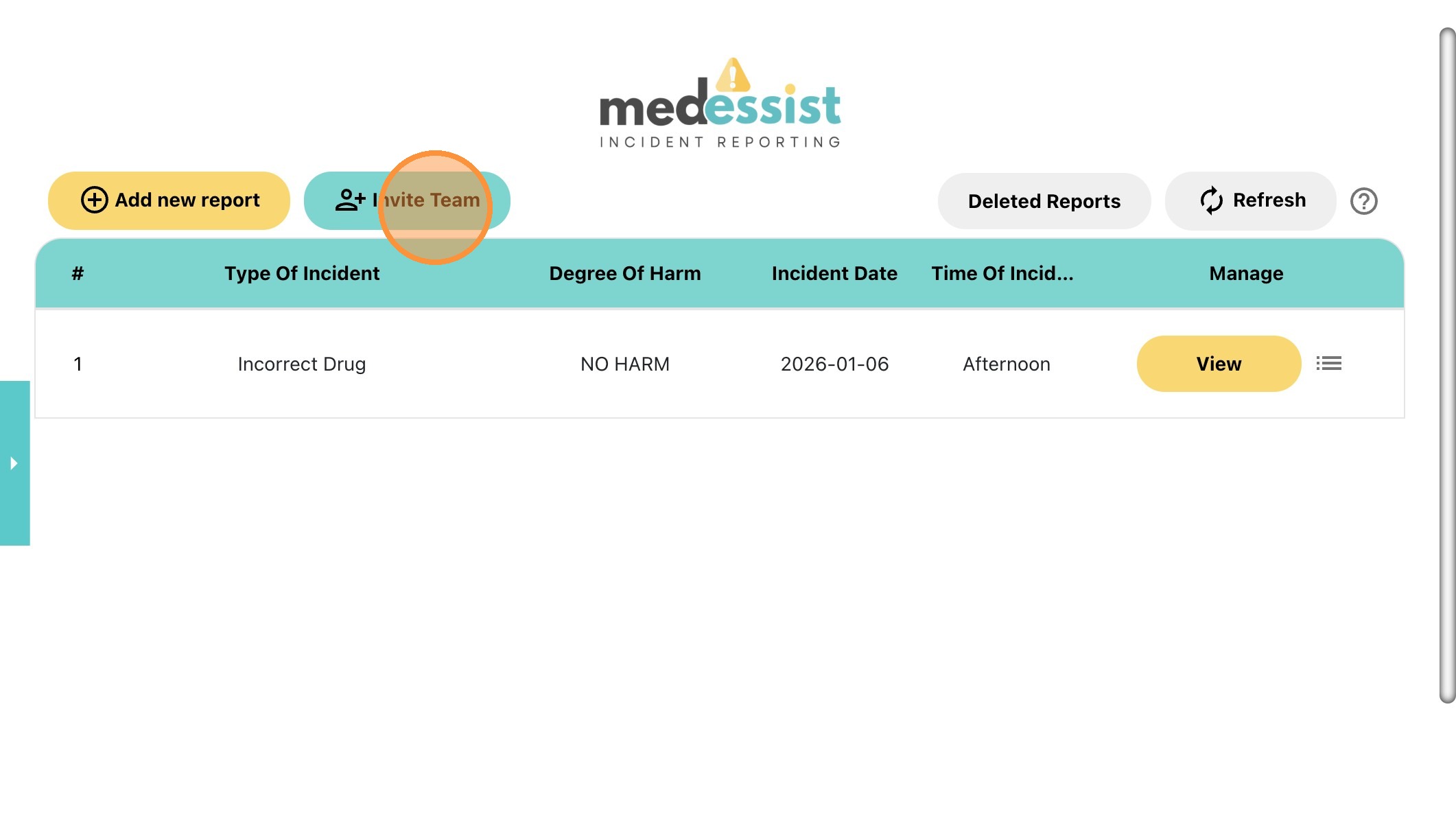
12. Click Invite Team to add new non-HCP staff to access the Incident Reporting function.
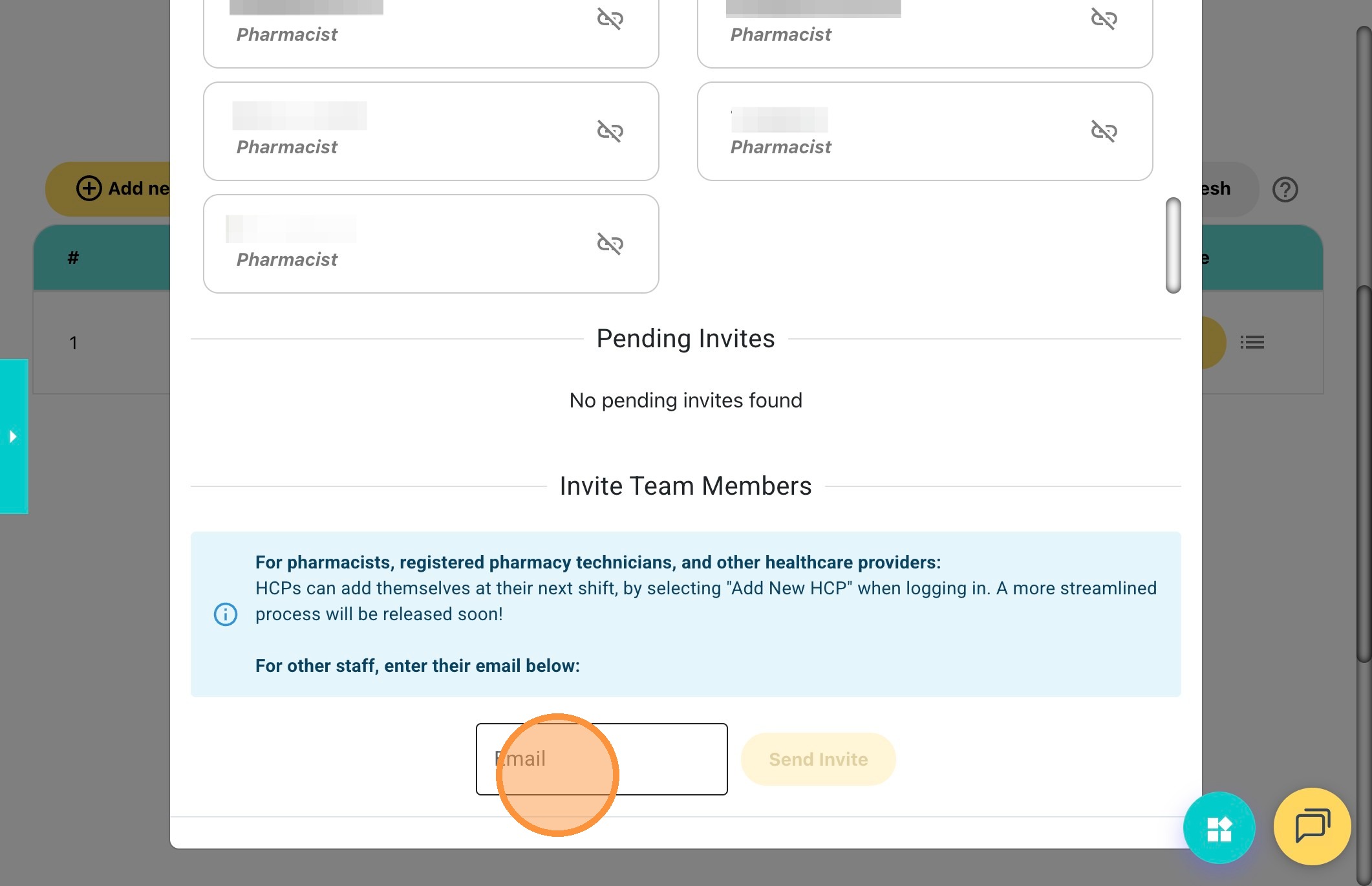
13. Scroll down to the bottom and enter the email address of the non-HCP staff.
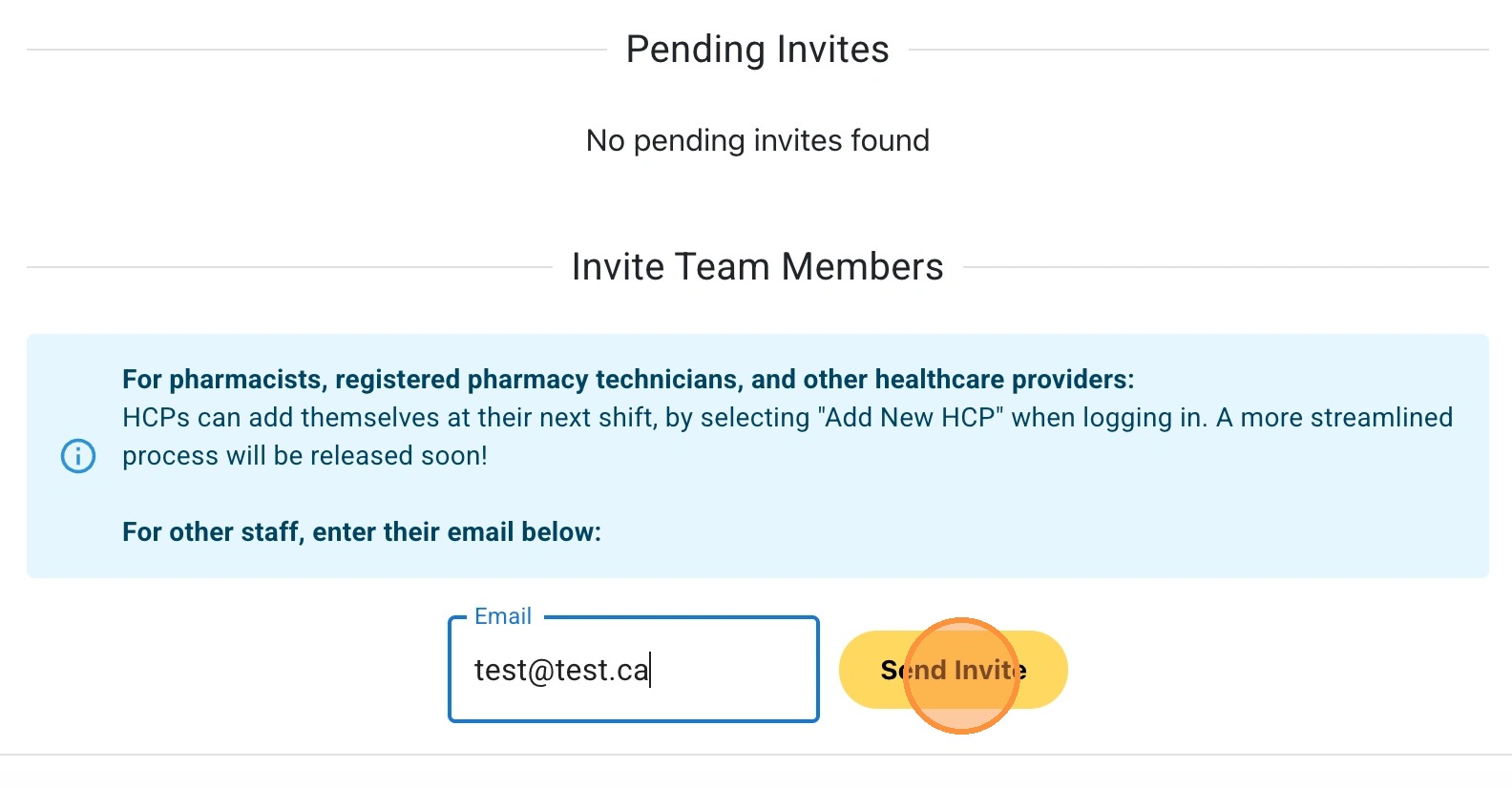
14. Click Send Invite.
15. Non-HCP staff will receive an email invitation with steps to complete their registration.
Click the link in the email and follow the on-screen instructions to complete registration on the MedEssist website.