
Finding your Patient
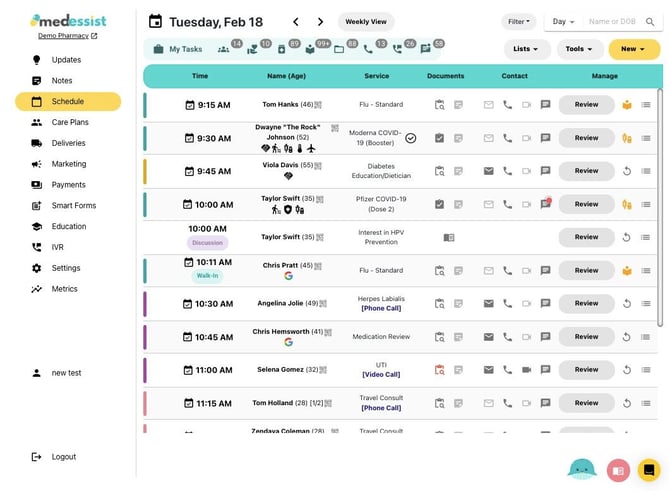
1. On your MedEssist Dashboard, click "Schedule"
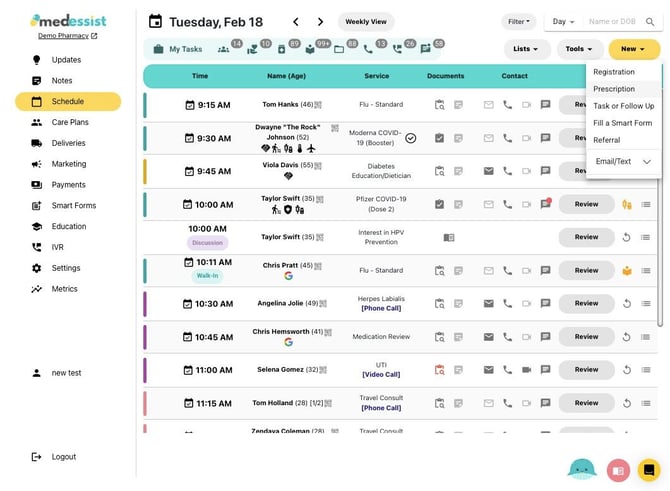
2. Click "New", then select "Prescription" from the drop-down menu
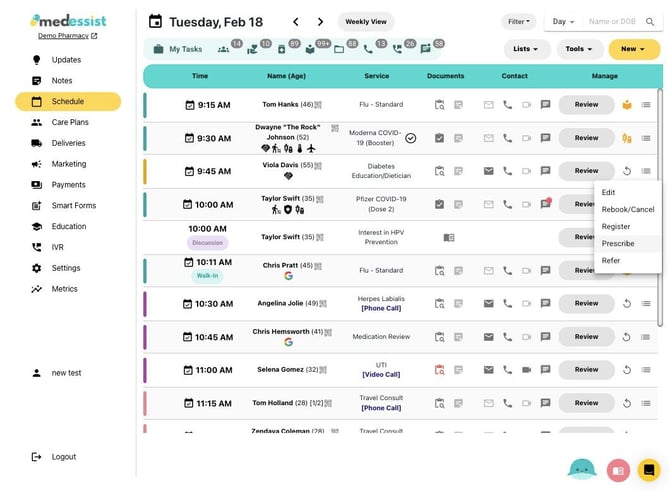
3. Alternatively, you can prescribe a medication for a patient directly in your schedule. Click the three lines next to a patient's appointment and select "Prescribe" from the drop-down menu
Prescribing
5. Start entering the desired medication; the rest will auto-populate but you can manually adjust Dose, Quantity, Directions, PRN, and Indication as needed.
If you are prescribing more than one medication, click the "+" button
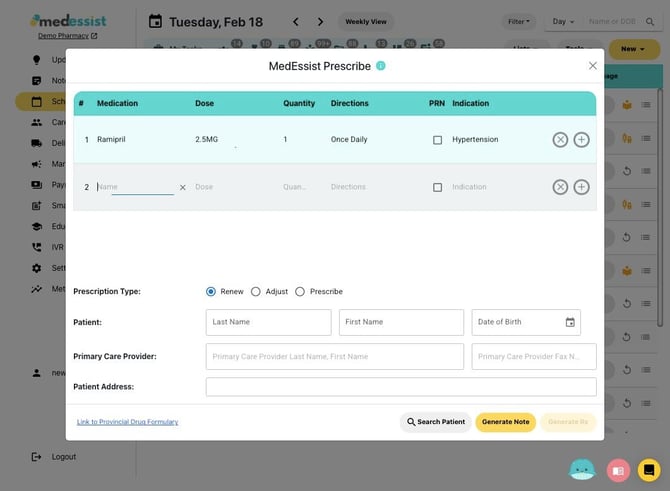
6. Select the Prescription Type

7. Manually enter Patient, Primary Care Provider, and Patient Address information
Alternatively, click "Search Patient" to auto-populate the information

8. You can use your Imported Patients list, MedEssist Patients list or Address Book to search for the desired patient
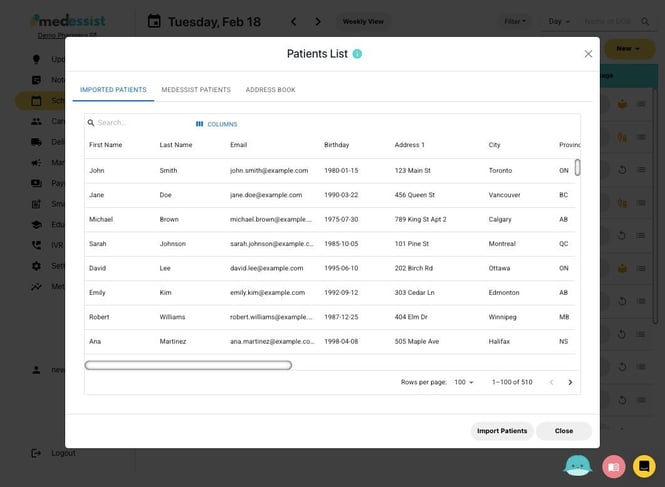
9. Once you are done with your prescription, click "Generate Rx"

10. Enter the pharmacist who is signing off the prescription and click "Generate Rx"

Documentation

12. Under "Editor", you can modify the document as desired. Click "View" to explore the various documentation options available

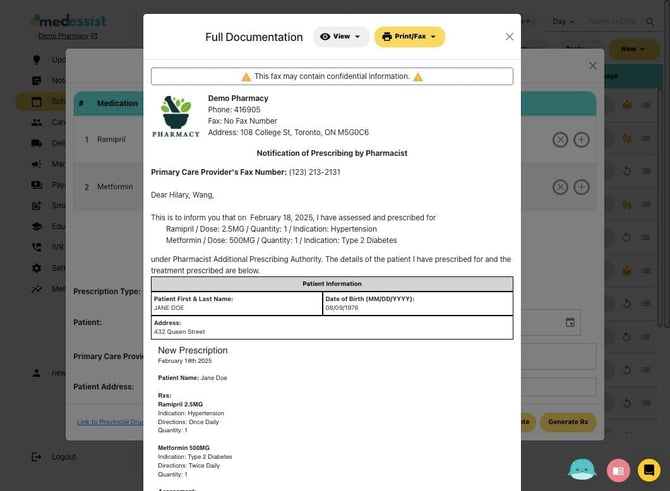
13. Full Documentation: Includes Primary Care Provider, Rx, and Assessment
Click "Print/Fax" to Print or Fax the documentation to the prescriber
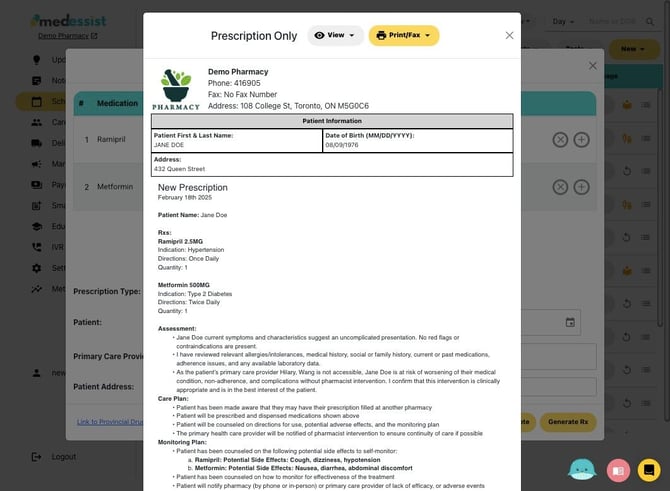
14. Prescription Only: Includes the Rx and Assessment
Click "Print/Fax" to Print or Fax the prescription to the prescriber
15. Primary Care Provider Notification: Alerts the prescribers of the prescribing activity. Click "Print/Fax" to Print or Fax the notification to the prescriber.
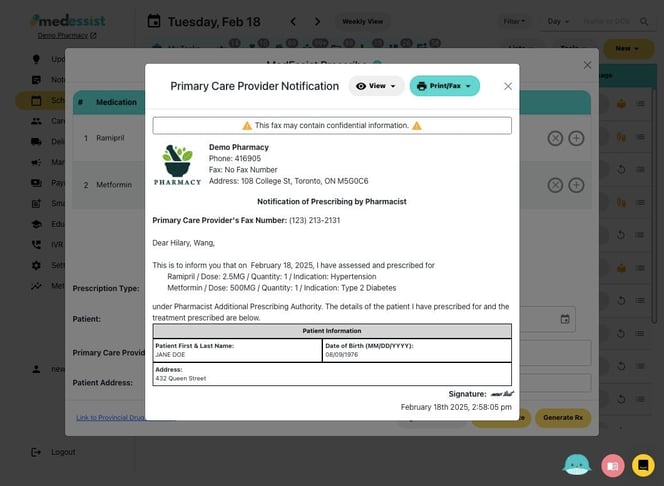
Note: There is no saving feature. Exiting documentation will lose all progress.
Please Print or Fax the documentation before closing the page.