Tip! There are 2 ways to log a report:
From the MedEssist Dashboard, and
Directly from the MedEssist Education Hub.
**Method 1: From the MedEssist Dashboard**
1. Navigate to https://www.medessist.com/ and click "LOG IN" on the top right.

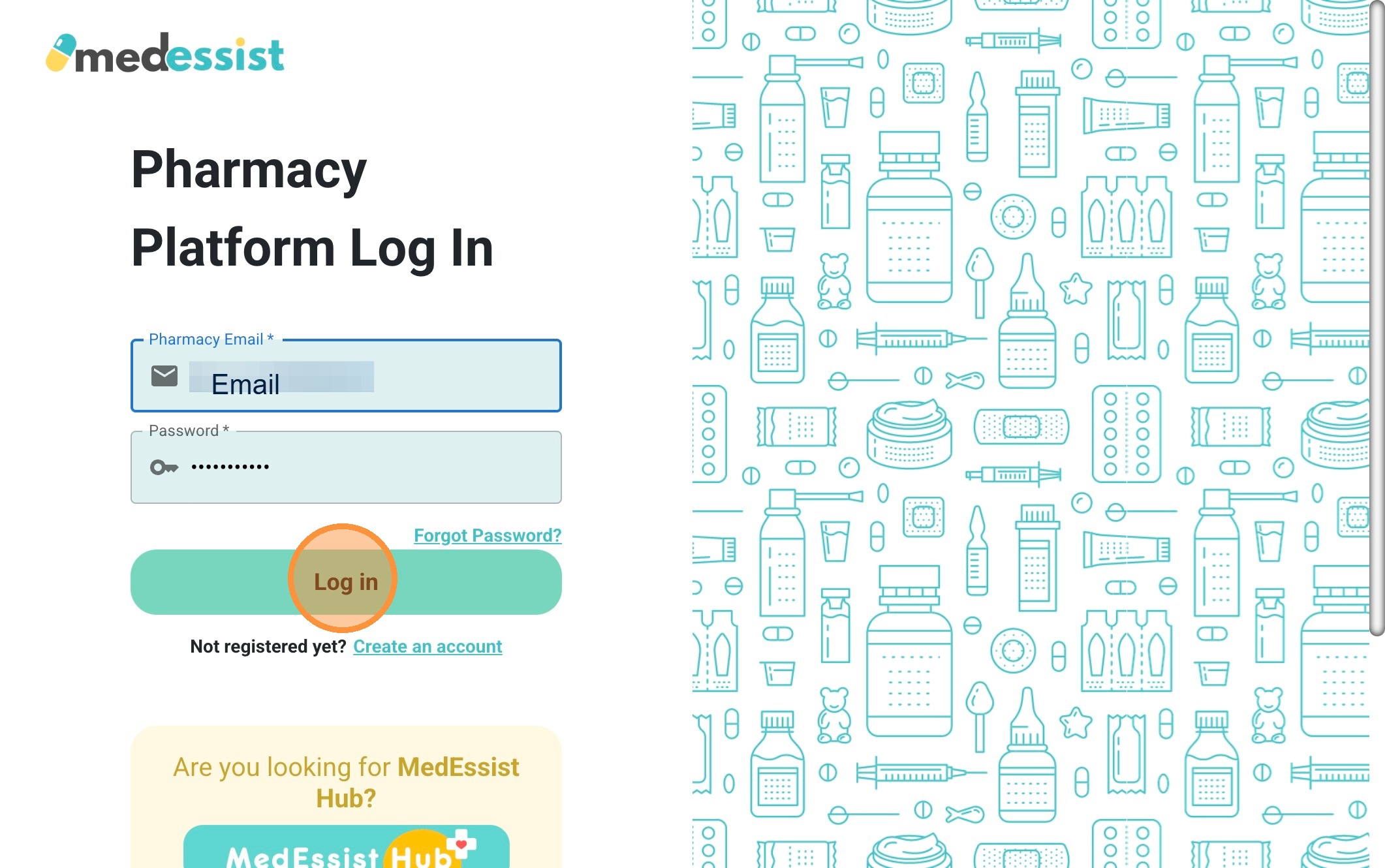
2. Enter your login credentials (pharmacy email & password) then click "Log in".
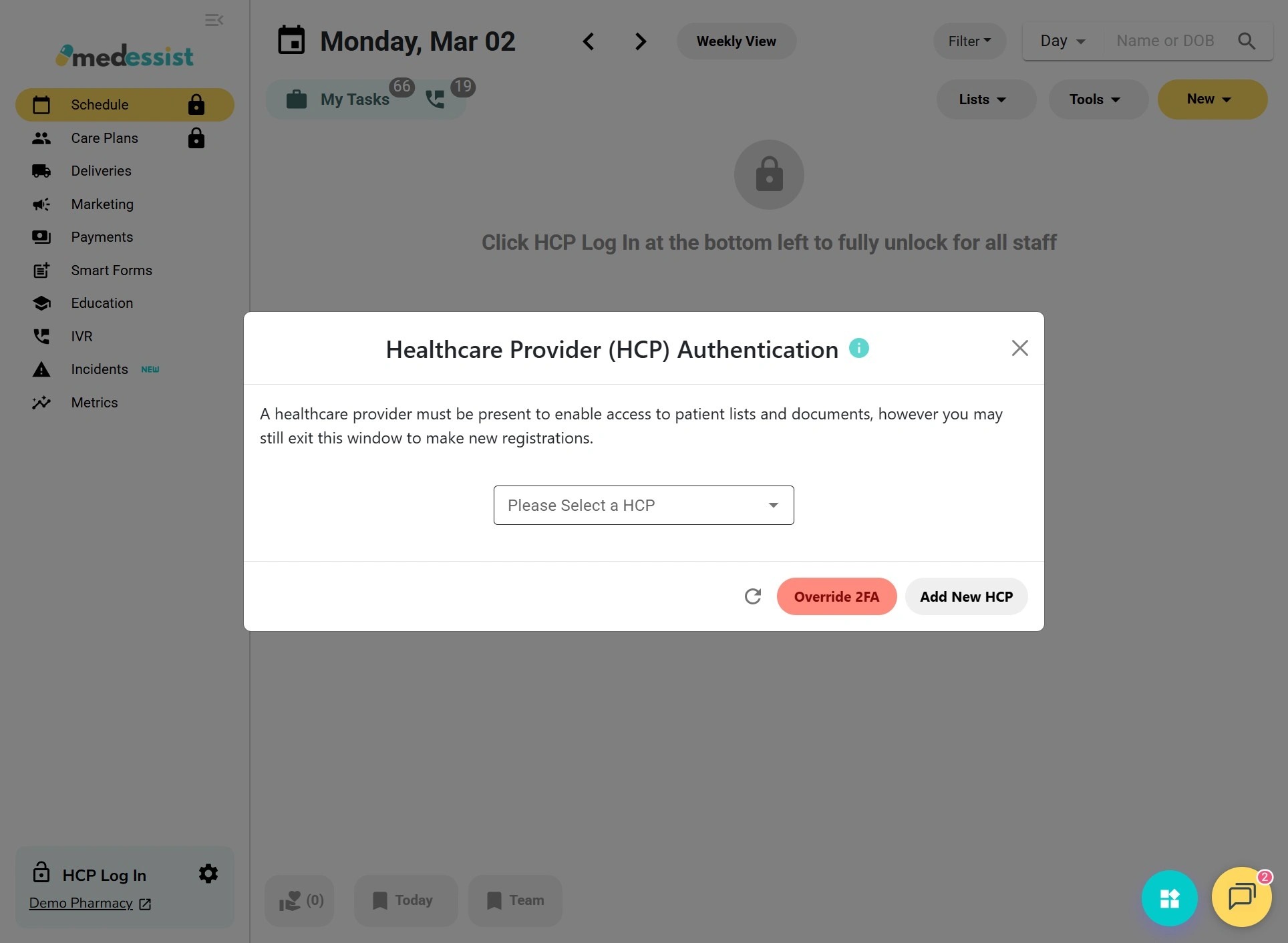
3. Click the "Please Select a HCP" field.
Tip! If you need to create a new healthcare provider (HCP), seeHealthcare Provider (HCP) Authentication for Pharmacists for details.
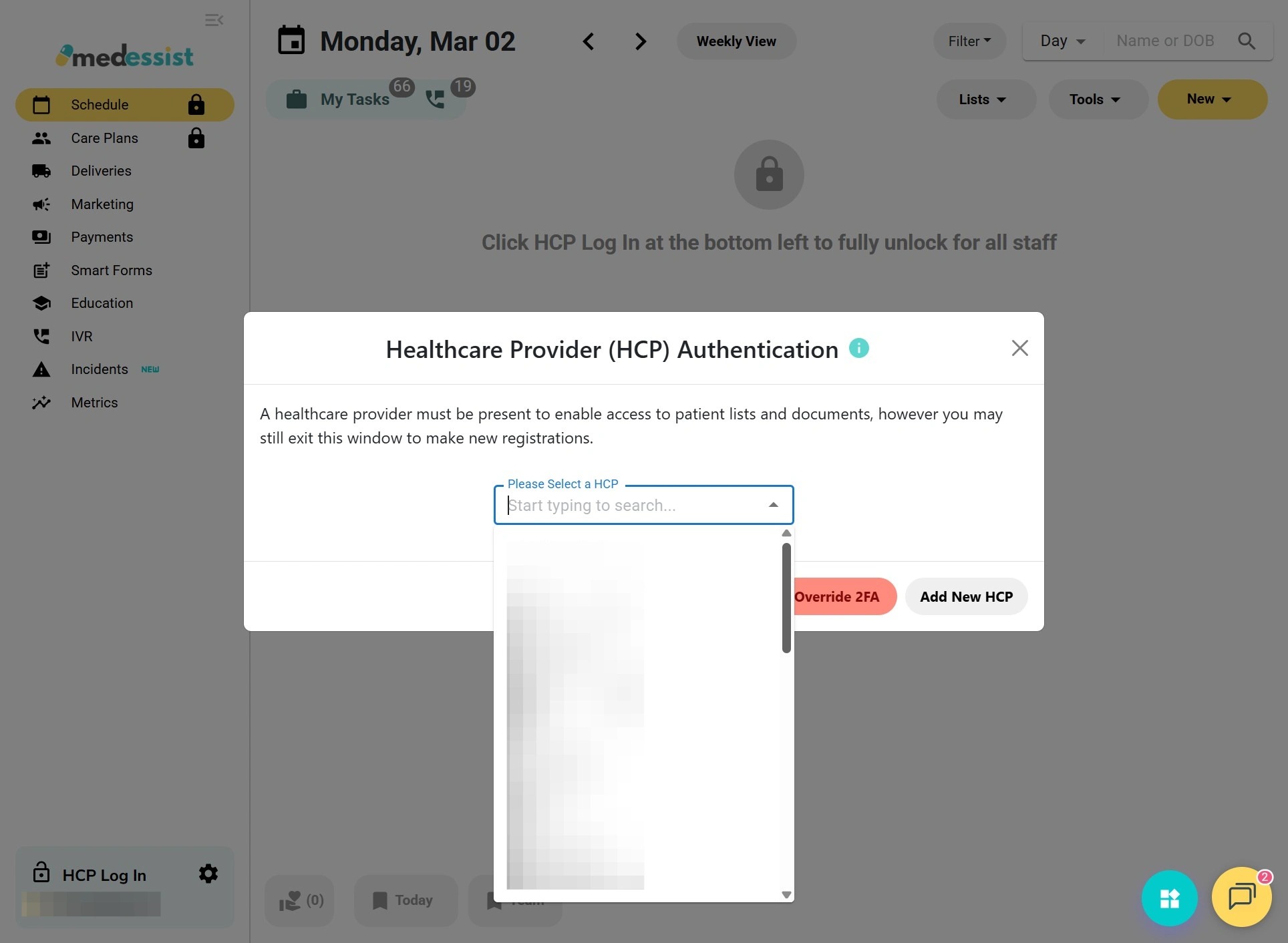
4. Now, select your name from the drop-down menu to sign in.
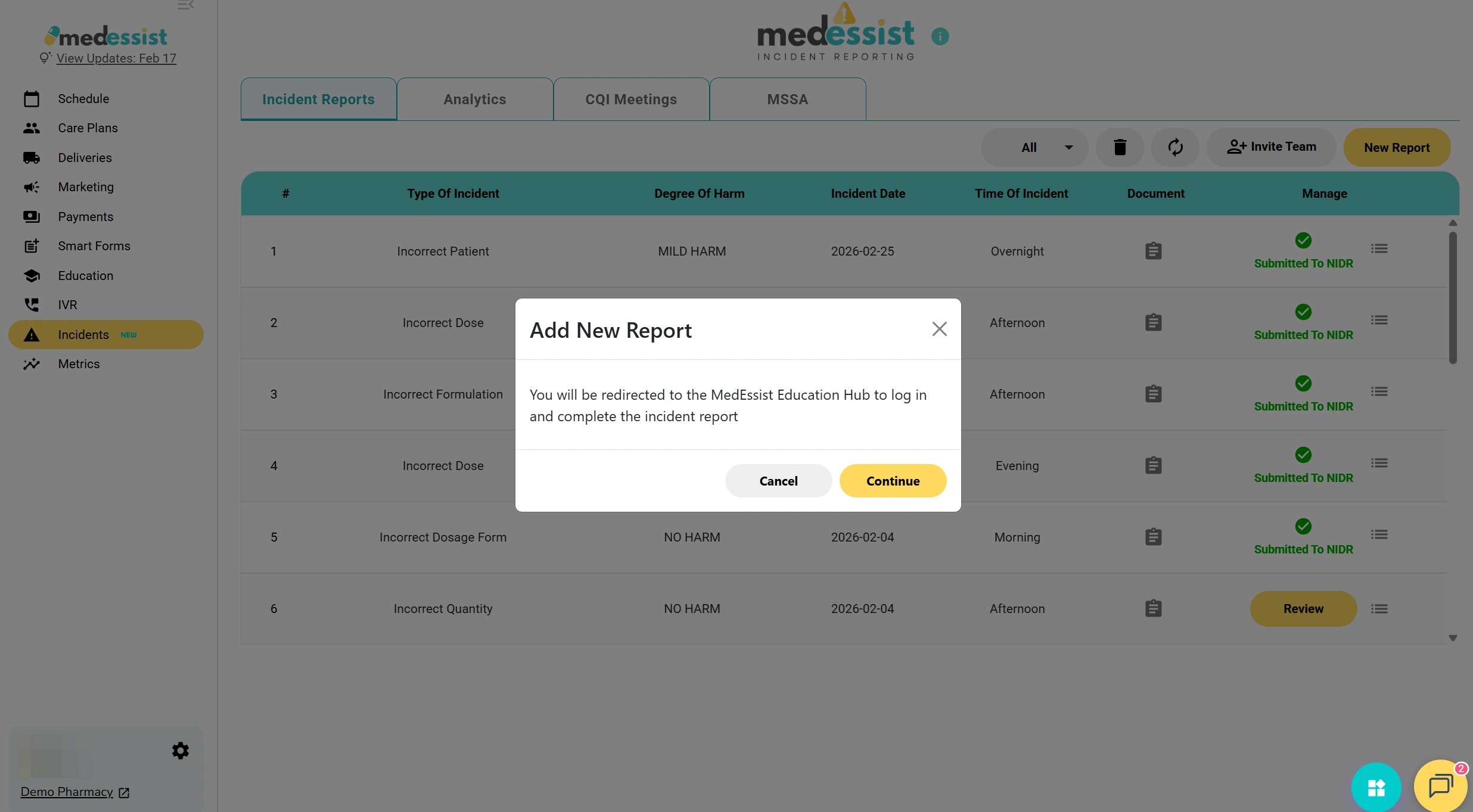
5. Enter myPIN and click "Log In."
Tip! If you forget or misplace your myPIN passcode, you can set a new one for future logins. For details, see:Resetting MedEssist Hub Password and myPIN Passcode for HealthCare Provider (HCP) Authentication
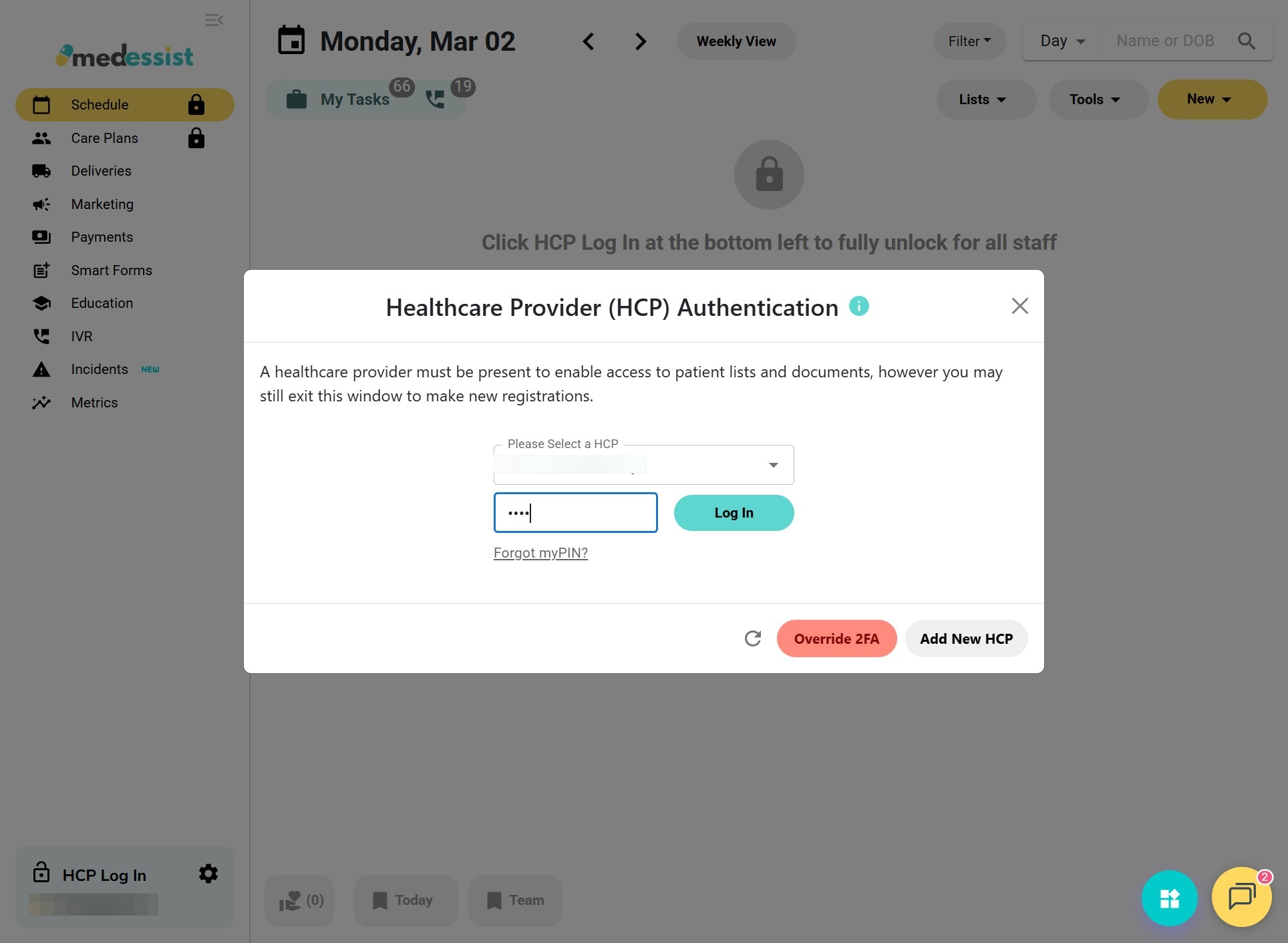
6. On your MedEssist dashboard, click "Incidents" on the left hand side. Look for the caution icon (triangle with an exclamation mark).
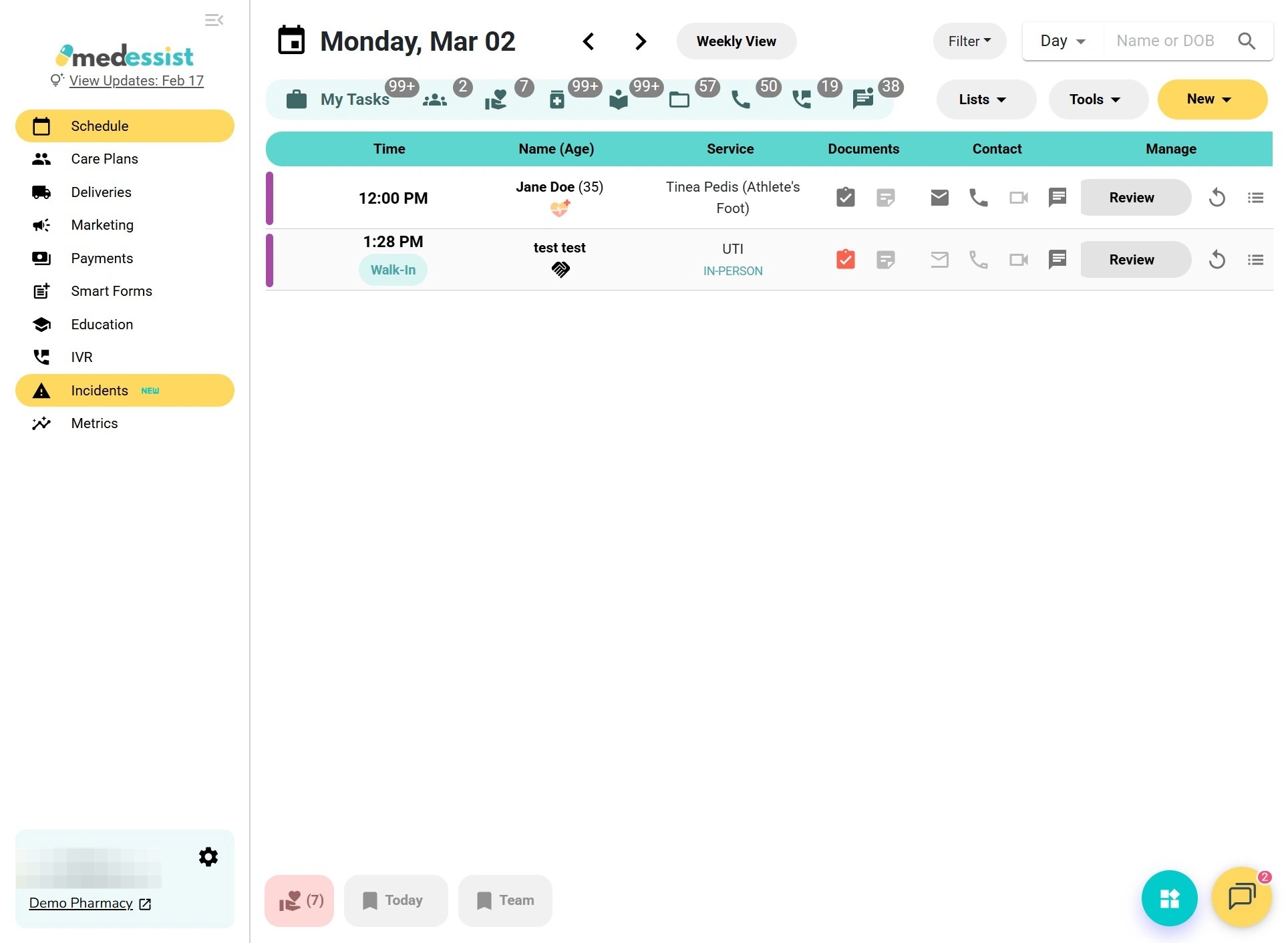
7. Select "New Report" on the top right side.
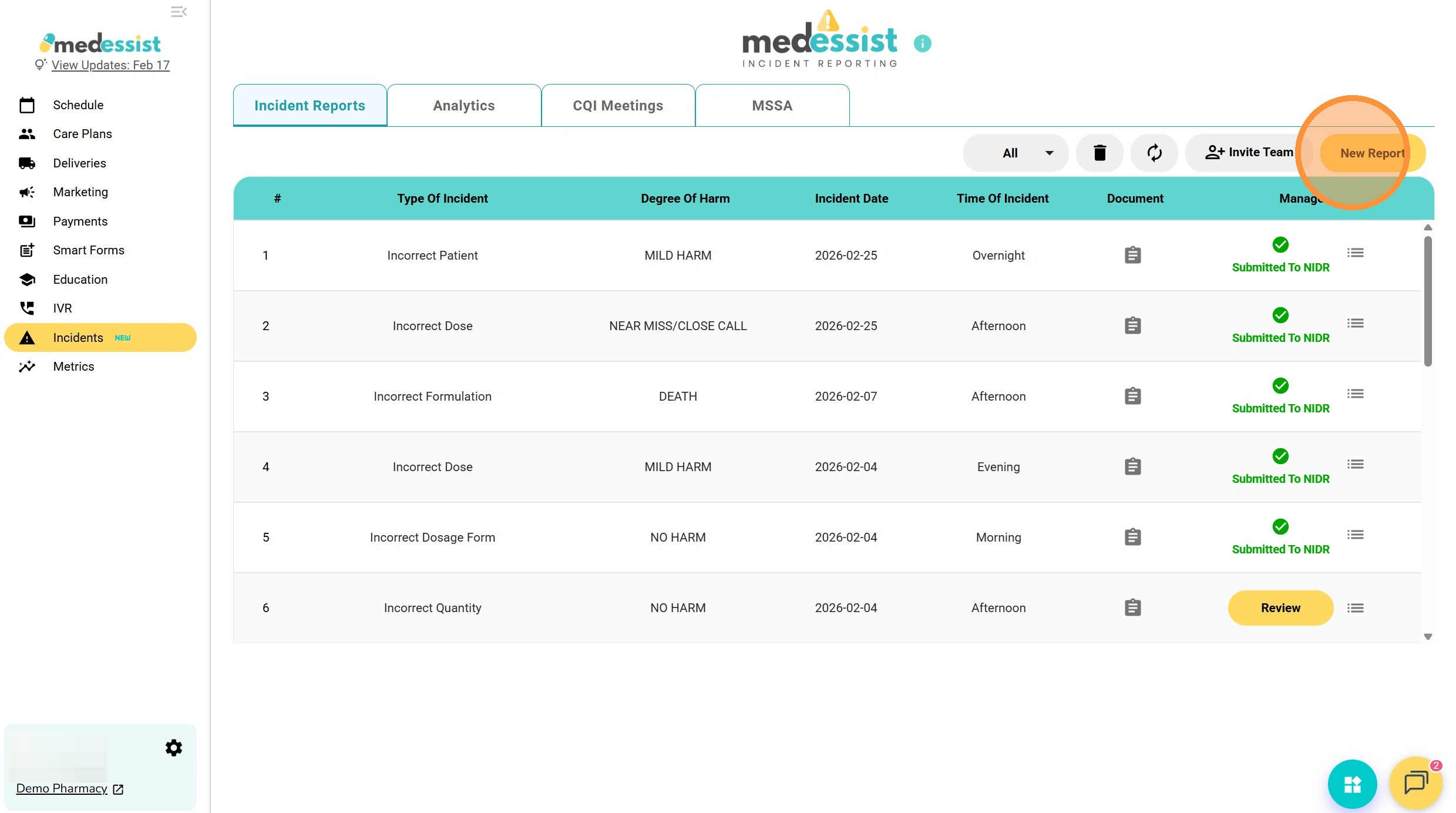
8. You will be redirected to the MedEssist Education Hub. Click "Continue".
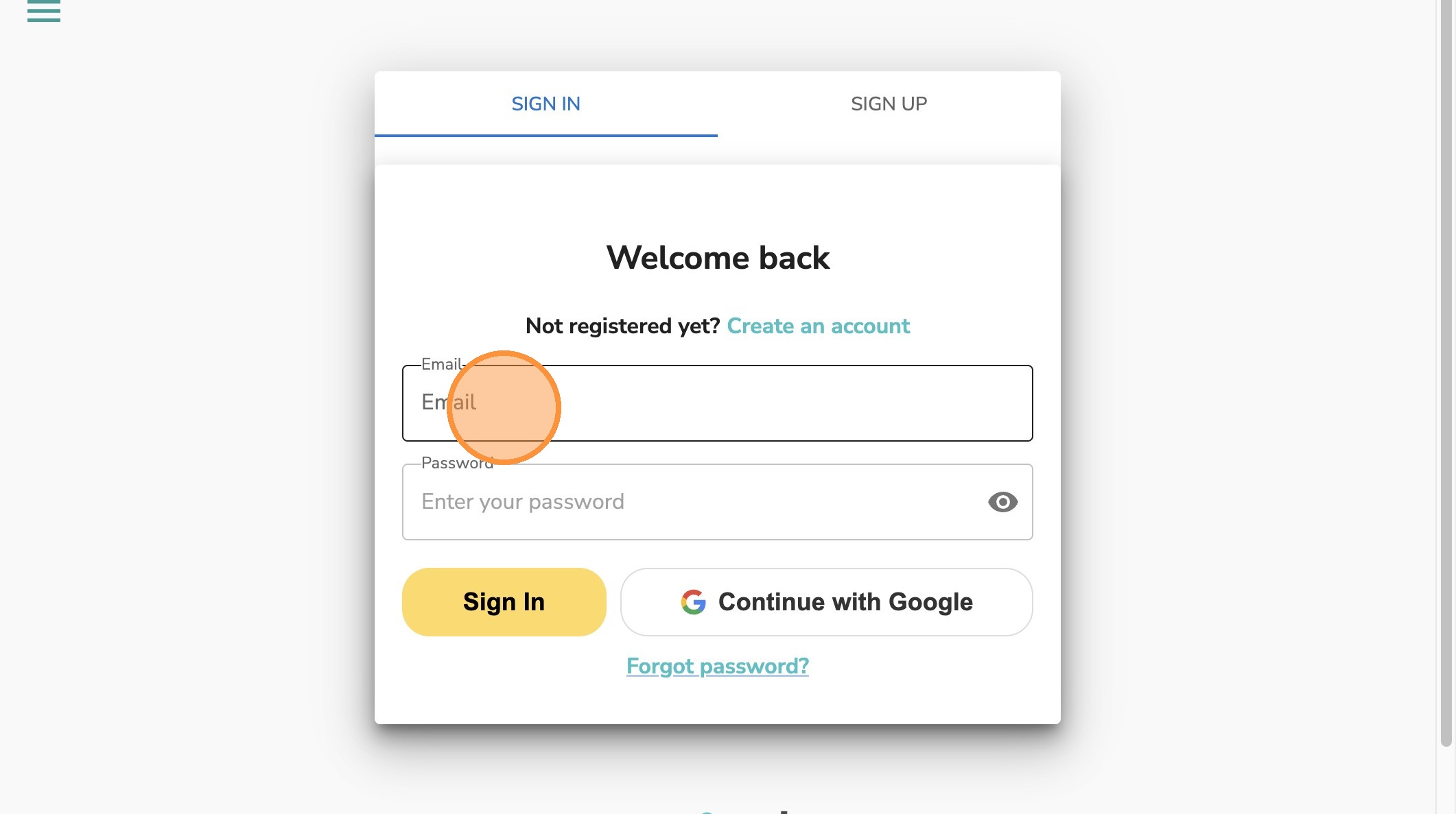
9. Enter your login information and click "Sign In".
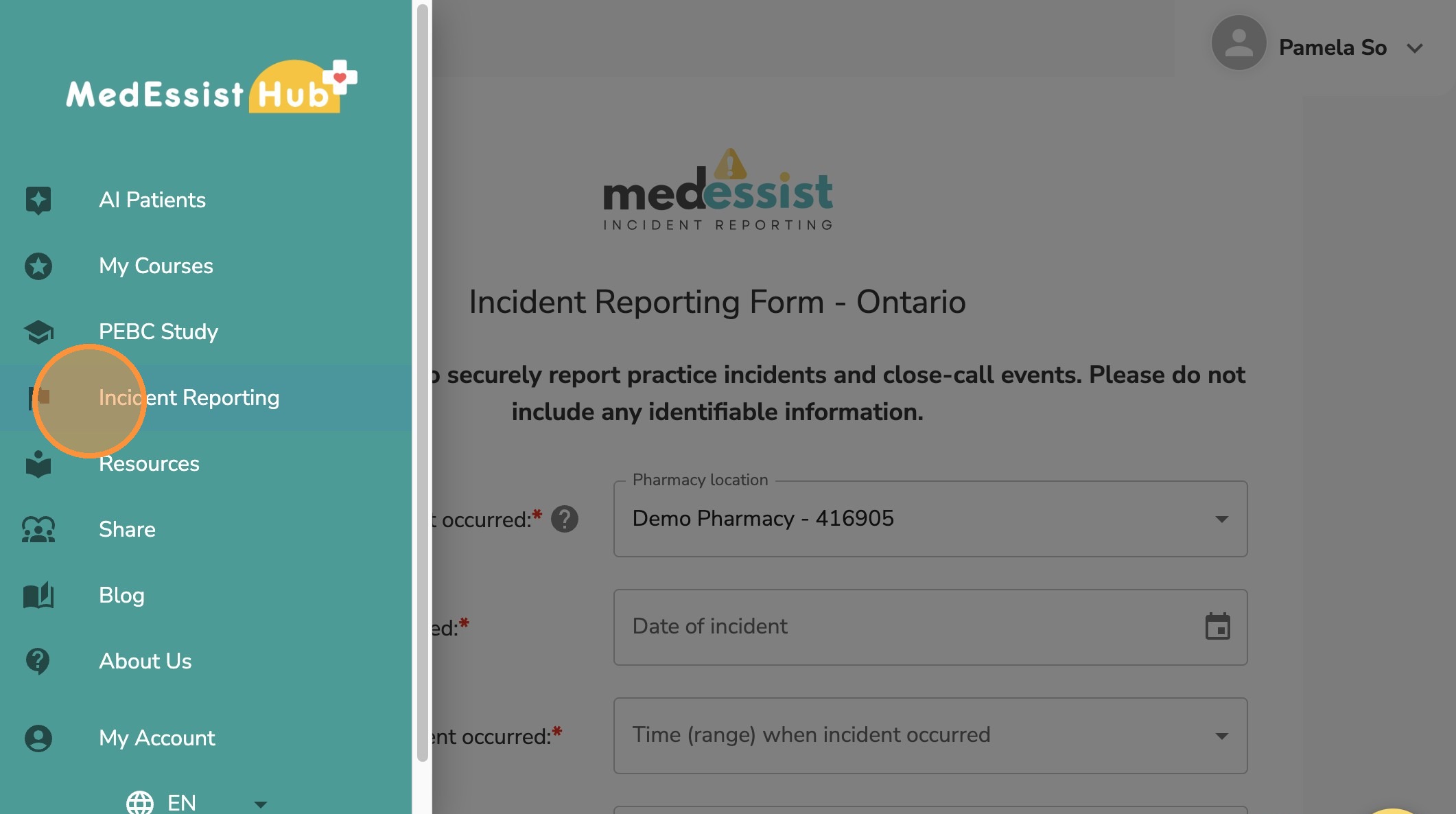
10. Select "Incident Reporting"
11. Fill out the information on the Incident Reporting Form.
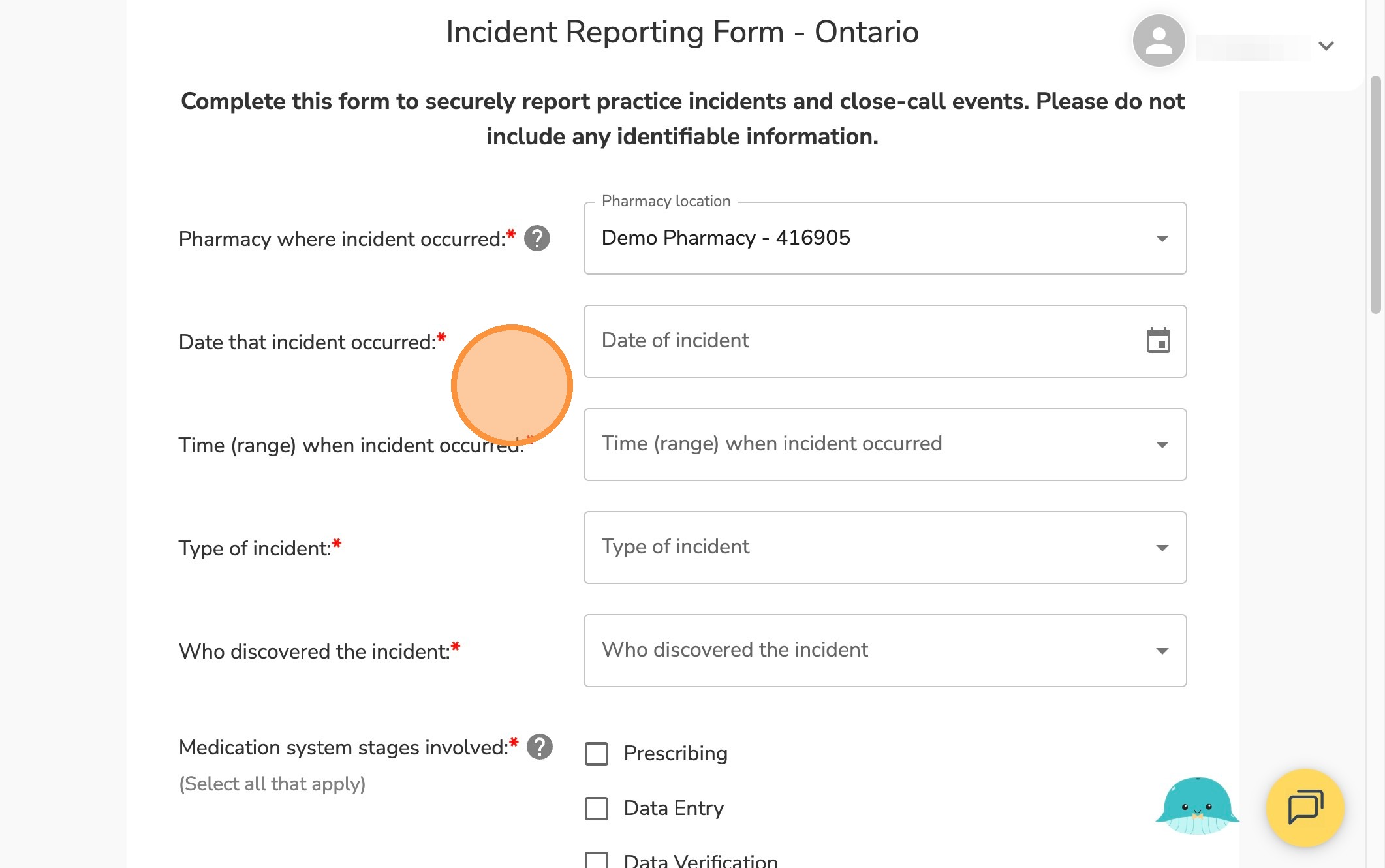
Alert! Please ensure no identifiable information is included in the form
Tip! The required fields are marked with a red asterisk (*).
12. Once you've completed the form, click "Submit".
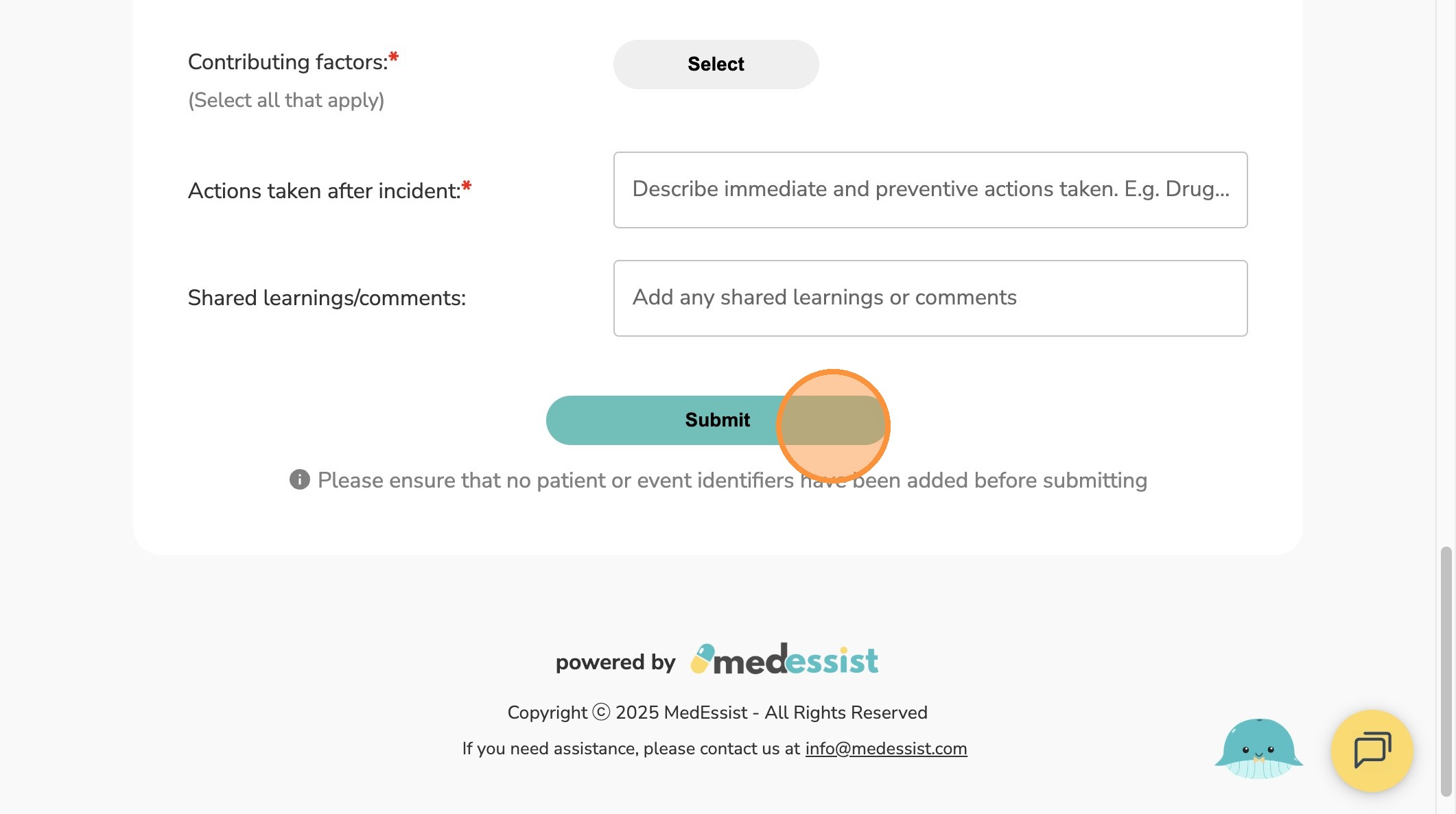
Tip! Don't worry if you've missed any information. You can edit the form at a later time if needed.
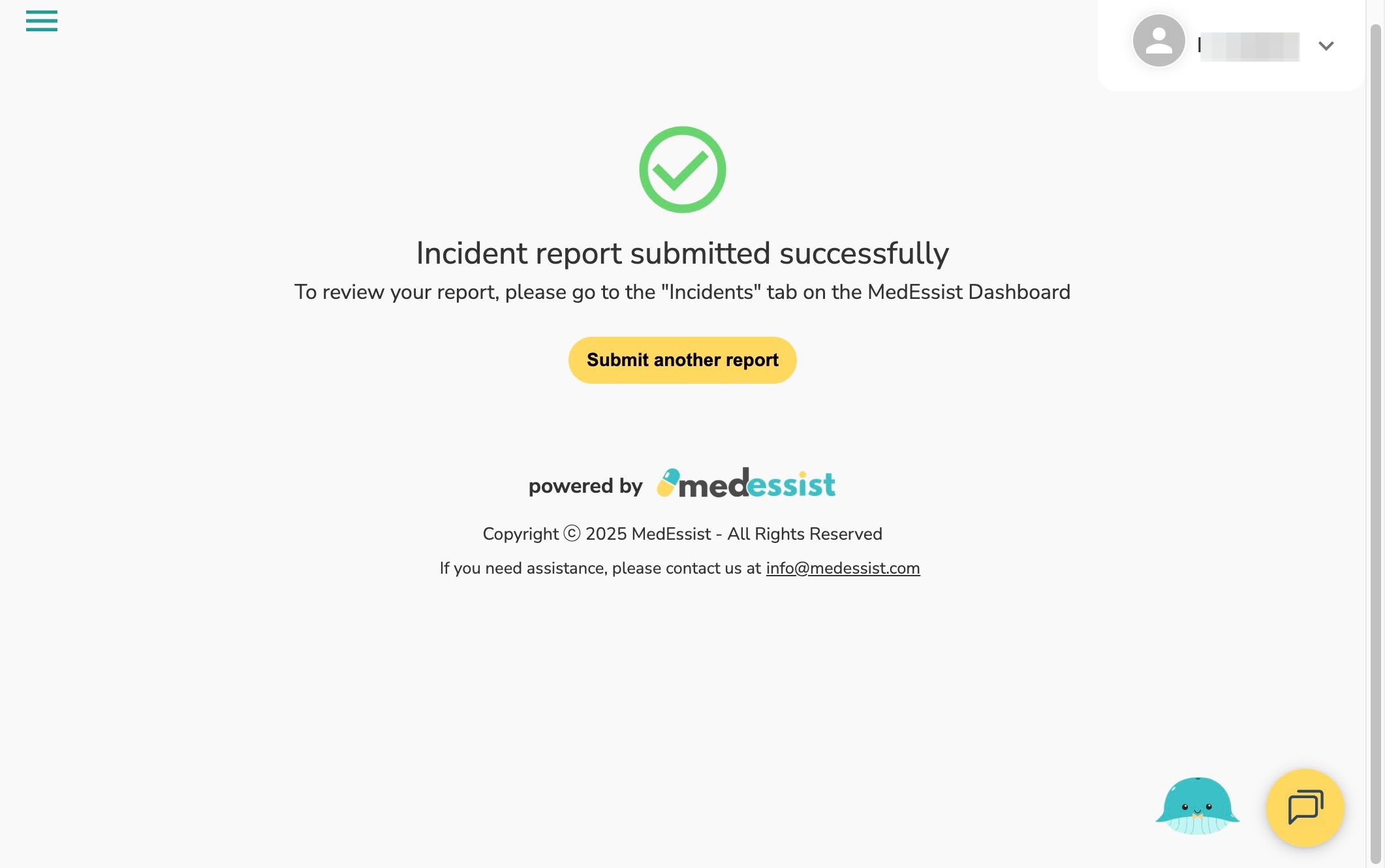
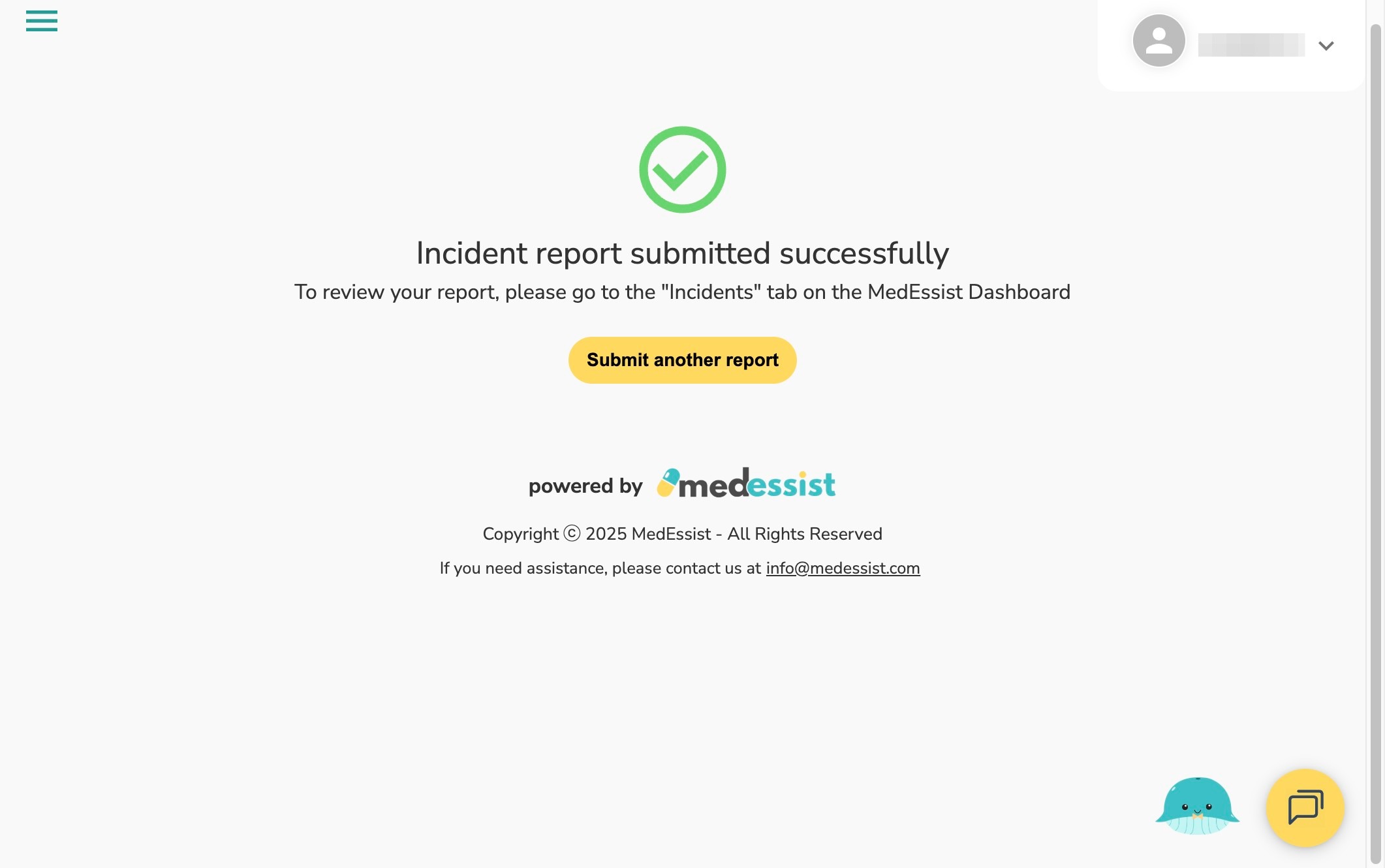
13. You're all done! Your incident report has now been submitted successfully.
Method 2: The MedEssist Education Hub
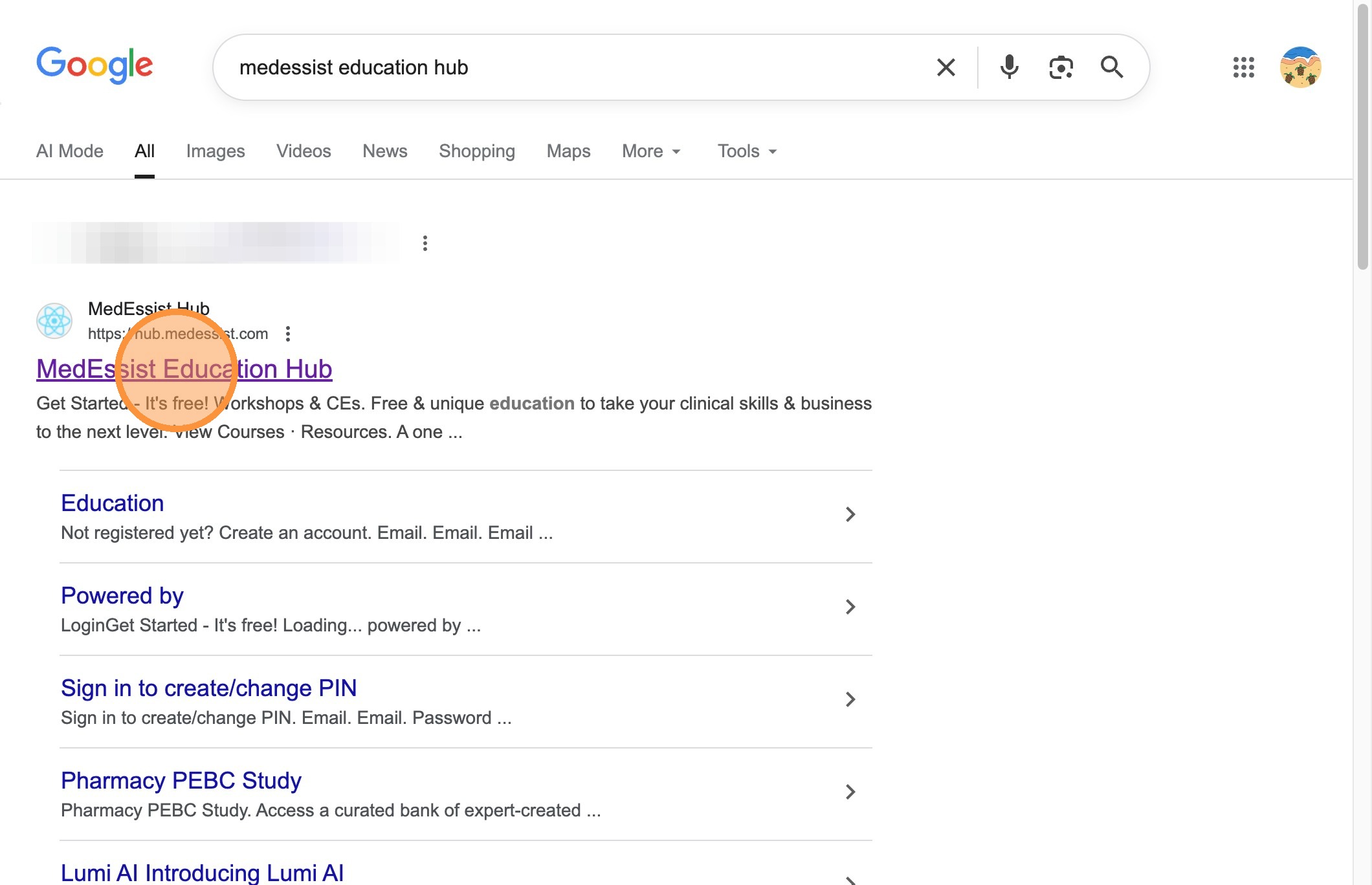
14. Search "MedEssist Education Hub" or visithttps://hub.medessist.com/on your browser.
15. Click "Login" on the top right.

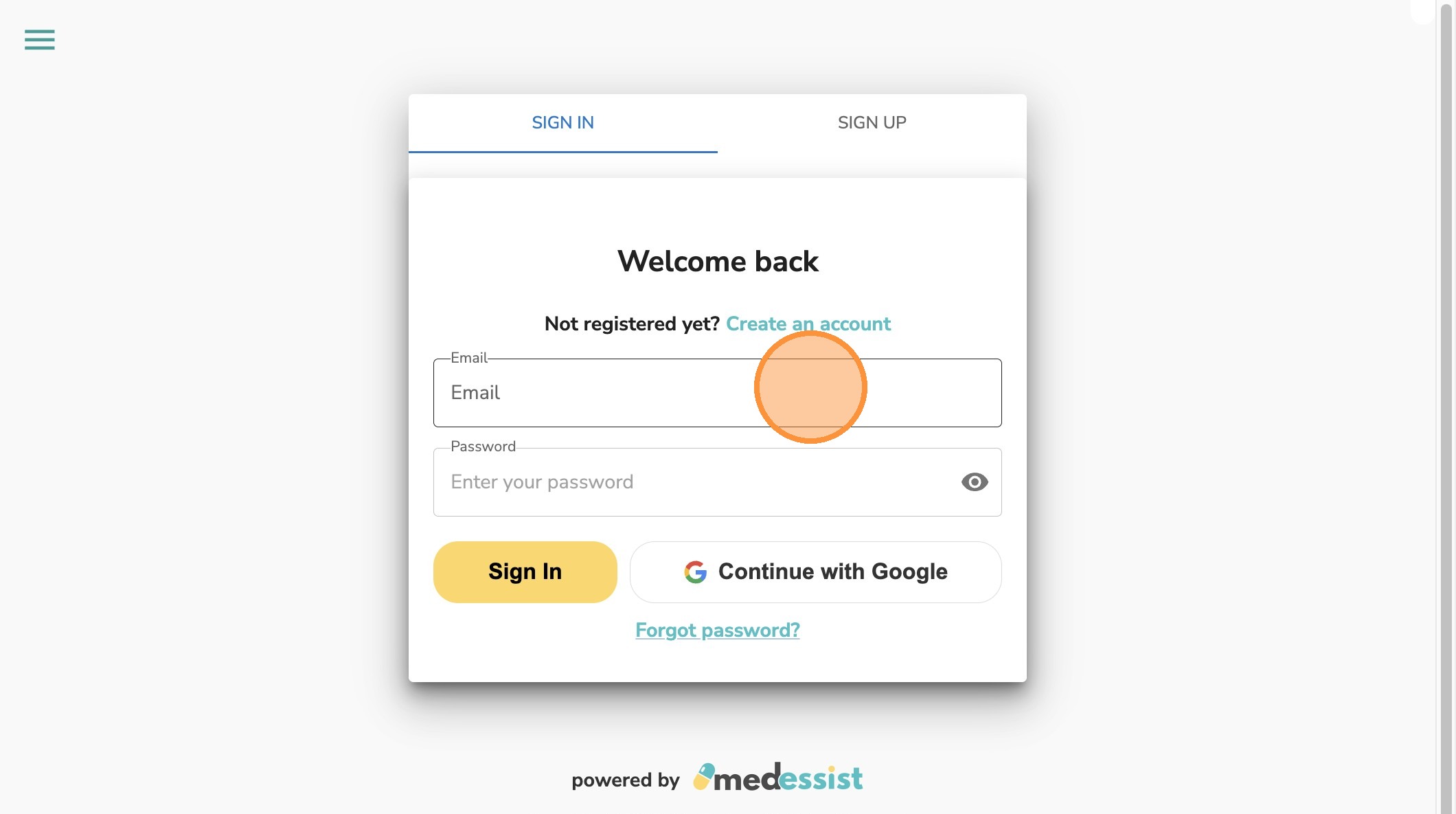
16. Enter your Email and Password for MedEssist Education Hub.
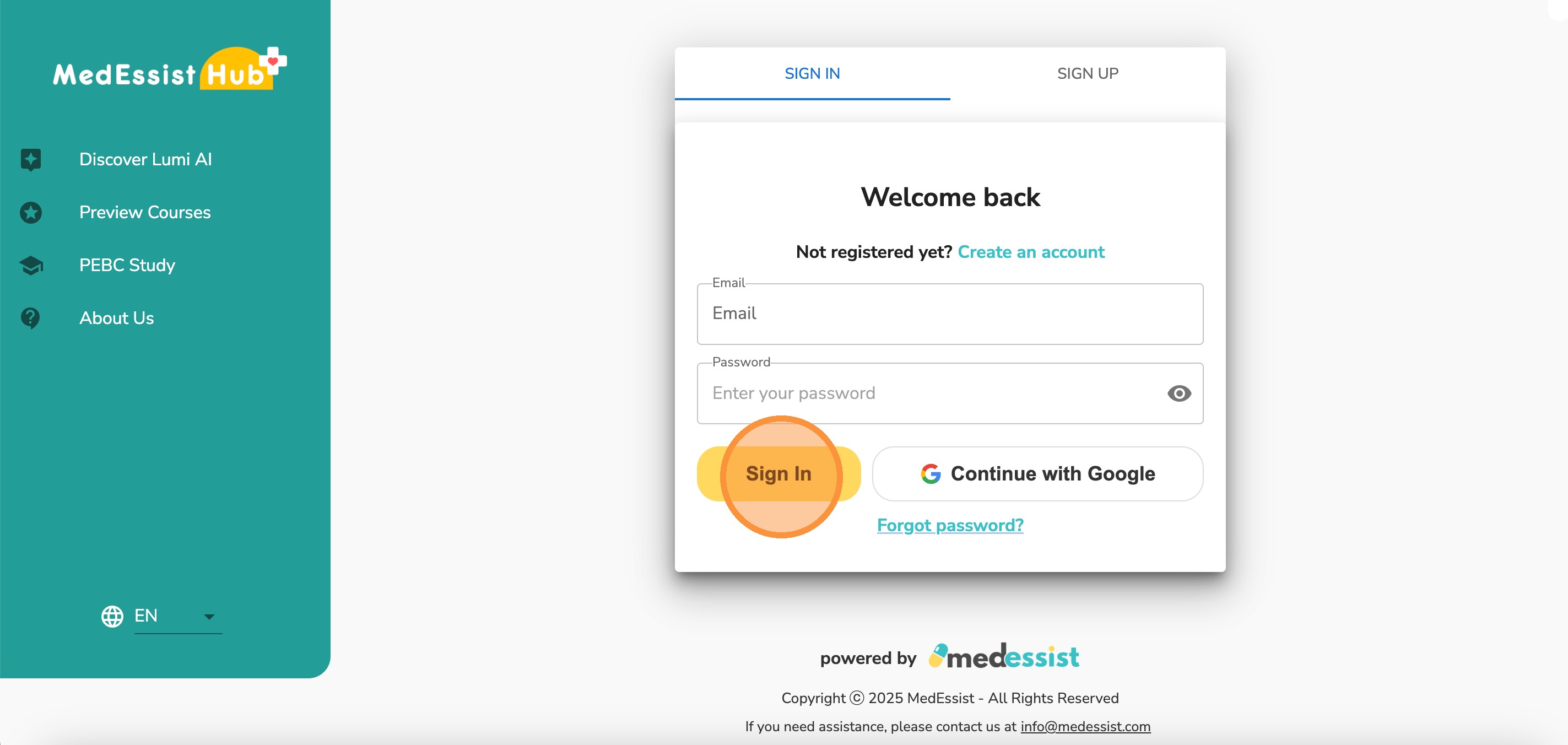
17. Click "Sign in" on the bottom left.
18. Select the icon with three lines (top left) to view more options.

19. Click "Incident Reporting" on the left side bar.

20. Fill out the information on the Incident Reporting Form.
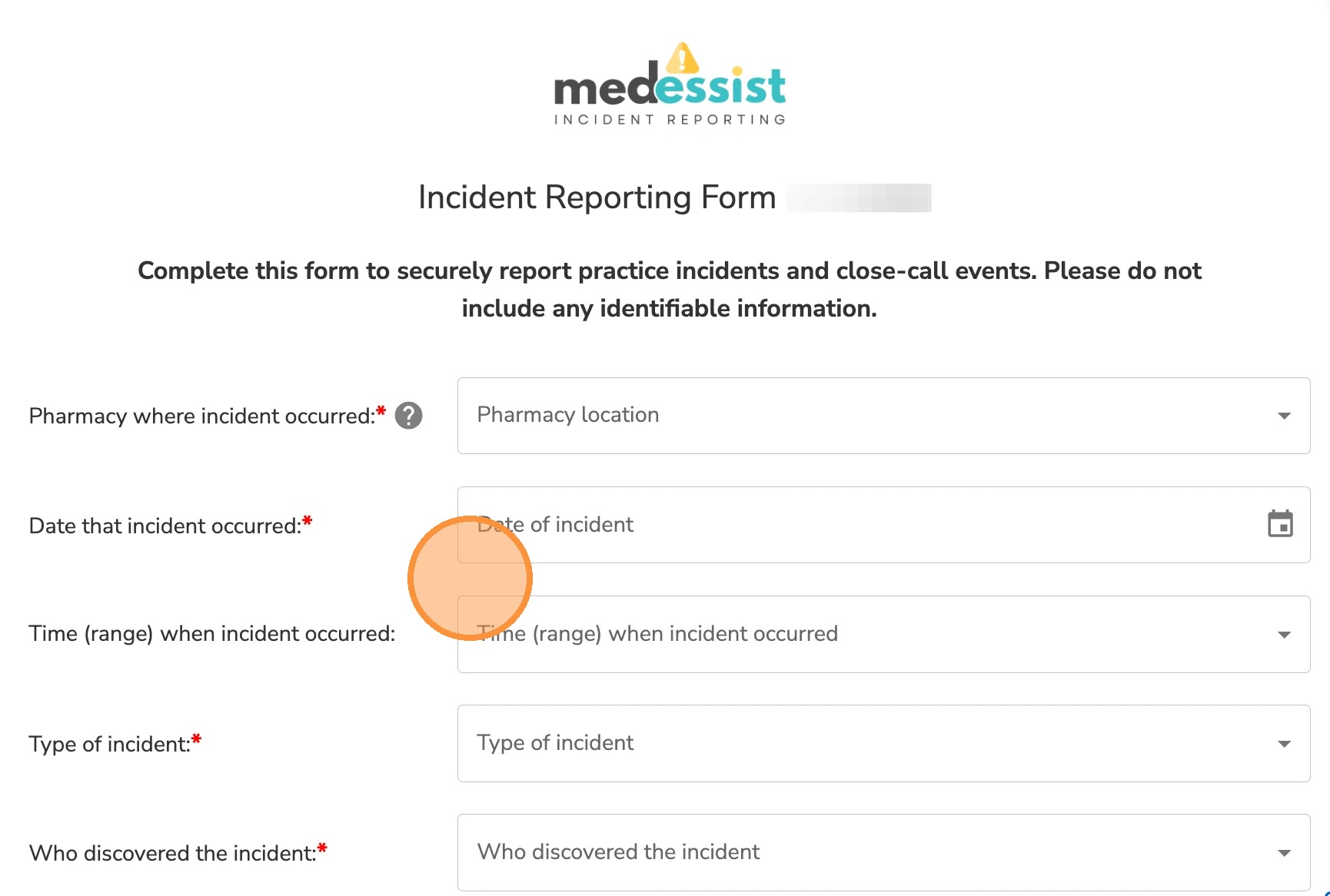
Alert! Please ensure no identifiable information is included in the form.
Tip! The required fields are marked with a red asterisk (*).
21. Once you complete the form, click "Submit".
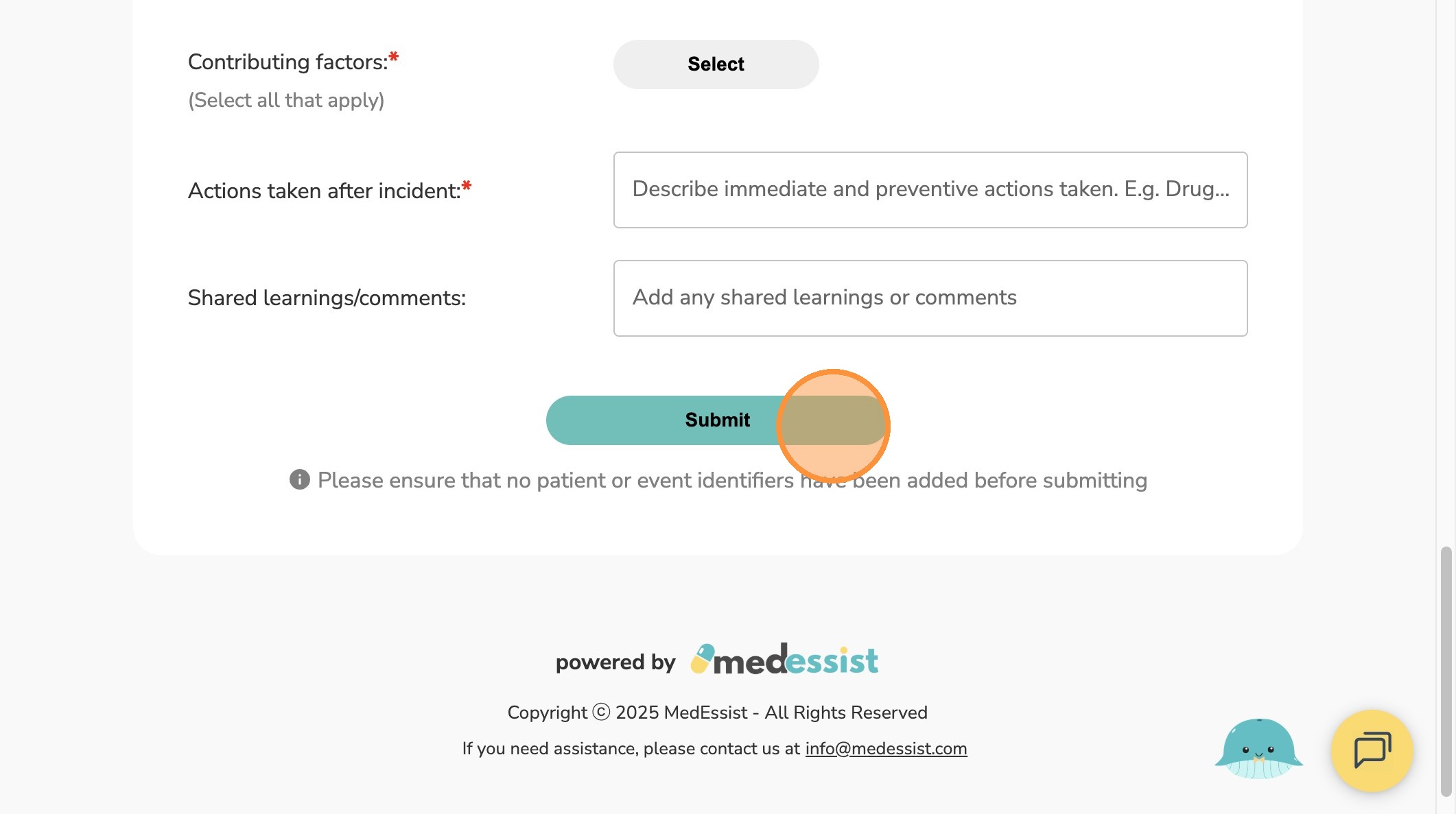
Tip! Don't worry if you missed any information. You can edit the form at a later time if needed!
22. That's it you're all done! Your incident report has now been submitted successfully.