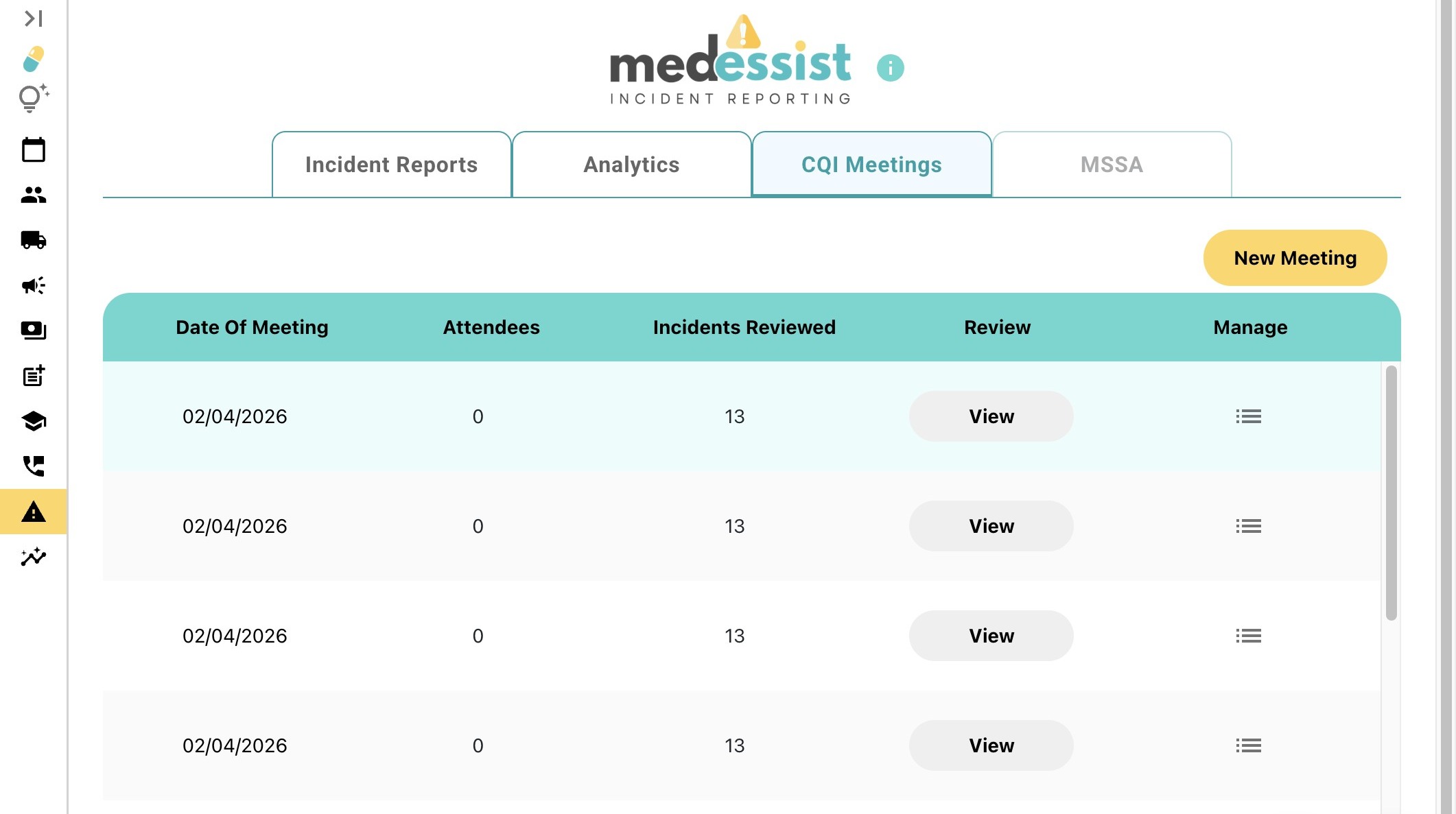
Review Analytics of Incident Reports
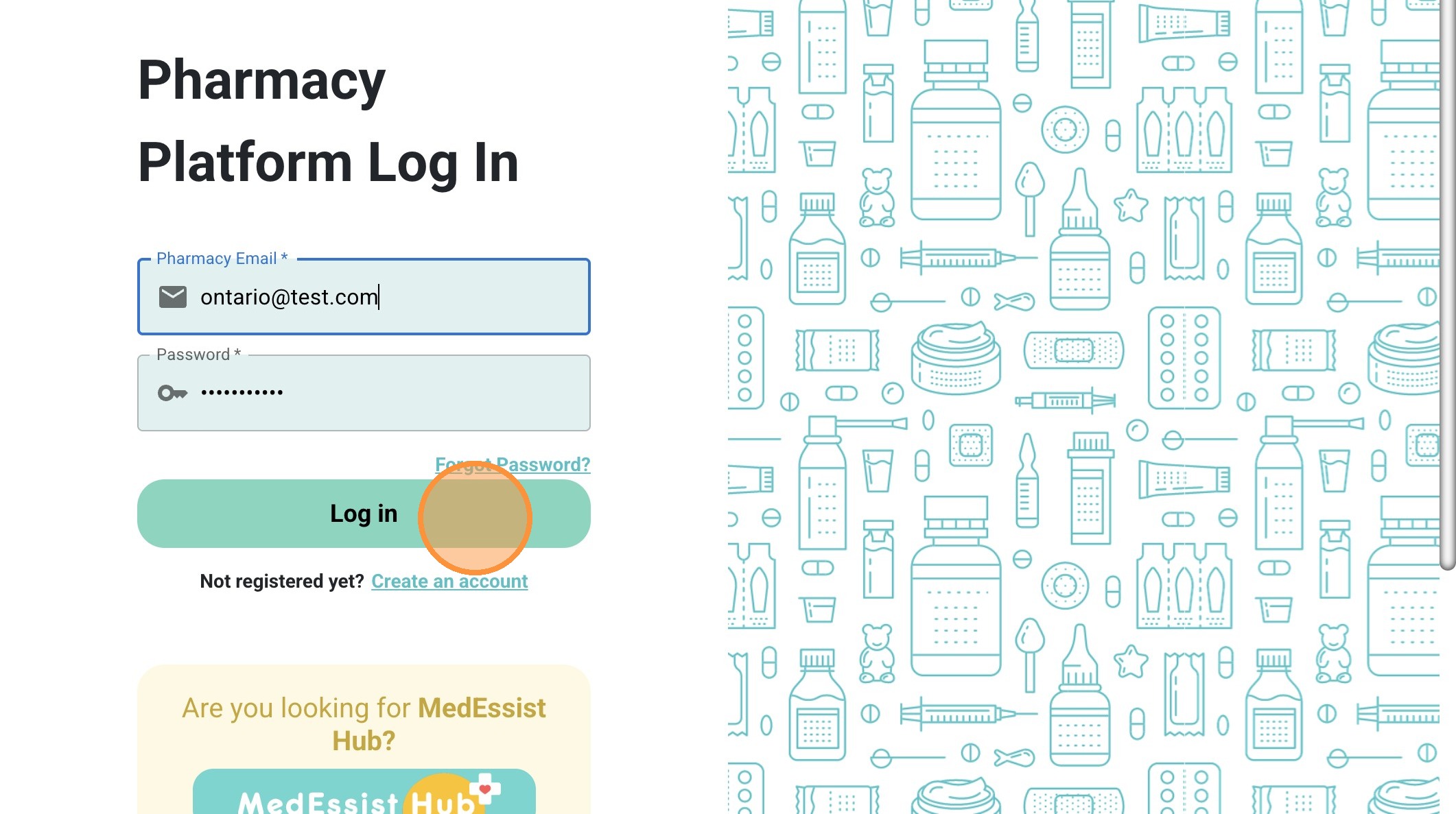
1. Log in to your MedEssist Platform https://app.medessist.com/home
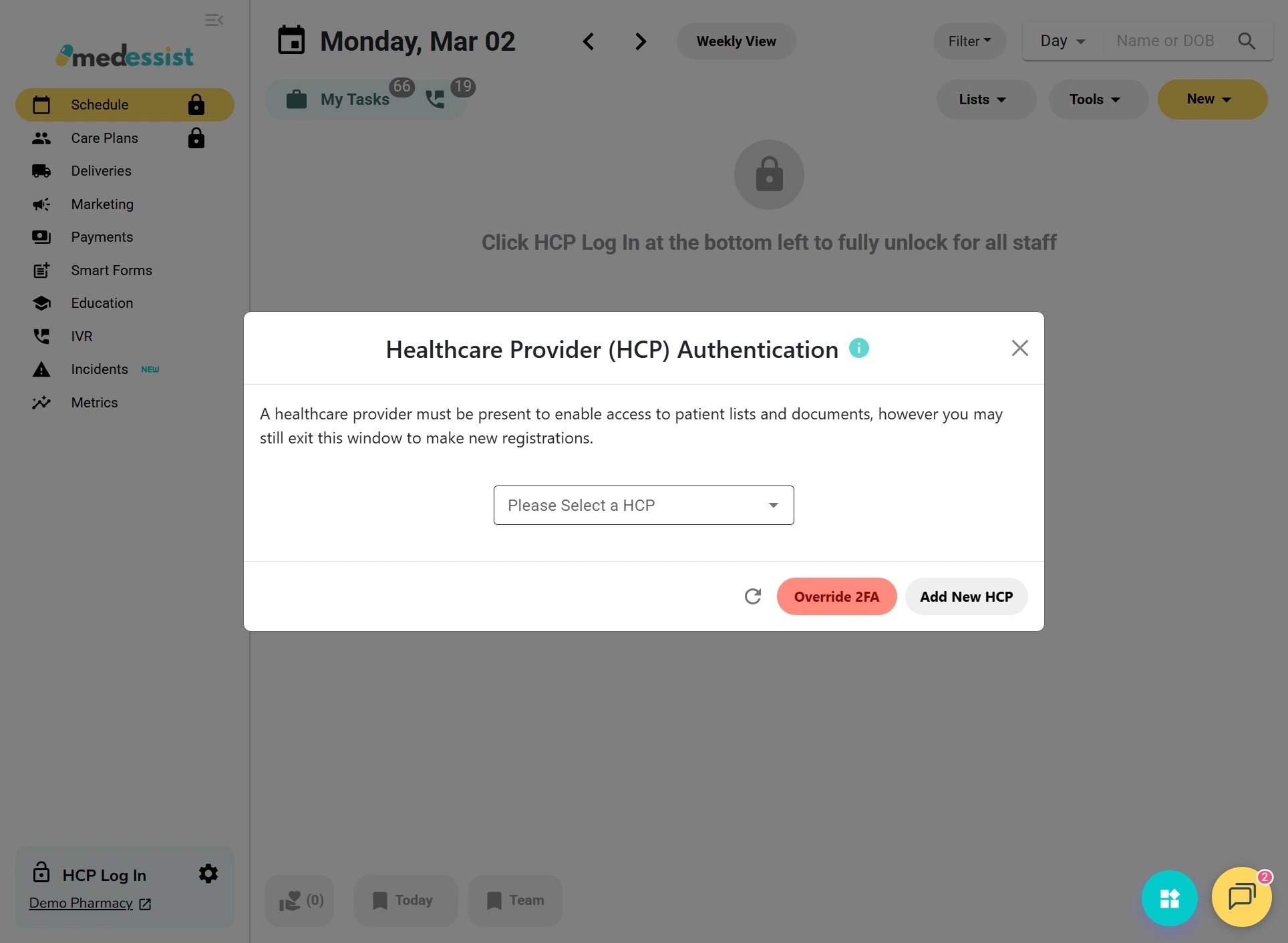
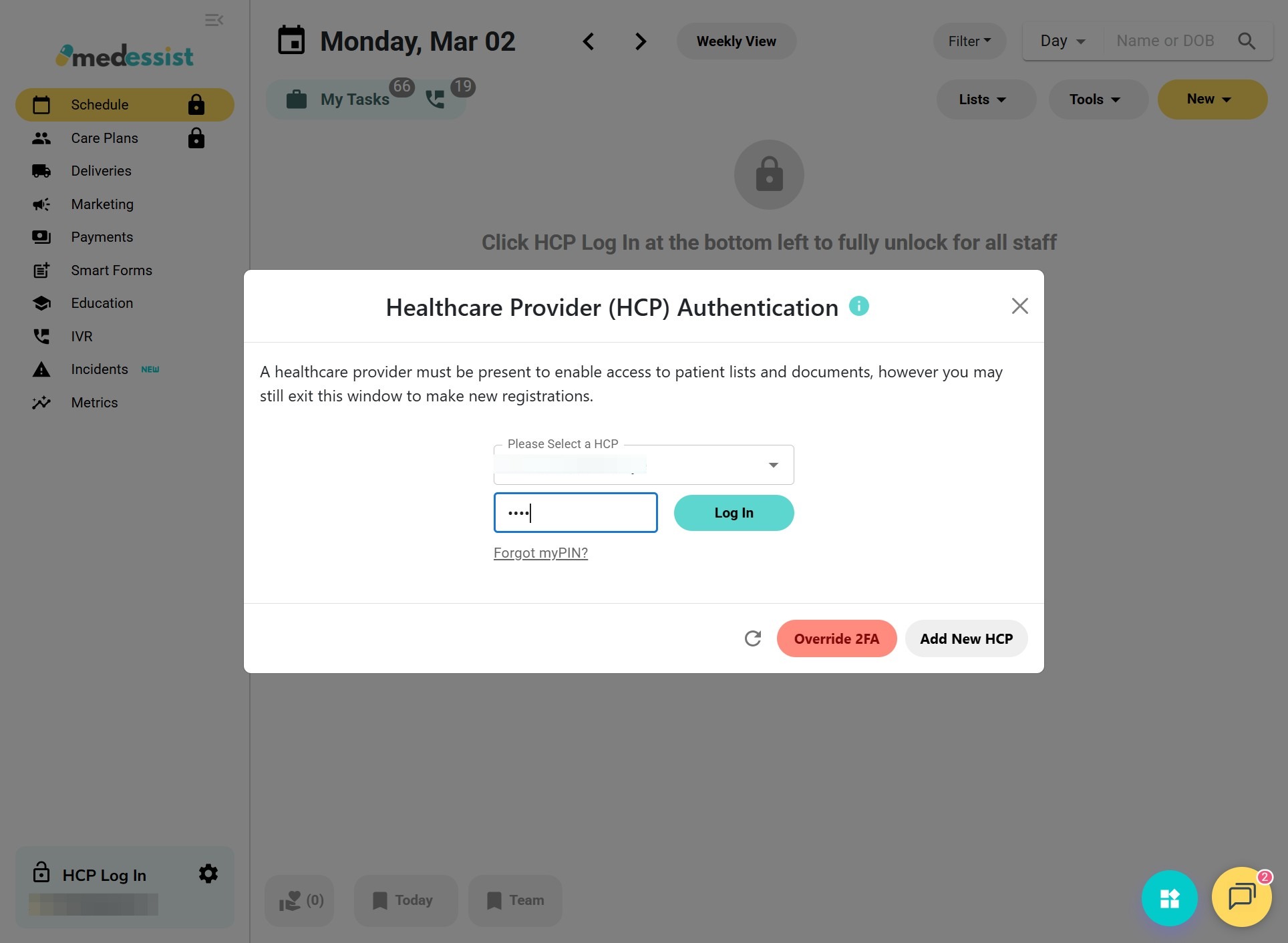
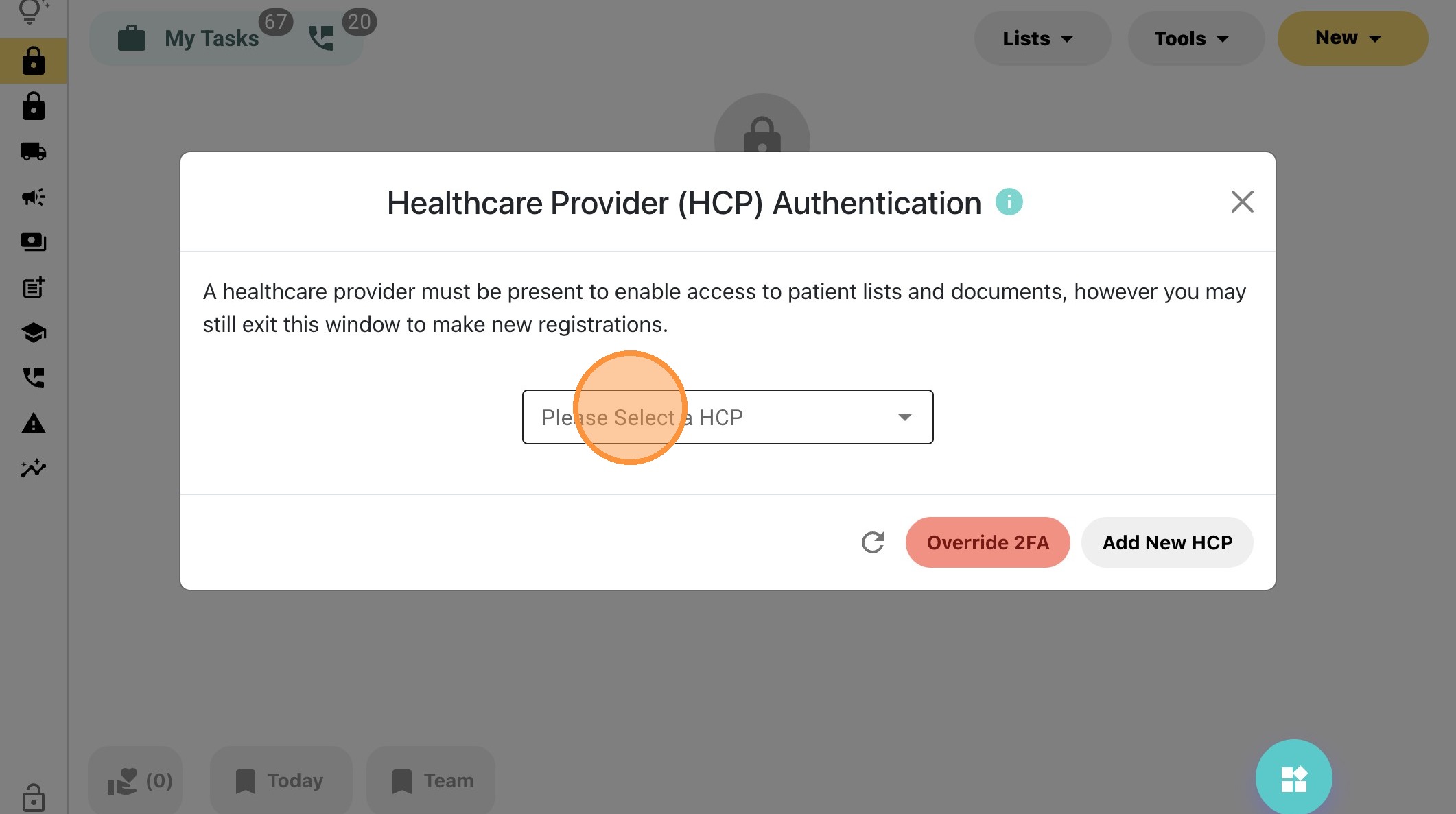
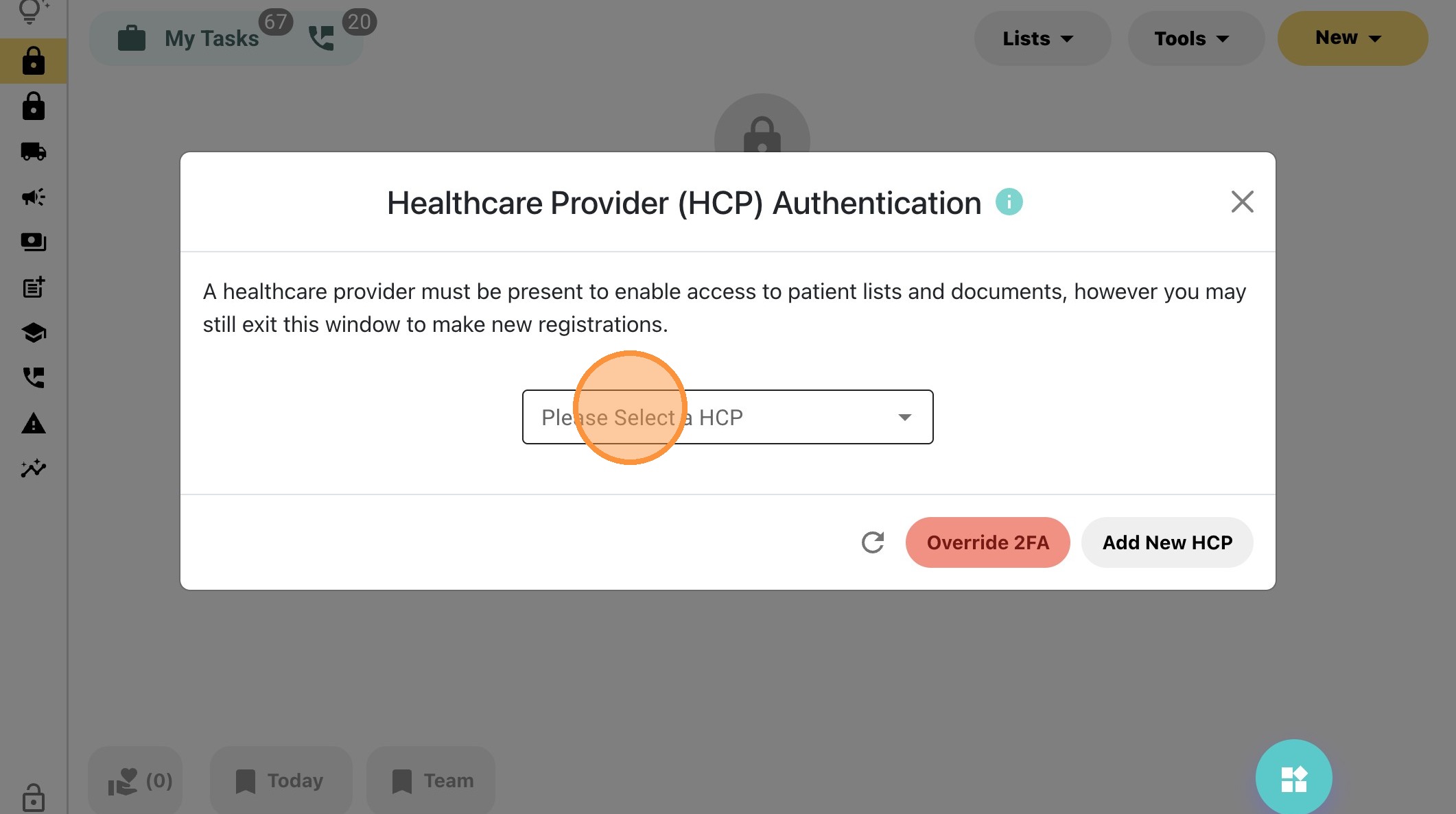
2. Click the "Please Select a HCP" field.
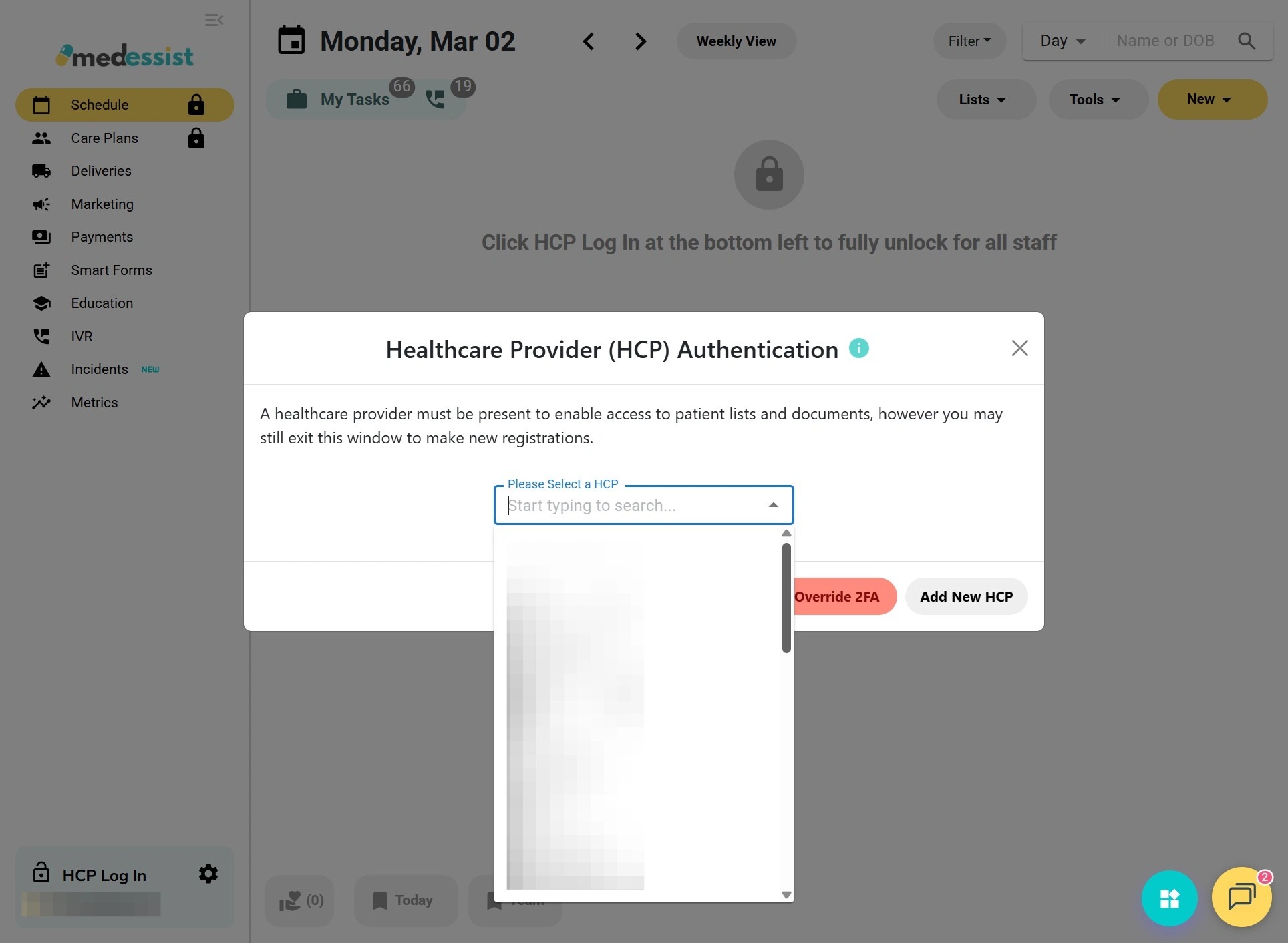
3. Now, select your name from the drop-down menu to sign in.
4. Enter myPIN and click "Log In."
Tip! If you forget or misplace your myPIN passcode, you can set a new one for future logins. For details, see:Resetting MedEssist Hub Password and myPIN Passcode for HealthCare Provider (HCP) Authentication
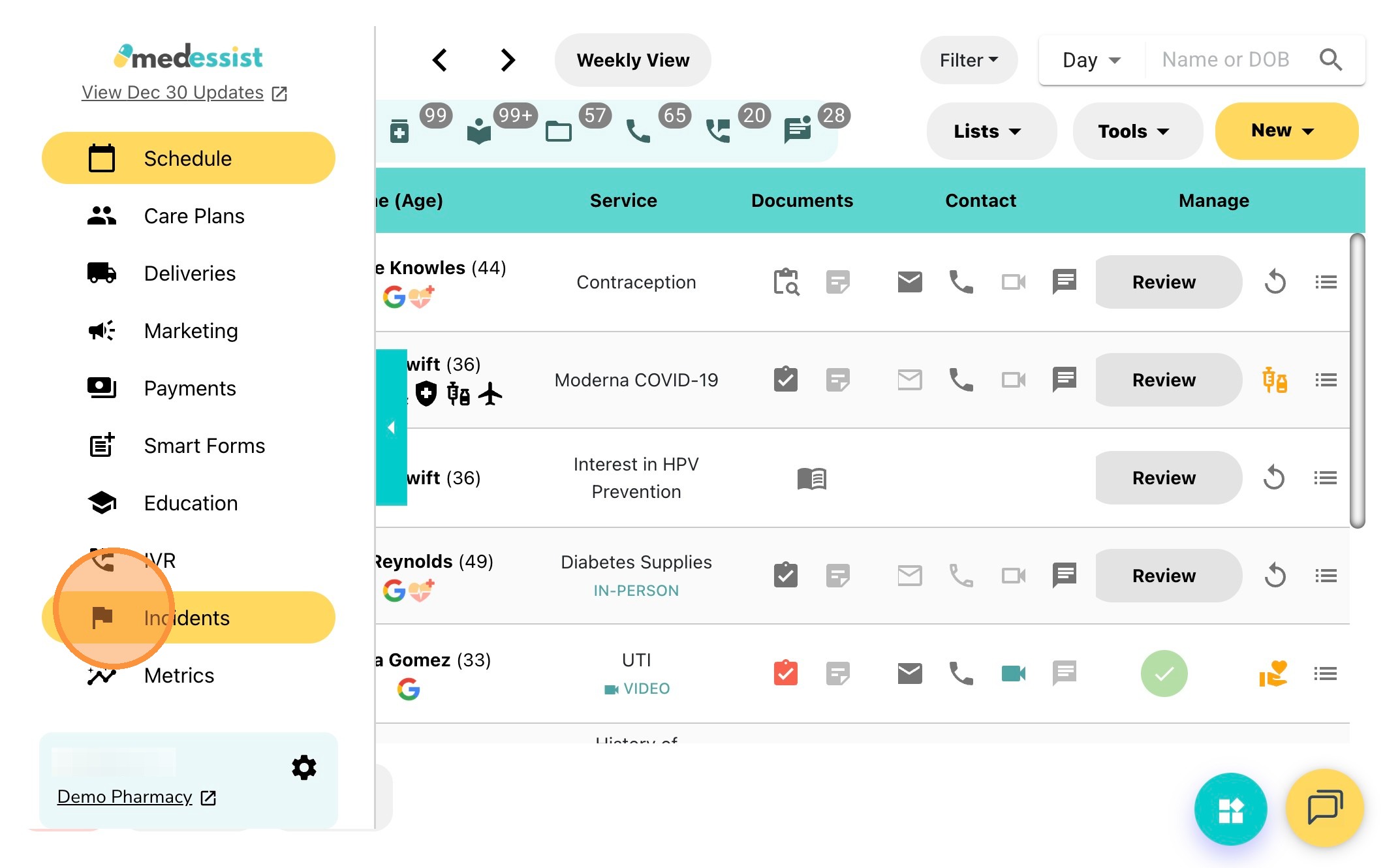
5. Click "Incidents" on the left side bar.
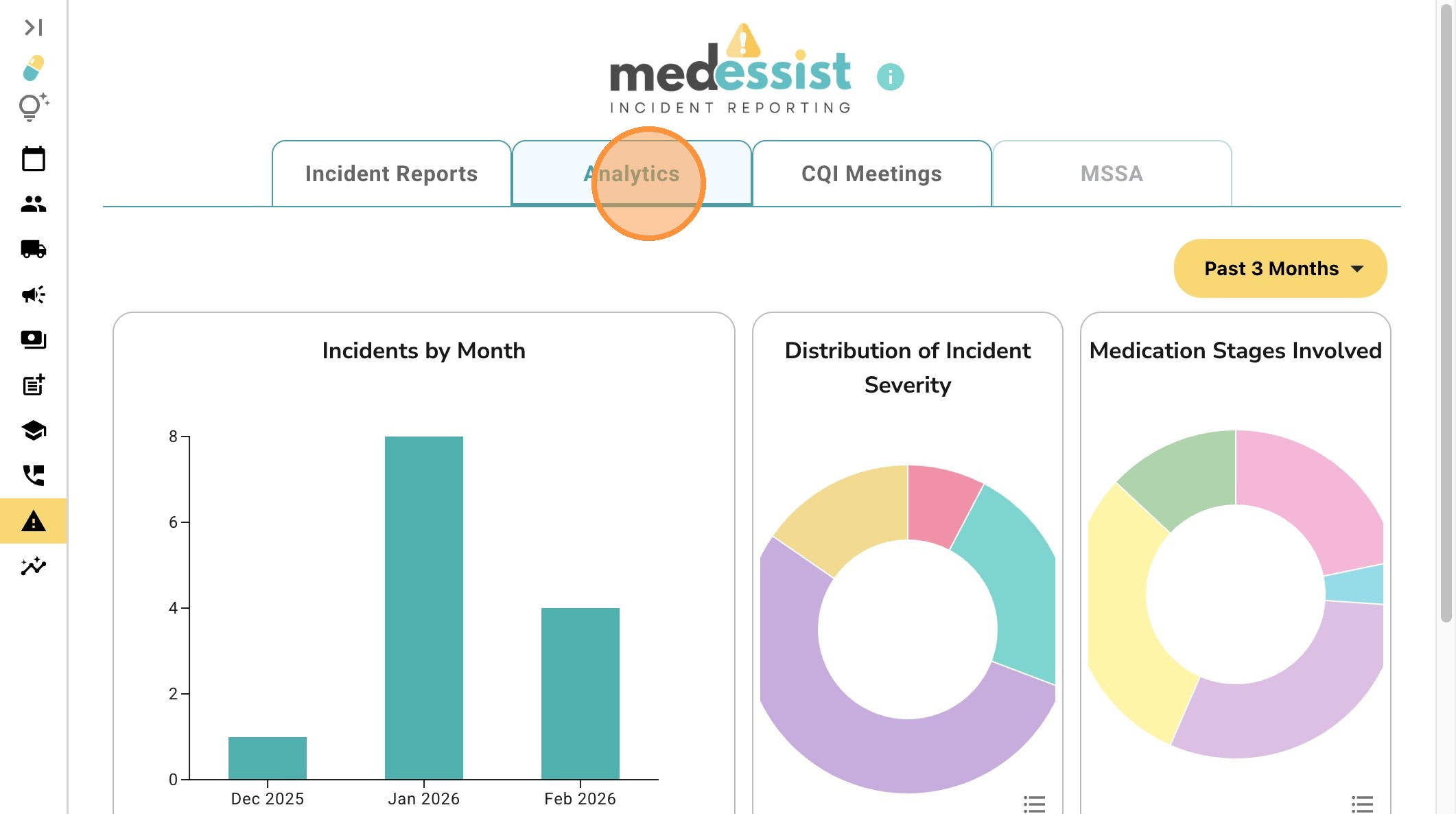
6. Click "Analytics" to view graphs of your reports.
7. You can view "Incidents by Month".
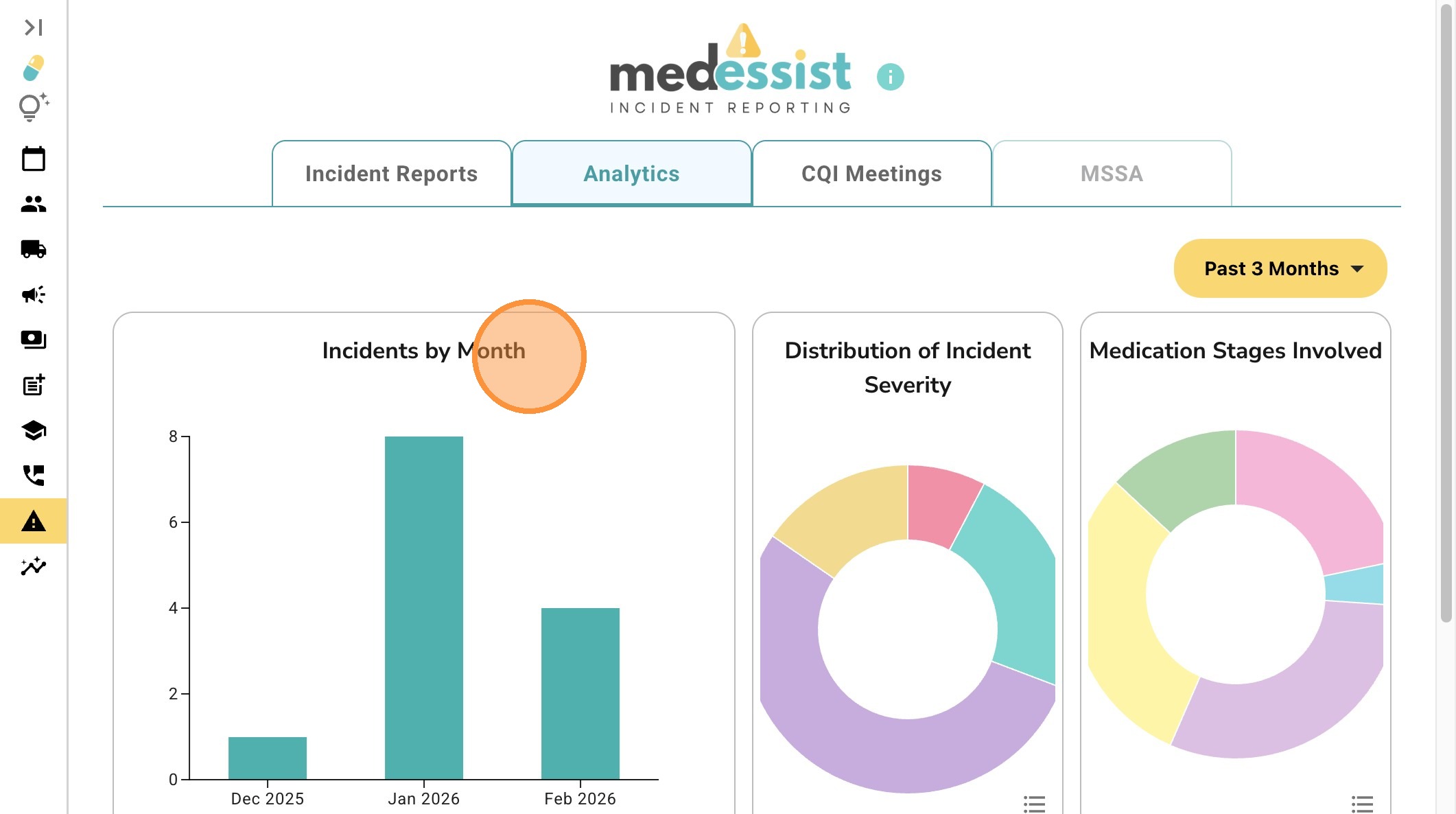
8. You can view "Distribution of Incident Severity".
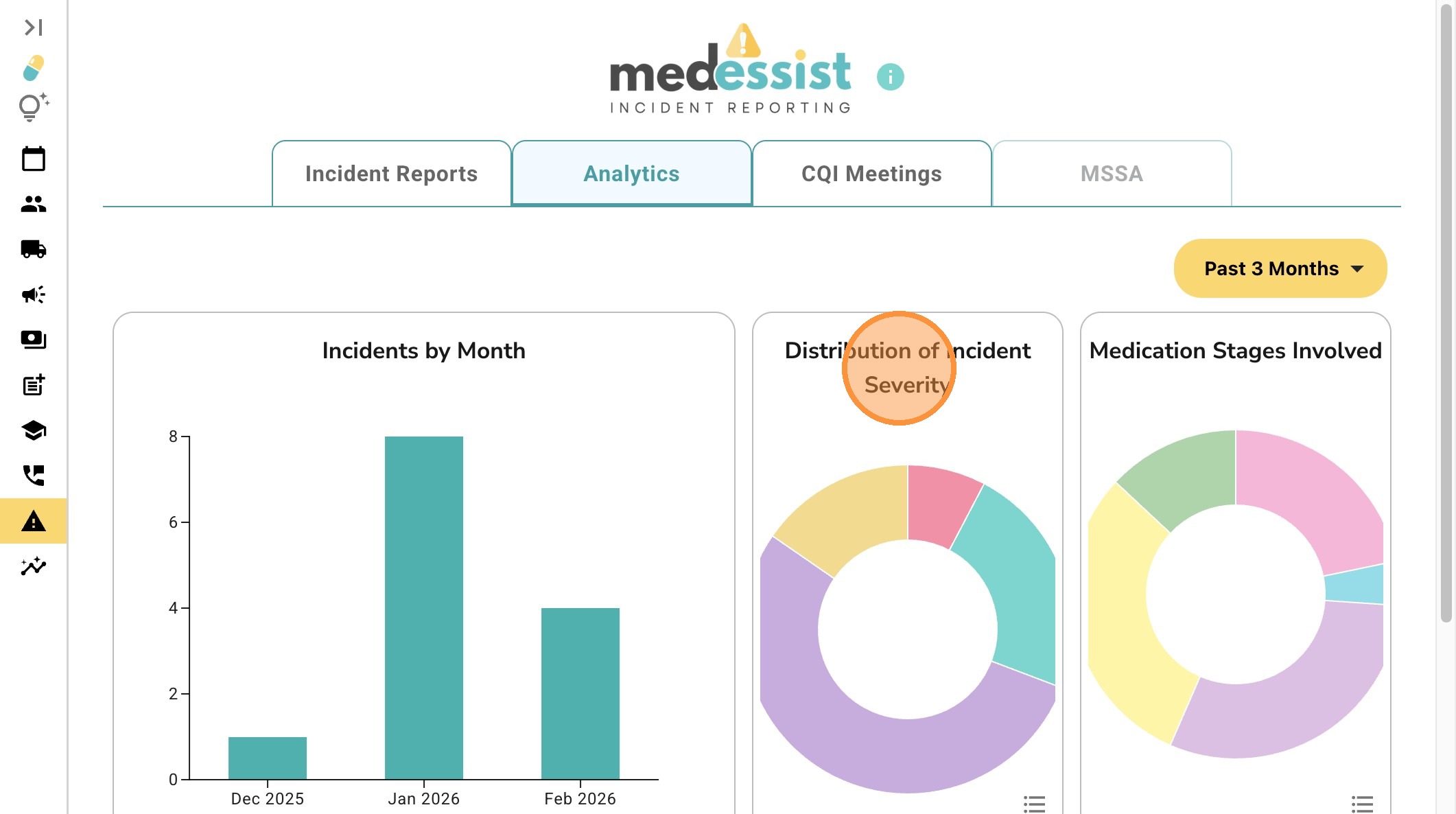
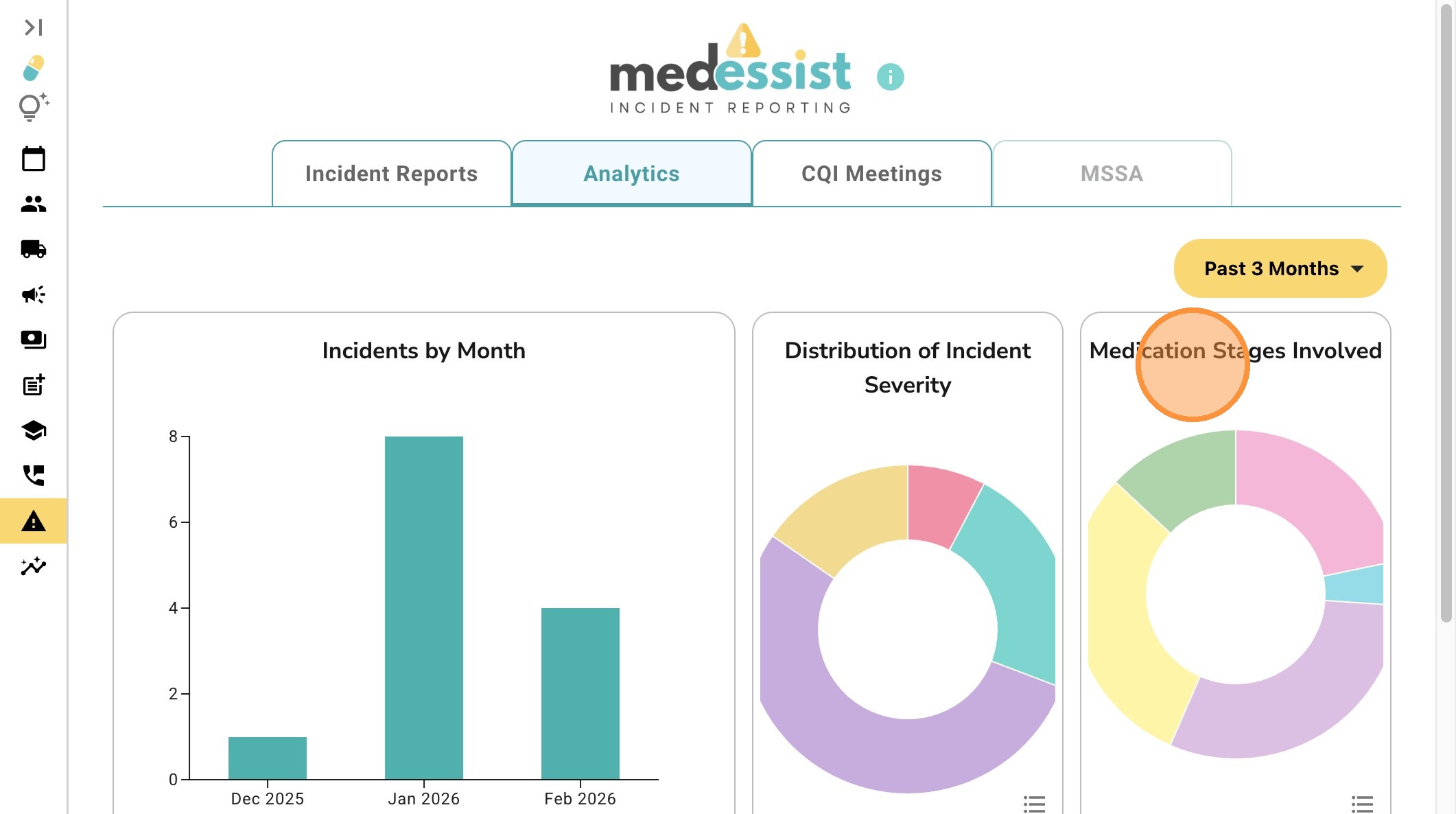
9. You can view "Medication Stages Involved".
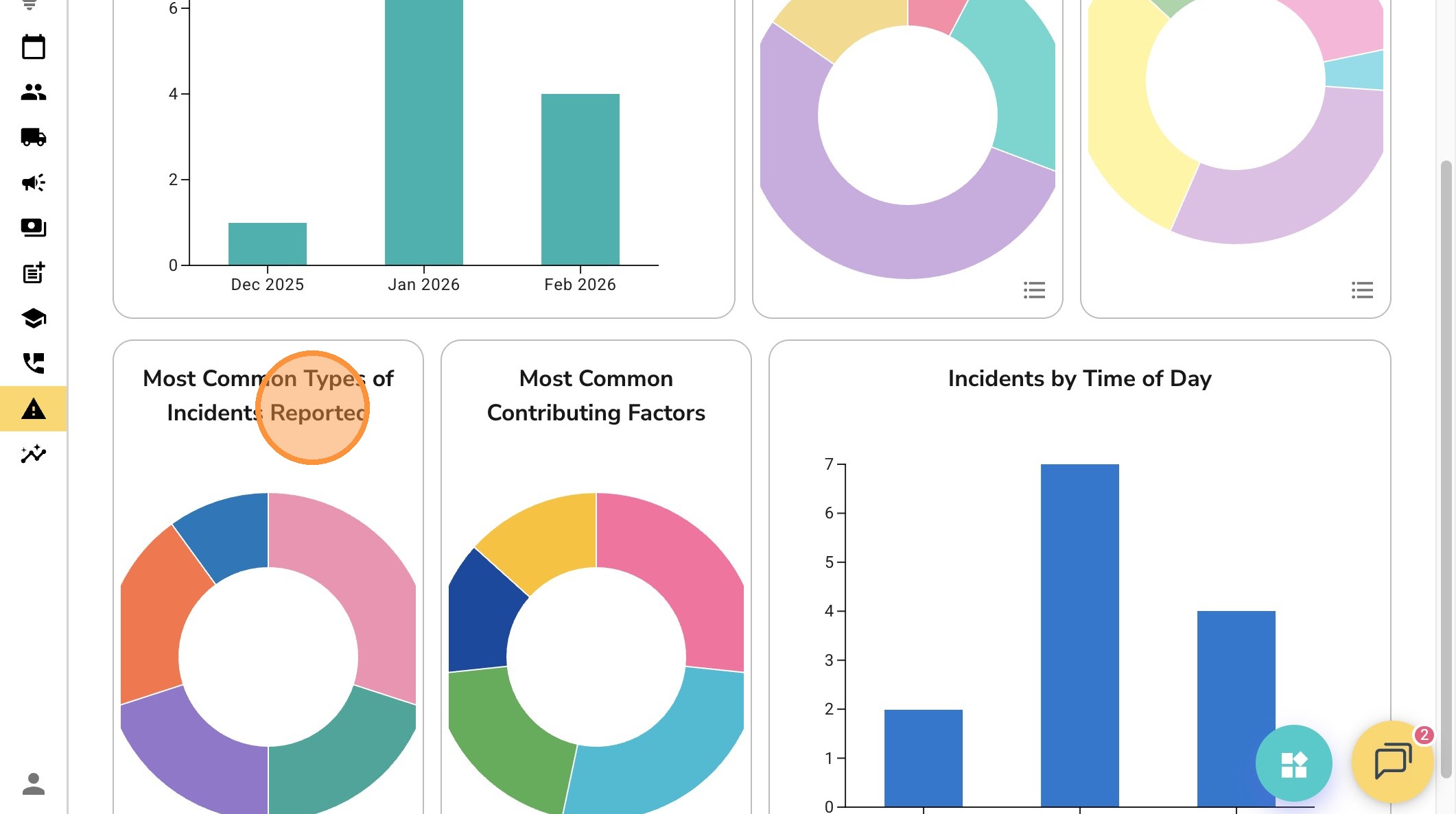
10. You can view "Most Common Types of Incidents Reported".
11. You can view "Most Common Contributing Factors".
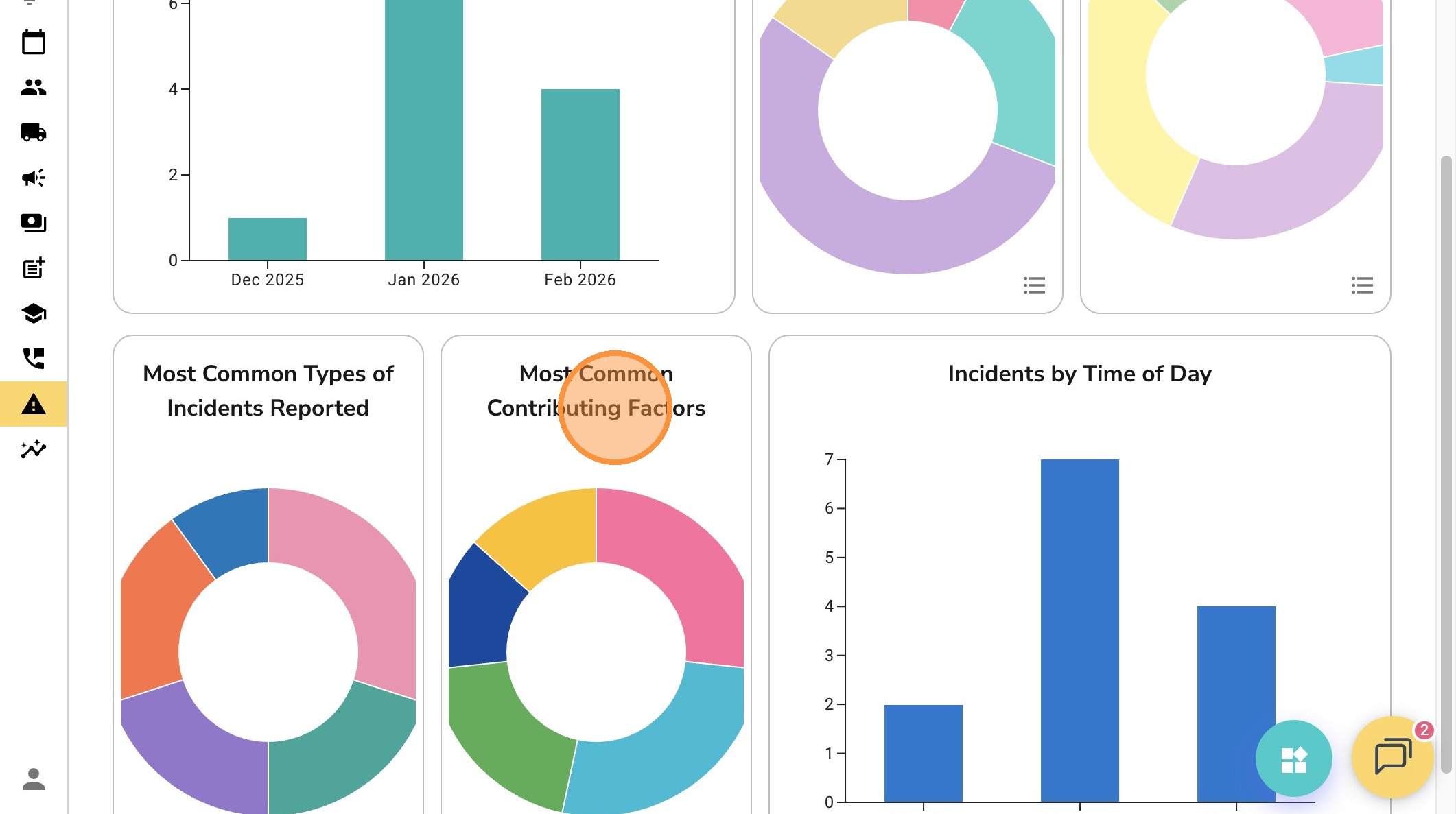
12. You can view "Incidents by Time of Day".
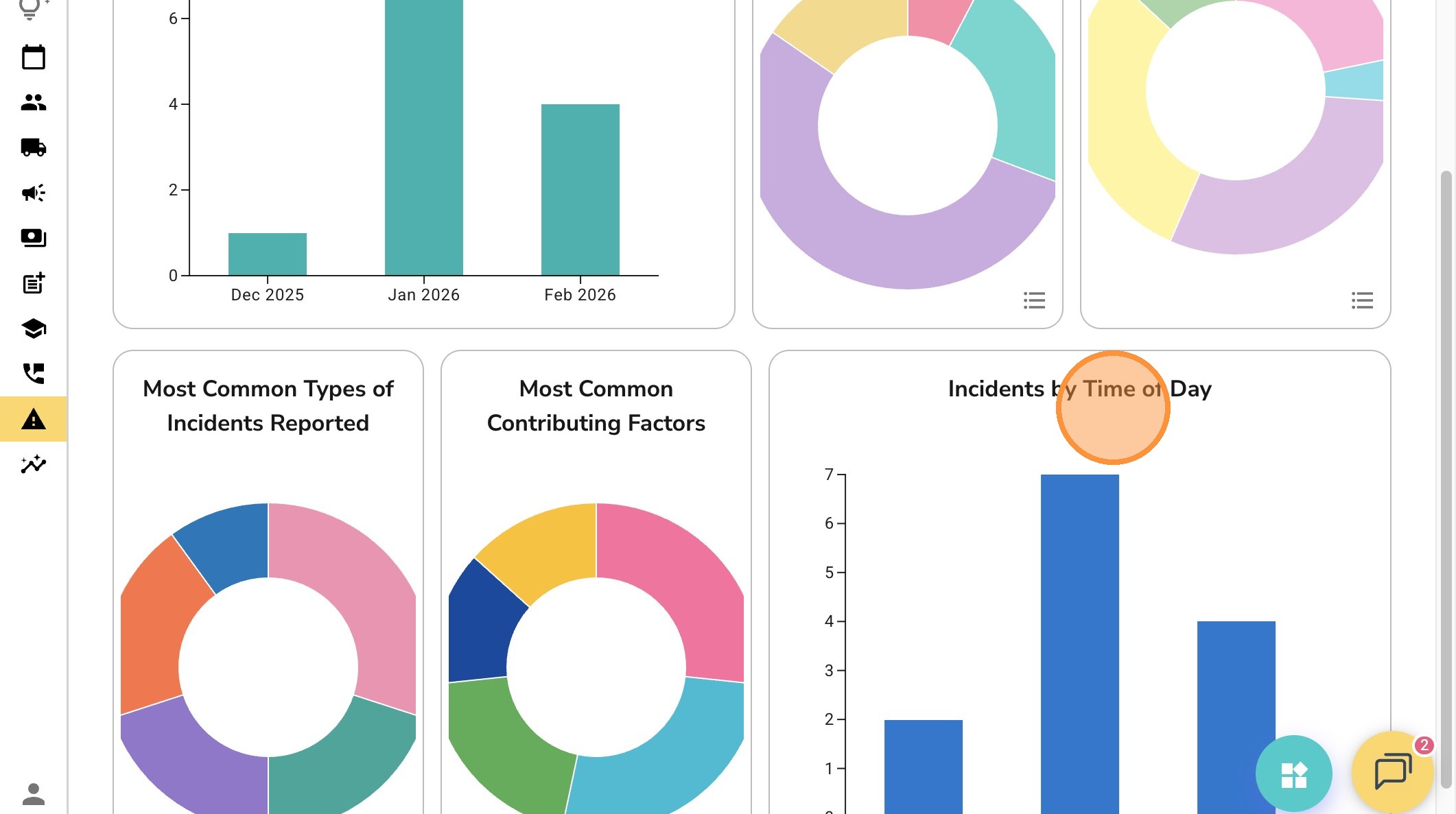
13. Hover over different sections of the graph or chart to see the type of incident and the number of incidents for each type.
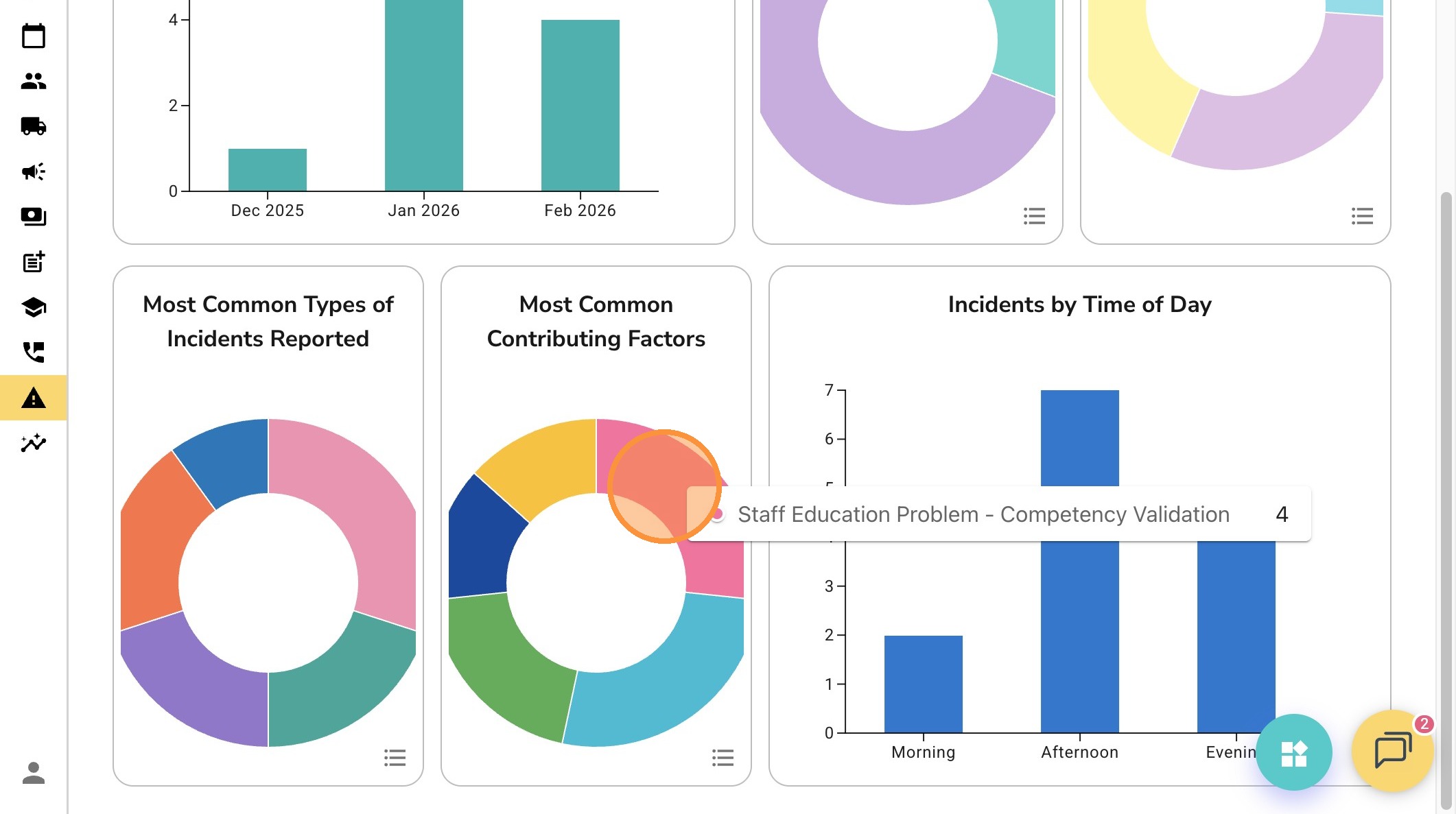
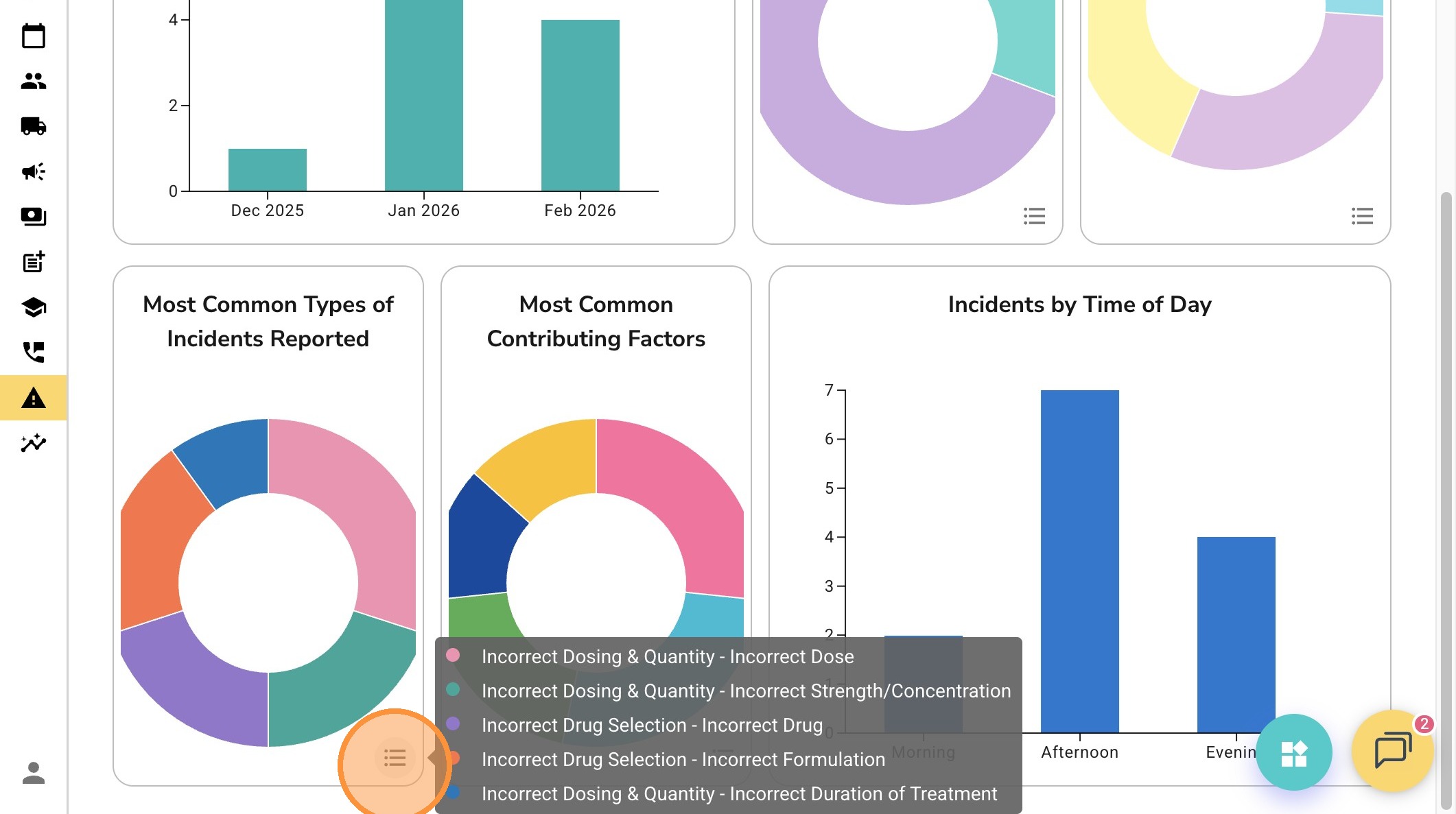
14. You can also hover over the three lines to view the legend for the graph or chart.
Create New CQI Meetings
15. Log in to your MedEssist Platform https://app.medessist.com/home
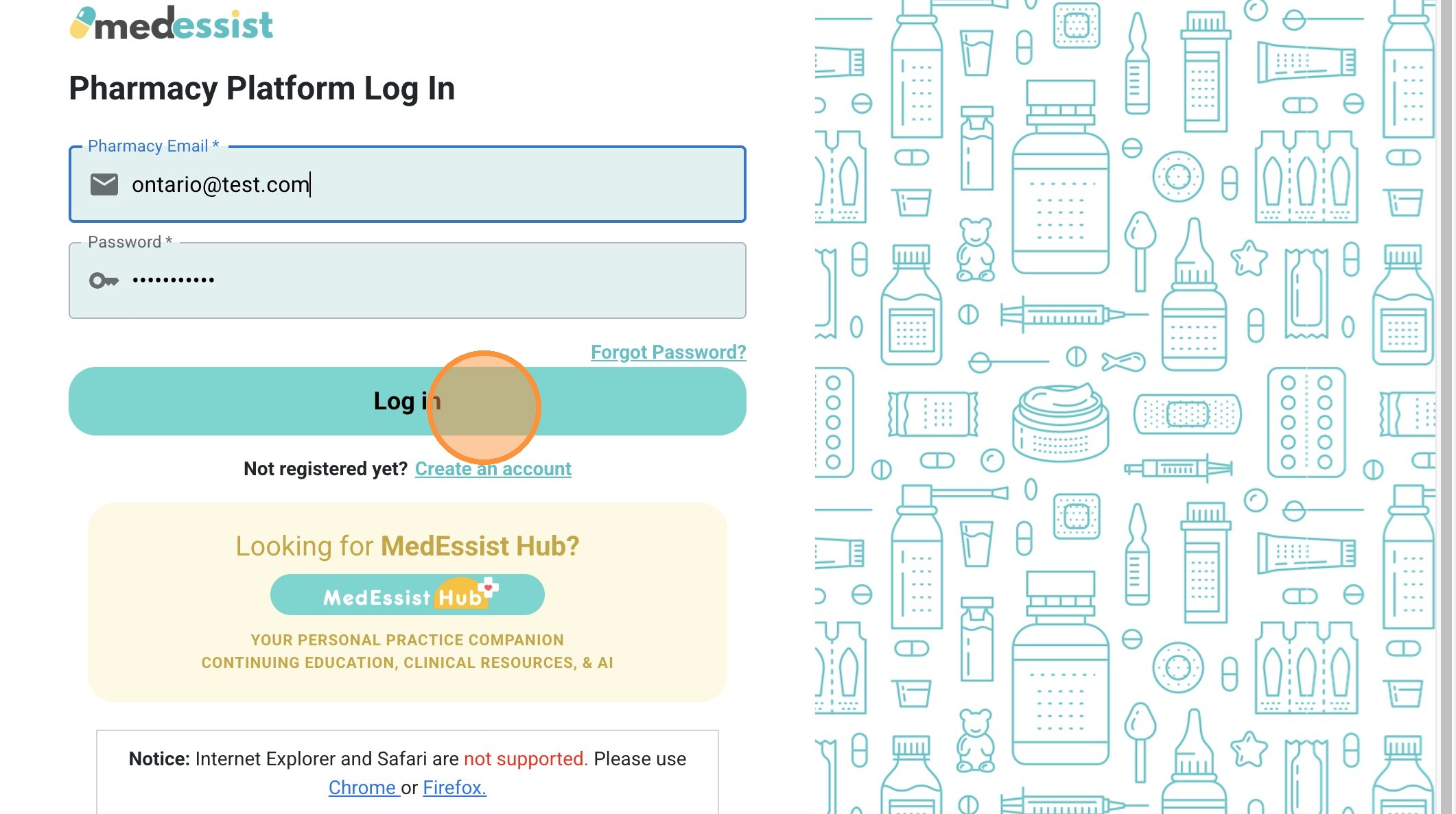
16. Click the "Please Select a HCP", select your name from the list and log in using your PIN.
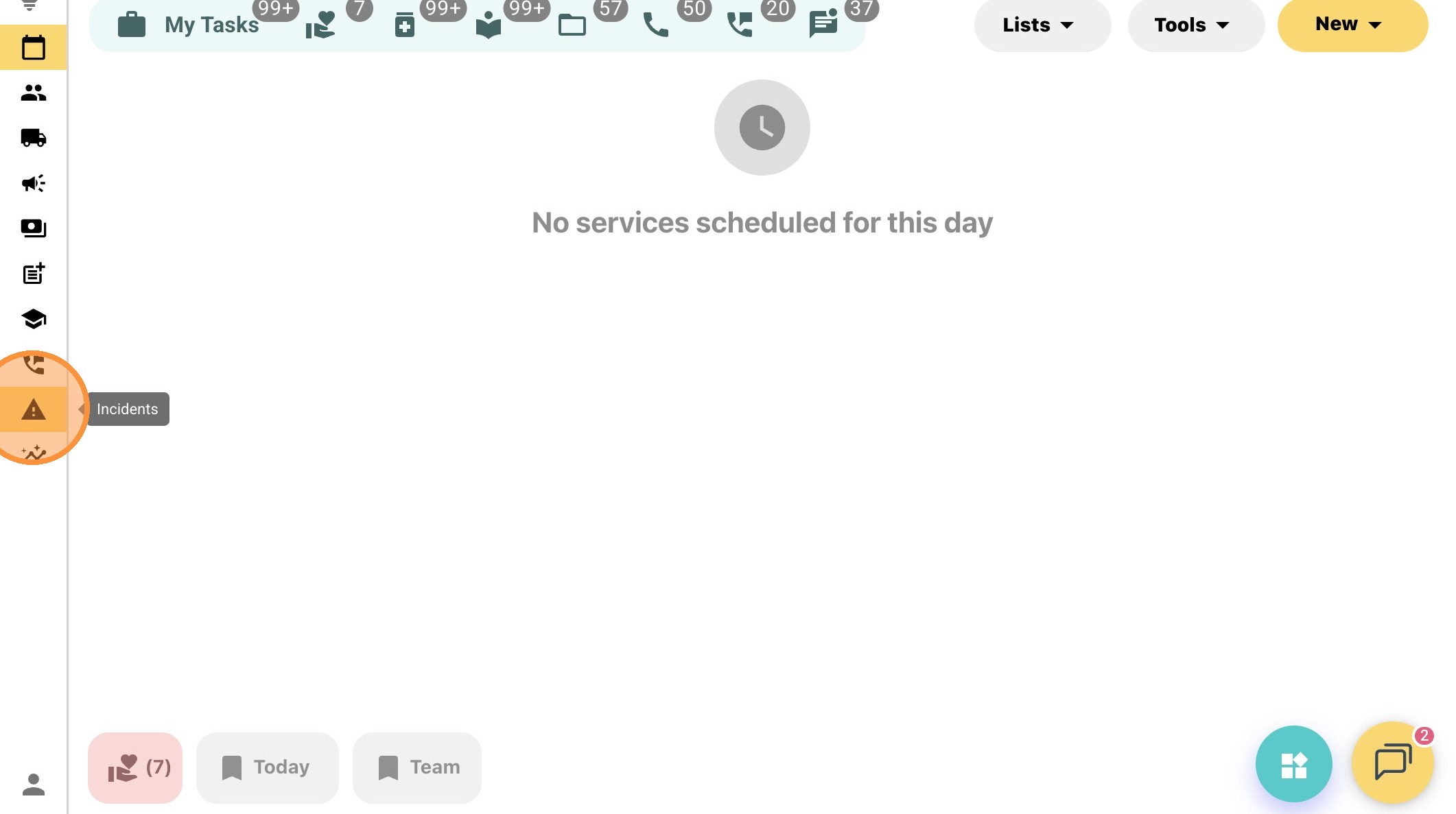
17. Click "Incidents" on the left side bar.
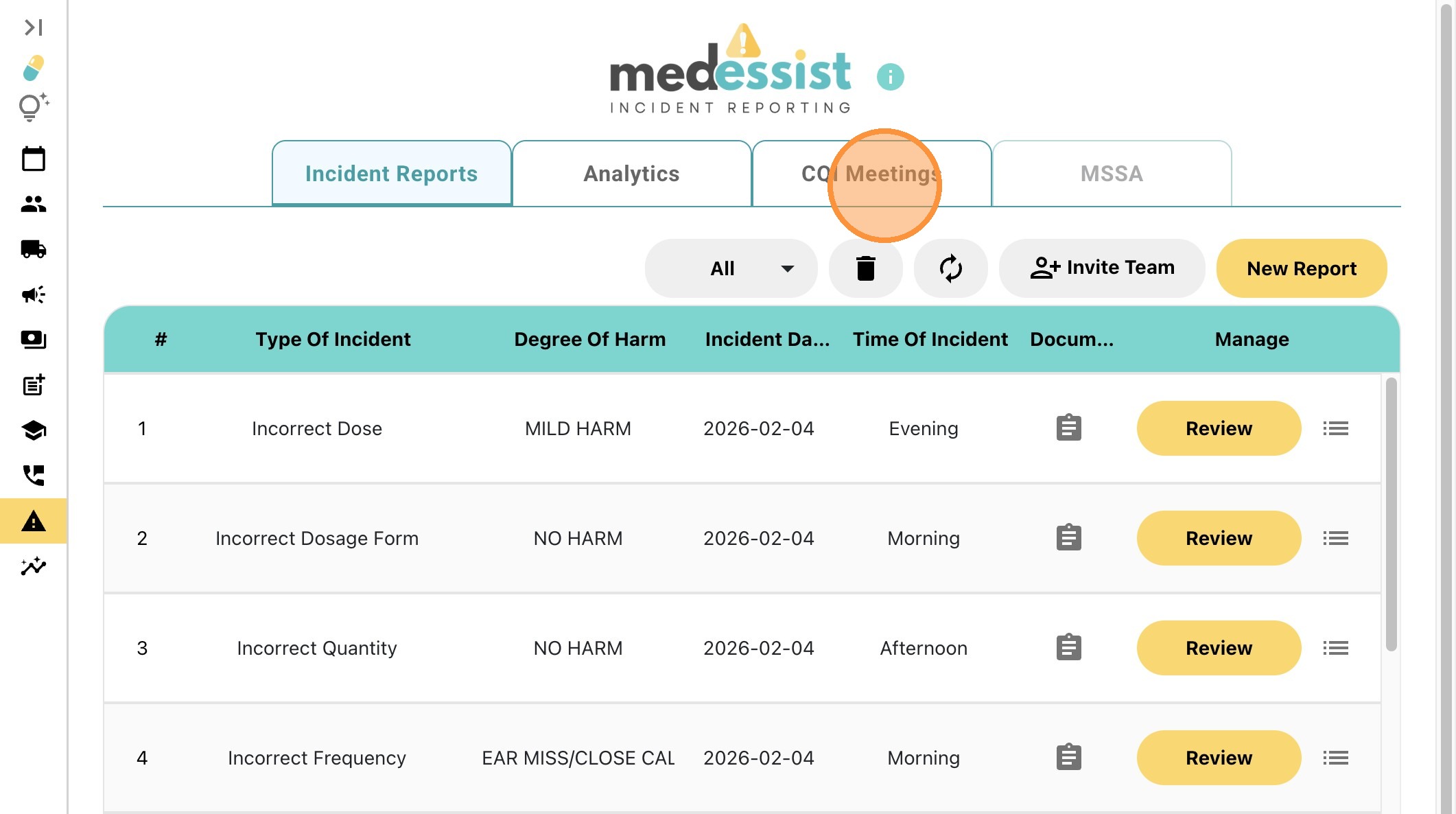
18. Click "CQI Meetings".
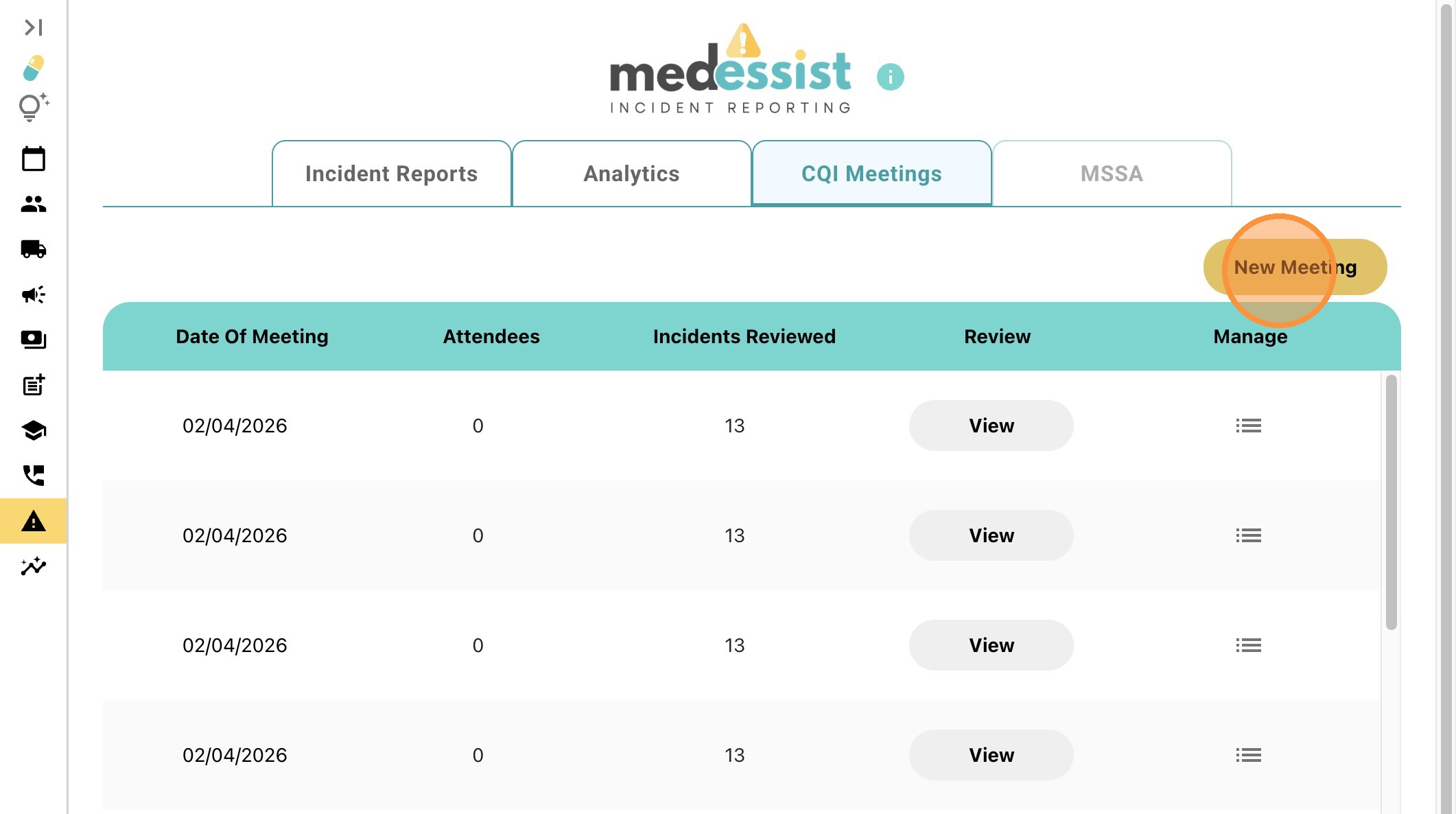
19. Click "New Meeting".
20. Select participants for this CQI meeting.
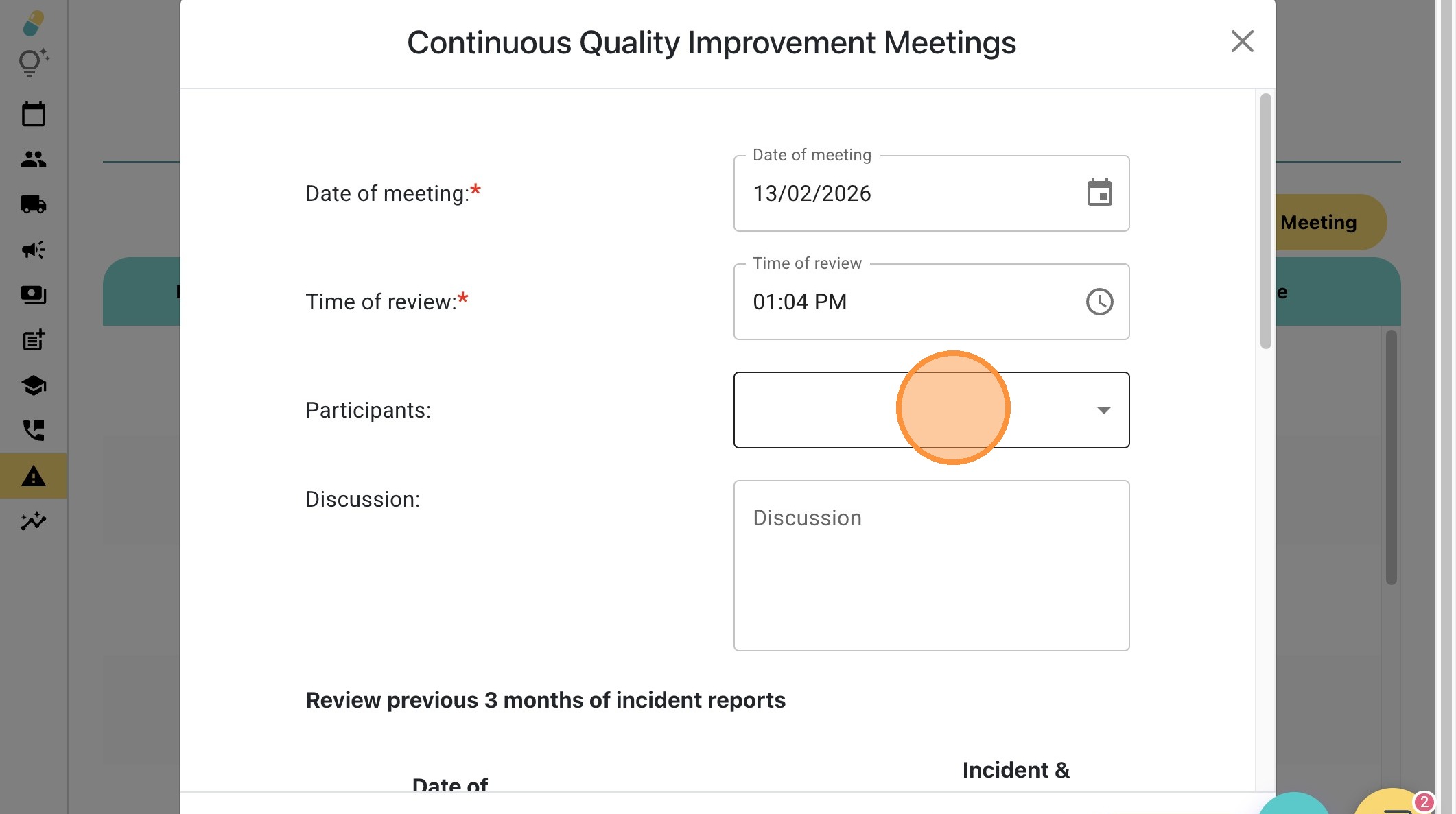
21. Click the "Discussion" field to add any notes about this CQI meeting.
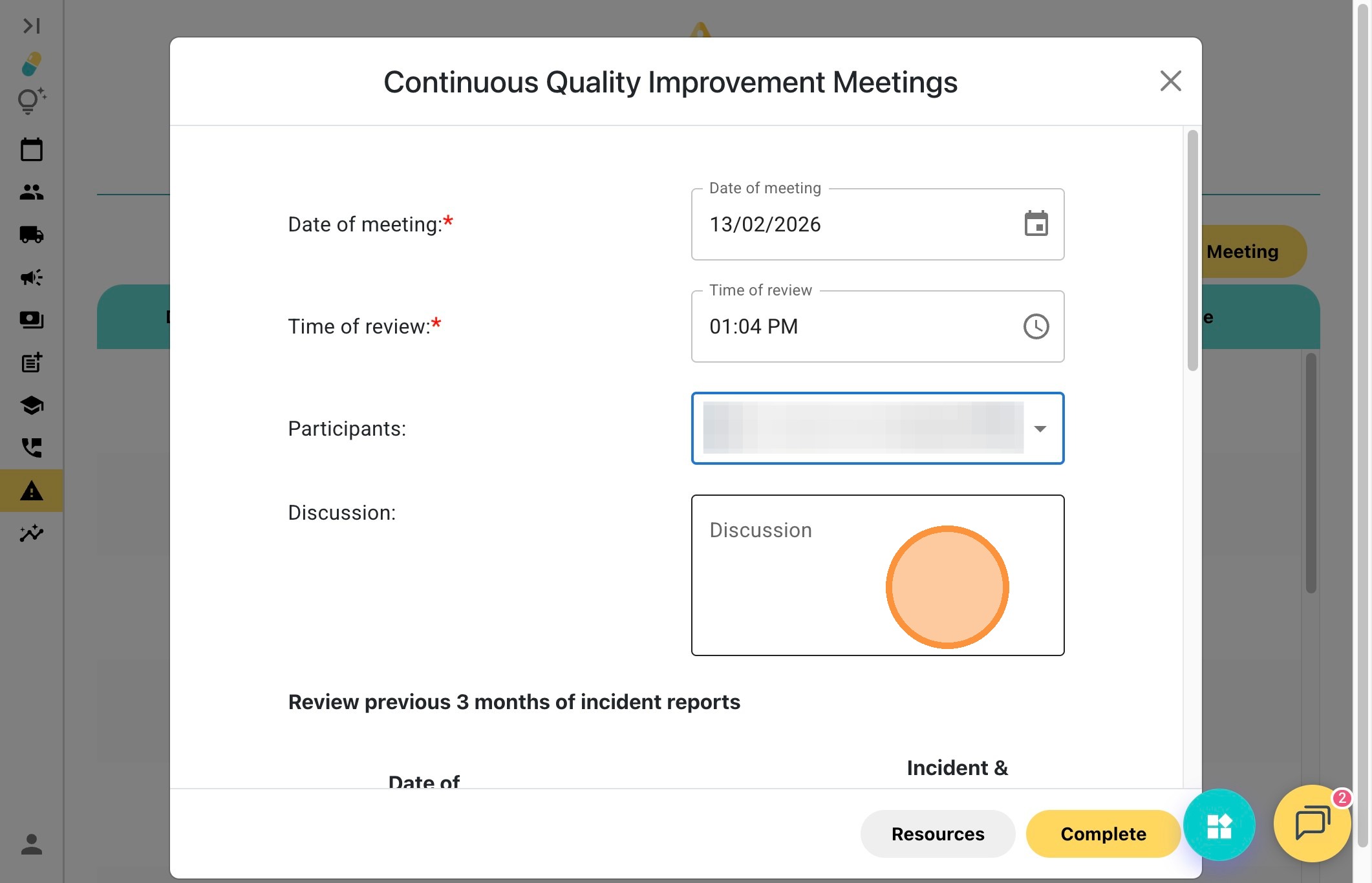
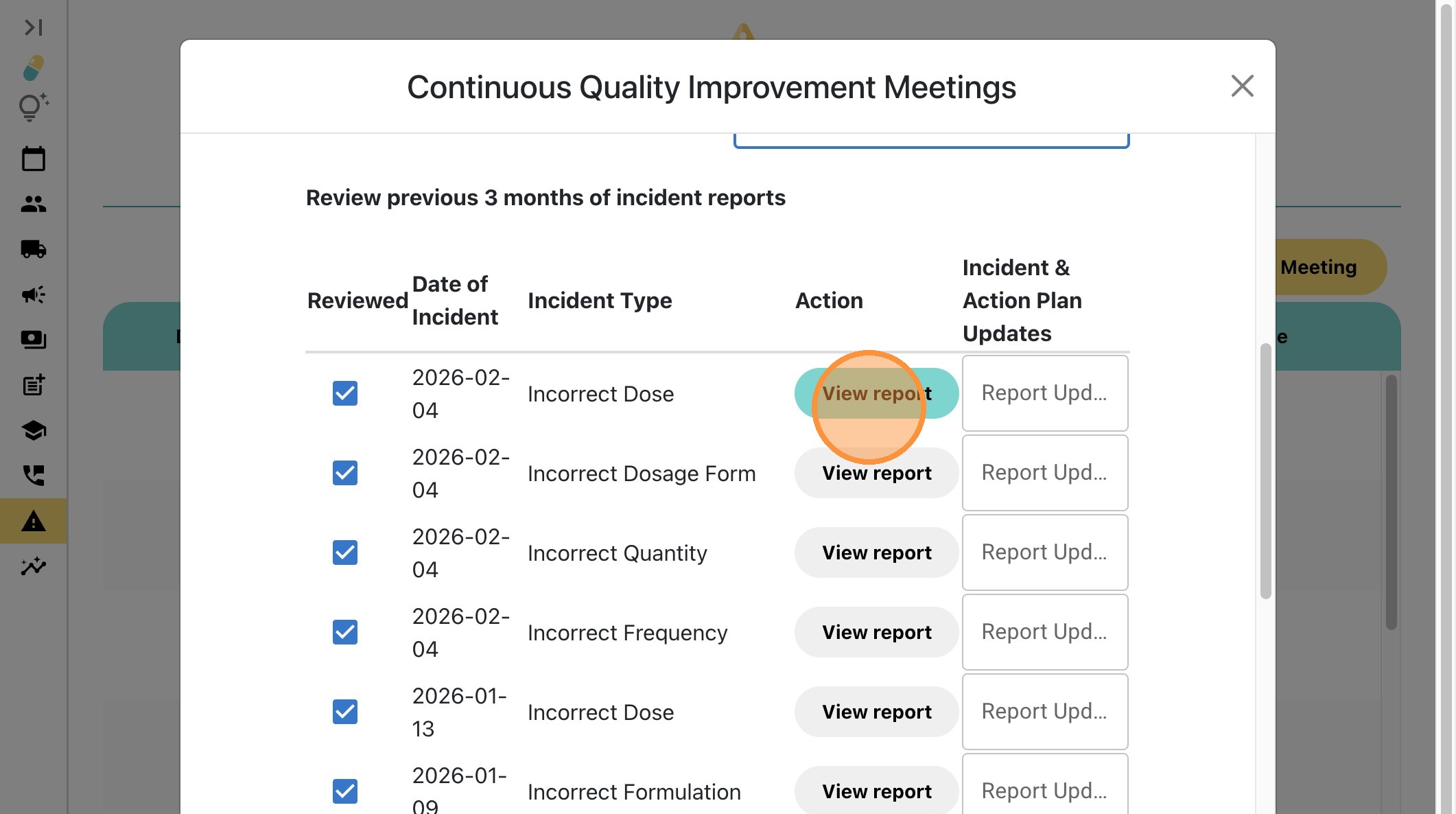
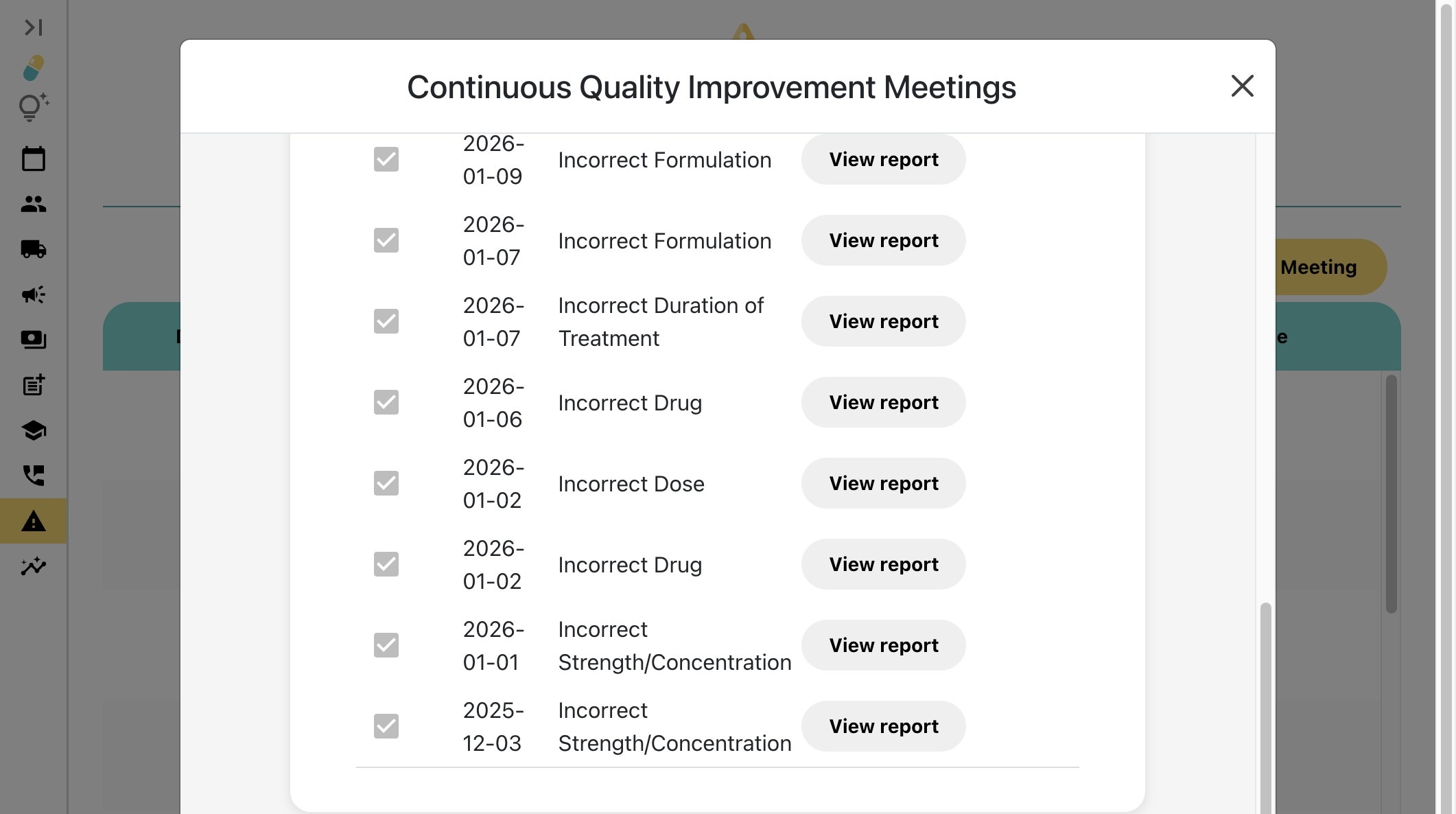
22. Scroll down and click "View report" to review previous incident reports.
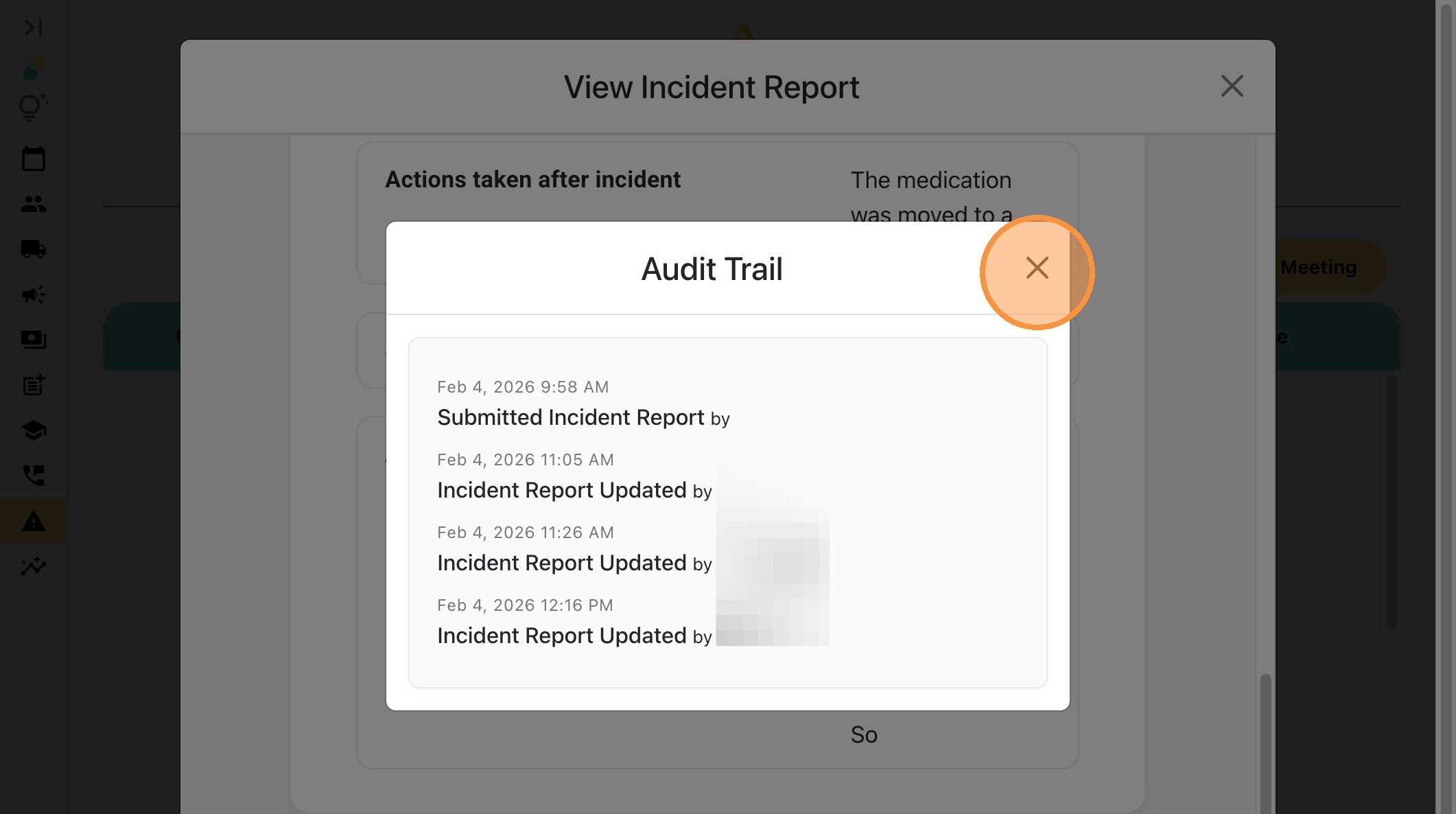
23. Once the report opens, click "Audit Trail".
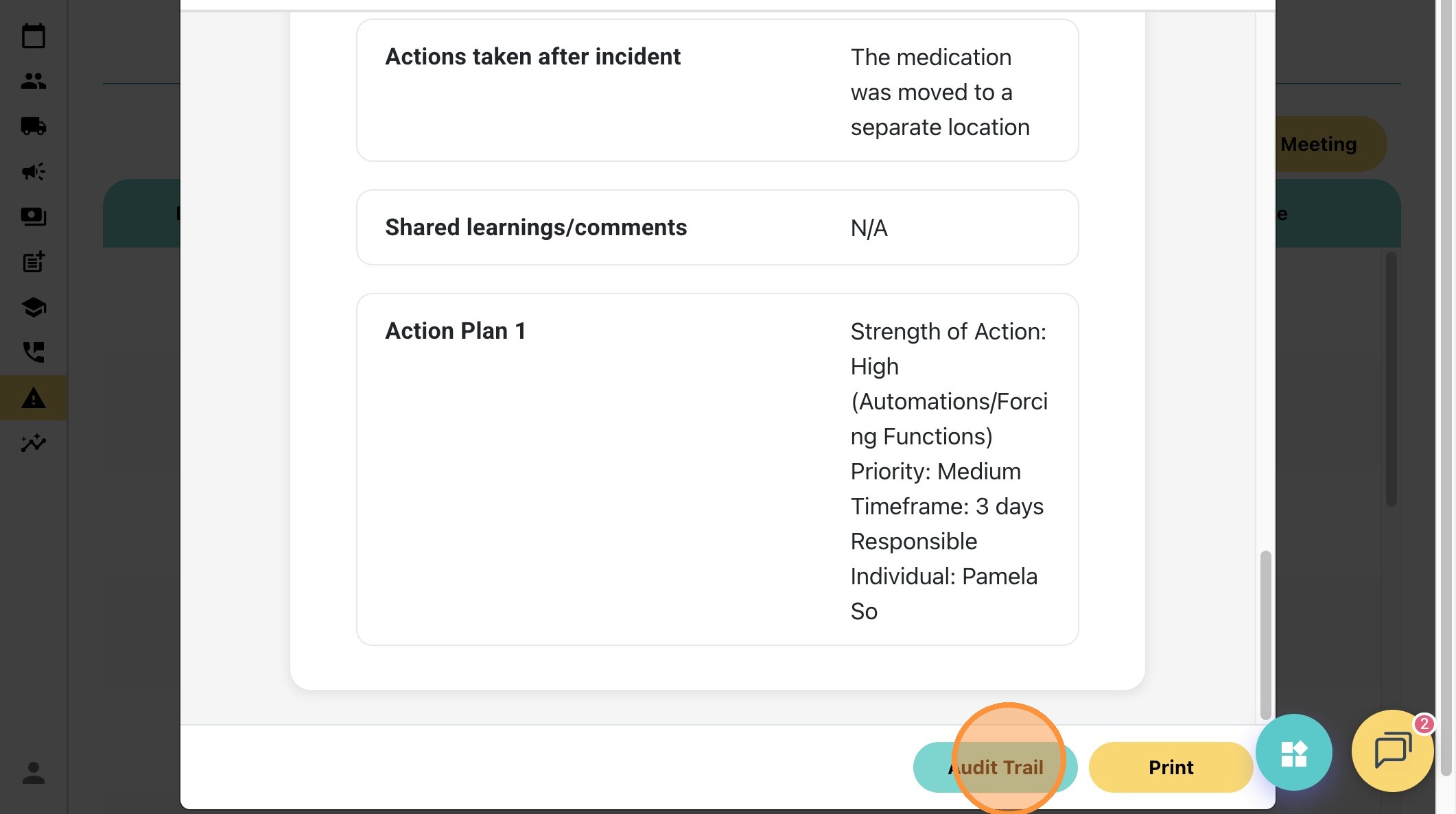
24. This allows you to view who created the form and when it was created or updated.
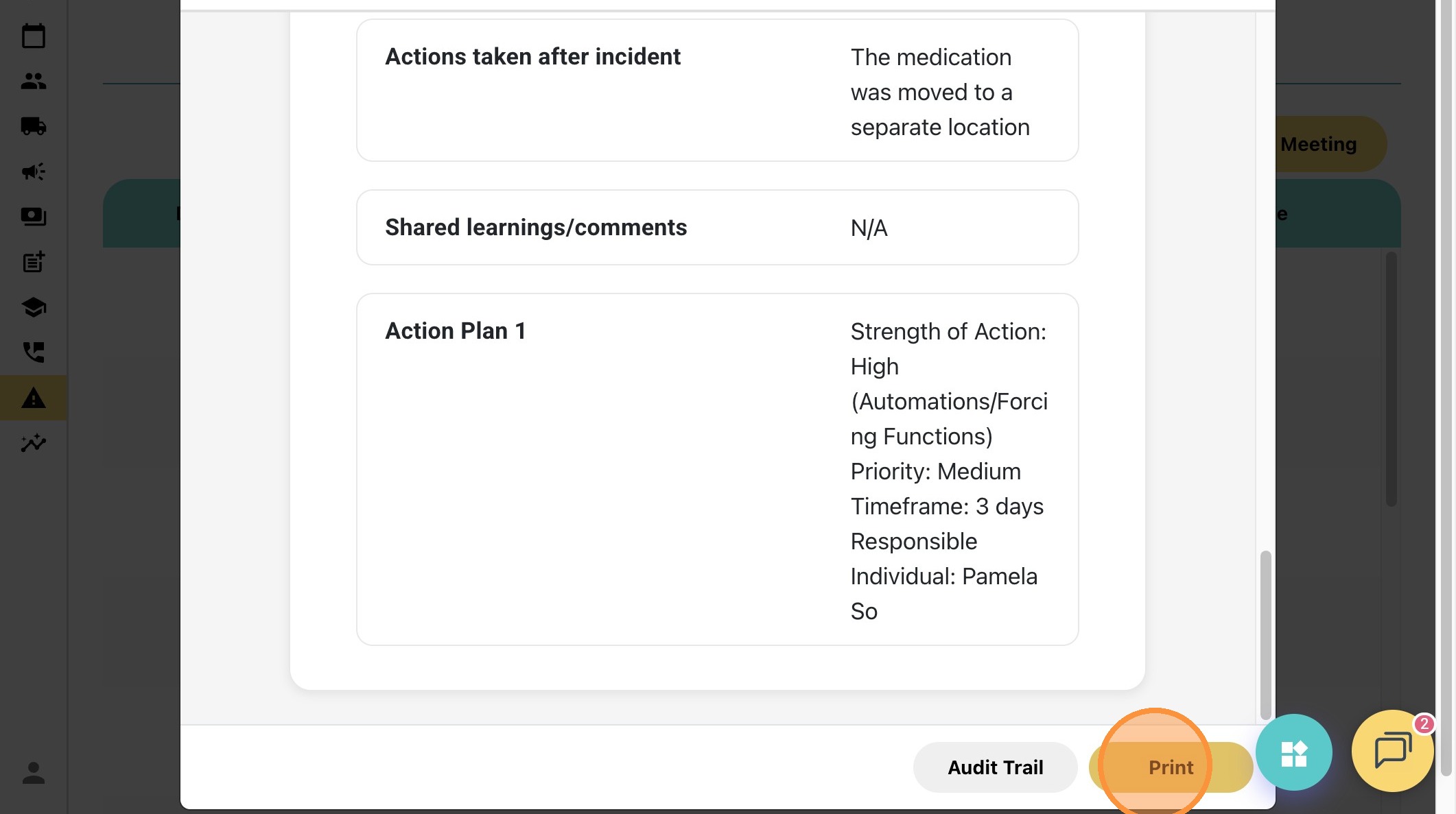
25. You can also print this individual incident report.
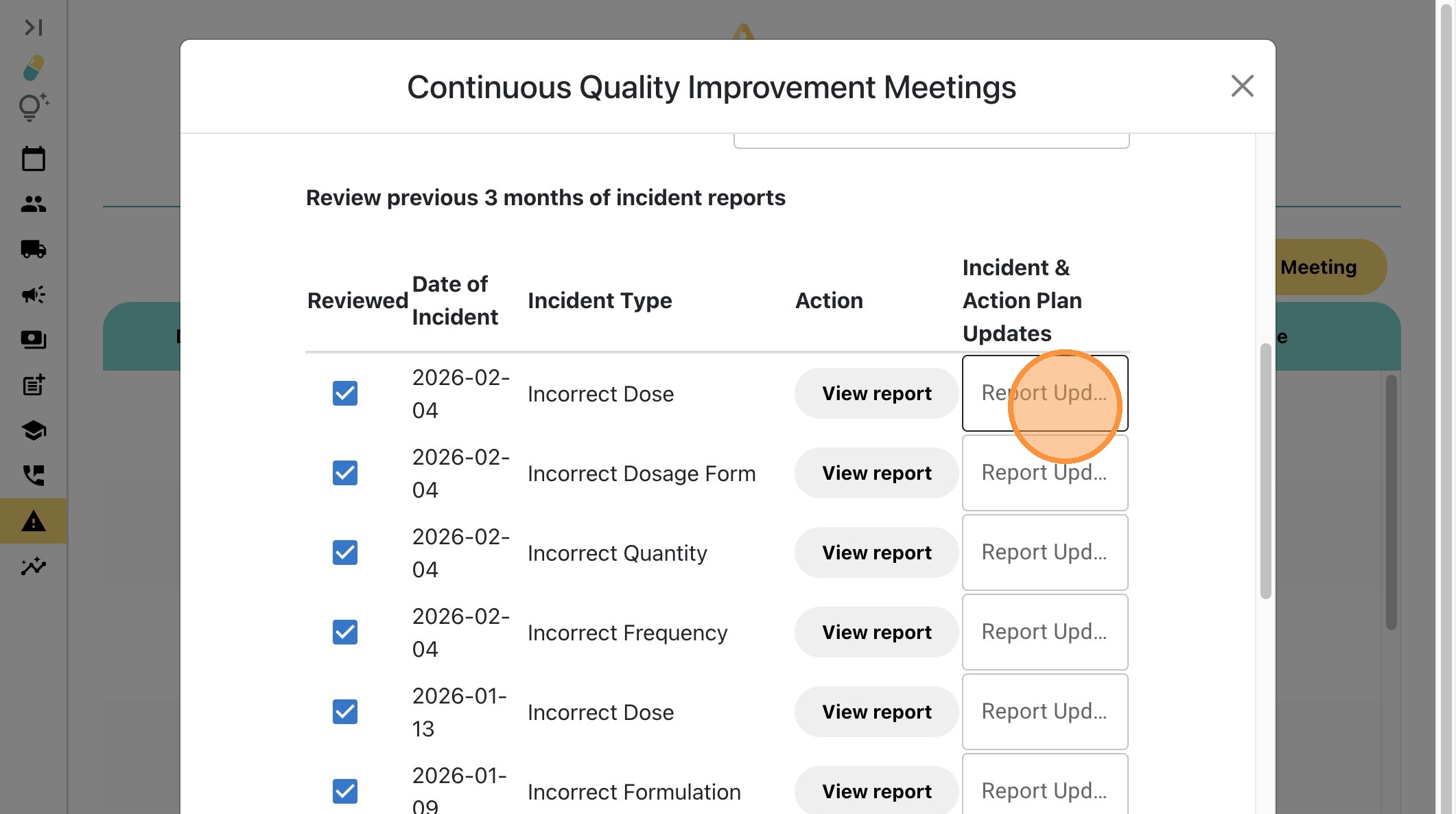
26. You can type directly in the box to update the Action Plan.
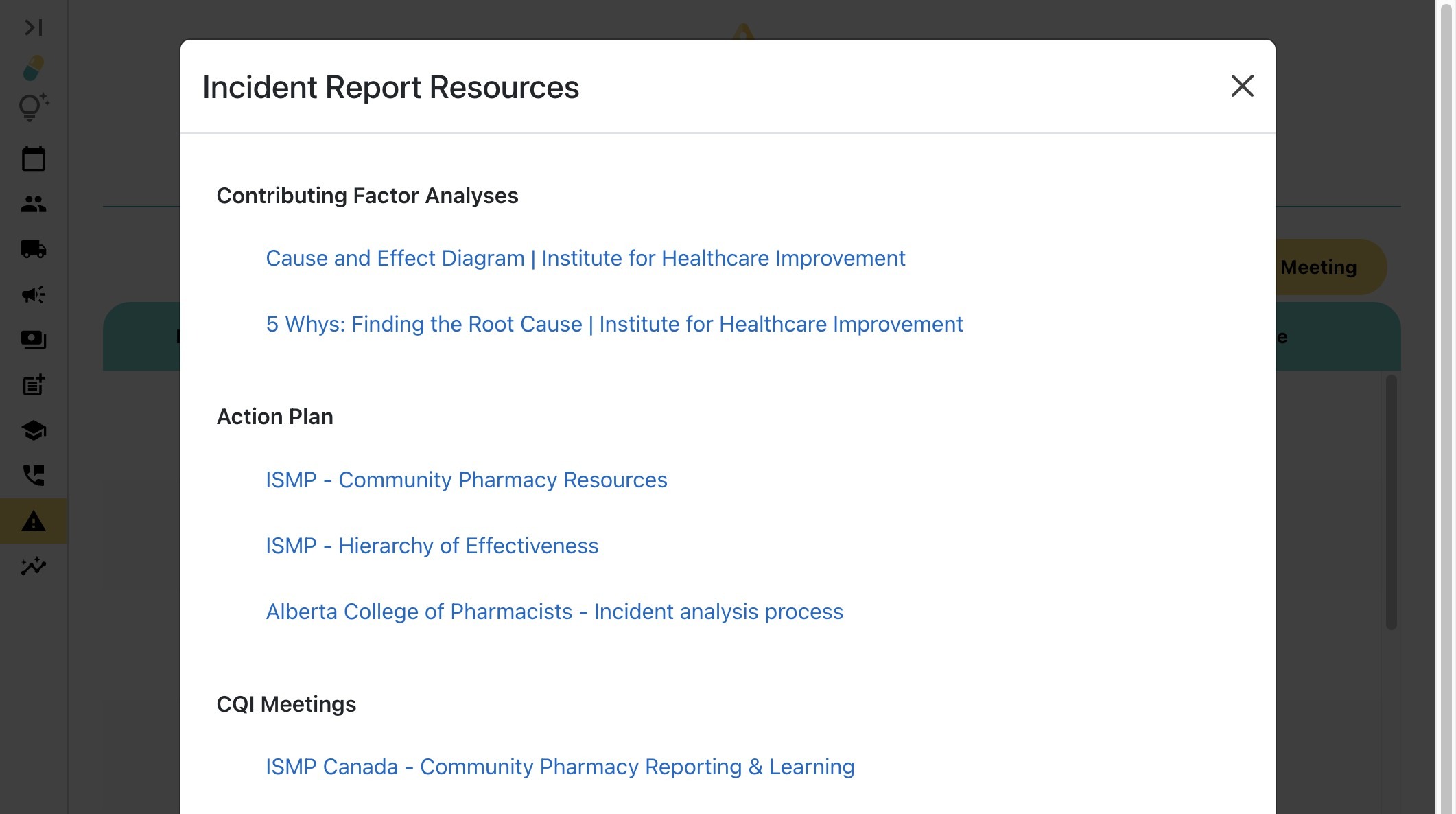
27. You can access Incident Reporting Resources links here.
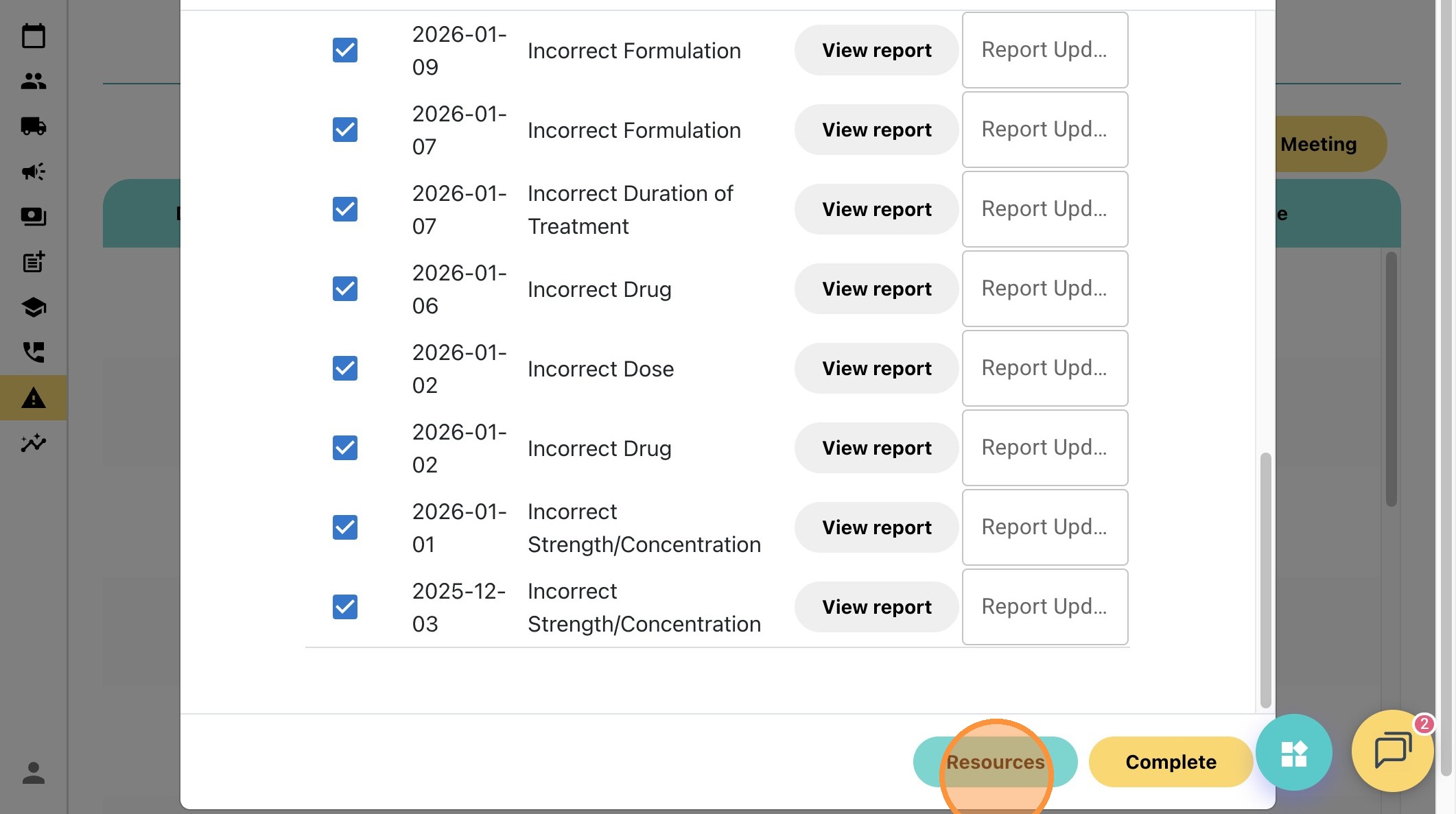
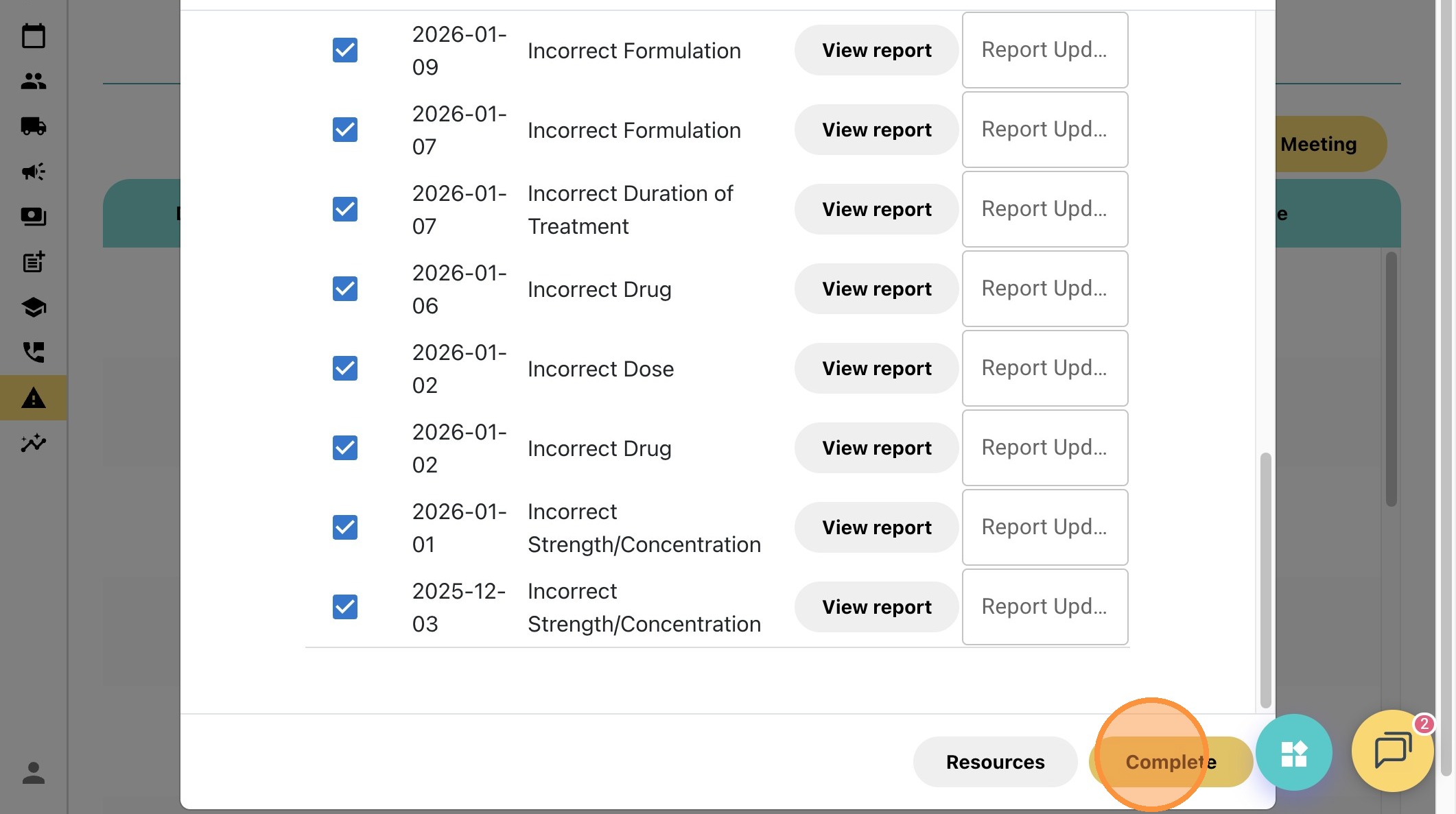
28. Click "Complete" on the bottom right when you are done reviewing and updating Action Plans with your team.
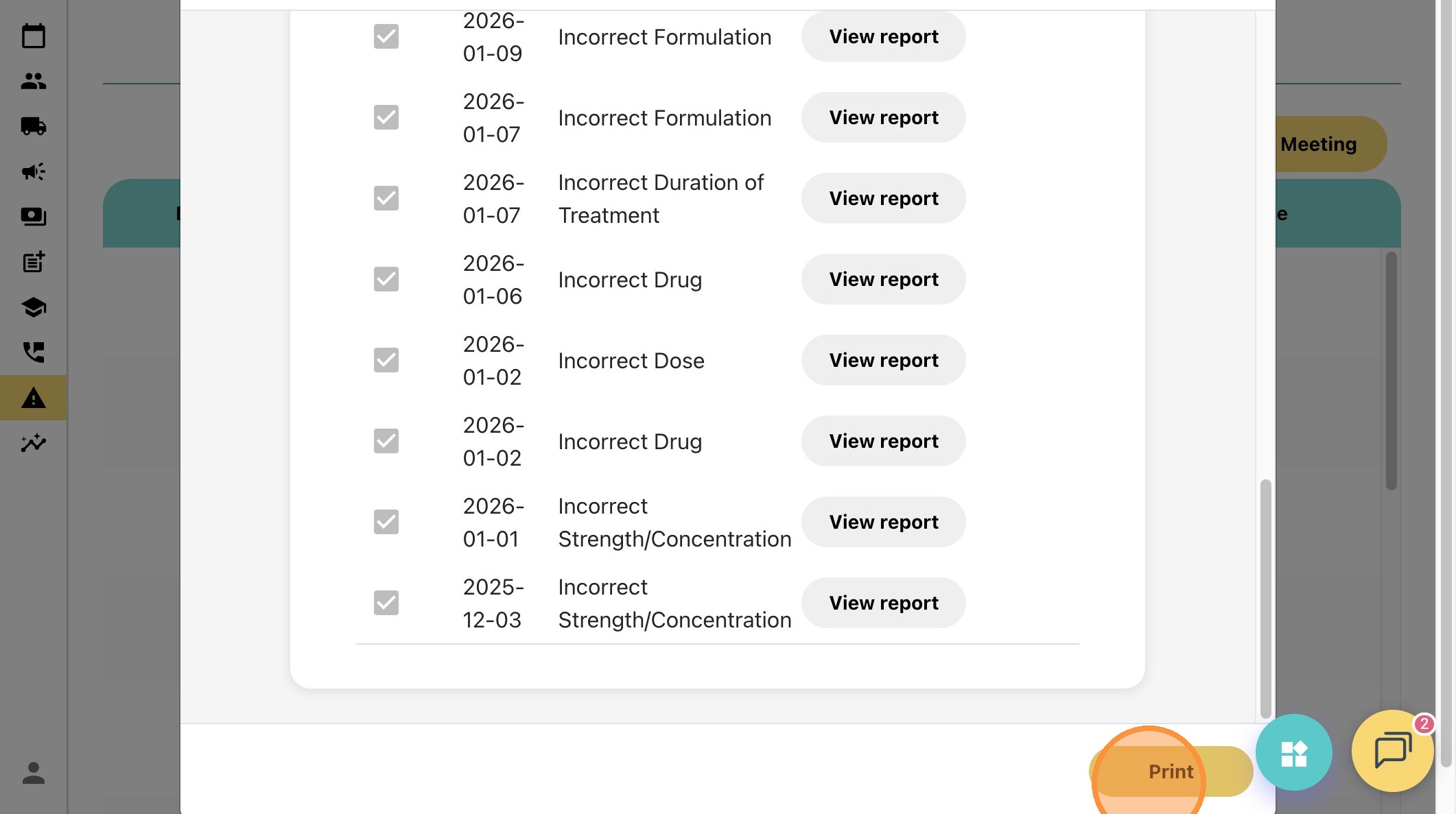
29. Click "Print" on the bottom right to print all incident reports that you have reviewed this time.
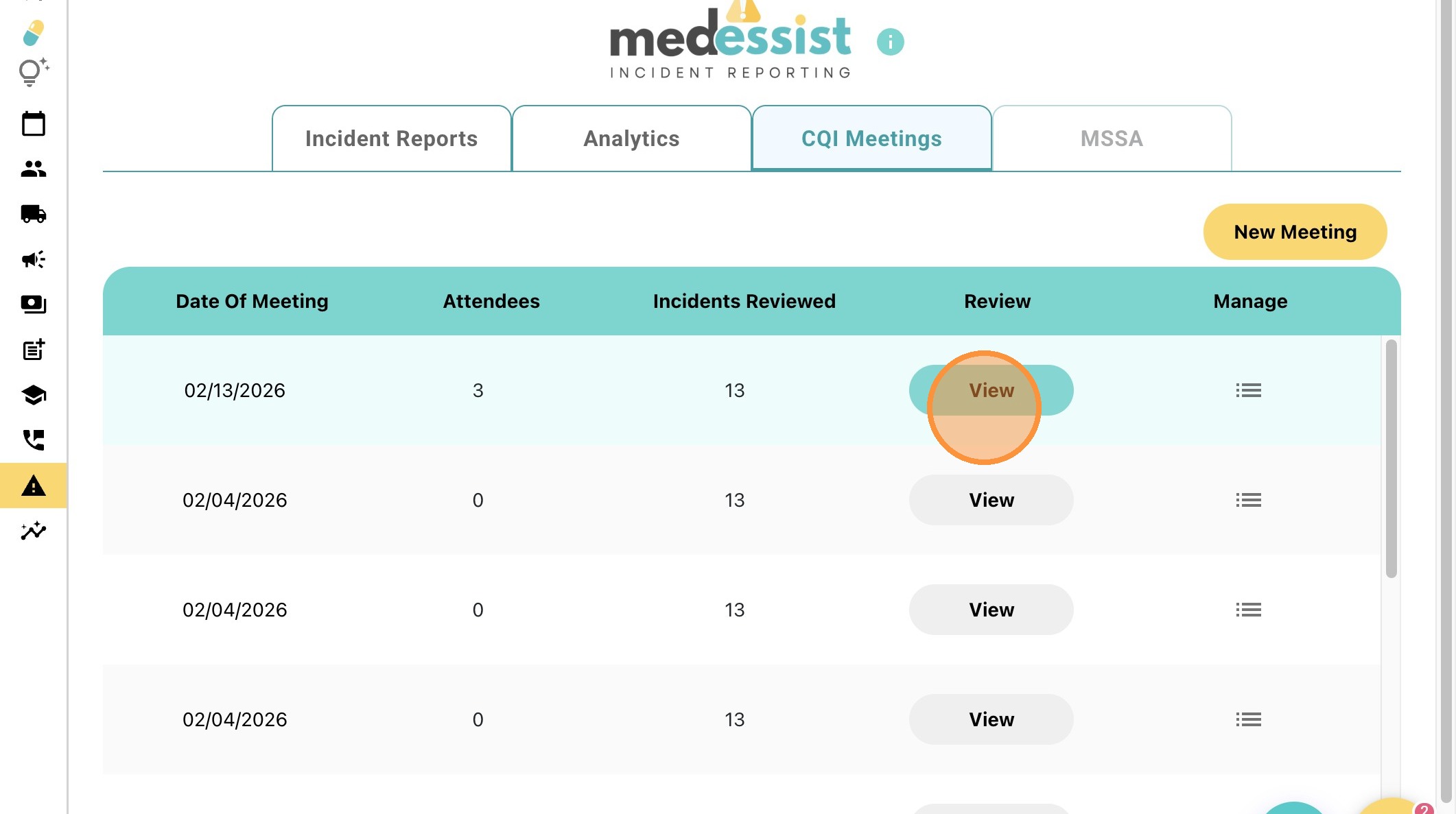
30. You can review the CQI meeting by clicking "View".
31. Then, you can review any specific report from here.
Delete Existing CQI Meetings
32. Log in to your MedEssist Platform https://app.medessist.com/home
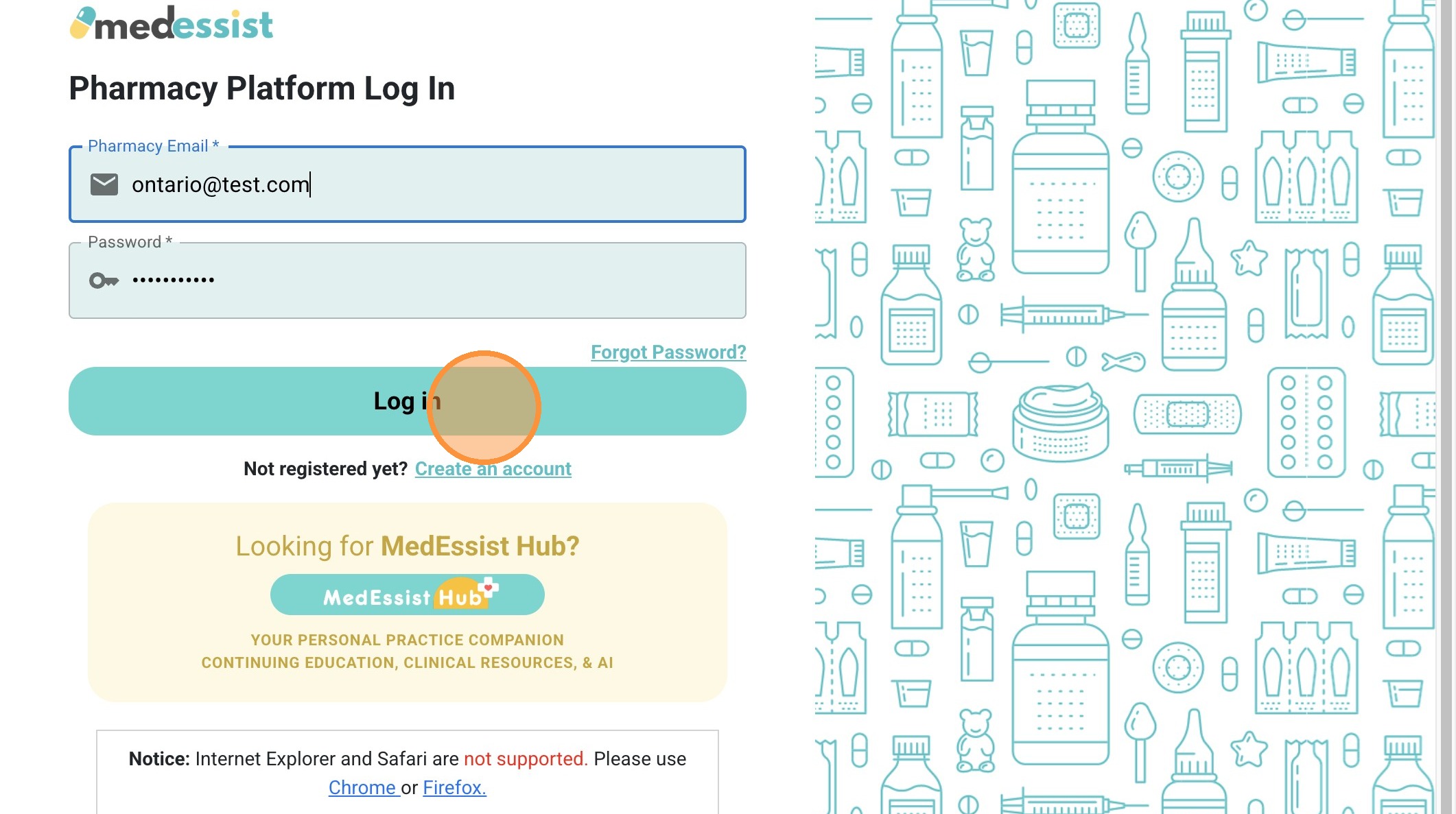
33. Click the "Please Select a HCP" and log in using your PIN.
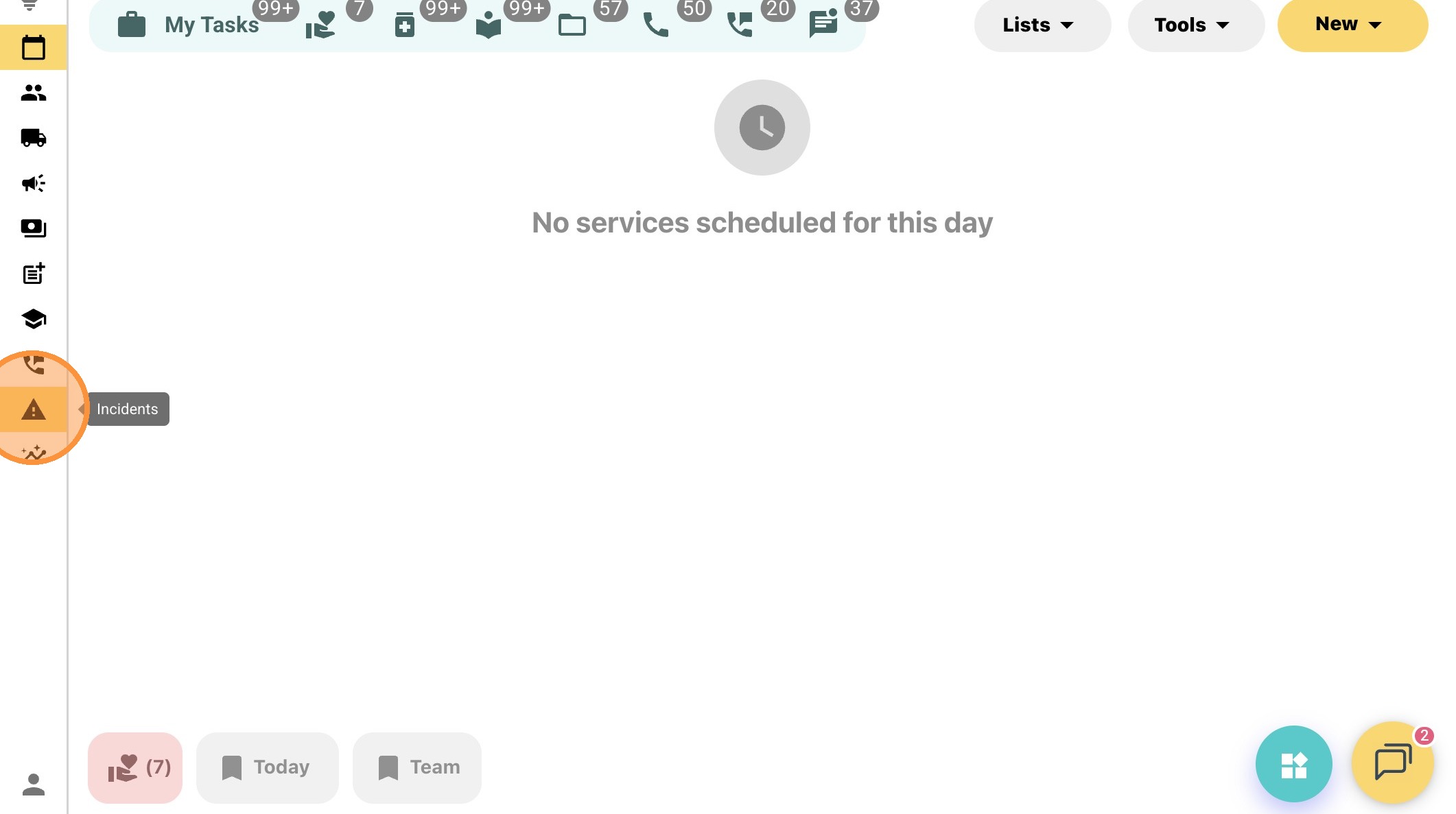
34. Click "Incidents" on the left side bar.
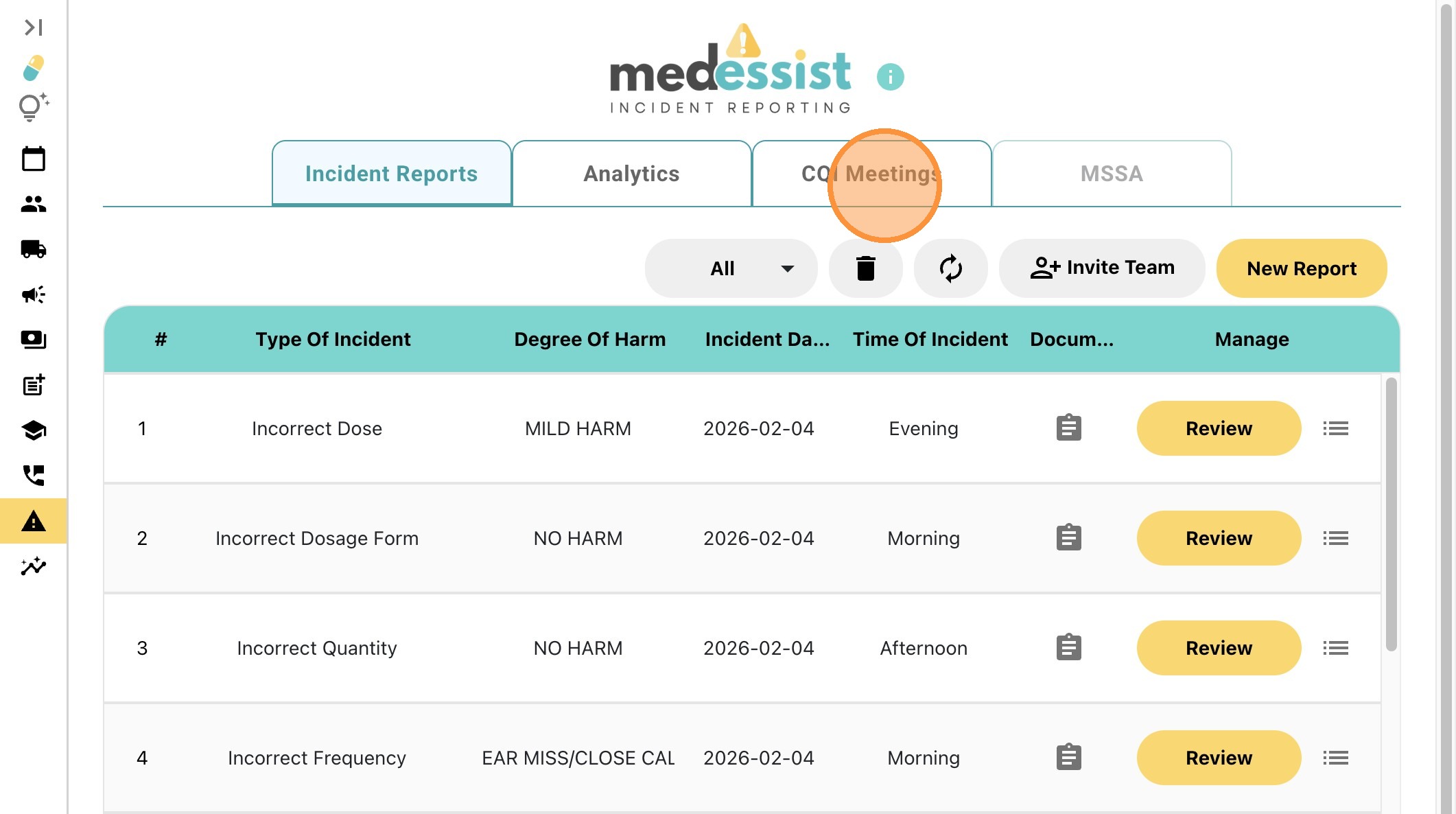
35. Click "CQI Meetings".
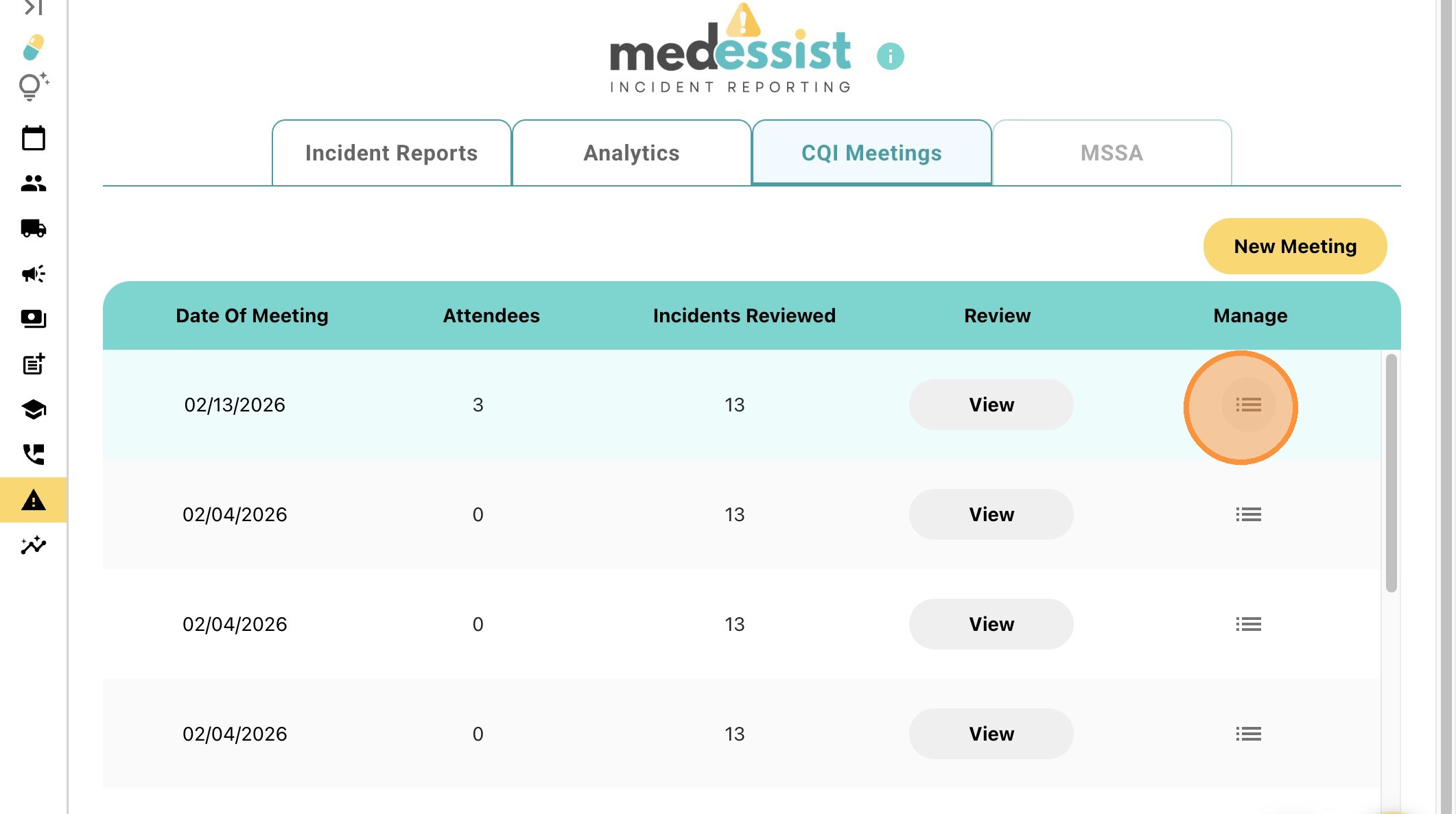
36. Click the three lines icon to manage your CQI meeting.
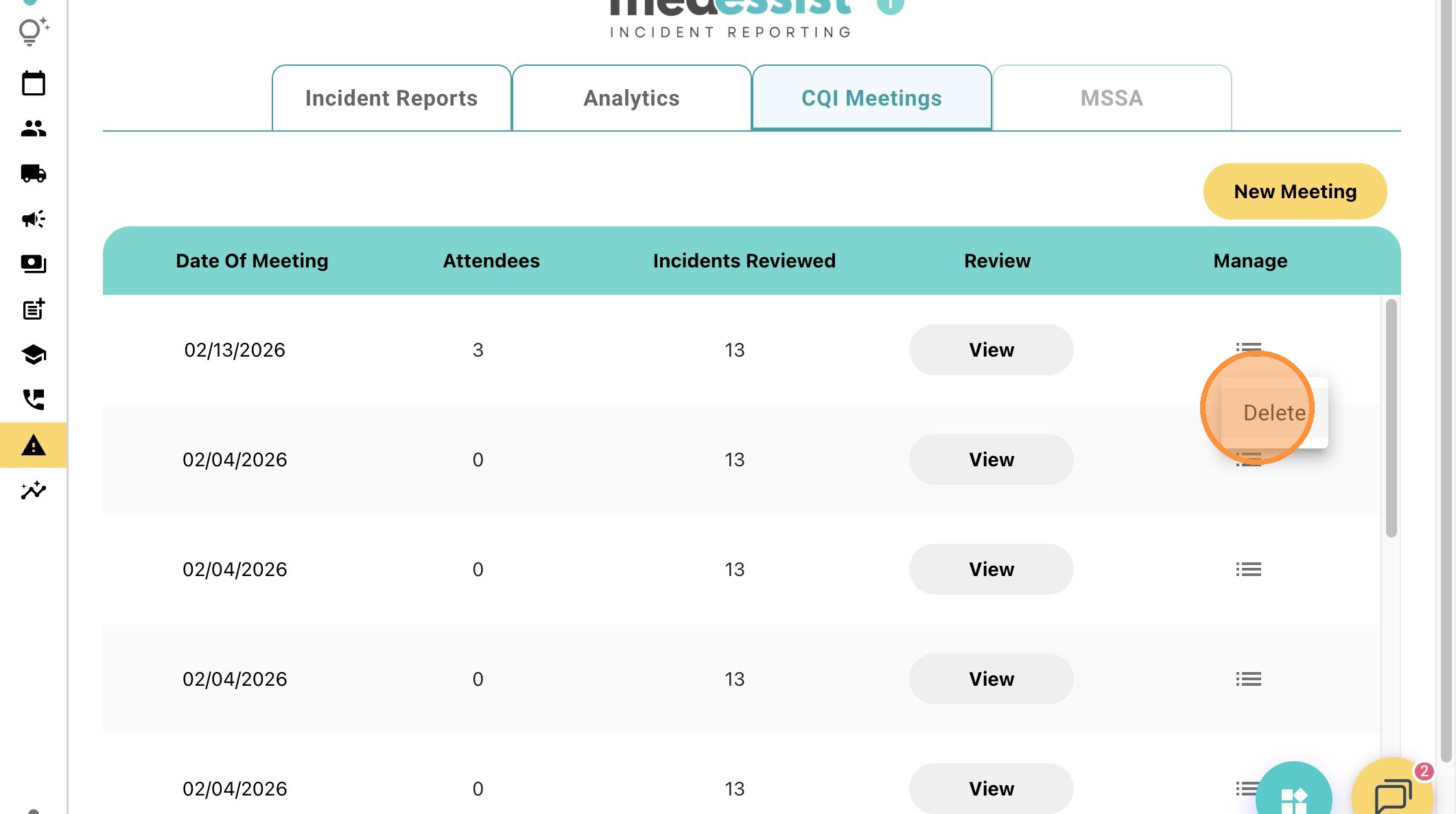
37. Click "Delete".
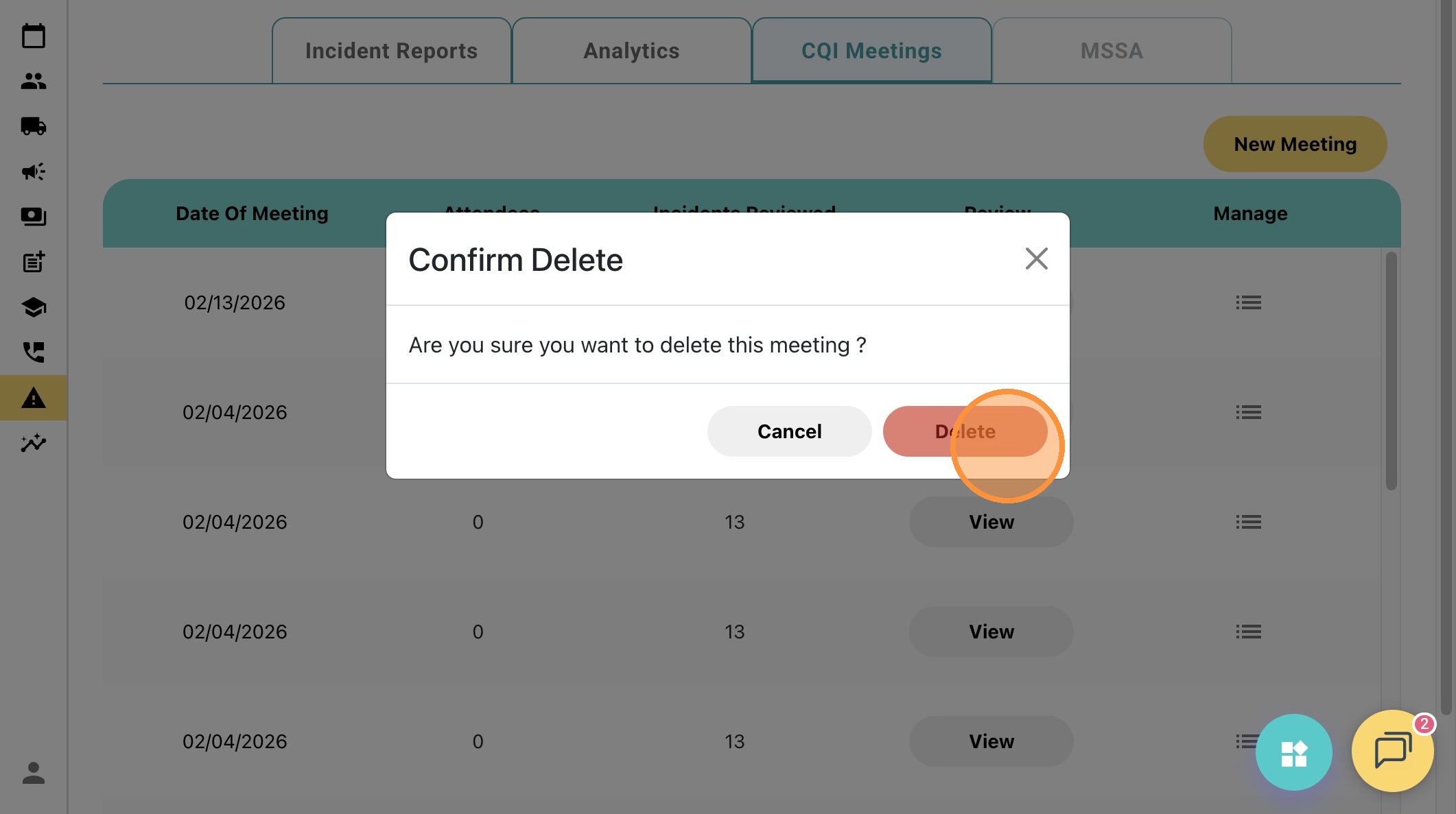
38. Confirm that you want to delete this CQI meeting, then click "Delete"
39. This CQI meeting has now been deleted.