
Available only on MedEssist Professional plan.
Turning on Dynamic Booking
1. Navigate to https://app.medessist.com/home
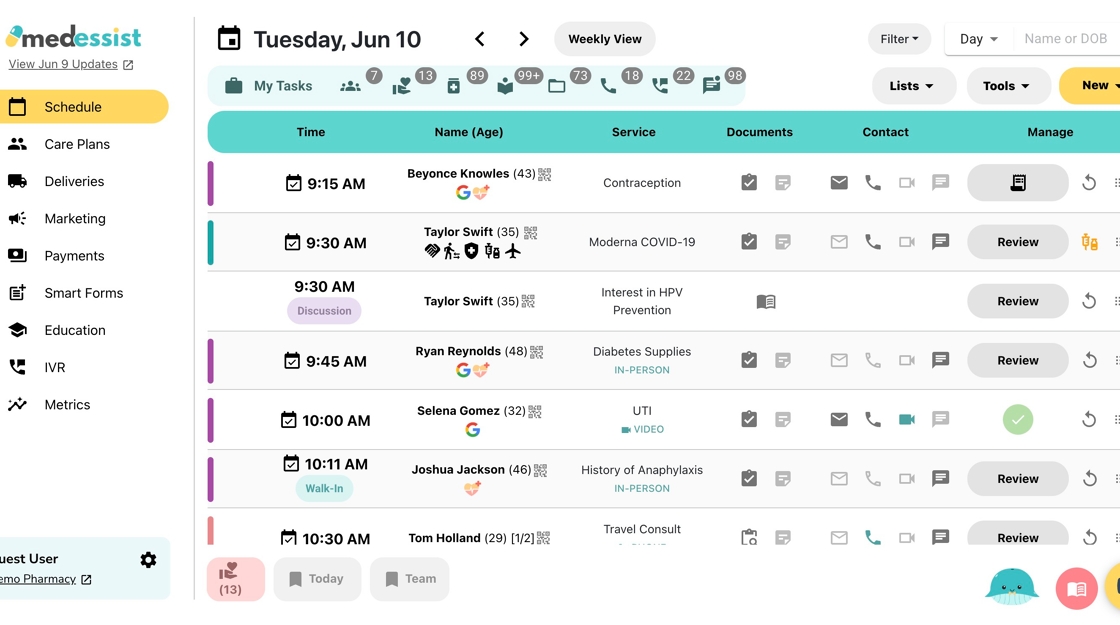
2. Click the 'Gear' icon, then click "Settings"

3. Click "Vaccines & Tests"

4. Toggle on "Dynamic Inventory-Based Booking"

5. Click "Open" to view and edit inventory

6. Adjust inventory to match your pharmacy stock

7. Reserve doses to keep on hand for walk-ins

8. Click "Save" when finished

Tip: Now, when patients register for a vaccine, MedEssist will check your inventory and either allow patients to book a time immediately (if stock available) or place them on a waitlist.
9. If you already have an existing waitlist, you can click "Save & Send Links" to automatically send out booking links now (see details below).

Sending Booking Links
10. Once you are ready to send booking links, navigate to "Lists" and select "Vaccines List" from the drop-down menu
11. Click "Select"
Then select "Select Based on Inventory" from the drop-down menu

12. MedEssist will show you the selected patients based on your inventory. Press "X" to close

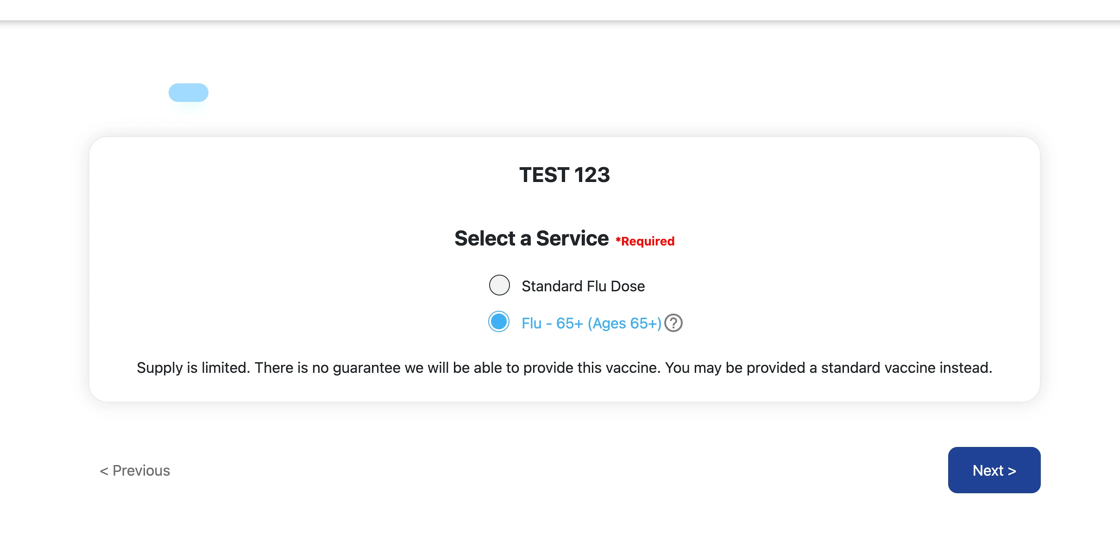
Tip: Tip! Our smart intake forms detect if a patient is over 65 (based on their date of birth) and will automatically ask for flu vaccine preference (regular or high dose)

13. Click "Actions"
Then select "Send Booking Links" from the drop-down menu
14. Enter a booking start date in the "MM/DD/YYYY" field (optional) and press "Continue" to send booking links

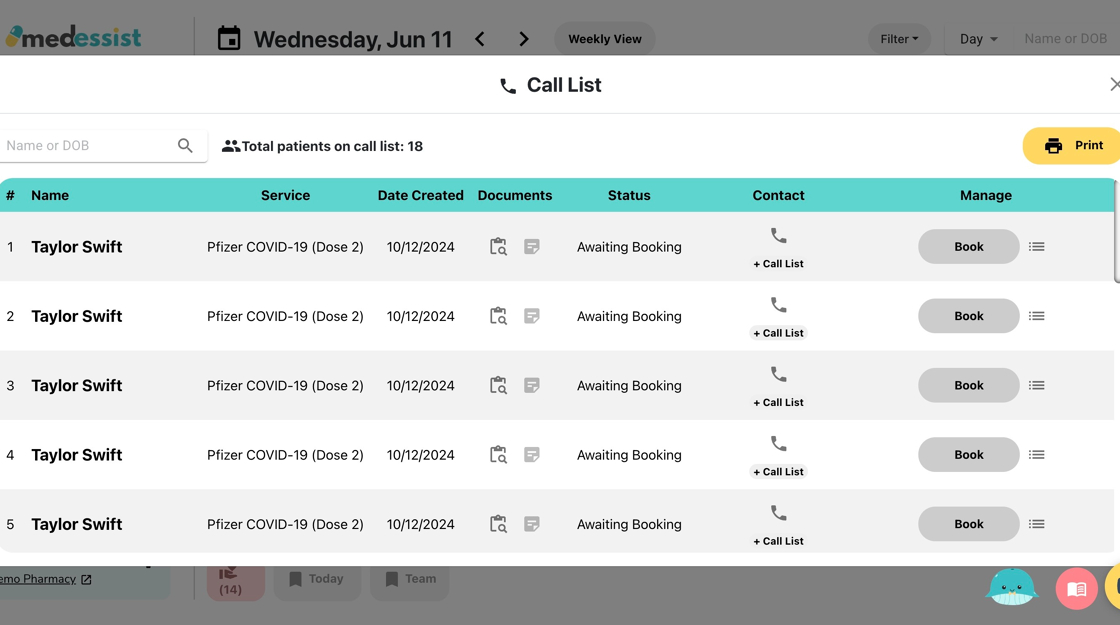
15. Patients that registered with a landline or did not consent to text or email notification will be added to the "Call list". Click the 'phone' icon from your main dashboard to access

16. View the "Call List" here to manually call and book these patients
Alternatively: Update Inventory & Send Booking Links From Within Your Waitlist

17. From the 'Schedule' tab, click "Lists"
Then click "Vaccines List" from the drop-down menu
18. Click "Remaining doses" in the top-right corner

19. Edit inventory

20. Click "Save & Send Links"

21. If you have patients currently on the waitlist, MedEssist will automatically select patients from the top and send booking links based on the inventory you entered
