---
title: Linking your Pharmacy to the Incident Reporting Dashboard
description: Please follow this guide to successfully link and invite your pharmacy to the MedEssist Hub so you may begin submitting Incident Reports.
---
[Skip to content](https://help.medessist.com/linking-your-pharmacy-to-the-incident-reporting-dashboard#main-content)
[](https://help.medessist.com?hsLang=en)
Open main navigation
Close main navigation
- [Launch MedEssist](https://app.medessist.com/)
[Launch MedEssist](https://app.medessist.com/)
How can we help you?
- There are no suggestions because the search field is empty.
1. [MedEssist Help](https://help.medessist.com/?hsLang=en)
2. [Incident Reporting](https://help.medessist.com/incident-reporting?hsLang=en)
3. [Getting Started](https://help.medessist.com/incident-reporting?hsLang=en#getting-started)
# Linking your Pharmacy to the Incident Reporting Dashboard
## Please follow this guide to successfully link and invite your pharmacy to the MedEssist Hub so you may begin submitting Incident Reports.
1\. Are you seeing the following message on the MedEssist Education Hub when trying to submit an Incident Report?
***"No pharmacy linked to your account. You need to link your account to a MedEssist pharmacy in order to submit an incident report. Please contact your manager to link your account."***
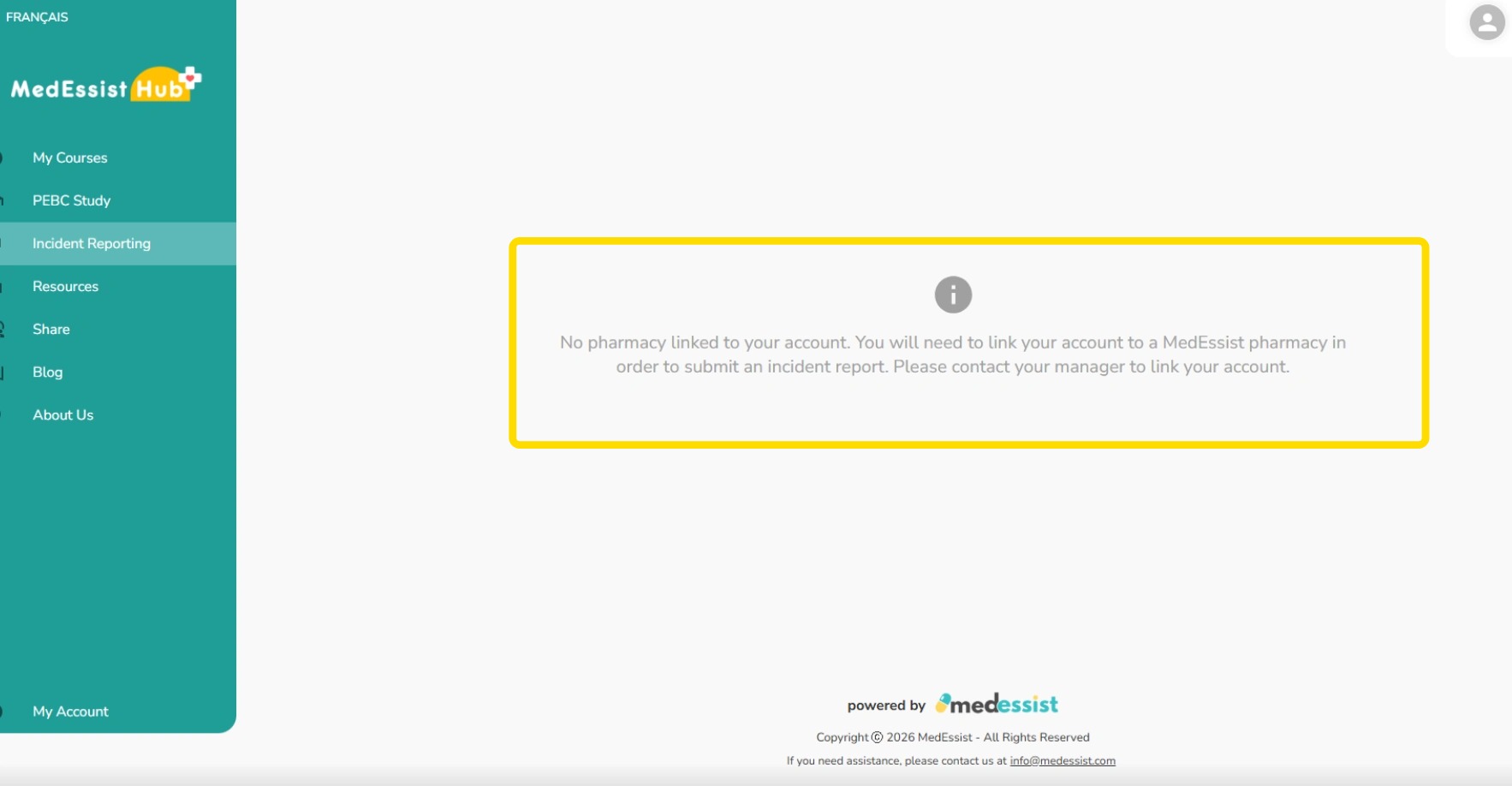
Tip: If you are seeing the message above, you haven't yet invited the email you're currently using to the MedEssist Hub.
Please follow the next steps to invite your account.
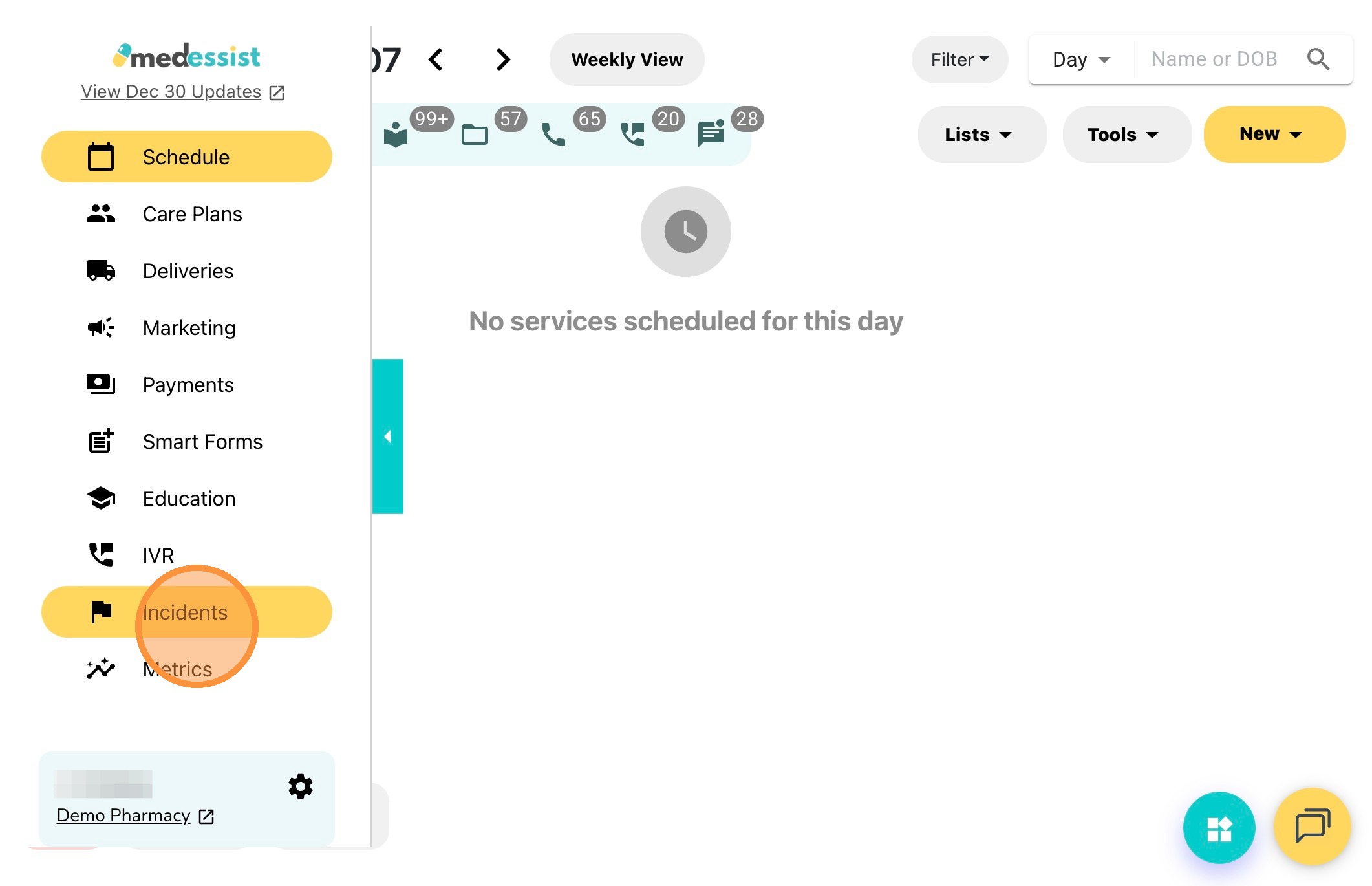
2\. Click **Incidents** in the main MedEssist platform.
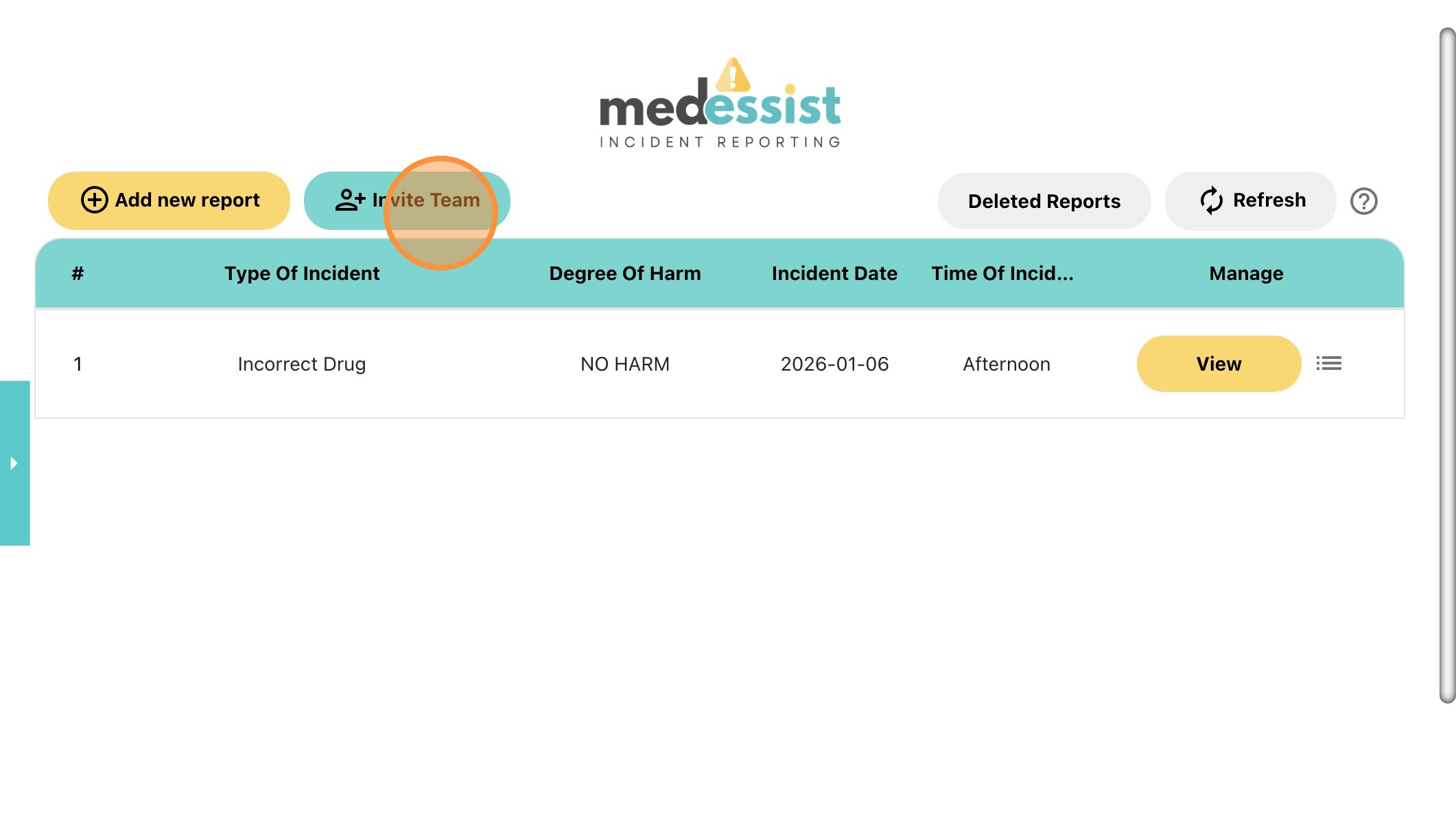
3\. To double-check if your account is linked, click **Invite Team**
4\. Scroll down to **Your Team** until you find yourself!
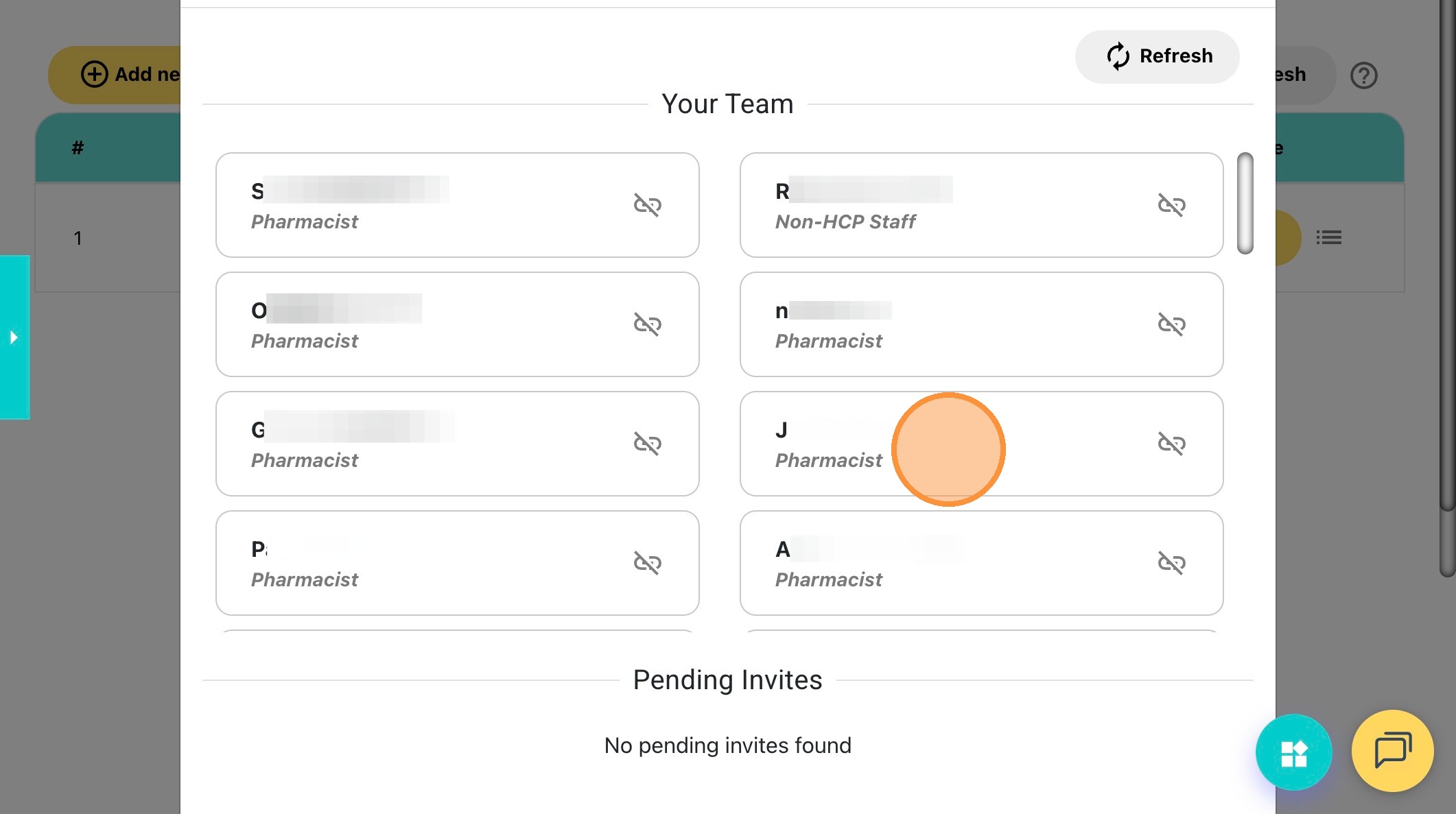
5\. If you don't see your Hub email listed above, scroll down to the search bar and enter your Hub account email.
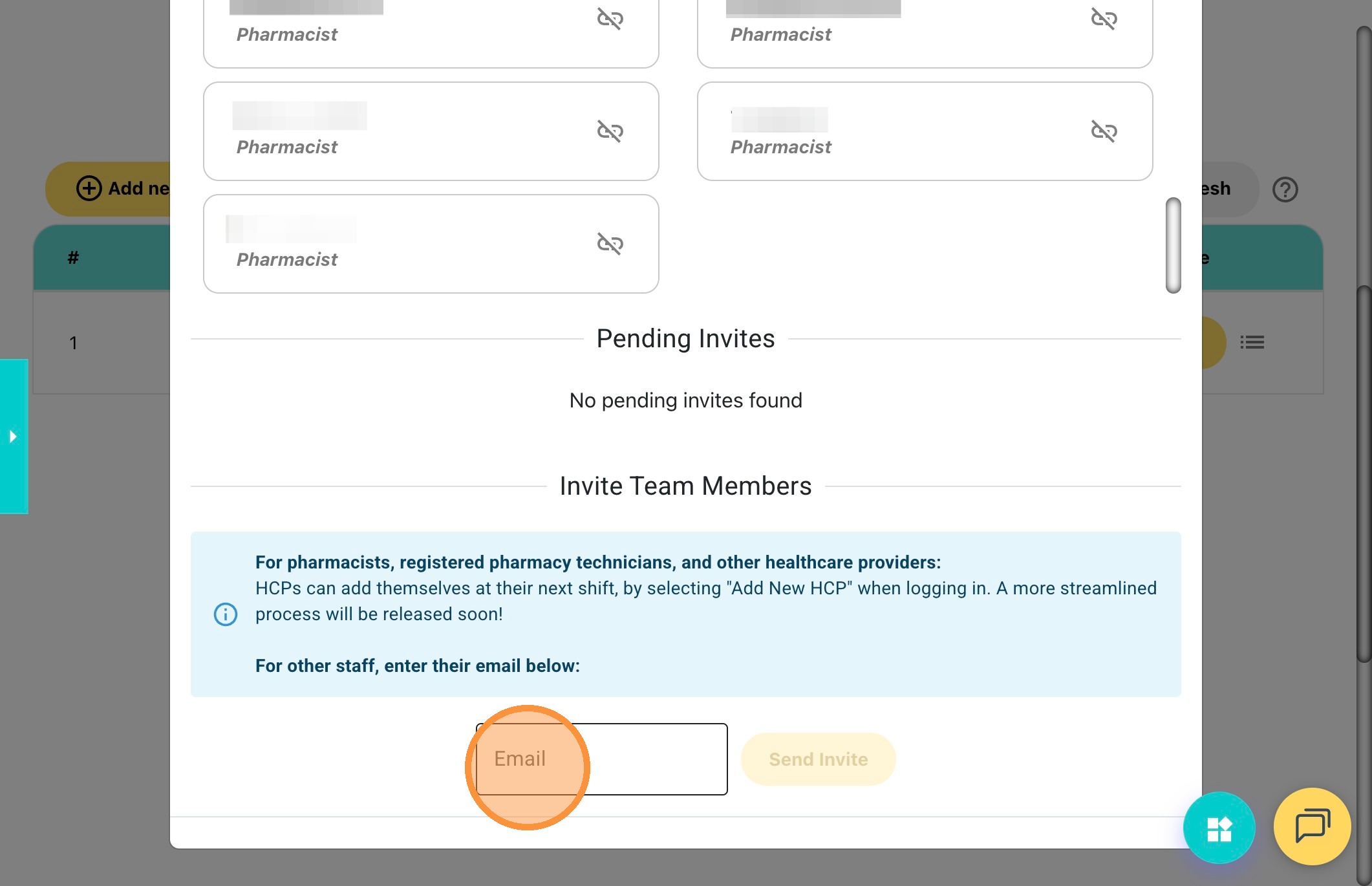
6\. Click **Send Invite**.
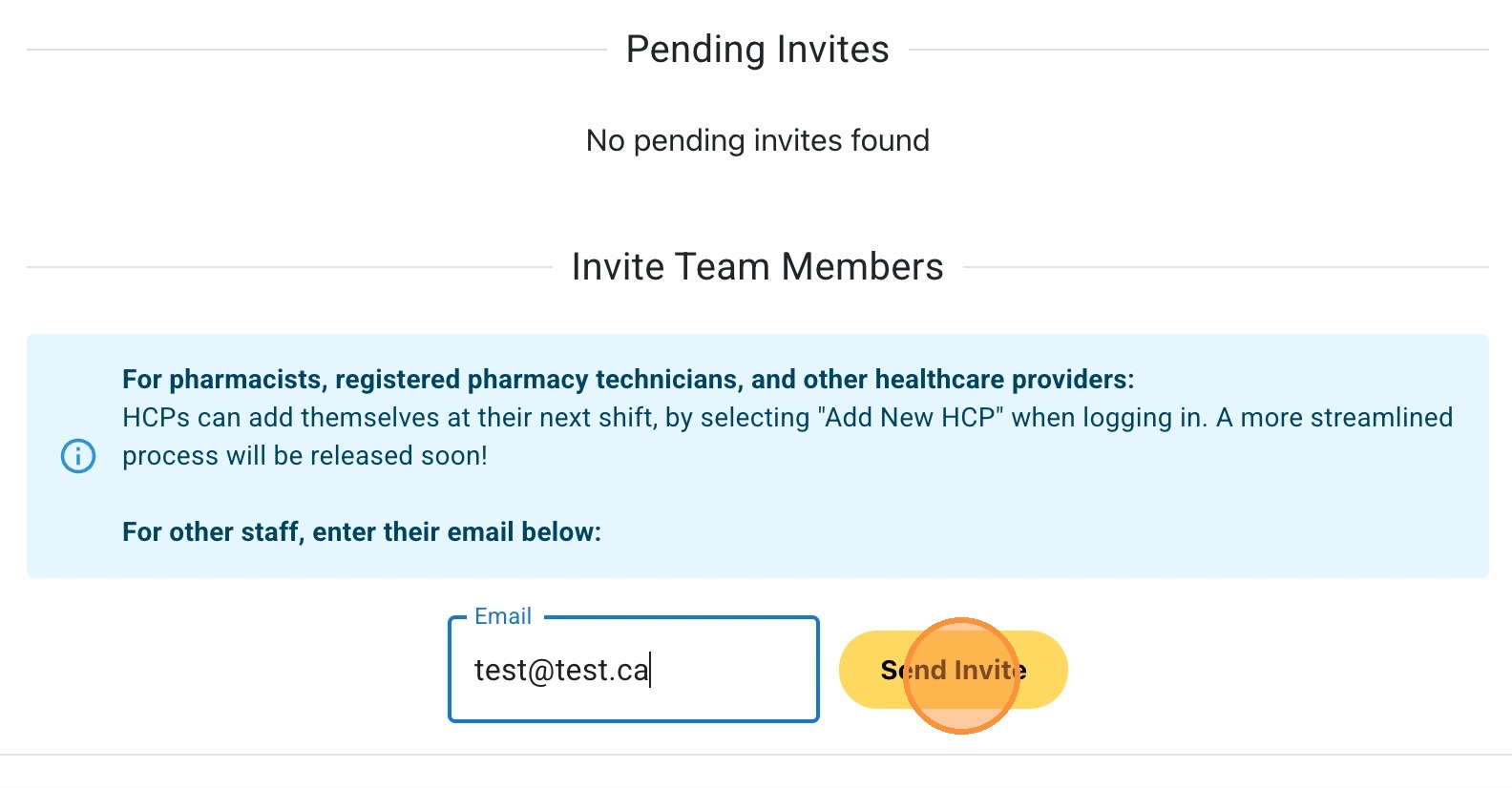
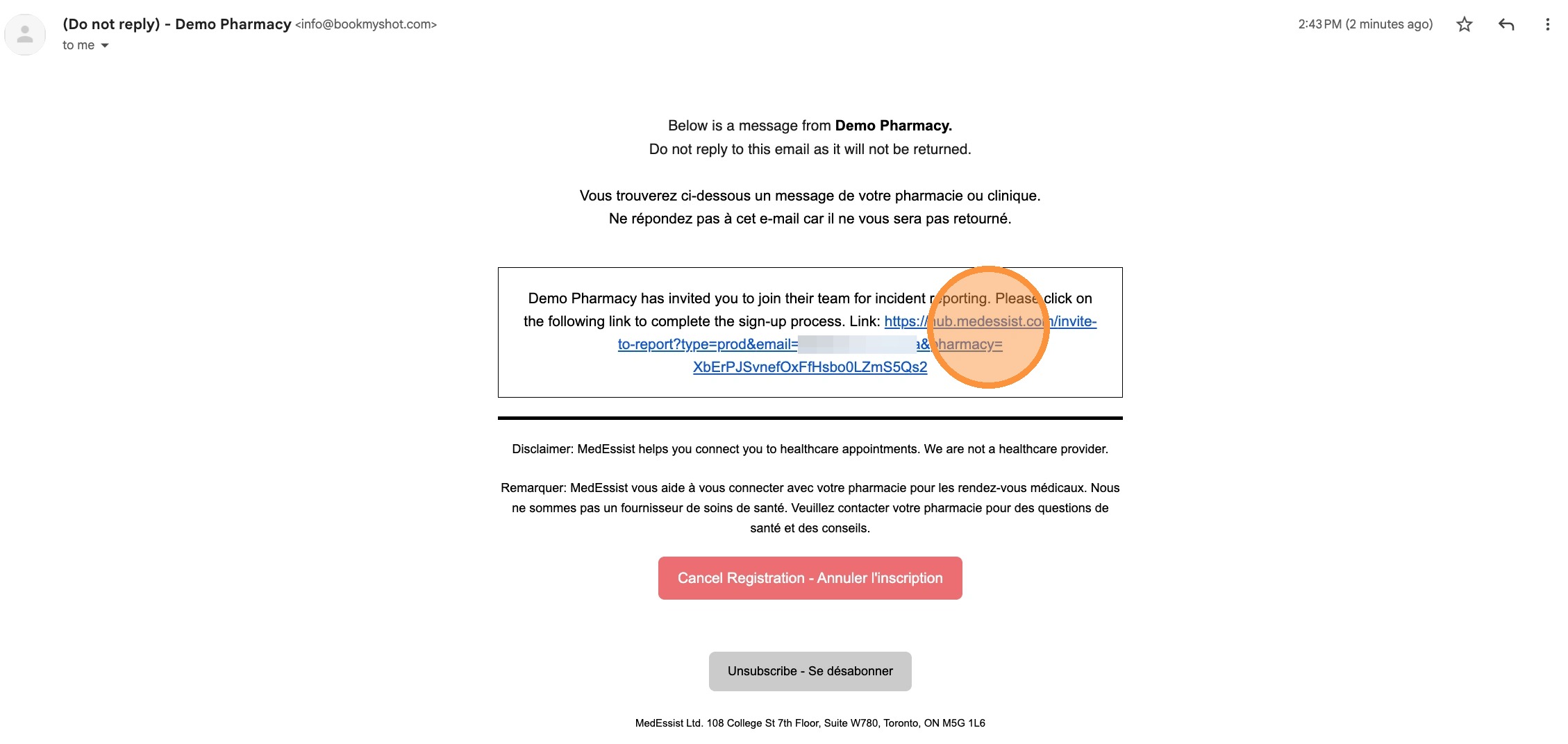
7\. You will receive an email invitation with steps to complete their registration.
Click the link in the email and follow the on-screen instructions to complete registration on MedEssist.
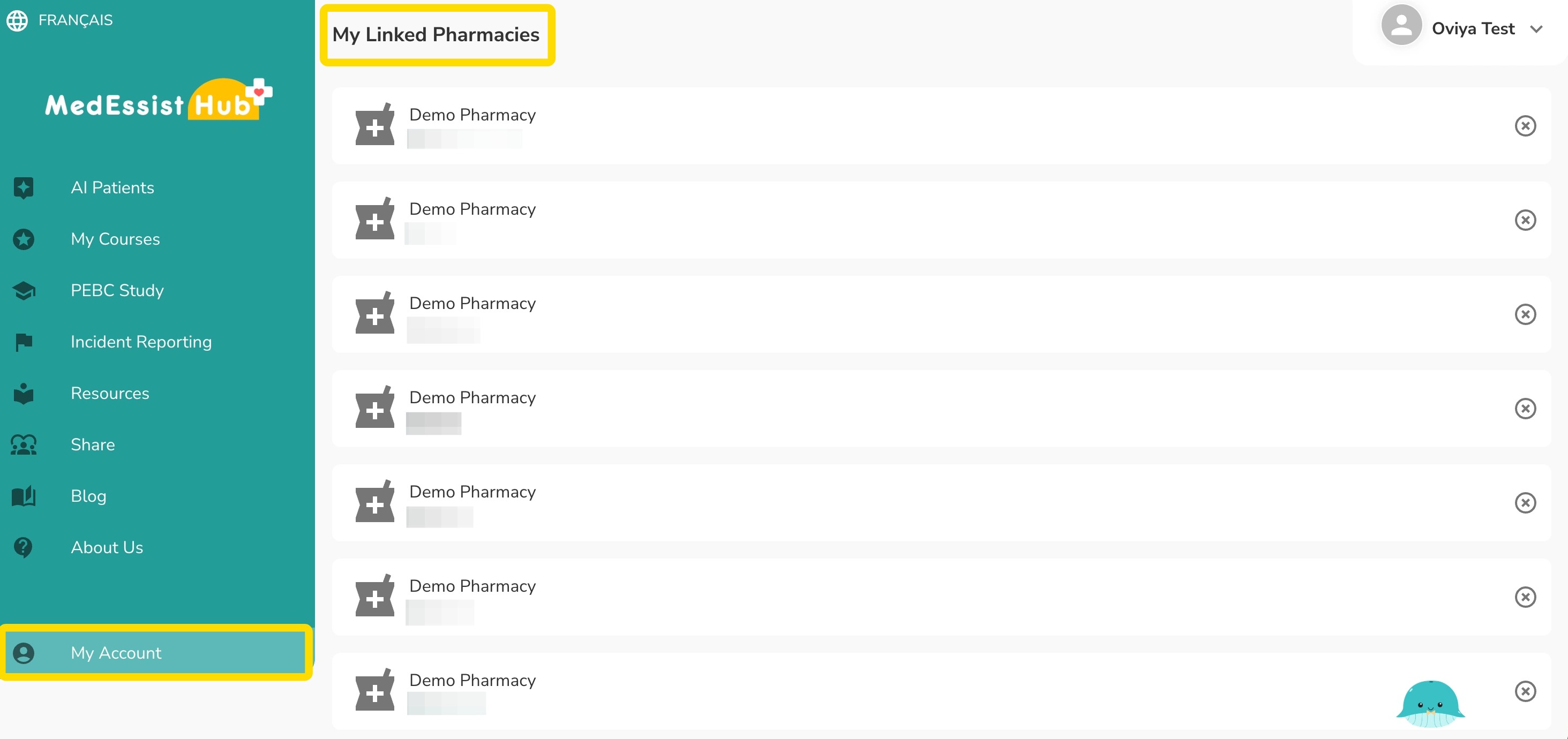
8\. Your pharmacy has been linked successfully!
To confirm, head to the **MedEssist Hub**, click **My Account** located on the left navigation bar. Then, scroll down to **My Linked Pharmacies** to view the pharmacy that invited you to submit Incident Reports.
- [Pharmacy Set-Up Guide](https://help.medessist.com/pharmacy-set-up-guide?hsLang=en)
- [Clinical Tools](https://help.medessist.com/clinical-tools?hsLang=en#main-content)
- [Minor Ailments and Prescribing](https://help.medessist.com/clinical-tools?hsLang=en#minor-ailments-and-prescribing)
- [Vaccines](https://help.medessist.com/clinical-tools?hsLang=en#vaccines)
- [Smart Forms](https://help.medessist.com/clinical-tools?hsLang=en#smart-forms)
- [Consultations and Assessments](https://help.medessist.com/clinical-tools?hsLang=en#consultations-and-assessments)
- [MedEssist Deliveries](https://help.medessist.com/medessist-deliveries?hsLang=en)
- [Incident Reporting](https://help.medessist.com/incident-reporting?hsLang=en#main-content)
- [Getting Started](https://help.medessist.com/incident-reporting?hsLang=en#getting-started)
- [FAQs](https://help.medessist.com/incident-reporting?hsLang=en#faqs)
- [Digital Storefront](https://help.medessist.com/digital-storefront?hsLang=en#main-content)
- [Branding](https://help.medessist.com/digital-storefront?hsLang=en#branding)
- [Adding and Editing Content](https://help.medessist.com/digital-storefront?hsLang=en#adding-and-editing-content)
- [Schedule & Appointments](https://help.medessist.com/schedule-appointments?hsLang=en#main-content)
- [Custom Services](https://help.medessist.com/schedule-appointments?hsLang=en#custom-services)
- [Communication Tools](https://help.medessist.com/communication-tools?hsLang=en)
- [Pharmacy and Account Settings](https://help.medessist.com/pharmacy-and-account-settings?hsLang=en)
- [Access to Care](https://help.medessist.com/access-to-care?hsLang=en#main-content)
- [FAQs](https://help.medessist.com/access-to-care?hsLang=en#faqs)
- [Marketing Tools](https://help.medessist.com/marketing-tools?hsLang=en)
- [Integrations](https://help.medessist.com/integrations?hsLang=en)
- [Lumi AI](https://help.medessist.com/lumi-ai?hsLang=en)
[](http://www.medessist.com)
[mailto:support@medessist.com](mailto:support@medessist.com)
Copyright © 2025, MedEssist