1. Navigate to https://www.medessist.com/
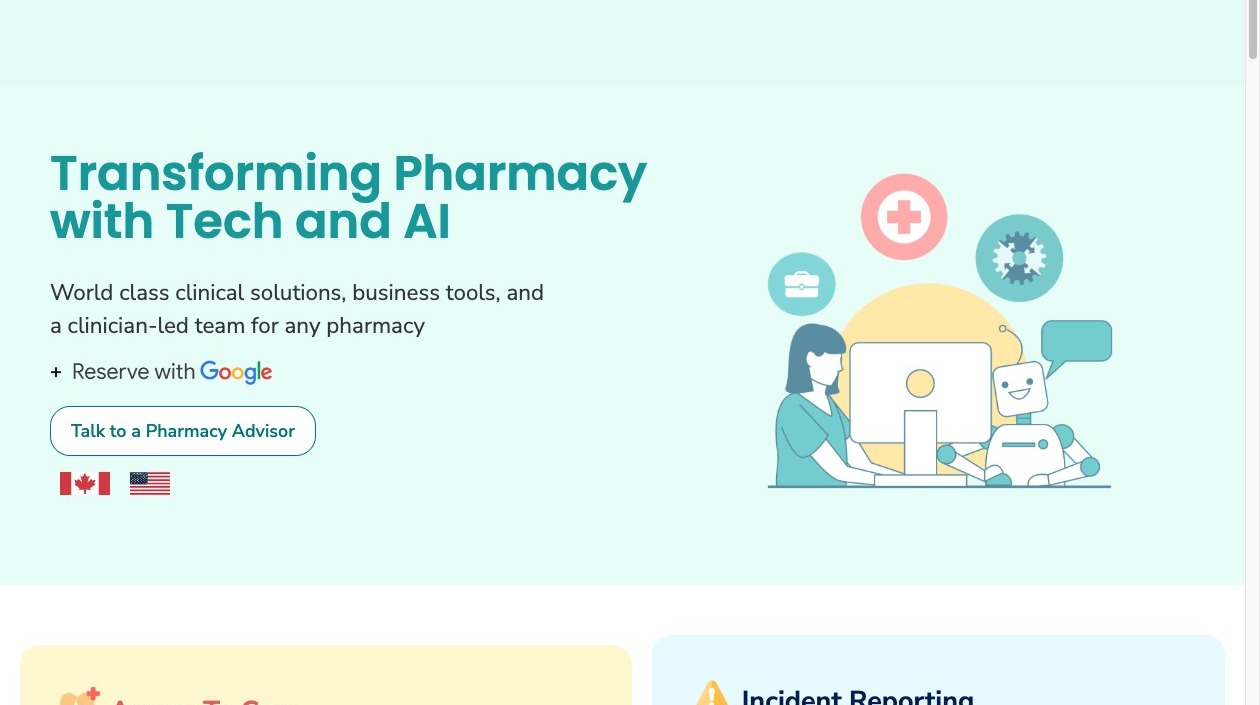
2. Click "LOG IN" on the top right.

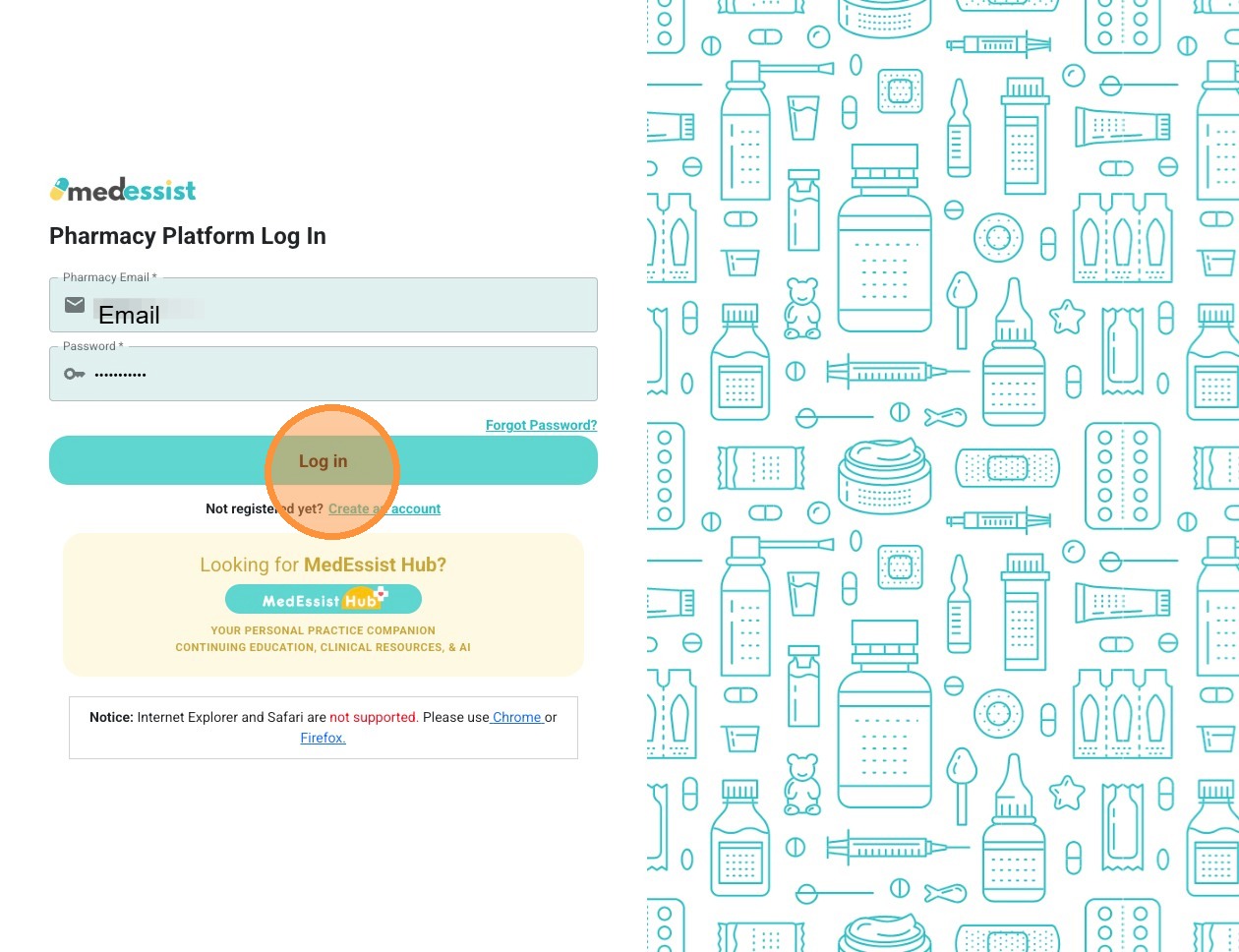
3. Enter your login credentials (pharmacy email & password) then click "Log in".
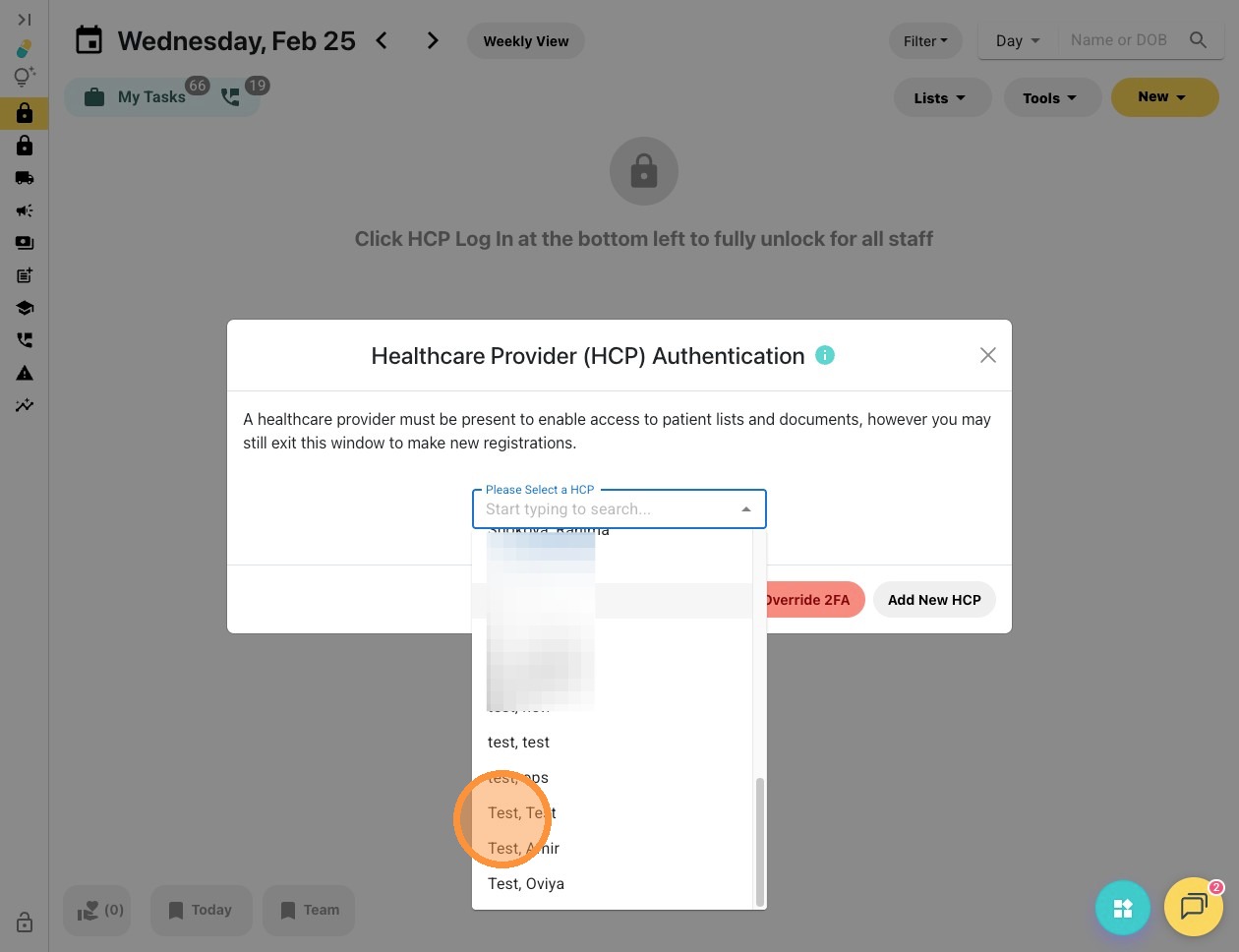
4. Click the "Please Select a HCP" field.
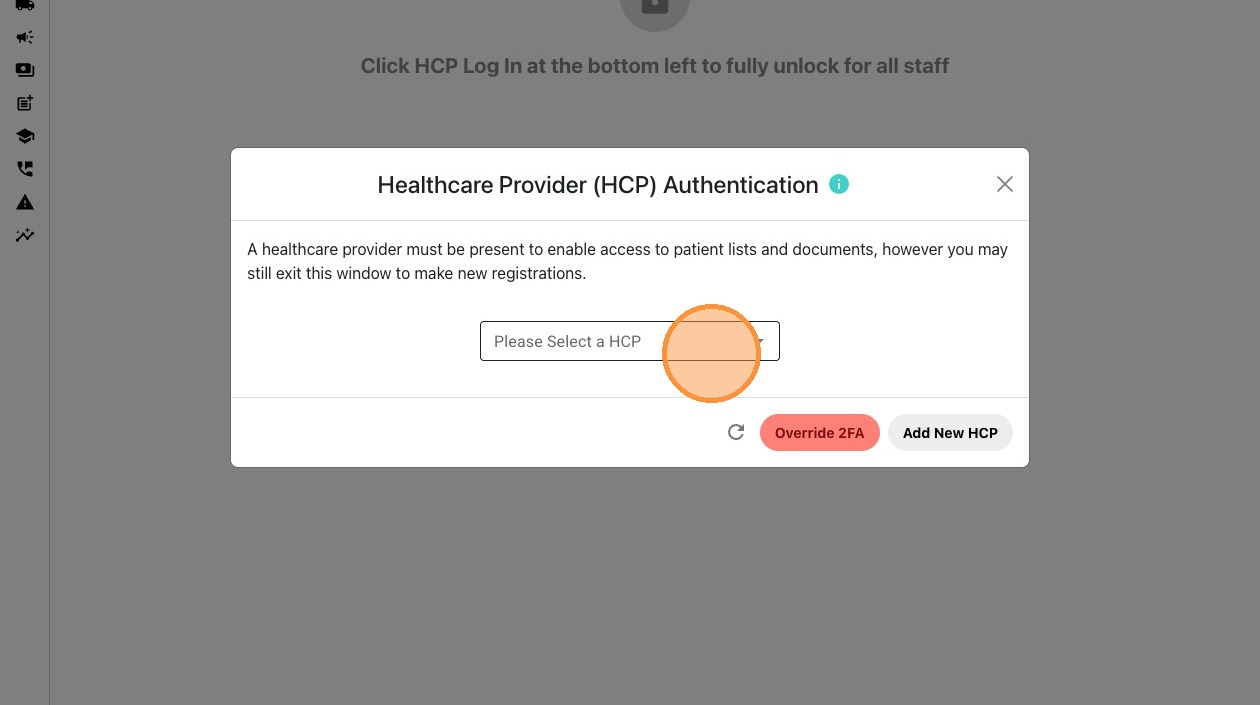
Tip! If you need to create a new healthcare provider (HCP), seeHealthcare Provider (HCP) Authentication for Pharmacists for details.
5. Now, select your name from the drop-down menu to sign in.
6. Enter myPIN and click "Log In."
Tip! If you forget or misplace your myPIN passcode, you can set a new one for future logins. For details, see this guide: Resetting MedEssist Hub Password and myPIN Passcode for HealthCare Provider (HCP) Authentication
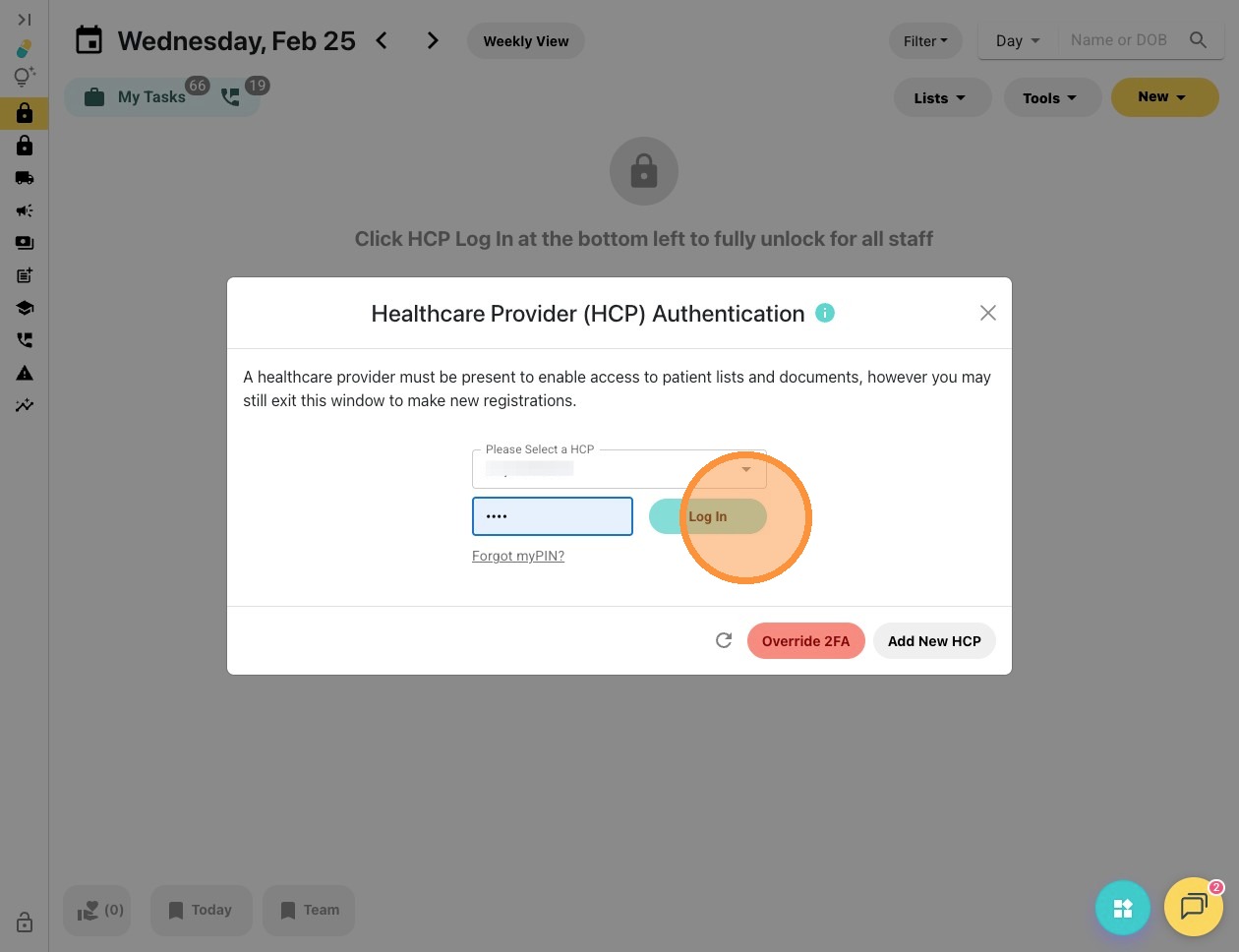
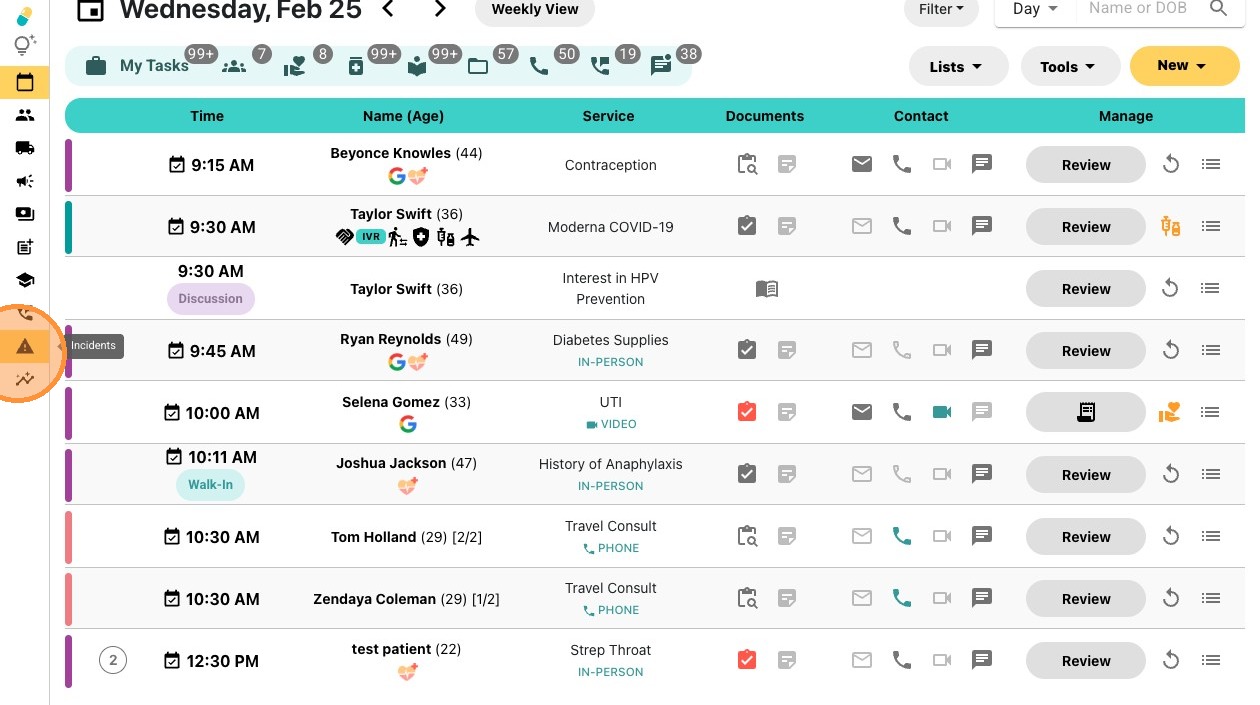
7. On your MedEssist dashboard, click "Incidents" on the left hand side. See the caution icon i.e. a triangle with an exclamation mark to access Incidents.
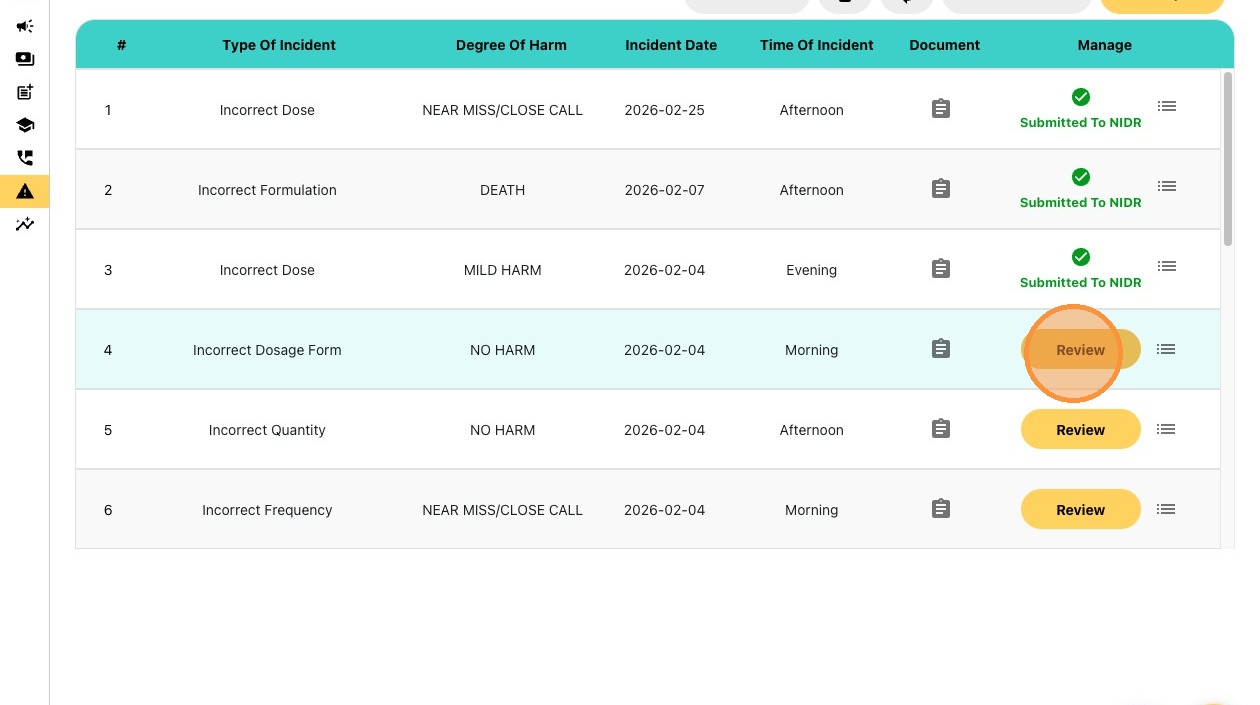
8. Scroll through the incident reports and select the file for submission to the NIDR. Click "Review".
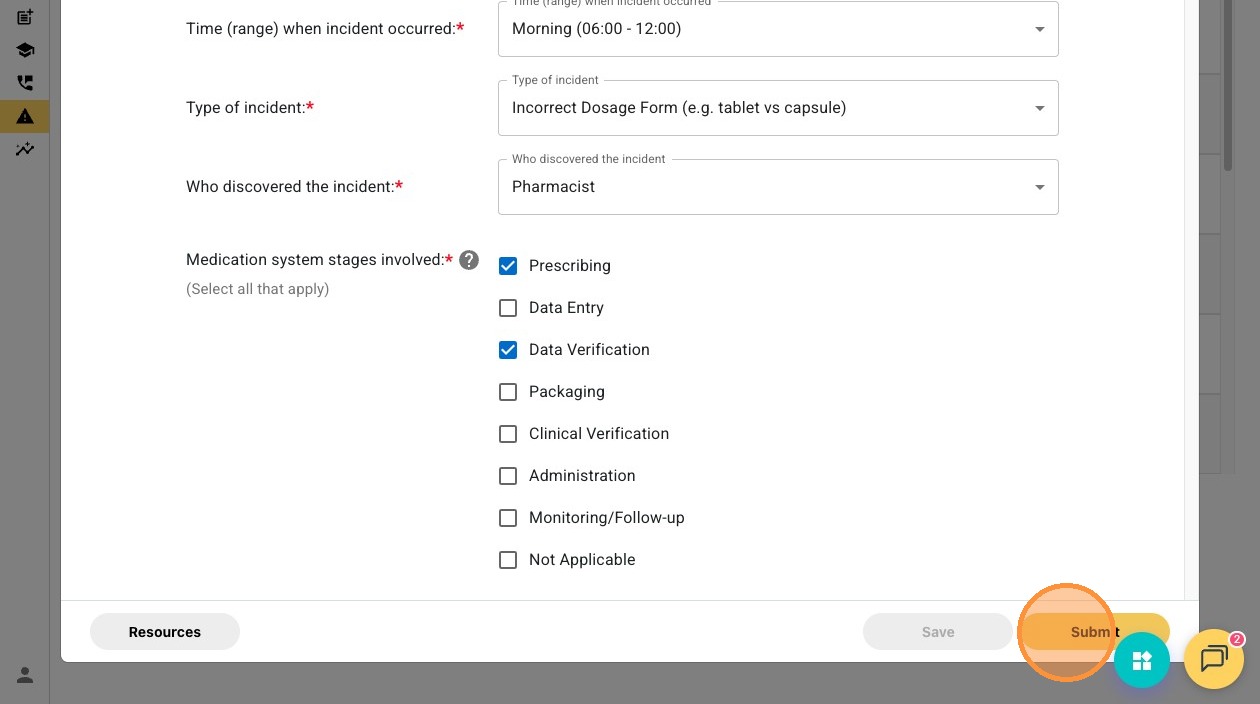
9. Review the draft report and update if necessary. Complete all required fields marked with a red asterisk. Once completed, click "Submit".
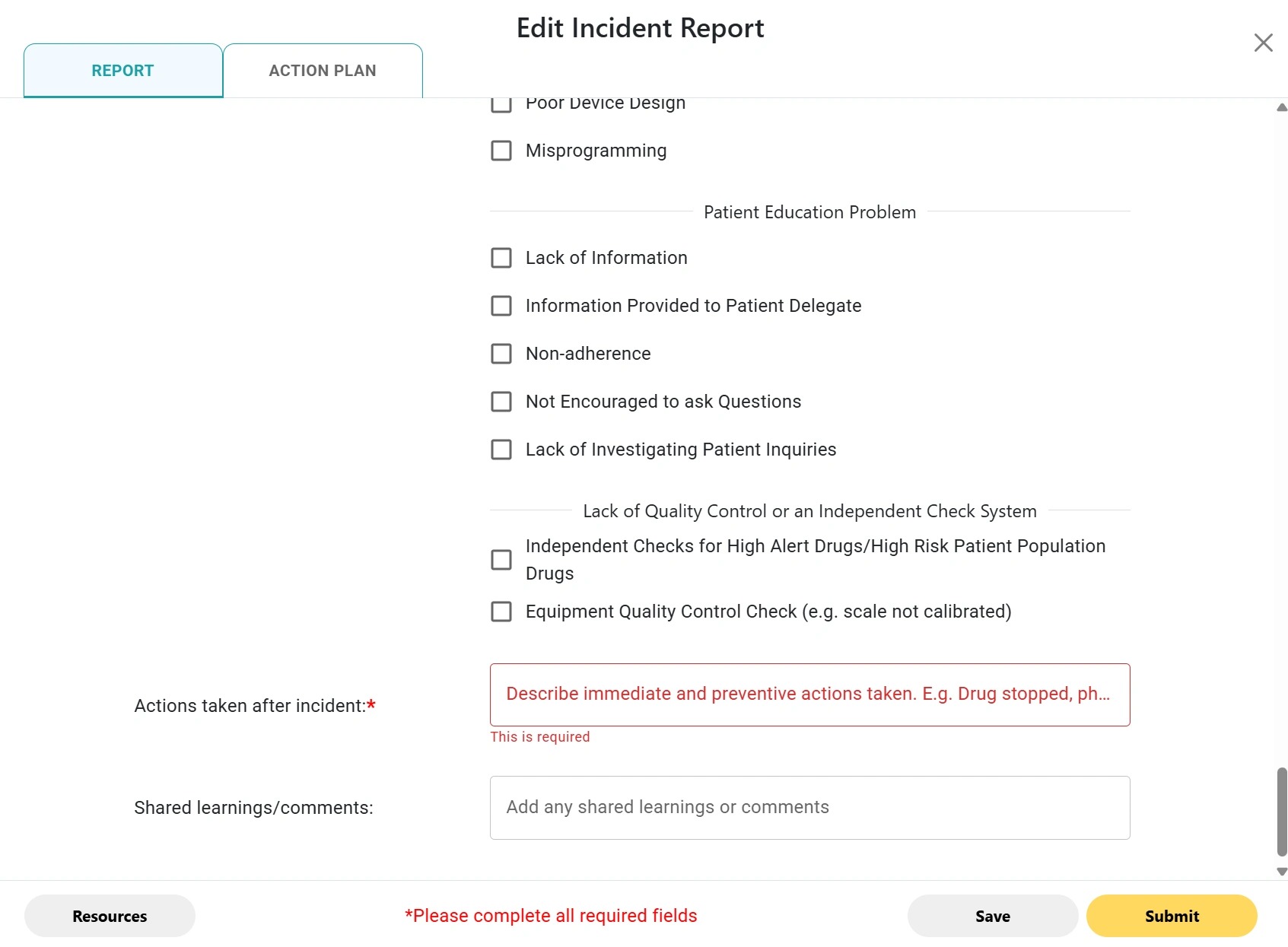
Alert: Note, an error message will appear and prompt you to complete all required fields if necessary. Edit, review, and once completed, click "Submit".
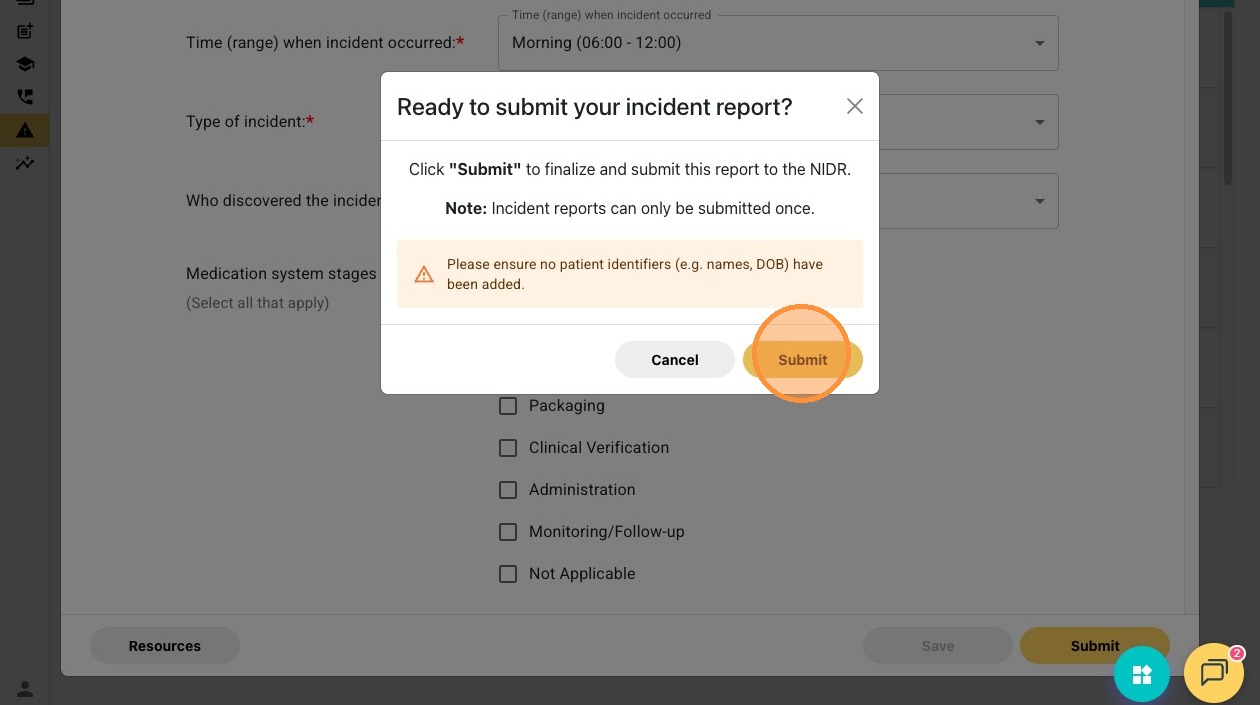
10. Click "Submit" to finalize your report and transmit it to the NIDR. For privacy compliance, ensure that no identifiable patient information is recorded.
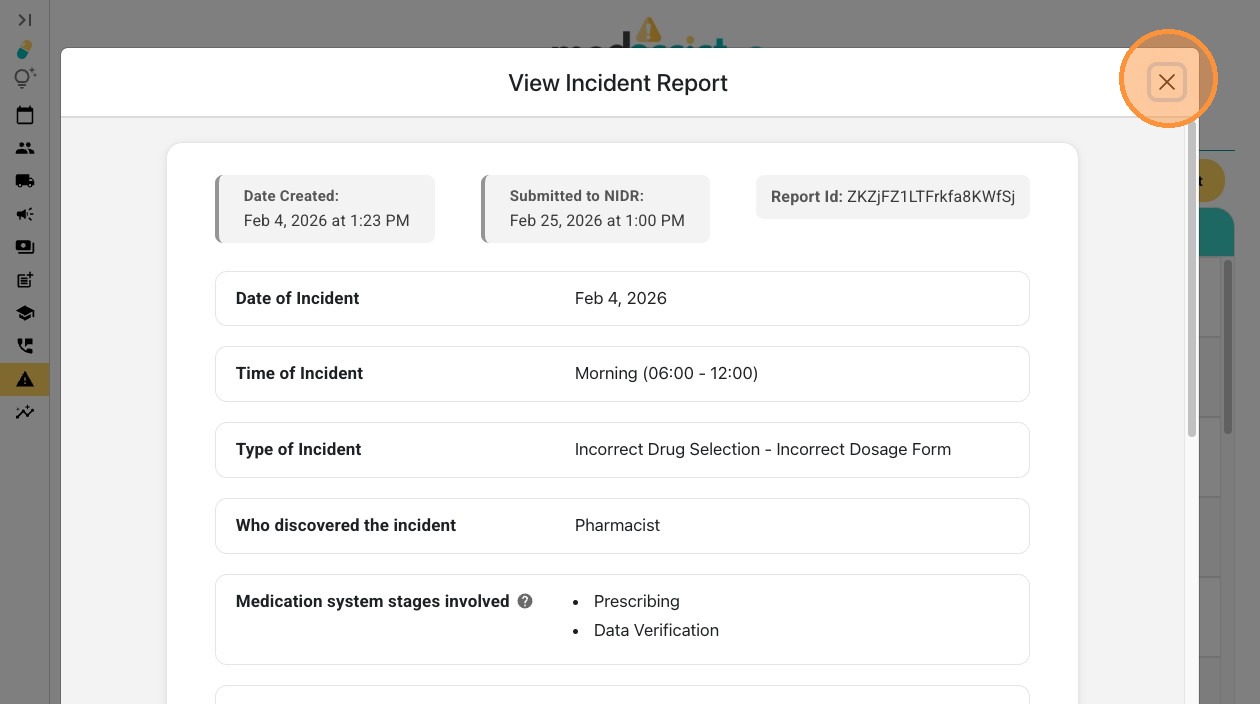
11. Click "View Incident Report" to see your submission. You may also edit the form if needed.
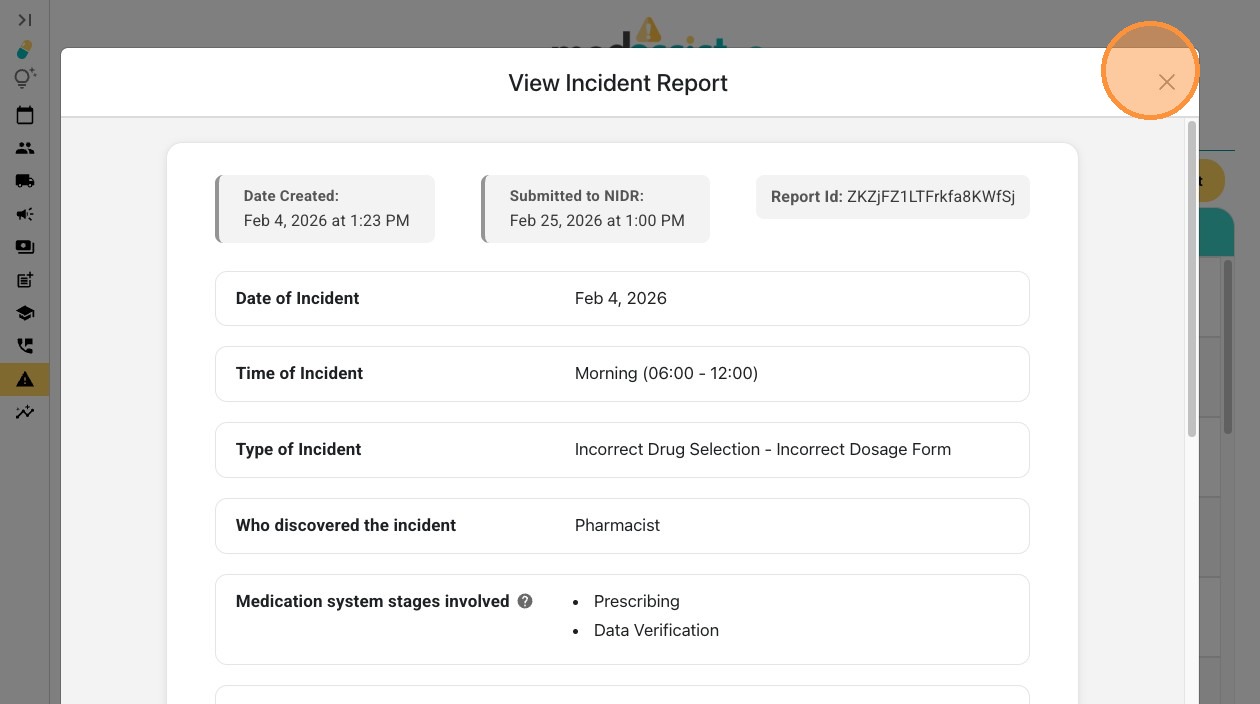
12. Click the X on the top right to exit.